Pick the route that matches the job
There are four built-in ways to move photos from an iPhone to a Mac, and each one handles a different situation. None of them is fastest in every case. The right choice depends on how many photos you have, whether you want the Mac to stay in sync automatically, and whether you need files you can drag into another app.
Route | What it needs | A practical use |
|---|---|---|
USB cable and the Photos app | A data cable, an unlocked iPhone, a trusted Mac | Large batches you want organized inside one photo library |
iCloud Photos | The same Apple ID on both devices, enough iCloud storage | Automatic syncing with no cable and no manual imports |
AirDrop | Wi-Fi and Bluetooth enabled on both devices | A few photos you want to hand over right now |
Image Capture | A data cable | Getting files straight into a folder you choose |
If you only remember one difference, keep this one: the Photos app pulls pictures into a managed library, while Image Capture writes ordinary files into a destination folder. Everything else follows from that.
Check four things before you plug anything in
- Unlock the iPhone and keep it awake. A Mac cannot read the camera roll while the phone is locked. If the phone locks mid-import, the transfer stalls until you unlock it again.
- Use a cable that carries data. Some cables shipped with chargers only deliver power, and the Mac will never see the phone with one of those connected. If the iPhone charges but never appears on the Mac, try another cable before changing any setting.
- Confirm free space on the Mac. Open the Apple menu, then System Settings, then General, then Storage. A full import needs roughly the size of the photos you selected. If the internal drive is tight, plan to send the files to an external drive with Image Capture instead.
- Decide whether this copy counts as your backup. Importing does not delete anything from the iPhone, but it also does not put a second copy anywhere else. If the Mac will hold the only copy of a batch, copy that folder or library to another drive once the import finishes.
One more decision belongs before the cable, not after: whether you want the photos inside the Photos library or as plain files in Finder. Importing the same batch both ways is the most common reason people end up with duplicates.
Move photos with a USB cable and the Photos app
This is the route most people mean when they ask how to transfer photos from an iPhone to a Mac. It keeps everything in one library with albums, faces, places, and edits.
- Connect the iPhone to the Mac with the cable. If a prompt appears on the phone, tap Trust, then enter the passcode.
- Open Photos.
- In the sidebar, find your iPhone under Devices and click it. If the sidebar is hidden, choose View, then Show Sidebar.
- Choose the photos you want. Command-click adds single items, Shift-click selects a range, and leaving everything unselected lets the import take the new items.
- Click Import All New Photos to bring over everything the library does not already contain, or Import Selected when you picked specific photos.
- Watch the progress indicator at the top of the window. When it stops, the new items appear among the most recent photos in the library.
- Eject the phone in the Finder sidebar before you unplug the cable.
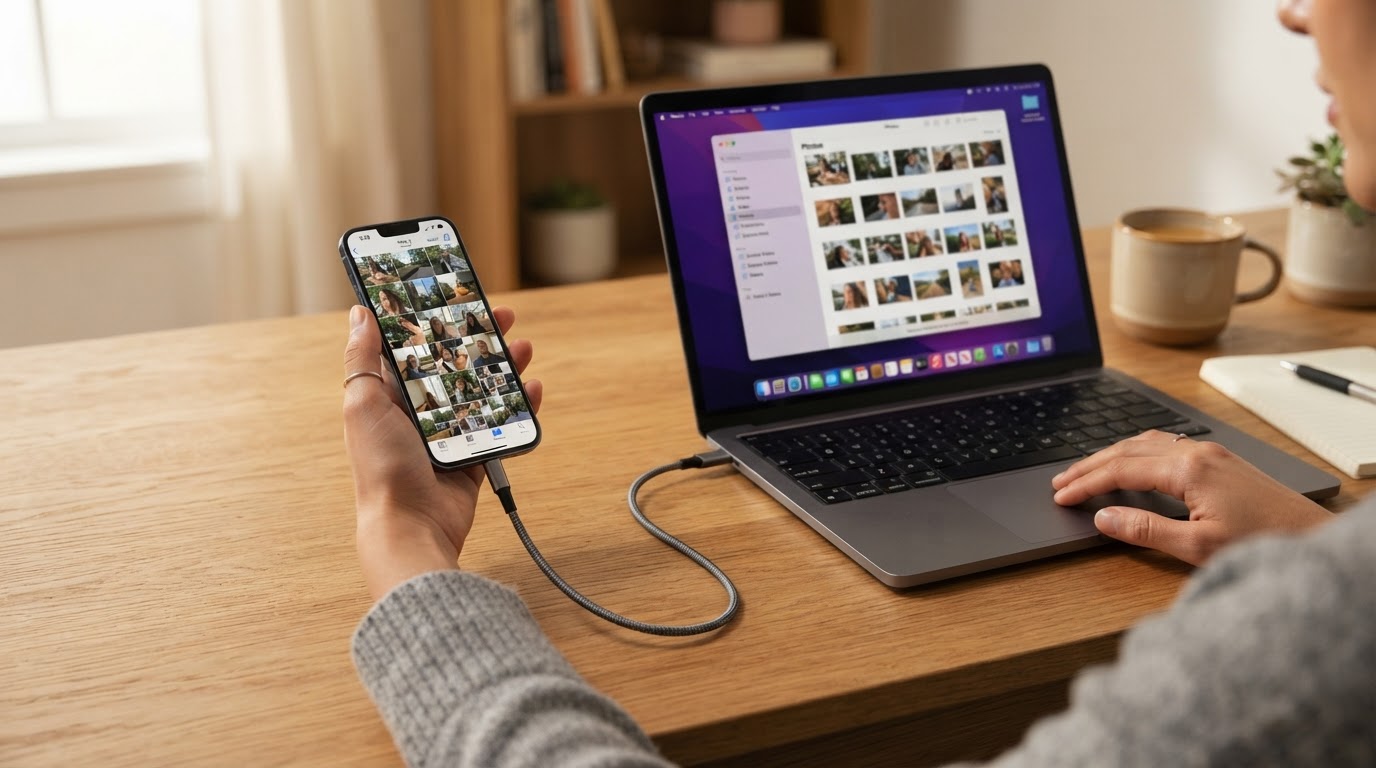
Your checkpoint is simple: the import is finished when the counter stops and the thumbnails are visible in the library. Open two or three of them at full size. If a photo looks blurry or refuses to open, it was probably still downloading from iCloud when the cable was pulled, so reconnect and let the import settle.
Copy photos into a folder with Image Capture
Use this route when the destination matters more than the library: an external drive, a project folder, or a shared archive that other apps can read.
- Connect the iPhone with the cable, unlock it, and tap Trust plus enter the passcode if the phone asks.
- Open Image Capture from the Applications folder, or press Command-Space, type Image Capture, and press Return.
- Select the iPhone in the Devices list on the left.
- At the bottom of the window, open the Import To menu and choose the destination folder. If the folder you want is not listed, choose Other and create it in the dialog.
- Select the photos. Command-click picks individual items and Command-A selects the whole camera roll.
- Click Download or Download All. Depending on the macOS version, the same buttons may be labelled Import and Import All.
- Wait for the progress bar to finish before you eject the phone.
The copies go to the folder you chose, not into the Photos library. That also means Image Capture never creates albums, keeps no edit history, and does not deduplicate against anything already in Photos. In exchange, you get files with their original camera names that you can rename, sort, and back up like any other folder.
Where the imported photos actually land
The destination depends entirely on the route you used, which is why "I imported them, but where are they?" is such a common question.
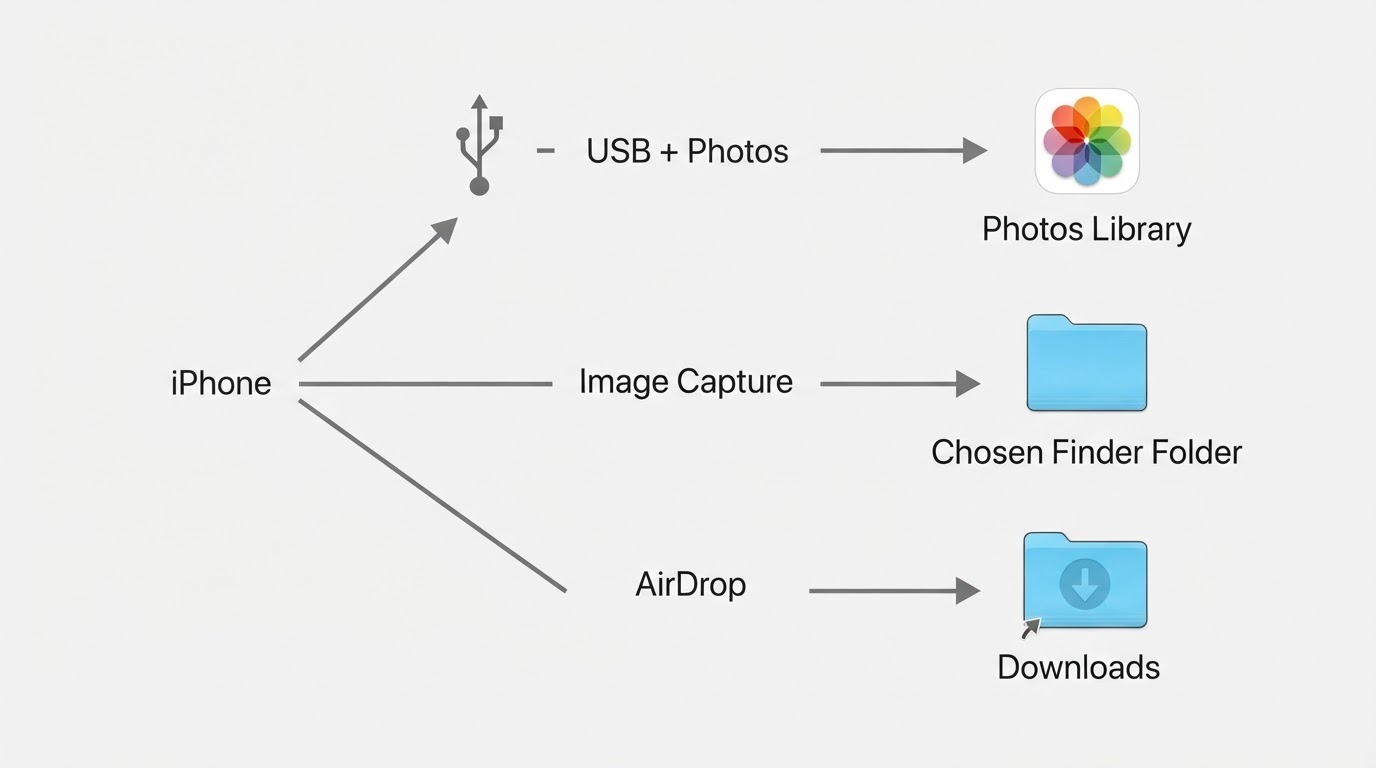
Route | Where the copy lives | How to open it |
|---|---|---|
Photos app | Inside the library package at Pictures/Photos Library.photoslibrary | Open the Photos app |
Image Capture | The exact folder chosen in the Import To menu | Open that folder in Finder |
AirDrop | The Downloads folder | Open Downloads in Finder |
iCloud Photos | The Photos library, after the original downloads | Open the Photos app |
A Photos library looks like a single file in Finder, because macOS treats it as a package. Double-clicking it opens Photos, and that is the intended way in. You can right-click it and choose Show Package Contents, but moving, renaming, or deleting items inside can corrupt the library and make photos disappear from the app. Treat that folder as read-only unless you are troubleshooting with a backup in hand.
Files that arrived through Image Capture keep their camera filenames, such as IMG_4821.HEIC. A Live Photo imported this way usually arrives as a still image plus a short .MOV clip, so expect two files where the phone showed one item. To find them later, sort the folder by Date Added, or search for the IMG_ prefix and the month you shot them.
Inside the Photos library, search by date, place, or what is in the picture, then open the info panel with Command-I to see the filename and capture time. In Finder, a search for kind:image combined with a date range narrows a large folder quickly.
When something goes wrong
Duplicates after a second import
If the same photo appears twice, it usually came in through two different routes, or the library was rebuilt and re-imported. Newer versions of Photos include a Duplicates album under Utilities in the sidebar, which merges exact matches while keeping the higher-quality copy. For near-duplicates that tool ignores, sort by capture date and delete the copy you do not want. Import All New Photos already skips items the library recognizes, so the safer habit is to pick one route per batch and stay with it.
HEIC files and Live Photos
iPhones save photos as HEIC by default, and macOS reads that format without any extra software, so the file is not broken just because another app refuses it. To hand a JPEG to someone, select the photo in Photos and choose File, then Export, then Export Photo, and pick JPEG in the dialog. Export Unmodified Original keeps the HEIC file and, for a Live Photo, the paired video. Image Capture copies whatever the phone stores, so plan on converting after the transfer if the destination needs JPEG.
Running low on space mid-import
The Mac stops importing when the startup disk fills, and a half-finished batch is easy to mistake for a complete one. Free space first, or import in smaller groups. If the photos are already in iCloud and the Mac is set to Optimize Mac Storage, full-resolution originals may not be on the disk at all until you download them, which is another reason an export can seem to hang on a full drive.
The iPhone does not appear in Photos or Image Capture
Work through the cheap causes in order: unlock the phone, replace the cable, try a different port, and restart both devices. If the Trust prompt never appears, go to Settings, then General, then Transfer or Reset iPhone, then Reset, then Reset Location & Privacy, and reconnect. A phone that mounts in Finder but not in Photos usually needs that reset rather than a new cable.
A short checklist before you disconnect
- The photo count on the Mac matches roughly what you selected.
- Two or three photos open at full size without errors.
- You know whether the copies are in the library or in a folder, and you can point to that location.
- Anything irreplaceable exists in a second place, not only on the iPhone or only on the Mac.
Once those four lines are true, eject the phone from the Finder sidebar, unplug the cable, and the transfer is genuinely done rather than merely finished on screen.