Apple silicon changed the answer, not just the installer
Most VirtualBox guides you will find were written between 2012 and 2022, when "Mac" meant Intel. They still work on an Intel MacBook. On an M-series machine they are misleading in three places: the host package, the guest list, and the failure messages.
Oracle's 7.x line ships a separate macOS host build for Apple silicon. VirtualBox 7.1 introduced it and 7.2 continues it; the exact minimum macOS version has moved between releases, so confirm the current requirement on Oracle's download page rather than trusting a version number in a blog post. Two consequences follow from that split:
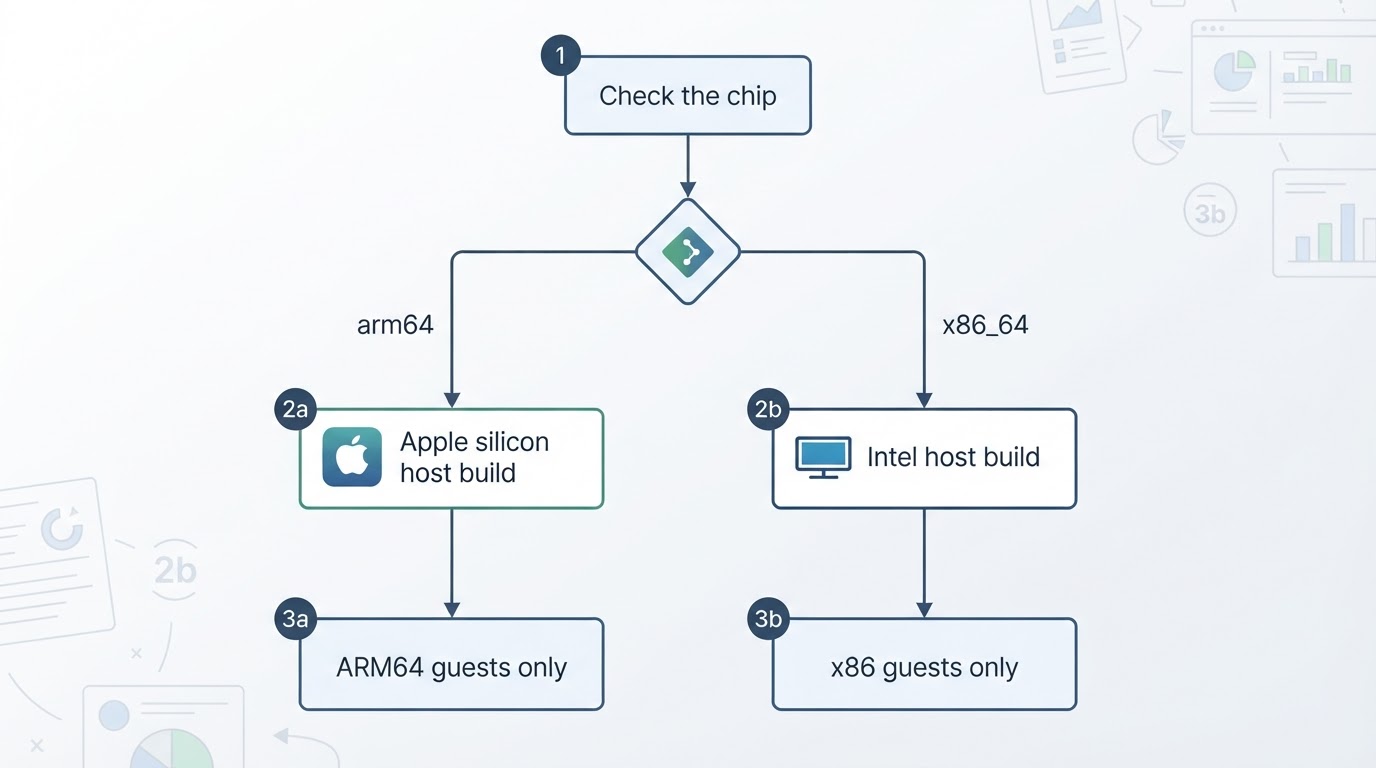
- On an Apple silicon MacBook you install the Apple silicon host build. The Intel package will not run there, and the two installers are not interchangeable.
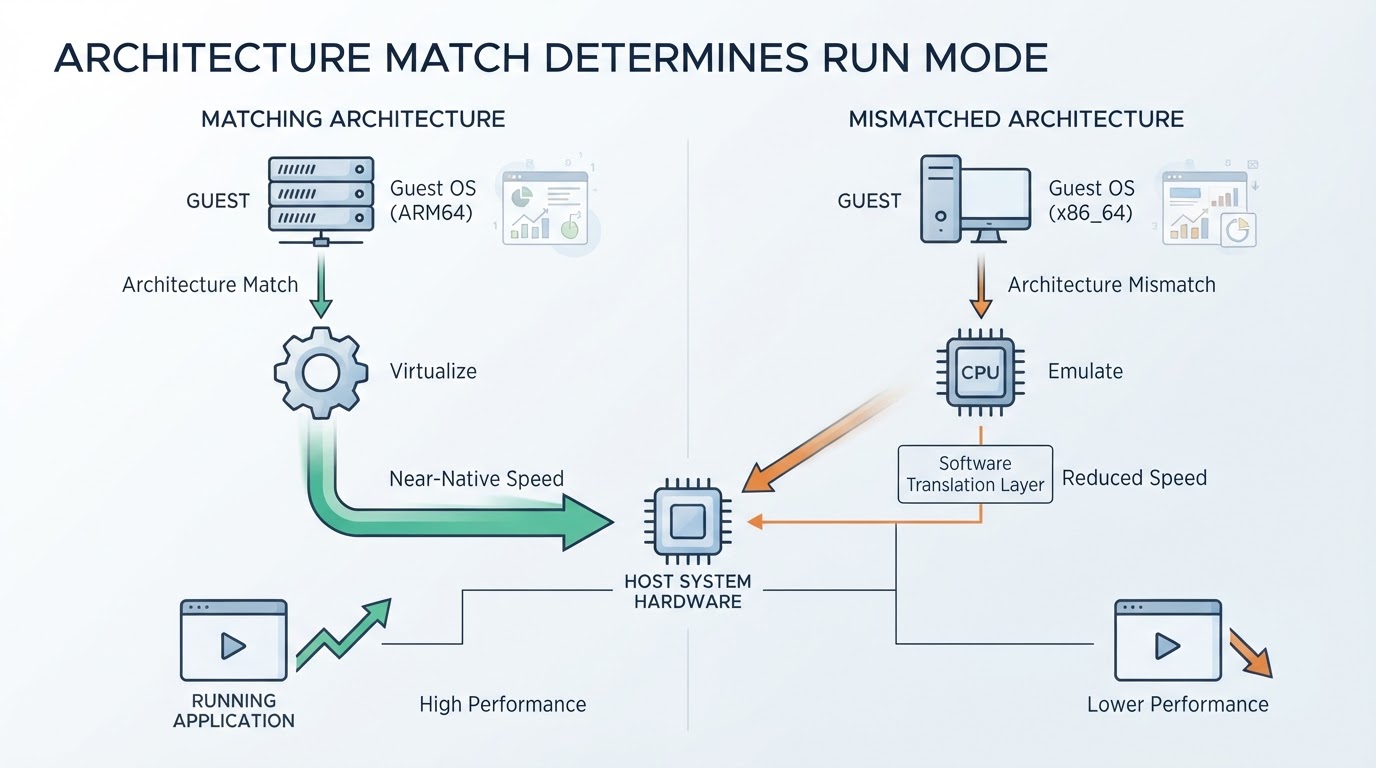
- On an Apple silicon host, VirtualBox runs ARM guests only. It does not emulate x86 or x86-64, so an existing Windows 10 or x86 Linux image from an Intel machine will not boot.
If a step below says "Apple silicon", do not apply it to an Intel Mac, and the reverse.
Four checks before you download anything
1. Confirm the architecture, not the model name. Open the Apple menu, choose About This Mac, and read the Chip line, or run uname -m in Terminal. arm64 means Apple silicon; x86_64 means Intel. A 2020 MacBook Pro could ship with either, which is why the model year alone does not answer the question.
2. Compare your macOS version with the release notes. Run sw_vers -productVersion and check it against the minimum listed for the release you intend to install. Installing on an older macOS is the most common cause of a package that appears to install and then refuses to start.
3. Decide in advance whether you will allow a kernel extension. The macOS build registers a system extension that carries networking and USB support. On Apple silicon, allowing a third-party extension can require lowering startup security to Reduced Security in Recovery and then approving Oracle's extension in System Settings under Privacy & Security. Budget a restart, and read the current installation chapter instead of a 2021 walkthrough: the approval sequence has changed more than once.
4. Reserve disk space for the guest, not the installer. The package is small; the virtual disk is not. A working Linux guest with a desktop environment, swap, and two snapshots can consume tens of gigabytes, and snapshots grow silently. Keep the virtual disk on the internal SSD unless you have measured the external drive's sustained write speed.
If any of those checks fails, stop. Fixing the preconditions is faster than repairing a half-installed hypervisor.
Download the build that matches your chip
For an M1, M2, M3, or M4 MacBook, choose the macOS / Apple silicon entry on Oracle's VirtualBox Downloads page. For an Intel Mac, choose macOS / Intel. The Apple silicon package carries macOSArm64 in its filename, which is the quickest way to confirm you grabbed the right one before you open it.
Write down the release number you downloaded, for example 7.2.x, and keep it next to the virtual machines you create. When a guest misbehaves three months later, knowing the host version is the difference between a five-minute diagnosis and an afternoon of guessing.
Then verify the download. Oracle publishes SHA-256 digests alongside the packages:
shasum -a 256 ~/Downloads/VirtualBox-*.dmgCompare the output with the digest published for that exact file. A truncated download is rare, but it produces an installer failure that looks like a permissions problem, and the checksum takes ten seconds. Do not install a package whose digest does not match; download it again.
Install from the DMG
- Double-click the downloaded
.dmgto mount it. - Double-click
VirtualBox.pkginside the mounted volume. - Follow the installer: Continue, Install, then enter your administrator password when asked.
- If macOS blocks the system extension, open System Settings, go to Privacy & Security, and approve the Oracle entry. You may need to restart before the extension loads.
- Launch VirtualBox from the Applications folder, or press Command-Space and type
VirtualBox.
Confirm the installation from Terminal rather than from the dock icon:
/Applications/VirtualBox.app/Contents/MacOS/VBoxManage --versionThe command should print the same version number you downloaded. If it fails, the application bundle or the kernel extension did not install correctly, and the next section is where to look.
First launch: which permissions matter
VirtualBox asks for more access than most Mac apps, and the prompts are easy to over-grant.
- File access. When you select an ISO or an existing disk image, macOS may ask for access to that folder. Grant only the folder that holds your images. There is no reason to hand over your entire home directory for a single ISO.
- Host-only networking. Creating a host-only adapter installs a small privileged helper. That prompt is expected. Decline it and host-only networking simply will not work.
- The Extension Pack. USB 2.0 and 3.0 passthrough and the remote display server live in the Extension Pack, which is distributed under Oracle's PUEL licence: free for personal, educational, and evaluation use, but not for commercial deployment without a licence. Install it from File, then Preferences, then Extensions.
- Guest Additions. Shared folders, clipboard sharing, and automatic display resizing come from Guest Additions installed inside the guest, not on the host. A freshly created VM has none of them, which is why shared folders appear to be broken on day one.
When the install fails or the VM will not start
The package installs but VirtualBox never opens. Check the architecture first: an Intel package on an Apple silicon Mac is the most common mistake. If the package is correct, look for a blocked-extension notice in Privacy & Security, then restart. A previous VirtualBox installation that was dragged to the trash rather than removed with the uninstaller can also leave an old extension behind; remove it with the official uninstall tool before reinstalling.
The VM will not start at all. On Apple silicon, an x86 guest image is the usual cause, and no setting will fix it. Beyond that, check three things in order: the guest architecture matches the host, the memory and CPU count you assigned are actually available, and the guest is not requesting nested virtualization, which is not a supported configuration.
The VM starts and then stalls or performs badly. Read the log in the virtual machine's Logs folder before changing settings. Common causes are host memory pressure from too many open applications, over-allocating virtual CPUs beyond the number of physical cores, and relying on 3D acceleration that Apple silicon hosts do not deliver in practice. Reducing the guest to one or two vCPUs and 4 GB of RAM often produces a faster, more stable result than a generous allocation.
USB devices are missing from the guest. USB 1.1 works with the base package. USB 2.0 and 3.0 need the Extension Pack plus a filter for the specific device, and even then passthrough on Apple silicon is best treated as best-effort rather than guaranteed.
What VirtualBox can and cannot do on a MacBook
Capability | Intel MacBook host | Apple silicon (M1-M4) host |
|---|---|---|
Guest architecture | x86 and x86-64 | ARM64 only |
Cross-architecture emulation | Not provided | Not provided |
Windows guest | Possible with an x86 Windows image | No officially supported Windows guest configuration |
macOS guest | Not an officially supported guest | Not an officially supported guest |
Linux guest | Yes, x86 and x86-64 images | Yes, ARM64 images |
USB 1.1 | Built in | Built in |
USB 2.0 and 3.0 | Extension Pack required | Extension Pack required, passthrough limited |
3D acceleration | Limited | Limited, often unavailable in practice |
GPU passthrough | Not supported | Not supported |
Nested virtualization | Not a supported configuration | Not a supported configuration |
Shared folders and clipboard | Guest Additions | Guest Additions |
Snapshots | Supported | Supported |
Treat the right-hand column as the honest answer to "can my MacBook do this", and the middle column as a reminder that Intel Macs are now the exception rather than the assumption.
The limit that decides whether VirtualBox fits
On an Intel Mac, VirtualBox behaves like a general-purpose x86 hypervisor: the architecture question does not come up, and most tutorials still apply.
On Apple silicon it is an ARM hypervisor with a narrower guest list, a dependency on Apple's system-extension policy, and no emulation to fall back on. That is a defensible engineering position, not a bug, but it changes what you should plan for. Before you commit a project to a virtual machine on an M-series MacBook, answer one question: does the guest exist as an ARM64 build? If the answer is no, VirtualBox is the wrong layer for that job, and no amount of tuning will change the architecture. If the answer is yes, the remaining work is ordinary: install the matching host build, keep the Extension Pack and Guest Additions current, and size the VM within your real memory budget.
FAQ
Can an M-series MacBook run Windows in VirtualBox?
Not in an officially supported configuration. VirtualBox on Apple silicon runs ARM guests, and Windows on ARM is not on Oracle's supported guest list. Workarounds circulate, but they sit outside the support matrix and outside the scope of this guide, which covers installation and limits rather than Windows guest setup.
Does VirtualBox support macOS as a guest?
No. macOS is not an officially supported guest on either host architecture. Guides that walk you through it are describing an experimental setup with no support path, and installing macOS in a VM does not change Apple's licensing terms for the operating system.
The install failed. What should I check first?
In this order: the checksum of the downloaded file, then the architecture of the package against uname -m, then whether the kernel extension was approved in Privacy & Security and followed by a restart, and finally whether an older VirtualBox installation left an extension behind. Those four account for most failures, and each takes less than a minute to rule out.
Do I still need the Extension Pack for USB drives?
For USB 2.0 and USB 3.0 devices, yes. USB 1.1 works with the base package. The Extension Pack also carries the remote display server, and its licence is separate from the GPL-licensed base application.
Quick Recap
- Check the chip and the OS.
uname -mforarm64orx86_64,sw_vers -productVersionfor the minimum the release requires, and enough free space for the virtual disk and its snapshots. - Download the matching host build and verify it. Apple silicon uses the macOSArm64 package; Intel uses the Intel package. Match the published SHA-256 digest before opening the file.
- Install, approve, restart, confirm. Run
VirtualBox.pkg, approve the Oracle system extension in Privacy & Security, restart, then check/Applications/VirtualBox.app/Contents/MacOS/VBoxManage --version. - Create an ARM guest, then add the extras. Shared folders, clipboard, and display resizing arrive with Guest Additions; USB 2.0 and 3.0 arrive with the Extension Pack.
The specific guest list, minimum macOS version, and Apple silicon limitations are set by Oracle and change between releases. Before you plan around any of them, read the installation chapter and the changelog for the version you actually installed, and check the current download page for the supported release. Working from the documentation that matches your installed version is the only reliable habit in this area; the rest of the setup is routine.