Check the chip, memory, and free space first
Three facts decide everything else in this guide: your chip, your memory, and your free disk space. Open the Apple menu, choose About This Mac, and read the first line of the overview; if you prefer the terminal, run system_profiler SPHardwareDataType and look at the Chip and Memory fields. Then run df -h / to see how much room is actually free on the disk that will hold the virtual machine.
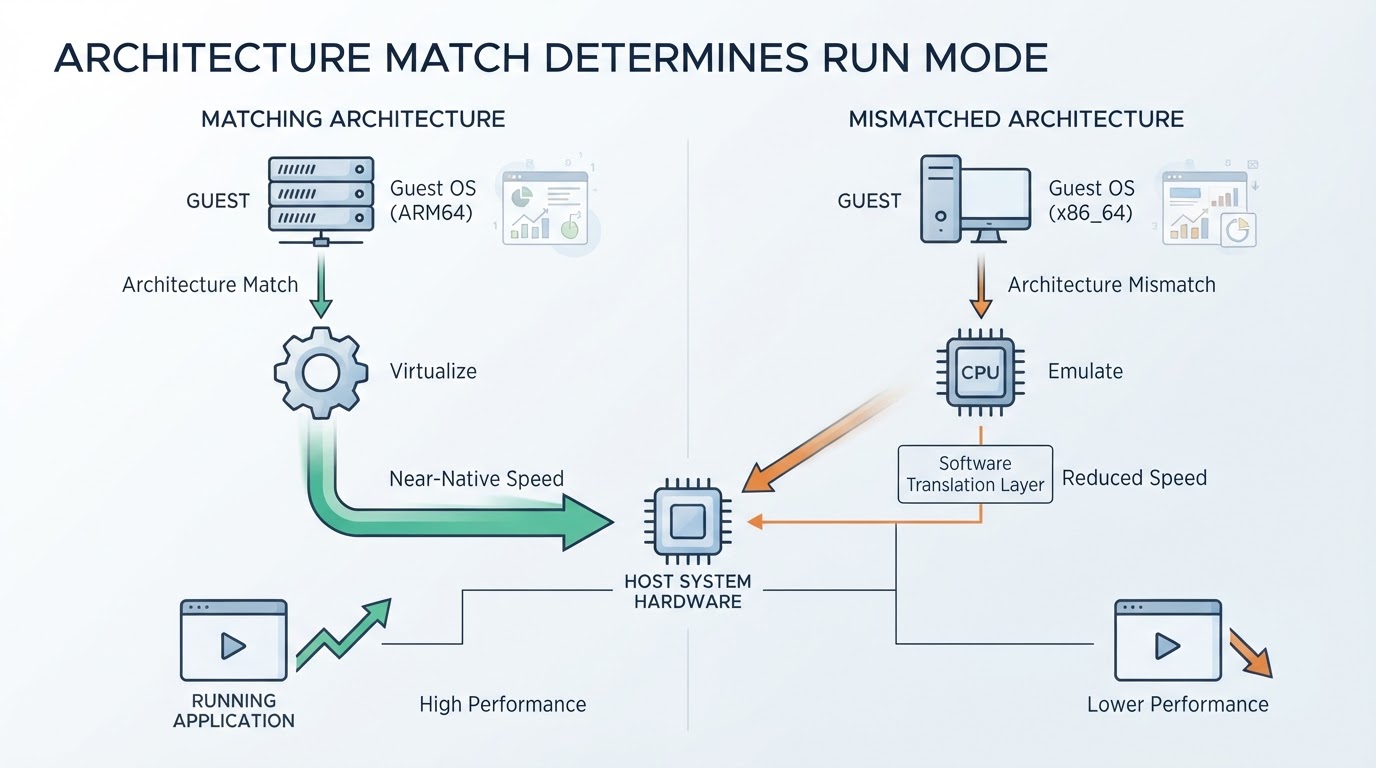
Apple silicon changes the answer, so settle this before you download anything. M-series Macs cannot run x86 or x64 Windows directly: Boot Camp Assistant does not exist for Apple silicon, and Windows has to run as an arm64 build inside a virtual machine. Which version of Windows can I run on an Apple silicon Mac? Windows 11 ARM, and in practice nothing older — an x64 image simply will not boot on an M-series machine. Intel Macs have a wider choice: a virtual machine running Windows 11 x64, or the older dual-boot route, though a virtual machine still wins when you want macOS and Windows open at the same time.
Memory decides how much of the host you can lend. On a 16 GB Mac, give Windows 6 to 8 GB; on an 8 GB machine, 4 GB is realistic and swapping is the price; on 24 GB or more, 8 to 12 GB is comfortable. A guest that borrows memory the host needs does not look like a virtual-machine problem — it looks like a Mac that has become slow.
Budget storage before the first boot. Windows 11 wants 64 GB of disk minimum, and the virtual disk grows as you install applications and updates. Keep at least 80 GB free on the drive that will hold the machine, and treat an external drive as a temporary home only: unplug it mid-session and you will meet a suspended VM and a repair prompt.
Choose the Windows edition and a license you can defend
Do you need a separate Windows license for a virtual machine on my Mac? Yes, and this is the step most people skip. A virtual machine does not exempt you from licensing: you need a valid Windows license, and Microsoft's virtual-machine terms are typically satisfied with Windows 11 Pro or Enterprise rather than Home. Check Microsoft's current terms for virtual-machine use before you install, because they are revised, and a Home key moved into a VM is the most common quiet compliance problem in this workflow.
Microsoft distributes Windows 11 images through a small number of official channels: the Windows 11 download page for the x64 ISO, the Windows Insider ISO downloads where arm64 builds appear, and the Evaluation Center, which publishes a time-limited Windows 11 Enterprise arm64 evaluation image. Some virtual-machine vendors also fetch and prepare the image for you. Whichever route you take, match architecture to hardware — arm64 for Apple silicon, x64 for Intel — and do not build a new Windows 10 machine now that its support window has closed in favour of Windows 11.
Verify the image before you install anything
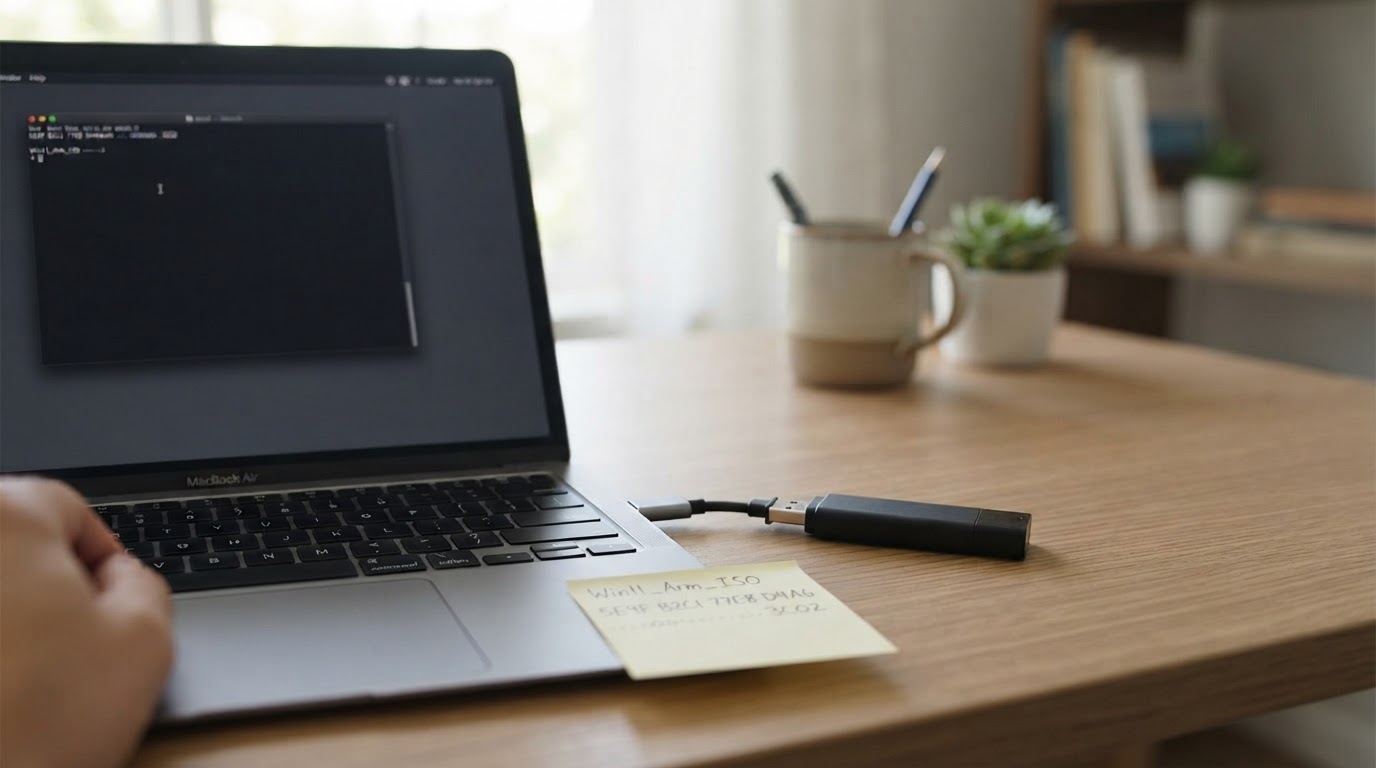
A download that silently truncated is the hardest failure to diagnose later, because the symptom appears as a boot loop rather than a corrupt file. Check the hash once, before the installer ever runs. In Terminal, run shasum -a 256 ~/Downloads/Win11_arm64.iso and compare the 64-character output with the checksum published for that exact file. If your source ships a checksum file instead, shasum -a 256 -c checksums.txt prints OK for a match and FAILED for a mismatch. A mismatch is not a warning to think about: delete the file and download it again, because a modified installer is indistinguishable from a corrupt one and neither is worth debugging inside a guest operating system.
Pick the tool that matches how you will use Windows
Parallels Desktop, VMware Fusion, and UTM all virtualize Windows 11 on both Apple silicon and Intel Macs, and the setup sequence further down is nearly identical in each. What really differs is how much manual assembly you accept and what the license costs you.
Parallels Desktop is the most automated path to a running Windows 11 ARM machine: it recognizes the image, installs its own tools, and offers a single-window mode that mixes Windows applications into the macOS desktop. It is a paid subscription, and the fit is straightforward — you want the installation handled for you and you are willing to pay for that.
VMware Fusion is the traditional console experience, with snapshots, virtual TPM and Secure Boot, isolation controls, and 3D acceleration that stops well short of a GPU. Its licensing terms have changed more than once since the Broadcom acquisition, so confirm the current terms before you plan around a free tier.
UTM is free and open source, built on QEMU, and runs on both chip families. It is the most honest of the three about what it is: you choose the machine type, you install the SPICE guest tools yourself, and 3D acceleration is minimal. The fit is a reader who wants no license at all and does not mind manual steps.
One caution before the steps below: menu labels move between releases, and the vendor documentation for the version you actually installed outranks any guide, including this one. The sequence, not the wording, is what matters.
Create the virtual machine and size it deliberately
- Start the new-machine wizard and choose virtualization, not emulation. On Apple silicon an emulated x86 machine works in theory and is too slow to use in practice, which is the single most common wasted afternoon in this workflow.
- Point the wizard at the image you verified, and let it detect Windows 11 rather than choosing a generic guest type.
- If a product key prompt appears, you can defer it — activation can happen after Windows is installed. Deferring the field is not the same as skipping the license.
- Allocate 2 to 4 virtual CPUs and never every core. The host needs a core left over, and a guest with all of them is slower, not faster.
- Set memory from the guidance above and a 64 GB disk that grows on demand. A fixed-size disk is faster but commits the space immediately.
- Leave the network adapter in shared or NAT mode for the first boot. Bridged networking is a later optimisation, not an installation requirement.
- On an Intel host, keep the virtual TPM and Secure Boot enabled or Windows 11 Setup will refuse the machine outright.
- Leave shared folders, clipboard sharing and USB passthrough off until Windows is running. Enabling them mid-install adds failure modes to a step that should be boring.
Sizing mistakes surface as mysteries rather than errors: a guest with 2 GB of memory installs fine and then feels broken, a guest with all the cores makes the host unresponsive, and a 40 GB disk installs Windows and then fails the first feature update.
Install Windows, then add the guest tools
The machine boots from the image. If it prints a prompt to press a key to boot from the installation media, press one within a few seconds or it will fall through to the empty disk and report that no bootable device exists.
Setup asks for language and edition, then offers an upgrade or a custom install; choose the custom path and select the unallocated space. Windows copies files, reboots a few times, and lands on the out-of-box experience. If setup claims there is no network connection, the adapter is probably bridged to a segment without DHCP — switch it back to shared or NAT and retry instead of hunting for drivers.
Once you reach the desktop, install the guest tools from the virtual-machine menu: Parallels Tools, VMware Tools, or the SPICE guest tools in UTM. These are the piece that actually makes the machine usable, because they provide shared folders, bidirectional clipboard, dynamic display resolution, time synchronisation and USB handling. Reboot when prompted, then run Windows Update until it reports nothing further, and take a snapshot of that clean state before you install a single application.
Treat snapshots as checkpoints, not backups. They live inside the virtual machine bundle, they grow with every write, and they are useless if the host disk dies — so either include the bundle in your backup routine or decide deliberately that you will rebuild from the image instead.
Verify the four things that break later
Run these checks while the machine is still disposable. Open a page in Edge inside Windows and compare the speed against the host; if the guest has no address, run ipconfig and confirm it looks like a normal private range rather than an APIPA address. Copy a sentence from a macOS app and paste it into Windows, then do it in the other direction — clipboard sharing failing in one direction only is the usual symptom. Create a file in a shared folder on the Mac, open and save it from Windows, then confirm the change appears on the host. Finally, attach a USB flash drive, confirm it mounts inside Windows, and eject it properly; devices that never appear are usually still assigned to macOS rather than passed through.
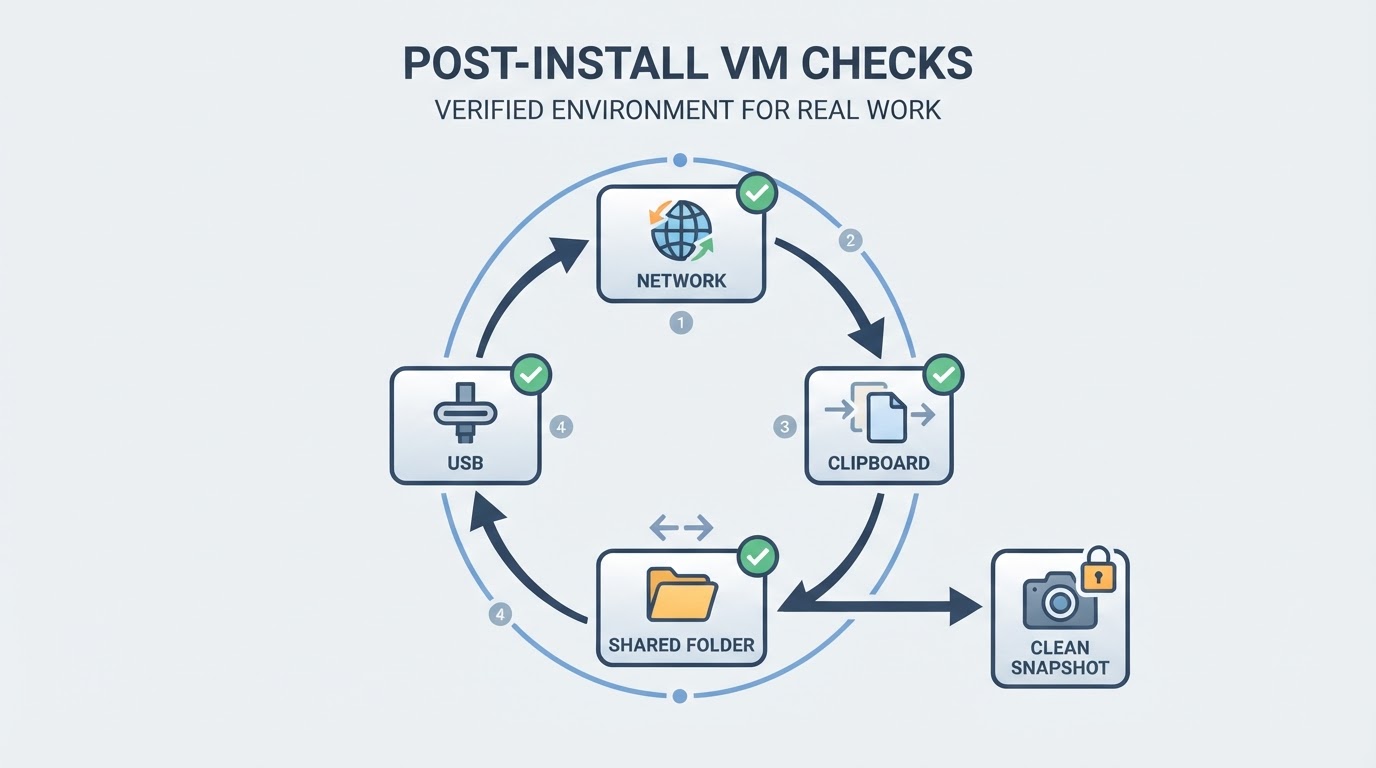
Then check the less obvious ones: audio output, display resolution, the time zone, and Device Manager for any device carrying an unknown-device flag. Unknown devices after a clean install usually mean the guest tools did not finish, not that the hardware is unsupported.
Will my Windows apps run in a Windows 11 ARM virtual machine? For most standard applications, yes. Windows 11 ARM includes a translation layer that runs x86 and x64 code, and ordinary productivity software, browsers, developer tools and file utilities generally behave normally. The exceptions are specific and worth knowing before you migrate work: applications that install low-level USB drivers, older 32-bit ARM software, and multiplayer games that rely on anti-cheat components. Test the one application your work depends on before you delete anything from the host.
Troubleshooting: the first failures and what they mean
Symptom | Likely cause | First fix |
|---|---|---|
Installer never starts, or "no bootable device" | x64 image on an Apple silicon host | Download the arm64 image and recreate the machine |
Setup returns to the boot prompt in a loop | The key prompt was missed, or the image is still mounted as a CD | Restart the guest and press a key immediately |
Windows 11 setup refuses the machine on Intel | Virtual TPM or Secure Boot disabled | Enable both in the machine settings and start over |
No internet inside Windows | Adapter bridged to a segment without DHCP, or a corporate VPN on the host | Switch to shared or NAT networking |
Shared folder missing in Explorer | Guest tools not installed or not finished | Install the tools, reboot, re-check the folder setting |
Clipboard works in one direction only | Clipboard synchronisation disabled in the tool settings | Enable it on both sides, then restart the guest |
USB device never appears | The device is still assigned to macOS, or it is an iOS device | Assign it to the virtual machine; iOS devices generally cannot attach |
Everything feels slow | Host memory pressure, too many vCPUs, or an emulated rather than virtualized guest | Reduce the allocation and confirm the machine type |
Where this setup falls short
The graphics story is the honest limit. Acceleration in these tools reaches roughly DirectX 11 territory in the best case and much less in UTM, so CAD work, modern games and GPU compute belong on real hardware or a cloud machine. Anti-cheat and kernel-level drivers are worse than slow: they frequently refuse to run in a virtual machine at all, and no configuration makes them cooperate.
Nested virtualization is inconsistent. Features that expect hardware virtualization inside the guest — WSL2, Android emulators, Hyper-V — may be unavailable or unusably slow depending on your chip and your tool, so confirm support before you plan a development environment around it. A Windows feature update can also quietly break the guest tools; if shared folders or clipboard stop after a major update, reinstall the tools before assuming something worse.
The remaining limits are ordinary: a virtual machine costs disk that only grows, a Windows license is a real cost, and Apple silicon has no dual-boot fallback if the virtual machine disappoints you. None of that argues against the approach. It argues for testing the setup against the one application you actually need, on the day you build it, rather than a week before a deadline.
Quick Recap: four steps
- Confirm the chip, the memory and at least 80 GB of free disk space, then choose Windows 11 ARM for Apple silicon or Windows 11 x64 for Intel.
- Buy or confirm a Windows 11 Pro or Enterprise license, download the matching official image, and check its SHA-256 hash before use.
- Create the machine with virtualization enabled, 2 to 4 vCPUs, 4 to 8 GB of memory and a 64 GB growing disk, install Windows, then install the guest tools.
- Verify network, clipboard, shared folders and USB, snapshot the clean state, and only then install the applications you came for.