Start with the two actions that fix most remotes
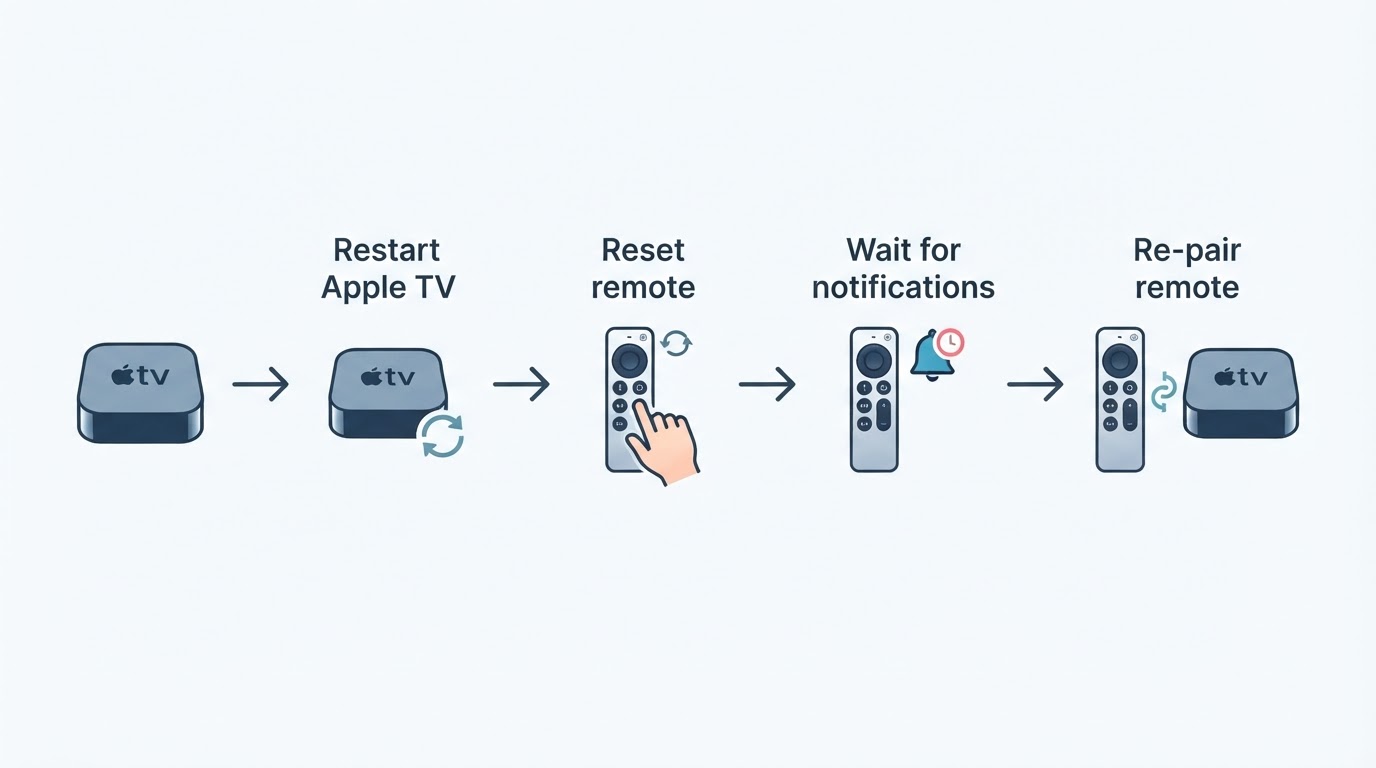
An unresponsive remote usually comes down to two layers: the Apple TV box itself, and the Bluetooth link between the box and the remote. Work them from the cheapest layer upward. Restarting the Apple TV changes nothing on the remote; resetting the remote rebuilds the link. Do them in that order so you learn which layer failed.
Step 1: power-cycle the Apple TV
- Unplug the Apple TV's power cable from the wall outlet or from the back of the box.
- Wait about six seconds.
- Plug it back in and wait for the Home screen.
Apple documents this six-second power cycle as the retry step when pairing does not complete (Apple Support).
Expected result: the Home screen returns and a button press changes what is on screen. If nothing changes: move to step 2, because a dead remote link can leave the box running while looking unresponsive. Record: whether the status light comes on, whether the Home screen returns, and which buttons, if any, still respond.
Step 2: reset the remote
- Point the remote at the Apple TV.
- Press and hold the TV/Control Center button and the Volume Down button together.
- Keep holding for about five seconds, until the status light on the Apple TV turns off and then on again, then release.
- Wait for the "Remote Disconnected" notification, press any button, and wait for "Remote Connected".
Apple gives the same button combination and hold time on its remote troubleshooting page and on its volume-button page, but quotes two waiting windows: 10 to 15 seconds on one page and 5 to 10 seconds on the other (Apple Support, Apple Support). Treat the notification itself as the checkpoint; the count is only an indication of how long it can take.
A reset also drops the pairing on Apple TV 4K, so a fresh pairing may be needed afterwards (Apple TV 4K User Guide).
Expected result: "Remote Connected" appears and navigation responds. If it fails: go to the pairing steps below. Record: which notification you saw, whether the status light blinked, and which remote you are holding, a Siri Remote or an Apple TV Remote.
Charge first, then pair
Give the remote 30 minutes on a charger
Apple's troubleshooting page suggests connecting the remote with a USB-C to USB cable or a Lightning to USB cable to a USB wall charger for 30 minutes, then trying again (Apple Support).
Expected result: the buttons respond after charging. If not: pair the remote again. Record: how long it charged and whether anything changed afterwards.
Re-pair the remote
Pairing puts the remote back on the Apple TV's Bluetooth link, and both distance and timing matter.
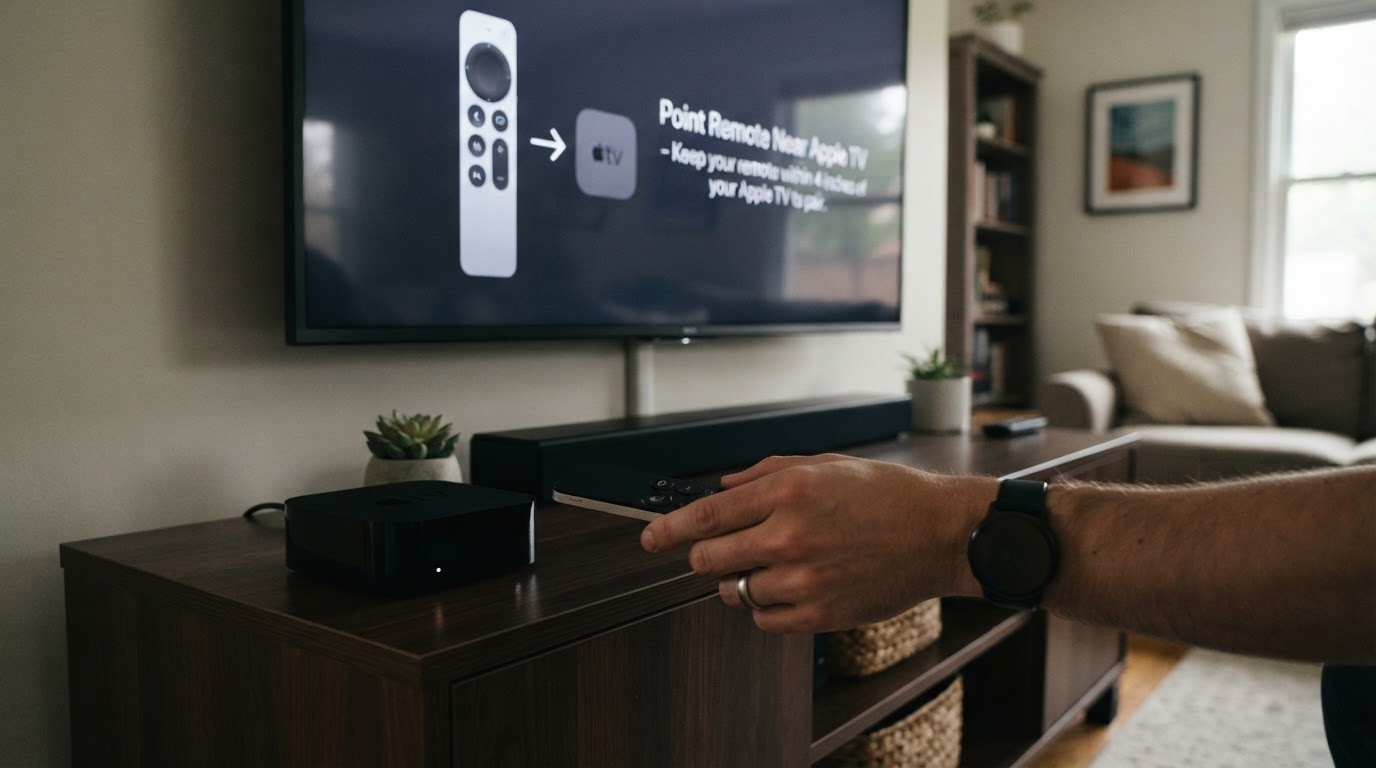
- Bring the remote within about 3 to 4 inches (8 to 10 cm) of the front of the Apple TV 4K and point it at the box (Apple TV 4K User Guide). Apple's other support page describes the same closeness as about 3 inches (Apple Support).
- Press and hold the Volume Up button and the Back (or Menu) button.
- Hold for about two seconds according to the Apple TV 4K user guide, or about five seconds according to the support page. Apple's own pages differ, so match the page for your remote model rather than trusting a memorized count (Apple TV 4K User Guide, Apple Support).
- If the screen asks you to, place the remote on top of the Apple TV to finish pairing.
- Wait for the on-screen confirmation, then test navigation.
One limit is worth knowing before you blame the buttons: an Apple TV 4K pairs with one Apple TV 4K Remote at a time, and pairing a new remote unpairs the previous one (Apple TV 4K User Guide).
Expected result: a pairing prompt appears and the remote navigates. If pairing never completes: power-cycle the box for six seconds and repeat once (Apple Support). Record: the exact prompt text, the hold time you used, and whether the remote was ever recognized.
Bluetooth range and obstruction: where Apple's guidance stops
Apple's documented Bluetooth checks are short: keep the remote within about 20 feet (about 6 meters) of the Apple TV, and clear anything blocking the front of the box (Apple Support). On tvOS 18.0 or later, Settings > Remotes and Devices > Remote shows a Bluetooth signal strength (RSSI) reading you can watch while you move the remote.
That RSSI row is version-specific. On earlier tvOS releases the same settings screen has no signal-strength readout, so check the tvOS version before treating a missing row as a fault. Apple's published guidance also stops at distance and obstruction; it does not provide a Wi-Fi or 2.4 GHz interference checklist, so router changes are not an evidence-backed next step here.
Expected result: at normal viewing distance the remote responds, and the RSSI reading stays usable. If it only works close to the box: remove obstructions and move the Apple TV out of an enclosed cabinet, then test again. Record: the distance at which it fails and the RSSI value at that distance.
Use the iPhone as a backup remote
If the physical remote stays dead, the iPhone remote separates a remote problem from a box problem.
- Open Control Center and tap the Apple TV Remote button.
- Choose the Apple TV or the AirPlay-capable smart TV from the list.
- If prompted, enter the four-digit code shown on the TV.
Apple's page covers the supported devices, which are Apple TV 4K, Apple TV HD, and AirPlay-capable smart TVs, and the requirements: the iPhone or iPad must be on the same Wi-Fi network as the Apple TV, both devices should be on current software, and a restart of both is the documented next step (Apple Support). If the button is missing from Control Center, add it with Add Controls > Add a Control > Remote; on iOS 17 or earlier, add it from Settings > Control Center (Apple Support).
The volume keys in Control Center only work when that Apple TV is paired with a HomePod, a soundbar, or other AirPlay-compatible speakers. Otherwise use the TV's own remote for volume (Apple Support).
Expected result: you can navigate and start playback from the iPhone, which means the Apple TV and the network are working and the fault sits with the physical remote or its pairing. If the Apple TV never appears: verify the Wi-Fi network on both devices and watch for the code prompt. Record: whether the device appears in the list at all, and whether navigation works once it does.
This is a diagnostic fallback, not a guide to choosing streaming apps.
HDMI-CEC and the home theater remote
If the Apple TV responds to its own remote but not to the TV or receiver remote, the problem is in the CEC chain, not in the remote's Bluetooth link. Three conditions must all be true (Apple Support):
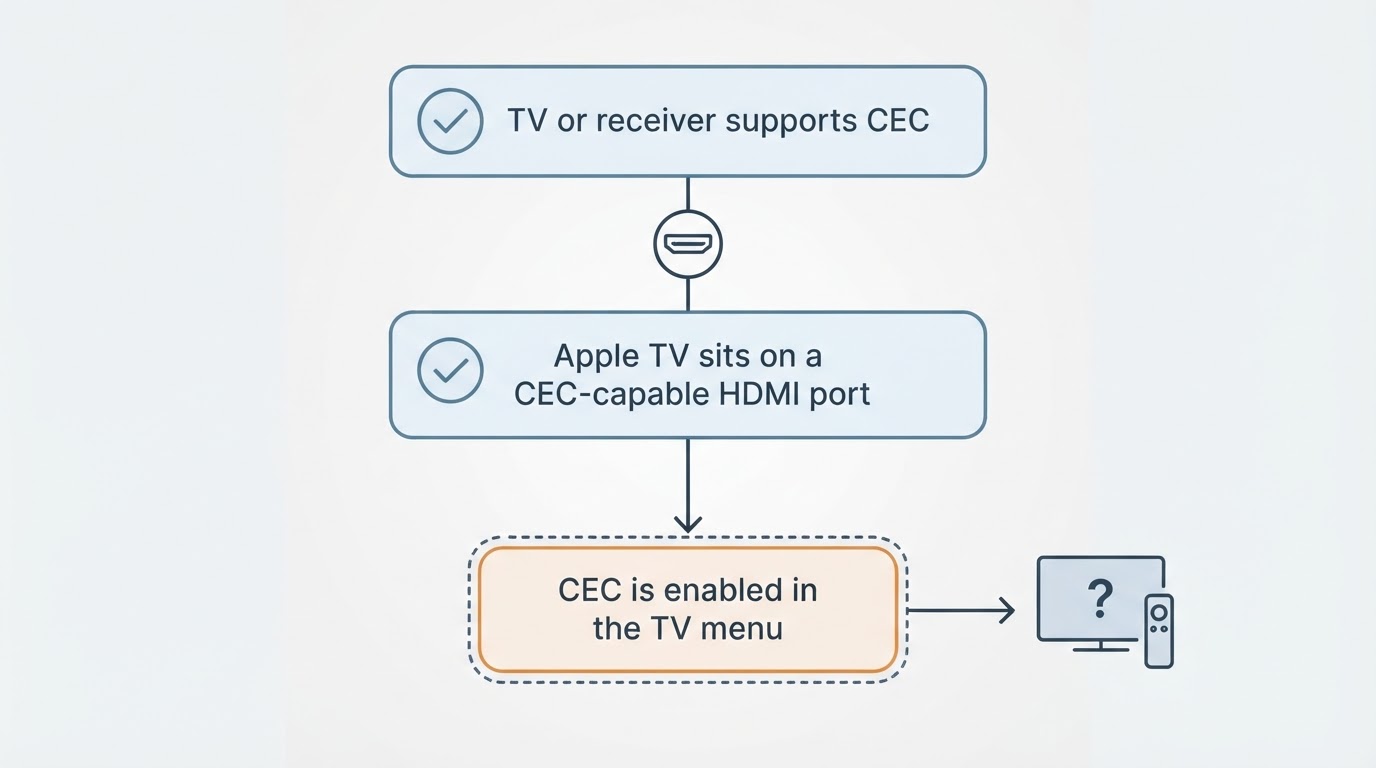
- The TV or receiver supports HDMI-CEC.
- The Apple TV is connected to an HDMI port that supports CEC.
- CEC is switched on in the TV or receiver menu.
CEC is rarely called "CEC" in a TV menu. Apple lists LG SimpLink, Philips EasyLink, Samsung Anynet+, Sharp Aquos Link, and Sony BRAVIA Sync, and notes that the menu entry often ends in "Link" or "Sync" (Apple Support).
For an infrared universal remote, teach the Apple TV the remote's signals in Settings > Remotes and Devices > Learn Remote. If volume still does not follow, program it under Remotes and Devices > Volume Control > Learn New Device (Apple Support). The Volume Control screen is also where you can switch between Auto and TV via IR when the default does not match your speaker path (Apple Support). CEC volume is an HDMI feature, so an optical connection to the speakers cannot carry it; Apple's guidance in that case is to use TV via IR (Apple Support).
Expected result: the TV or receiver remote changes volume and power state on the Apple TV. If one check fails: fix that link first, because a non-CEC HDMI port or a disabled menu setting is enough to break the whole chain. Record: which of the three checks fails and what the TV menu calls its CEC setting.
What to record before you escalate
A short record turns "the remote doesn't work" into a fault report that points at one layer. Capture the observation that matches your case before trying more steps.
What you observe | What it points to | Next action |
|---|---|---|
No status light and no response after 30 minutes on a charger | Remote power or hardware | Try another cable and wall charger, then re-pair |
"Remote Disconnected" appears but "Remote Connected" never follows | Bluetooth pairing | Re-pair within 3 to 4 inches |
Works at close range, fails across the room | Range or obstruction | Clear the front of the box, check RSSI on tvOS 18.0 or later |
iPhone remote works, physical remote does not | The remote or its pairing | Re-pair; if it still fails, treat the remote as the fault |
Only the volume buttons fail | Volume Control setting or the audio path | Check Volume Control, then Auto versus TV via IR |
The TV remote cannot control the Apple TV | HDMI-CEC chain | Run the three CEC checks |
FAQ
Why does the remote turn on the Apple TV but not navigate?
Apple's support pages do not break this symptom out as its own cause, so work the documented layers in order. Re-pair the remote, then check the RSSI reading on tvOS 18.0 or later while you move it away from the box, and test the volume settings afterwards. Record which buttons still work; that pattern is what separates a pairing problem from a failing remote.
Why do the volume buttons do nothing?
There are two documented paths. First, the Apple TV's own setting: open Settings > Remotes and Devices > Volume Control and switch between Auto and TV via IR (Apple Support). Second, if you are using the iPhone remote, its volume keys only control an Apple TV paired with a HomePod, a soundbar, or other AirPlay-compatible speakers; otherwise use the TV's remote (Apple Support). An optical audio connection cannot carry CEC volume at all, so TV via IR is the documented workaround there (Apple Support).
Why does the remote disconnect again after pairing?
Check the single-remote limit first: an Apple TV 4K pairs with one Apple TV 4K Remote at a time, and pairing another unpairs the one you just set up (Apple TV 4K User Guide). Then check the 20-foot range, clear the front of the box, and watch the RSSI row on tvOS 18.0 or later (Apple Support). If it disconnects at close range right after a successful pairing, Apple's troubleshooting page ends with the remote possibly needing service (Apple Support); at that point the remaining variable is the remote, not a setting.
When the remote is the fault
If the box responds to the iPhone remote, re-pairing completes, and the physical remote still drops at close range, the settings layer is exhausted. Apple's volume-button page states that if the remote still does not work correctly, it may need service (Apple Support). Before you get there, the record from the table above, covering status light behavior, notification text, pairing distance, RSSI, and whether volume follows, is what separates a settings problem from a hardware one.