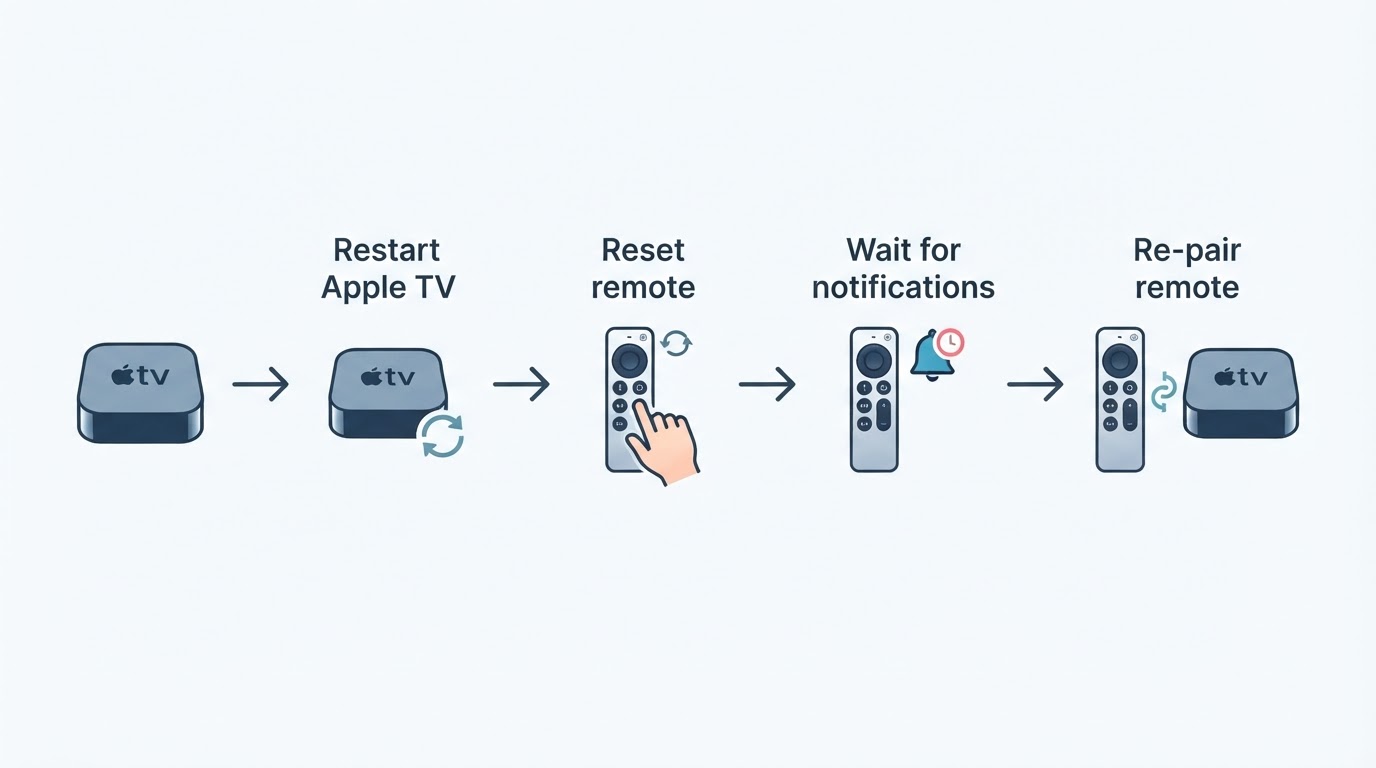
Start with the checks that cost nothing
Most "apple tv no sound" searches end here, so do not open Settings yet. Treat these four checks as a checklist, work through them in order, and note the expected result for each.
- The TV is on the right input. The Apple TV Home screen should be visible. If it is not, no audio setting can help; fix the input first.
- The Siri Remote is not muted. Press the mute button if your remote has one (the 2021 Siri Remote and later do), then press Volume Up. Expected result: a volume bar appears on the TV or receiver. If nothing appears on screen, the remote is not reaching the TV at all, which points to HDMI-CEC or IR rather than audio decoding.
- The TV or soundbar is not muted and is powered on. Use its own remote, not the Siri Remote. Check that a soundbar or receiver sits on the input the Apple TV feeds, not on a different source.
- The app itself is not muted. Player apps often keep a separate volume or mute state inside their playback controls. Open the player controls and raise the app volume.
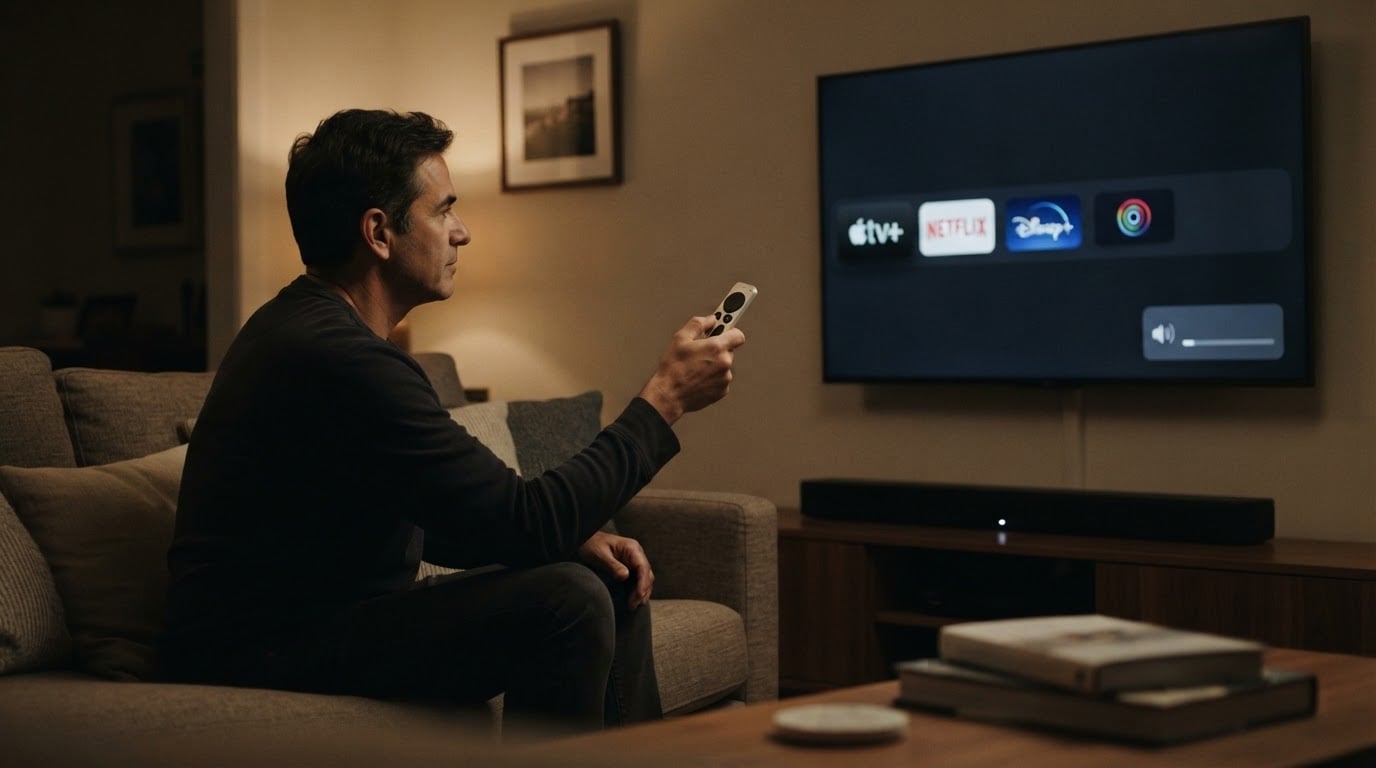
If audio comes back during any of these steps, stop. If nothing changes, the useful next question is not "why is the Apple TV silent" but "which layer of the chain went quiet".
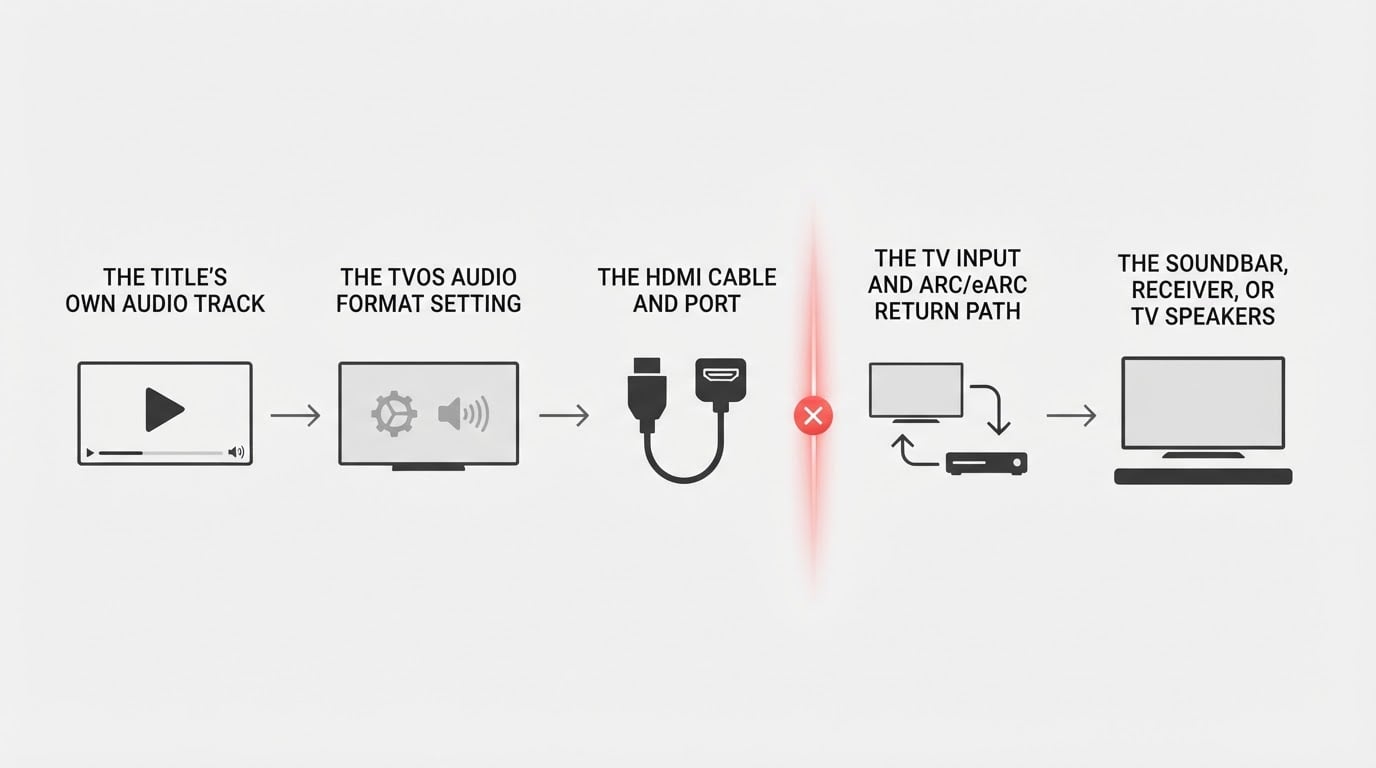
One detail explains much of the confusion here: an Apple TV box has no system volume slider of its own. Its volume buttons drive the TV, soundbar, or receiver over HDMI-CEC, or over IR when CEC is off. So "the Apple TV is muted" almost always means the device at the other end of the cable is muted, at the wrong volume, or listening to the wrong source.
Match the symptom to the layer
The symptom tells you where to start. Read this table before you change a setting, because a single-app fault and an all-app fault rarely share a cause.
What you hear | Likely layer | Start here |
|---|---|---|
Nothing at all, including menu clicks and navigation sounds | Mute, input, audio format, or HDMI | The checks above, then audio format, then HDMI |
Menu and system sounds work, apps are silent | Audio format or HDMI handshake | Audio format, Stereo test |
One app is silent, others play | App audio track or app-level mute | Single-app branch |
Silent only over AirPlay | Output selection or the sending device's volume | AirPlay branch |
Audio format: the setting that fixes the most cases
Open Settings, then Video and Audio, then Audio Format. On current releases, including tvOS 18 and the year-numbered versions that followed it, the audio controls sit in that group. Apple has renamed and regrouped items inside this screen before, so treat the labels below as the current shape of the menu rather than a promise about your exact build.
Audio Format is where the Apple TV decides what it sends down the cable:
- Change Format off sends the source format untouched, including Dolby Atmos and multichannel 5.1 or 7.1 audio.
- Change Format on, Dolby Digital 5.1 re-encodes everything to a 5.1 signal that almost every TV and soundbar can decode.
- Change Format on, Stereo sends two channels and is the most compatible option.
Atmos from an Apple TV travels as Dolby MAT, a PCM stream that carries Atmos metadata. A TV or soundbar that lists Dolby Digital but not Atmos will often accept the handshake and then play silence, which is why "the soundbar says Atmos" is not proof that it can decode what the Apple TV sends.
The trade-off is straightforward. Off gives the best sound when every device in the chain supports the format. On gives up some spatial detail in exchange for compatibility. That is exactly why the setting works as a diagnostic: if sound returns with Change Format on, the speakers and the cable are fine and the failure sits in format negotiation.
Work through it like this:
- Note the current setting so you can restore it, then turn Change Format on and choose Dolby Digital 5.1. Expected result: sound returns on 4K titles and on older soundbars that advertise Atmos support but cannot decode it.
- If 5.1 is still silent, switch the same menu to Stereo. Expected result: sound returns. If it does, you have isolated the fault to multichannel decoding, and Stereo is your working setting until you repair the chain.
- If your build offers Check HDMI Connection, run it. It tests the audio and video handshake between the Apple TV and the display, and a failure there sends you to the HDMI section instead of more format changes.
- Confirm that the audio output or default audio output points at the device you are actually listening to. If a HomePod pair or an AirPlay speaker was once set as the default output and is now offline, the Apple TV may be sending audio nowhere useful.
- Some builds list extra toggles in the same screen, such as a continuous audio option. Test one at a time, then put it back.
Revert your test changes once sound is stable. Leaving the Apple TV on Stereo permanently costs you surround sound on every film, and it hides the real cause instead of fixing it.
HDMI: reseat, change port, change cable, then remove the middle
HDMI faults look like software faults because the handshake happens silently. When the format tests leave Apple TV no sound, move to the cable. Work in this order and stop when sound returns.
- Reseat both ends of the cable. Unplug it at the Apple TV and at the TV, then push both ends in firmly. Expected result: the handshake is renegotiated and sound returns at once. If it does, a loose or worn connector was the cause.
- Move to a different HDMI port on the TV. Expected result: the TV reads a fresh display profile and audio may return. If it does, the original port, or a per-port setting such as an enhanced or deep-colour mode, is the problem.
- Check the cable class. For 4K HDR at high frame rates and for Atmos, use an Ultra High Speed HDMI cable, the class specified for HDMI 2.1. For 4K at 60 Hz without those features, a Premium High Speed cable, the HDMI 2.0 class, is enough. Expected result: if silence appears only when you start HDR or Atmos content, an under-spec or damaged cable is the likely cause.
- Connect the Apple TV straight to the TV. Bypass any HDMI switch, AV receiver, or soundbar in the middle. Expected result: if sound returns, the device you removed, or its passthrough setting, is the cause. Add devices back one at a time to find the one that breaks audio.
- Then check the return path. If the Apple TV plugs into the TV and sound travels from the TV to a soundbar or receiver over ARC or eARC, the TV has to pass the signal through. Set the TV's digital audio output to PCM as a test. If PCM works and Dolby does not, the TV is not passing the format correctly. Then try bitstream or passthrough with a format the soundbar lists, and turn off TV-side processing such as volume levelling or dynamic range compression.
So yes, a bad HDMI connection can absolutely cause Apple TV no sound. The reseat and direct-connection tests are how you separate a cable fault from a format fault in under five minutes.
One related quirk is worth knowing. Format switching on the HDMI link, including Match Dynamic Range and Match Frame Rate, can cause a brief audio dropout while the TV and the Apple TV renegotiate. If the silence is intermittent and lines up with scene changes or app switches, test with Match Dynamic Range off to confirm.
Restart, then reset, only after the checks above
Restarting is cheap and resetting is not, so keep this order.
Start with Settings, then System, then Restart. It takes a minute and removes nothing. If that fails, power-cycle the chain: unplug the TV, the soundbar or receiver, and the Apple TV, wait about 60 seconds, then power the TV and soundbar on first and the Apple TV last. Powering on in that order lets the Apple TV read capabilities from devices that are already awake.
If sound is still missing, reset. Two options sit in Settings, then System, then Reset:
- Reset restores factory settings and keeps the installed tvOS version.
- Reset and Update erases the device and installs the latest tvOS in the same pass.
Both remove more than most people expect: Apple ID sign-ins, the Home screen arrangement, paired remotes and accessories, Wi-Fi passwords, and any HomeKit hub role. Apps can be downloaded again from your purchase history, but their local data and saved sign-ins go with the reset. Expect to spend an hour getting back to a working setup.
The expected result is narrow on purpose. A reset repairs a corrupted audio configuration and little else. If the checks above changed nothing, a reset usually changes nothing either, and the remaining candidates are the TV's input board, the soundbar's passthrough, or an Apple TV hardware fault.
If only one app, or only AirPlay, is silent
A single app with no sound. Open the title's own audio settings during playback and check the selected audio track. Streaming apps often default to the 5.1 or Atmos track, and a track the rest of the chain cannot decode plays as silence rather than as an error. Try a different title in the same app, then close the app fully and reopen it. If other apps still work, the fault is in that app's track selection or its own volume state, not in the Apple TV.
Sound works locally but AirPlay is silent. AirPlay audio volume belongs to the sending device. Raise the volume on the iPhone, iPad, or Mac that is streaming, and check the output it selected in Control Center. If you are sending to a HomePod or an AirPlay speaker rather than to the Apple TV, that speaker's own connection is the next thing to check. AirPlay also fails quietly when the sending device and the speaker are on different networks.
FAQ
Why is there no sound on any app, but menu clicks still play?
Menu and navigation sounds are short system effects, usually delivered as plain stereo. Films and shows arrive as Dolby Atmos or multichannel audio. When the menu is audible and every app is silent, the Apple TV can reach the speakers but the chain cannot decode the content format. Turn Change Format on, test Dolby Digital 5.1, then test Stereo.
Why does only one app have no sound while others are fine?
Check that title's audio track first, then the app's own volume and mute state, then whether the app is fully closed. One app failing while others play points at the app or its selected track, not at the Apple TV's global audio settings.
Why is Apple TV still silent after a reset?
A reset clears the audio format and output selection back to defaults, which can reproduce the original mismatch instead of fixing it. Recheck the audio output, retest Stereo, and reseat the HDMI cable once more. If the device is silent through every output, including a Bluetooth pair of headphones, treat it as a hardware fault and contact Apple Support.
Why is AirPlay silent when the Apple TV itself has sound?
The Apple TV is not the volume owner in an AirPlay session. Check the sending device's volume, its selected output, and the network both devices share. If the Apple TV is receiving an AirPlay session and the picture is fine, the audio is still governed by the sender.
When to stop troubleshooting
You are done when sound returns and survives a switch between two apps and one HDMI input change. If sound returns only with Stereo, keep that setting as a workaround and treat the multichannel path as broken. If nothing in this sequence changes anything, the remaining suspects sit outside the Apple TV's settings: a TV input board, a soundbar that fails to pass Dolby, or failing hardware.