What the Tailscale Mac client actually does
Tailscale is a mesh VPN built on the WireGuard protocol. Installing it on a Mac does not enrol the machine in a hosted browsing session or route everything through a vendor cloud by default. It gives the Mac an address on your tailnet — the private network of devices, users, and services you have authorised — and adds encrypted links to the other machines on that network.
Three pieces do the work. The menu bar item is the visible control surface: connection state, the account you are signed in as, and, when configured, a choice of exit node. A macOS network extension carries the tunnel and appears as a VPN configuration in System Settings. A command-line interface ships with the app for status checks and flags that the menu does not expose.
Once connected, the Mac usually receives a 100.x.y.z address, a MagicDNS name derived from a device label, and access to whatever your access rules allow. Ordinary web traffic still leaves through your normal connection unless you deliberately select an exit node.
This is a verification guide rather than a versioned hands-on review: no current build was checked against the claims below, so each version floor and menu label is framed as something to confirm against the vendor's own documentation.
macOS requirements before the first install
Two numbers decide whether the app installs at all. The vendor's download page currently lists macOS 12.0 Monterey or later for the Mac client, and the Homebrew cask declares macOS 13 or later. Confirm both against the installation page before you download, because Apple's supported releases and the cask's floor move independently.
Run these two commands in Terminal to see what you have:
sw_vers -productVersion
uname -m
The first prints a version such as 15.3; the second prints arm64 on Apple silicon or x86_64 on Intel. Both architectures are supported.
Beyond the operating system, plan for three things:
- A tailnet and an identity. The Mac joins through a single sign-on identity provider such as Google, Microsoft, GitHub, or a corporate identity system. The standalone app does not need an Apple ID; the Mac App Store build does, because the store requires one.
- Administrator rights on the Mac. Approving a system extension or VPN configuration needs an administrator password or Touch ID.
- A conversation with IT on managed hardware. Many organisations restrict system extensions or VPN profiles by device management policy. If the toggle described below never appears, that policy is the first suspect.
Standalone package vs Mac App Store: the same client, different permissions
The two downloads install the same core client, but they hand it different permissions. That difference, not the feature list, is what should decide the download.
Source | What you get | Updates | Watch for |
|---|---|---|---|
Standalone package (direct download) | App plus a system extension, with menu bar control | Through the app | Needs admin approval; no Apple ID required |
Mac App Store | Sandboxed build of the same app | Through the App Store | Sandbox limits, and possible conflicts with Screen Time web content filters |
Homebrew cask | GUI app installed and upgraded with Homebrew |
| Cask declares macOS 13 or later |
Homebrew formula | Command-line client and daemon, no menu bar |
| Configured through the command line, not the menu |
For most Macs the standalone package is the better default: it takes the system-extension route, needs no Apple ID, tends to receive updates sooner than App Store review allows, and avoids the Screen Time web-filter conflict that the sandboxed build can hit. Choose the App Store build when a managed fleet allows nothing else, and expect the sandbox to constrain what the client can do. Homebrew is a separate decision from the app itself: the cask installs the GUI app, while the formula installs the client and daemon without the menu bar, which suits servers and scripted setups rather than desk-side control.
Approving the network extension on macOS Sequoia and later
macOS 15 changed where extension approvals live, and this is the step where installations stall. After opening the app and signing in through the browser window:
- Open System Settings and go to General > Login Items & Extensions.
- Find the Network Extensions section and enable the entry for Tailscale.
- Authenticate with Touch ID or your administrator password when prompted.
- Approve the VPN configuration prompt that follows, then check the menu bar for the connected state.
If the entry is missing, the system extension has not loaded: quit and reopen the app, restart the Mac, and look again. Labels vary slightly between macOS releases, so treat the path above as directional rather than exact.
How devices end up on the same network
Logging in binds this Mac to a tailnet and lists it in the admin console. From there, four mechanisms decide what it can reach.
Device approval. A tailnet can require an administrator to approve each new device before it exchanges traffic. Without that approval the device appears in the console but stays isolated.
Key expiry. Device keys expire on a schedule the tailnet defines. A Mac that worked last month and drops off today is often holding an expired key rather than a broken install; signing in again fixes it.
MagicDNS. With MagicDNS enabled, devices resolve by short names instead of raw 100.x addresses. It is a setting, not a default you can assume, and turning it off leaves the addresses working while the names stop resolving.
Access rules. The policy file decides which users, devices, and ports can talk to each other. The permissive default allows tailnet members broadly, so tightening it is deliberate work — and it is the part most often missing when someone reports that the network is connected but nothing is reachable.
Two further capabilities require explicit configuration and approval in the console: subnet routes, where a Mac advertises a local network behind it so other devices can reach that network, and exit nodes, where a device becomes the internet egress for others. Neither is implicit, the advertising Mac has to stay online, and an unapproved route is simply ignored.
Where the traffic goes, and what the vendor can see
Devices try to connect directly, and WireGuard's UDP traffic is encrypted end to end, with keys held on the devices rather than at the coordination service. The coordination server distributes public keys, device metadata, and access policy; it is not the party decrypting payloads.
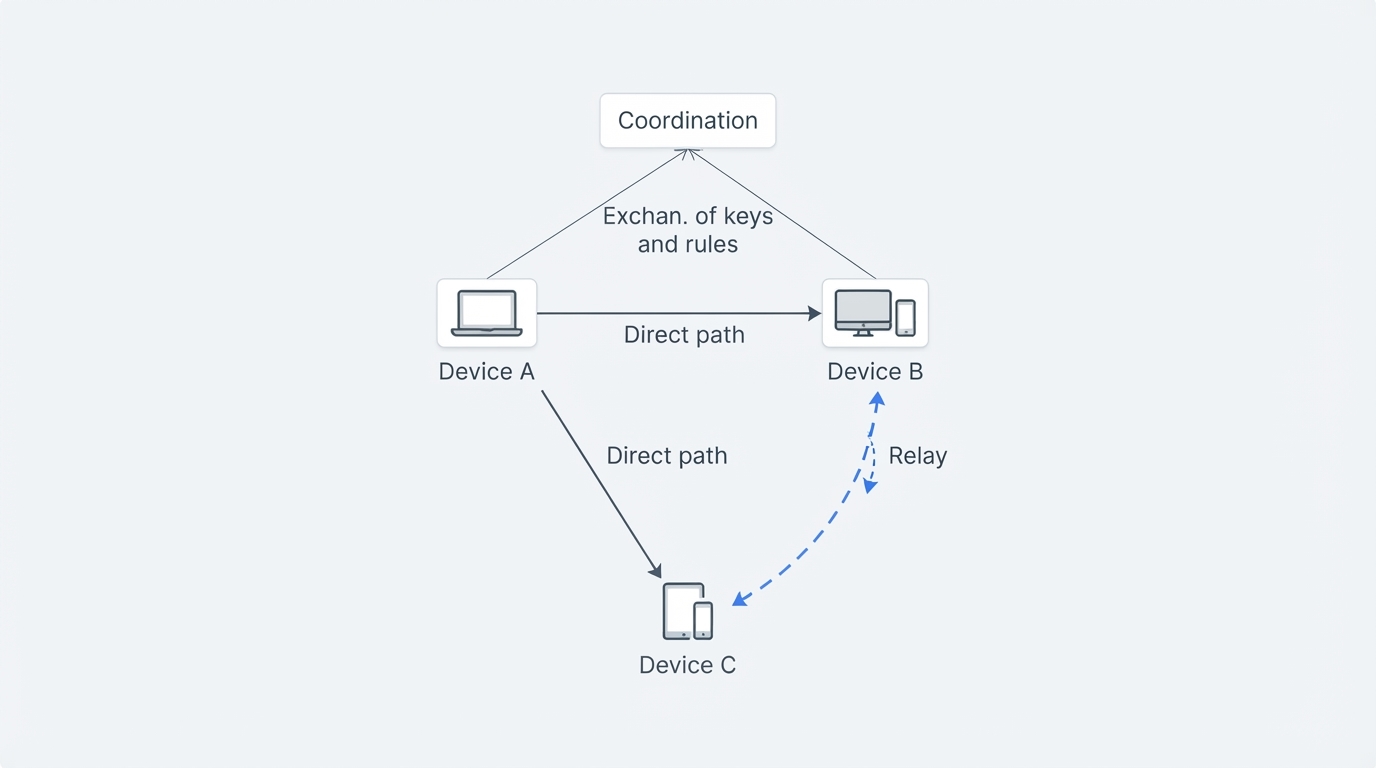
When a direct path cannot be established, traffic falls back to a relay. That relay keeps the same end-to-end encryption, but throughput and latency now depend on the relay's location and load. It is the usual explanation for a connection that is secure but slow.
Privacy questions then have two halves. What the service can observe is metadata: which devices exist, their addresses, and connection patterns, with retention described in the vendor's current documentation. What stays on the Mac is the client's own logs. Read both before assuming either. Permission surfaces matter too: the network extension approval, local network prompts on recent macOS releases, and firewall rules can each block a connection that looks healthy in the menu bar.
Two VPNs on one Mac also frequently collide. A full-tunnel corporate VPN and an exit node compete for default routing and DNS, and the symptom is selective breakage rather than an obvious failure. The app's own command line is the quickest way to see the state: tailscale status lists peers, tailscale ip -4 prints the tailnet address, and tailscale ping shows whether a path is direct or relayed.
A fit checklist: when a Mac on Tailscale solves the problem
Situation | Fit | Check first |
|---|---|---|
Reaching a home Mac mini, NAS, or router from another city | Strong | Device approval, key expiry, and the access rule for that specific port |
A small team across two offices sharing machines | Good | Who owns the policy file, and MagicDNS enabled for both sites |
Devices behind CGNAT or changing residential IPs | Good | Whether the path is direct or relayed; both peers need reachable UDP |
A fixed public egress address or guaranteed bandwidth | Weak | Exit node placement, relay path, and upload speed at the exit device |
Device-managed corporate Macs | Conditional | Extension allowlist, split-tunnel policy, and ownership of the access rules |
Replacing corporate VPN policy enforcement | Poor fit | Identity, auditing, and device compliance belong to enterprise deployment |
The pattern behind the table is that Tailscale is strongest when the problem is reaching your own machines and weakest when the problem is enforcing an organisation's network policy. The client can only express the rules it is given.
Project facts at a glance
Field | Entry | Note |
|---|---|---|
License | BSD-3-Clause for the open-source client | Terms for the packaged app can differ; confirm before redistributing |
Platform | macOS: standalone app, Mac App Store build, Homebrew cask, command-line client | Windows, Linux, iOS, and Android builds also exist |
Written in | Go, for the client daemon and command-line tools | The macOS app adds a native interface layer |
Version reviewed | None pinned | Read the installed version in the app; this guide is verification-framed |
Repository | The public | Release tags and issue history are the primary record |
FAQ
Is there a free plan, and what does it cover?
There is a free Personal tier, and its allowances have changed more than once. Rather than trust a number from an article, open the pricing page and your admin console billing view on the same day, then compare the user and device limits with the features you need. Reserved or enterprise features are the parts most likely to sit outside the free tier.
Does the Mac client have to stay running?
Yes. Quitting the menu bar app or disabling the VPN configuration drops the Mac off the tailnet, even though the device stays registered. Sleep suspends the connection too. If you want the link to survive restarts, enable start-at-login; if you need it only occasionally, leave the login item off and connect on demand.
How is it different from a native or corporate VPN?
A conventional corporate VPN is usually hub-and-spoke: every packet goes to a concentrator that applies policy and forwards it. Tailscale builds direct, encrypted links between devices and uses a coordination service for keys and rules, adding an exit node only when you want a specific internet egress. Device-to-device access becomes simpler and often faster, but it does not supply the auditing, device compliance, or policy ownership a corporate VPN programme provides.