What CodexBar is meant to do
CodexBar belongs to a small category of macOS utilities that put AI coding usage in the menu bar, so a limit can be read without opening several provider dashboards. The premise is simple: a coding assistant enforces a quota, the quota resets on a schedule, and the moment you discover you are out is usually the moment you needed the model most.

This article is a verification guide, not a versioned hands-on review. No current release build was checked against the product claims below, so each detail is framed as something to confirm in the project's repository and in the installed app. That framing is deliberate. A stale quota number is worse than no number: it changes when you start a long refactor, which files you hand to which model, and whether you trust the app at all.
The five fields to verify first
The monitoring objects usually attributed to CodexBar are quota windows, reset times, credits, cost, and token usage. Each fails in a different way, so check them one at a time instead of accepting a single percentage at face value.
Field | What it should tell you | What a bad reading looks like |
|---|---|---|
Quota window | Whether you are inside a session limit, a weekly limit, or both | One percentage with no window definition |
Reset time | When the current window returns to zero | A countdown that ignores your timezone or plan tier |
Credits | A paid balance that is separate from rate limits | Credits folded into usage with no distinction |
Cost | Spend estimated from published prices | A currency-less number presented as an actual bill |
Token usage | Counts tied to a provider, model, or session | One total that hides which provider produced it |
Verify each field by opening the app and the provider's own usage dashboard at the same moment, then comparing the two. If they disagree, note the sampling time on both sides; many tools poll on an interval, so a two-minute gap can look like a bug when it is only a refresh delay. Anything that cannot be matched to a provider-side number belongs on your unverified list, not in your planning.
Providers and data sources
If you searched for codex bar to explain a quota surprise, start with the provider list rather than the headline number. A count is the least useful fact about a quota monitor: it goes stale with every release, and totals in the low hundreds tend to count variants of the same underlying account.
Work through the list in this order:
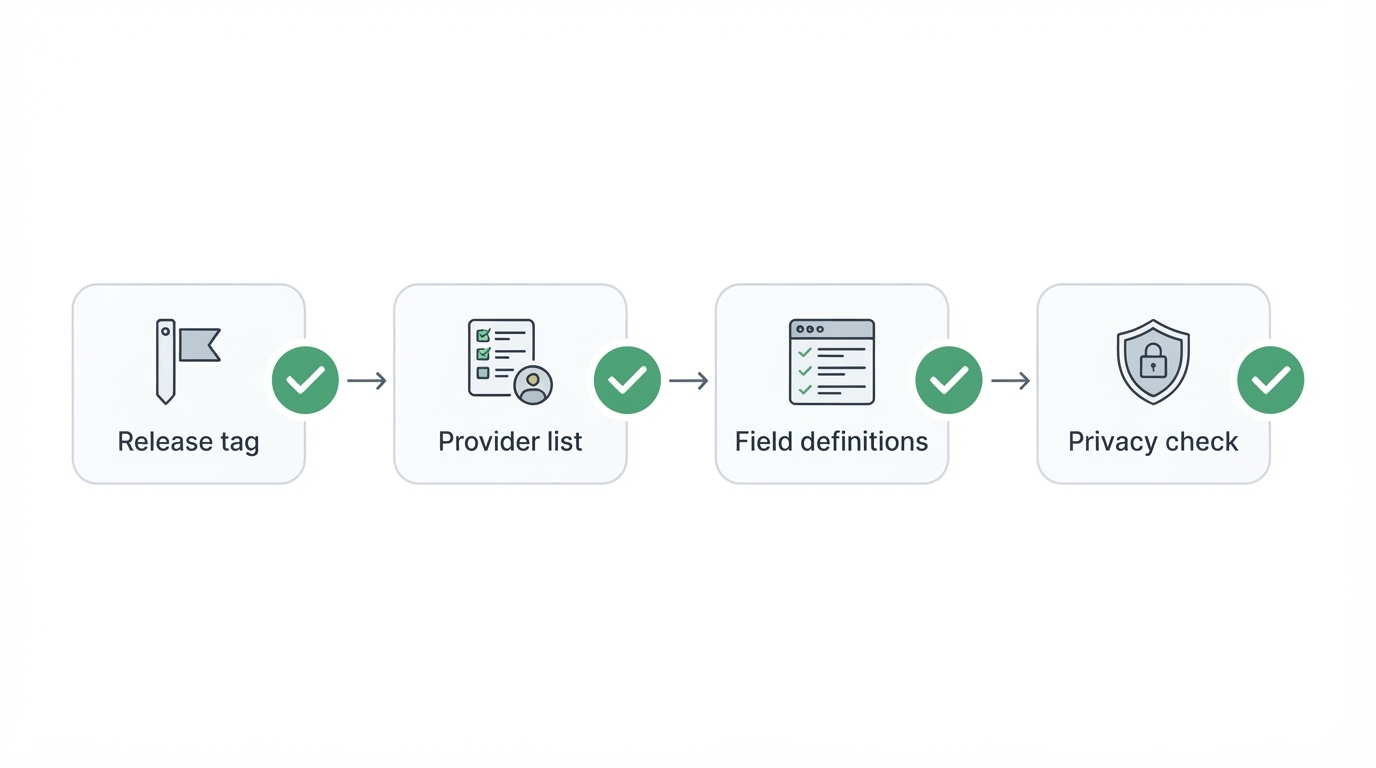
- Open the provider settings in the build you installed and note exactly which entries are enabled.
- Read the README at the release tag you installed, not the default branch, because the supported set can differ between them.
- For each provider you actually use, identify where the number comes from: a local CLI credential, a key you pasted in, or a sign-in session. The source determines how fresh a reading can be.
- Record the check date next to the list. When a quota looks wrong a month later, that date tells you whether the app or the provider changed.
"Supported" deserves a second look as well. A provider can be listed while only one field is tracked, for example a usage percentage without a reset time. That is still useful, but it is not the same promise as full coverage, and the difference rarely appears in a feature table.
Menu bar behavior: four checks
The menu bar is the whole interface, so small interaction decisions matter more than they would in a full-window app.
Persistent display. Check what the item shows when you are idle and when a quota is close to exhaustion. A monitor that only turns red at 100 percent gives you no room to change plans.
Expandable panel. Opening the item should reveal more than the menu bar text does. If the panel repeats the same number, the app is a reminder rather than a monitor.
Reset reminders. A notification before a window resets is the feature that changes behavior. Confirm whether it exists, whether it fires for every provider, and whether it can be turned off.
Launch at login. Login items are opt-in in most well-behaved Mac apps. Check where the item is registered, and remove it if the app is only for occasional use.
For each of these, write down what you observed and the version you observed it on. "It shows my usage" is not a specification; "the panel lists a reset time per provider, checked on this build" is.
Privacy and network boundary
A quota monitor is a credential-handling app, which makes this section the one to read before granting it anything.
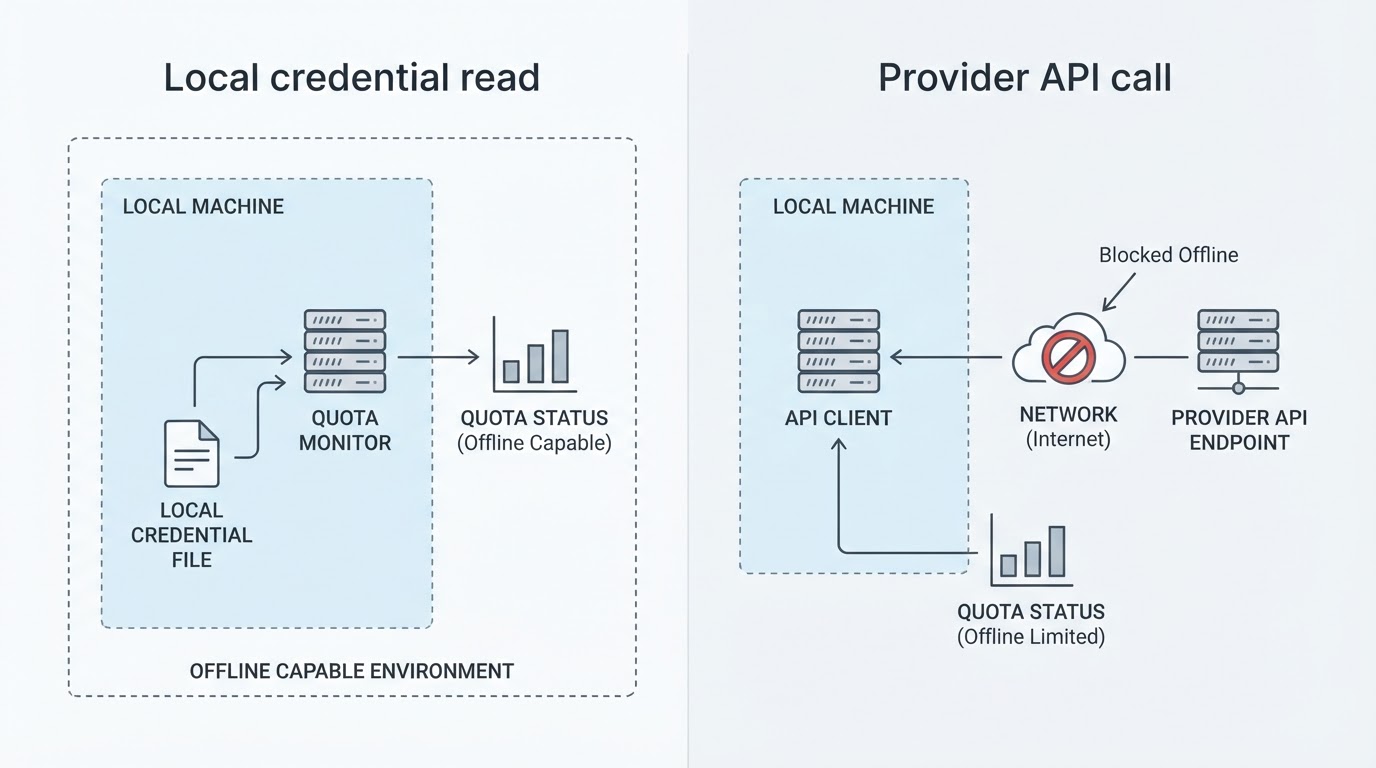
- Local credential reads. Identify which files or directories the app reads and whether it reads them in place or copies them. A tool that parses an existing CLI session is doing something different from one that stores a token of its own.
- Network behavior. Determine whether the app talks to provider APIs directly, to a third-party endpoint, or not at all. Local log parsing can work offline; an API-based monitor cannot.
- What leaves the machine. Look for telemetry, crash reporting, and any request body that includes account identifiers.
- Local storage. Check whether history and logs are kept, where they are kept, and for how long.
The practical verification is unglamorous: read the source at the pinned tag, watch outbound connections with a network monitor while the app refreshes, and read any privacy notes in the repository. If a question stays unanswered, mark it unverified and decide whether you are comfortable with that. When an app asks for a token, prefer the narrowest scope that still produces a reading.
macOS and iOS are different products
Do not assume feature parity between the desktop app and the iOS app, in either direction. A mobile build answers a different question: whether a remaining quota can be seen while you are away from your Mac. Check the release notes for each platform separately, and treat a feature described on one platform as unconfirmed on the other until you see it.
For a Mac-centered workflow, the macOS build is the only surface that matters during a coding session. The phone build is a convenience, not a substitute.
The project facts card
A source-based review records the same facts for every app. Fill this in from the release you installed, and leave a cell blank rather than guessing.
Fact | Where to confirm |
|---|---|
License | The license file at the release tag you installed |
Platform | The release notes or system requirements for that build |
Written in | The repository's language statistics and build files |
Repository | The project's own site, following its repository link; avoid lookalike domains |
Version reviewed | The app's About panel or the release tag |
Checked date | The date you ran the checks |
Two of those rows do most of the work. The repository tells you whether the code can be inspected at all, and the checked date tells a later reader whether your notes still apply. Neither can be inferred from an app icon or a directory listing.
When it fits your workflow
CodexBar-style monitoring earns its place when you switch between providers, when you plan sessions around a reset, and when hitting a limit mid-task costs real time.
It is a poor fit if you need auditable billing, team-level cost allocation, or historical reporting you can export and reconcile. A menu bar reading is an operational signal, not a finance record. It is also a poor fit if you cannot inspect its credential and network behavior and are not willing to accept that uncertainty.
If you use a single provider and check it once a day, the provider's own usage page may be enough. The value of a menu bar monitor grows with the number of providers you juggle and the cost of being surprised.
Install and remove cleanly
Install from the project's own release page and verify a published checksum or signature before the first launch. Grant only the access the app demonstrates it needs; a quota reader rarely needs broad file or automation permissions.
Removal is usually the part that leaves residue. Quit the app, disable its launch-at-login item, delete it from Applications, then remove its support files under Application Support, Caches, and the preferences folder for its bundle identifier. Revoke any token you pasted in. Confirm the menu bar item is gone after a restart.
What stays unverified
This guide deliberately stops short of stating facts it could not check against a current release. The items still open are the exact provider count, the license, the minimum macOS version, the iOS feature set, and the app's network behavior. Each has a named place to confirm it, and each is cheap to check before you install.
If those checks pass for your setup, a menu bar quota monitor removes a repeated source of friction from AI-assisted work. If they do not, you have saved yourself an app that would have made quota surprises feel more predictable than they are.