How the charge limit works on a MacBook
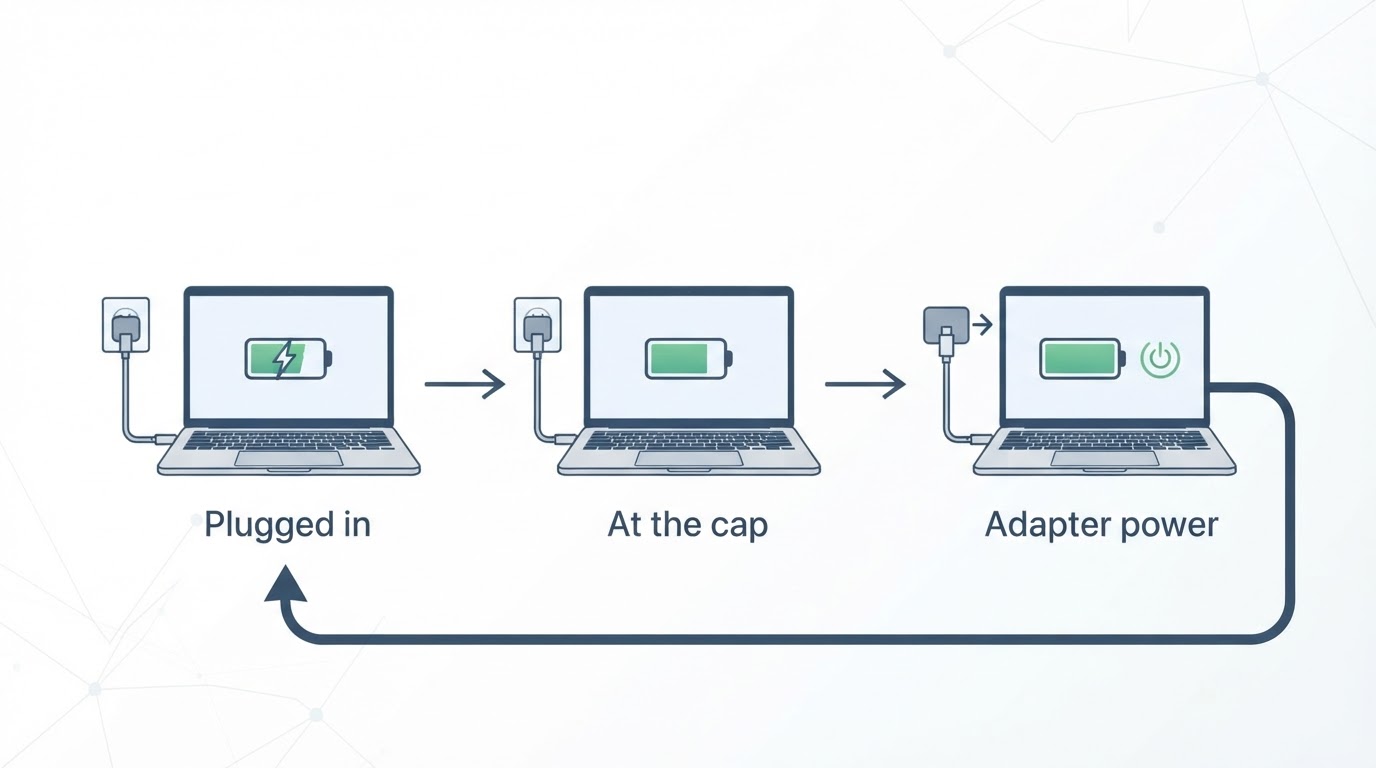
AlDente lets you set a maximum charge percentage, such as 80%. Once the battery reaches that figure, the MacBook draws power from the adapter instead of continuing to charge, so the level stays at the ceiling while the machine is plugged in. That is the mechanism described for the app, and it is narrower than it sounds: a ceiling on charge, not a rewrite of how macOS reports battery condition.
Two details decide whether the cap behaves the way you expect. The first is what happens when the level falls below the limit: some builds resume charging a few points under the cap and stop again, so the number moves inside a narrow band instead of sitting still. The second is what macOS reports while the Mac is plugged in at the ceiling, where a capped battery can read as "not charging" — the intended state, not a fault. Ask the app's own documentation for both answers before you interpret a menu bar reading.
Do not read a cap as a health promise. No single percentage is correct for every laptop, the app cannot tell you what your battery needs, and 80% is a common example rather than a recommendation. The decision here is smaller and more useful: whether the cap behaves predictably enough on your machine to keep it in the menu bar.
Verify each control before you trust it
Product pages describe features as promises. A verification pass turns them into observations: what you changed, what the app displayed, and what the battery did over the next hour. The five controls below cover what a menu bar charging tool is typically asked to do. Check each one in the build you install, and write the version and the date beside your notes.
Control | What to confirm | How to check it |
|---|---|---|
Charge limit range | The lowest and highest percentage the app accepts, and whether the value survives a restart. | Set a limit near the top of the range, restart, then reopen the menu and read the value. A cap that resets is not persistent. |
Pause or resume charging | Whether charging can be stopped and restarted without changing the stored limit. | With the adapter connected, toggle the control and watch the system charging state on both transitions. |
Discharge | Whether the Mac can run from battery while the adapter stays connected, and where that run stops. | Try it only when a drained battery is acceptable, and note the stop point the app enforces. |
Heat protection | Which temperature or condition pauses charging, and whether the trigger is configurable. | Read the app's own description of the trigger first; a menu bar icon cannot prove the policy behind it. |
Launch at login | Whether the cap still applies after a restart without opening the app. | Restart, sign in, and read the level before touching the app. Remove the login item if you want the cap only occasionally. |
The point of the table is not to doubt a working app. It is to keep what you observed separate from what the vendor states, because those two things fail differently. A control that does nothing on your build is a reason to quit, and quitting is quick. A control that works but is described loosely is a documentation problem you can live with.
Compatibility: Intel, Apple silicon, and macOS 12
AlDente is described as running on Intel and Apple silicon MacBooks with macOS 12 or newer. Confirm that against the vendor's current system requirements before you install: the macOS floor moves between releases, and a download page can still describe an older build. Two terminal commands tell you what you have. uname -m prints arm64 on Apple silicon and x86_64 on Intel, and sw_vers -productVersion prints the macOS version.
macOS also manages charging on its own. Optimized Battery Charging delays the last part of a charge based on your routine, and a charge limit tool adds a second policy on top of that. Two managers can produce confusing readings: the menu bar shows a ceiling while the system reports that charging is paused, and neither readout is wrong. Check whether your macOS release also offers a built-in charge limit, because leaving both switched on makes it harder to tell which one stopped the charge.
The practical test takes ten minutes. Open the battery settings, note whether Optimized Battery Charging is on, set a cap in the app, and watch both readouts for an hour with the adapter connected. If they disagree, keep the arrangement you can explain and turn the other layer off. Also restart once with the app closed. A charging utility that only works while its window is open is a different product from one that enforces the cap from a background item, and you want to know which one you installed.
Install with Homebrew and approve the first launch
Homebrew is the shortest install path if it is already on the machine. Confirm the cask name before installing, because a formula name is not always the product name.
brew search aldenteIf the search lists a cask named aldente, install it:
brew install --cask aldenteIf nothing comes back, stop and use the vendor's download instead of forcing a name that may belong to something else.
The first launch is where a charging utility asks for the access it needs to act. Read each prompt instead of clicking through the sequence. A helper or a login item is plausible for an app that has to hold a ceiling after a restart; broad file or automation access is not. If macOS blocks the first launch, the approval sits in the Security or Privacy & Security pane of System Settings, and the app usually has to be launched again afterwards.
Check that the cap is applied before you walk away. Set a limit at or below the current charge, keep the adapter connected, and confirm the level holds where you set it. If nothing changes, the background helper is probably not running, and the rest of the checks will mislead you.

Quit, uninstall, and restore normal charging
Removal is two steps: stop the app, then remove its files. Quit from the menu bar first, and turn off launch at login while you still can. An app that restarts at login keeps enforcing the cap after you think it is gone.
brew uninstall --cask aldenteLeftovers vary by build. Look in ~/Library/Application Support, ~/Library/Caches, and ~/Library/Preferences for a folder or property list named after the app, and remove only what you recognise. Then restart, plug in, and confirm the battery charges past the old ceiling. If it does not, something is still active: open the Login Items list in System Settings (System Preferences on macOS 12) and remove the entry before trying again.
Restoring normal behaviour is not the same as uninstalling. The system's own charging logic should take over as soon as nothing is holding the ceiling, but a built-in macOS limit stays switched on until you turn it off separately. Check the battery settings after the uninstall rather than assuming the default returned.
Free tier, Pro routes, and what to confirm before paying
The app is free at a basic level, and the paid routes are separate: a Pro subscription listed at $11.99 per year, a lifetime licence at $24.99, and Setapp at $9.99 per month. Treat those figures as the ones this review was planned against, and confirm them on the official pricing page before you pay, because subscriptions and bundle availability change.
Option | Listed price | Shape |
|---|---|---|
Free tier | No charge | The basic charge limit. Confirm which controls the free build actually exposes. |
Pro subscription | $11.99 per year | Recurring. Check renewal and cancellation terms. |
Lifetime licence | $24.99 | One-time. Check what "lifetime" covers, including major versions. |
Setapp | $9.99 per month | Bundle subscription. Check whether the Pro features you need are included. |
Do not assume the free tier contains every Pro control. The useful comparison is a short list: the two or three controls you would actually use, checked one at a time against the vendor's own tier table. If a charge ceiling is your only requirement, the free tier may be enough. If you want discharge or scheduled behaviour, the paid routes are the ones to price.
Project facts and the check date
Field | Detail |
|---|---|
License | Free basic tier plus paid Pro licences (subscription, lifetime, or Setapp). Confirm the licence terms at the release you install. |
Platform | macOS 12 or newer; Intel and Apple silicon MacBooks. Confirm on the vendor's system requirements page. |
Written in | Not confirmed in this review. Check the release notes or the source listing for the build you install. |
Version reviewed | Not pinned. No build was installed for this review, so the controls above are checks to run in yours. |
Repository | Not linked here. Reach it from the vendor's own page and avoid lookalike domains. |
Checked date | 1 November 2026 |
Two rows carry most of the weight. The version tells a later reader whether these notes still apply, and the licence tells you whether the free tier is a permanent ceiling or an evaluation. Neither could be pinned for this review, which is why every vendor-specific claim above is written as something to confirm rather than a finished fact.
When AlDente fits your setup
AlDente earns its place on a laptop that spends most of the day on a desk with the adapter connected, where a visible ceiling in the menu bar replaces guesswork about whether the battery is sitting at 100% for hours. It also suits readers who want the ceiling checked, not just set: the five controls in this guide are the difference between an app that works on your machine and one that only looks like it does.
It is a poor fit if you want to install and forget. A charging tool that silently stops working after an update or a restart is worse than no tool, because you will plan around a limit that is not there. It is also a poor fit if you need the vendor's exact licence, version, or repository facts before you install anything: those have to come from the official pages, and this review deliberately did not guess them.
The last thing worth saying is out of scope on purpose. This is not a guide to replacing a battery or to how macOS manages power internally. It is a guide to one menu bar tool, the ceiling it sets, and the checks that tell you whether that ceiling is real on your Mac. Run them in order, keep the notes, and the install decision takes care of itself.