The four controls, and what each one actually needs
BetterDisplay is a macOS menu-bar utility that works on display modes rather than on apps. Four control families decide whether it is useful to you: resolution, HiDPI scaling, brightness and dimming, and virtual screens. They are not four equal features. Two are software conversations with macOS, and two are hardware conversations with your monitor. If you have seen the name written as better display in a forum thread, it is the same app.
Control | What it changes | What must be true first | What it cannot do |
|---|---|---|---|
Resolution | Adds display timings macOS does not list, including refresh rates and custom modes | The panel and its scaler must accept the timing | Invent a mode the monitor rejects |
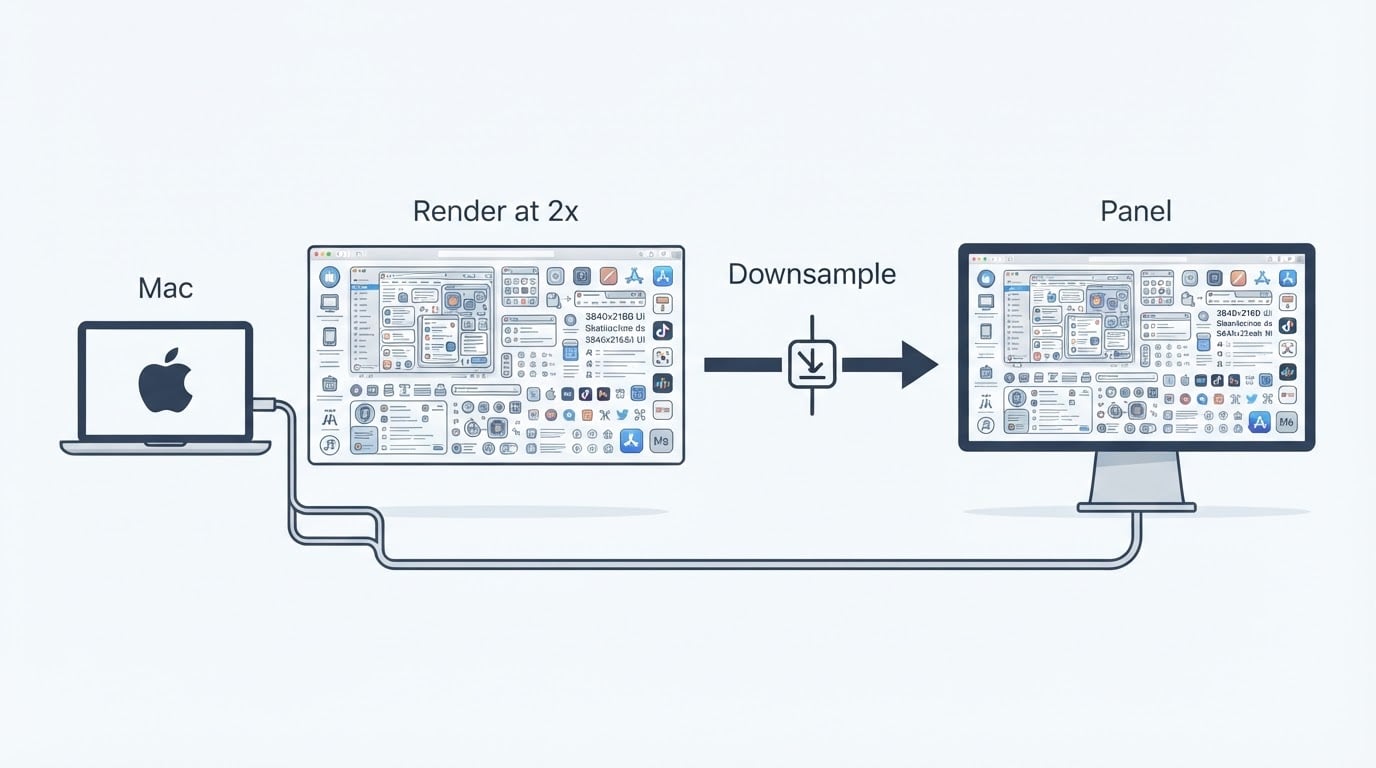
HiDPI scaling | Renders at a higher internal resolution, then downsamples to your panel | Enough GPU headroom to drive the larger render target | Raise the panel's physical pixel density |
Brightness and dimming | Sends DDC/CI commands to the monitor, or dims in software | The monitor must accept DDC over the exact cable and adapter chain you use | Restore a backlight the monitor refuses to expose |
Virtual screens | Creates software displays for headless use, picture-in-picture, and splitting | A Mac able to drive the extra render target | Turn a virtual screen into a physical monitor |
This is a pre-install evaluation, not a hands-on test of a pinned build: no version was installed for this article, and no screenshot of the app is reproduced here. Every claim below is about the control category and its prerequisites, so check the current release notes before you commit.
The distinction that matters is this: a mode macOS will accept is a software question, while brightness, contrast, and volume are hardware questions. BetterDisplay can request a DDC command; only the monitor can answer it.
Can BetterDisplay fix blurry text on third-party 1080p, 1440p, and 4K monitors?
Yes for the three classes you asked about, with a condition attached to each. The mechanism is the same in all three cases: macOS gives Retina-style HiDPI modes to Apple displays and often supplies third-party panels with only low-density modes, so the system draws text at 1x and the result looks soft or jagged. BetterDisplay asks macOS to create a HiDPI mode instead, which means the system draws at a higher internal resolution and then scales down to the panel.
How much that helps depends on the pixels you already have.
- 4K panels gain the most. A "looks like 1440p" HiDPI mode renders 5120×2880 and downsamples to 3840×2160, which is why text becomes visibly cleaner.
- 1440p panels gain clearly but pay more per pixel. A "looks like 1080p" mode renders at 2560×1440, so the desktop gets less room and the GPU does more work.
- 1080p panels gain least. There is no spare pixel budget to supersample, so a 2x mode simply halves your workspace; sharpness improves mainly at scaled modes rather than at 1x. If 1080p text looks bad, pixel density is the cause, not a missing checkbox.
Two limits are worth stating plainly. A supersampled image is not the same thing as a native Retina panel: you get cleaner glyph edges, not more physical pixels, and fine detail can still look slightly soft. And HiDPI costs GPU time and memory, so a large render target on a Mac with a modest GPU can make scrolling or video playback worse. Create one mode, live with it for a day, then decide. Verify on your own display rather than trusting a review, including this one.
Does BetterDisplay control external monitor brightness, contrast, volume, and HDMI-CEC?
Yes: DDC brightness, contrast, volume, and HDMI-CEC are the controls the app is known for, reached from the menu bar, with keyboard shortcuts available for the ones you use constantly. The prerequisite is the whole story, though. DDC/CI is a control channel that runs over DisplayPort, HDMI, or USB-C, and it works only if the monitor listens on it.
DDC is negotiated along the entire chain, not just at the display. A monitor that exposes DDC over DisplayPort may drop it behind a cheap USB-C hub, a passive adapter, or a KVM switch. Some monitors ship with DDC disabled in their own on-screen menu. Apple's own displays are a special case, because macOS controls their brightness directly instead of through DDC.
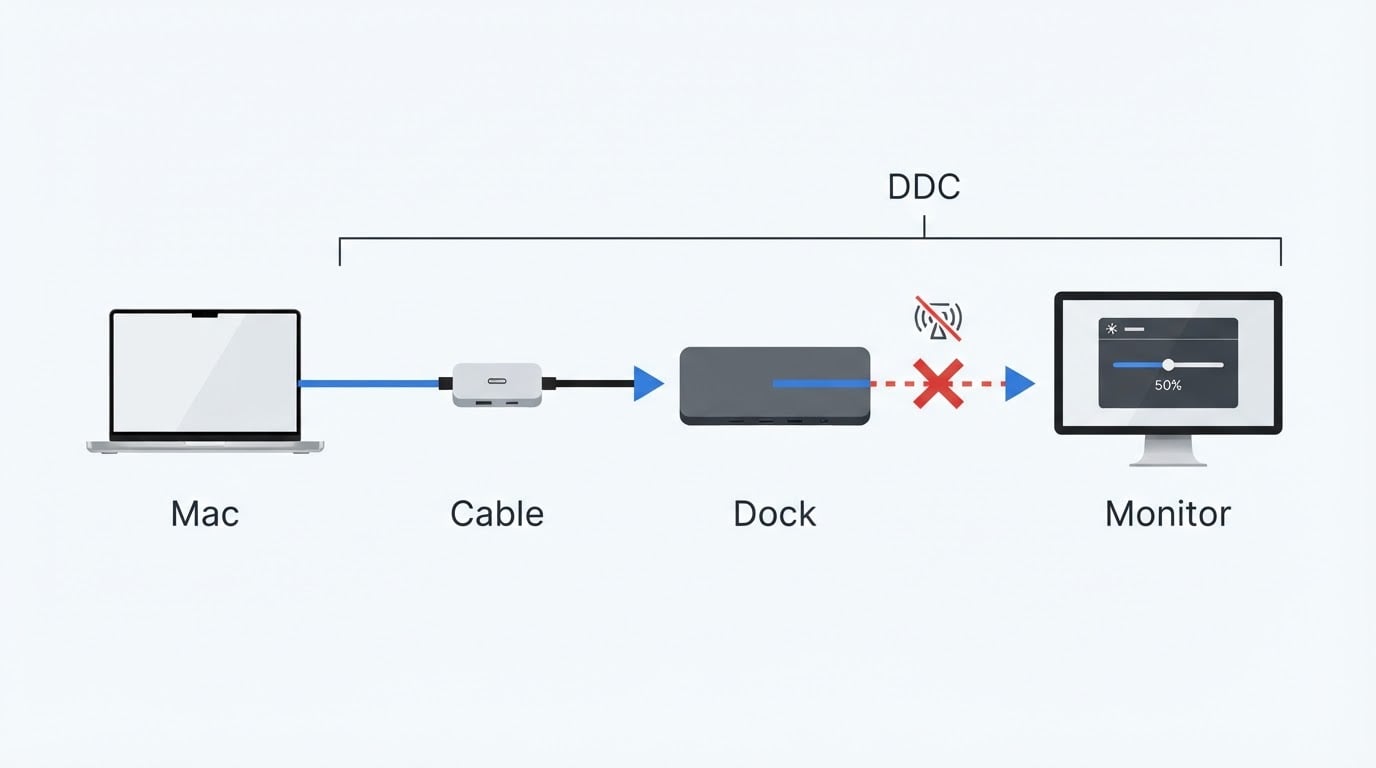
CEC is a separate channel again. It is negotiated between the Mac's HDMI output and the display or TV, and support differs by Mac model and adapter, so treat it as a per-setup check rather than a promise.
One distinction prevents most disappointment. DDC brightness changes the monitor's actual backlight. Software dimming draws a dark overlay over the image. They look similar in a screenshot and behave nothing alike in practice: an overlay cannot lower power draw, cannot brighten a room-lit screen, and does not change what the display reports to color-managed apps. If a monitor refuses DDC, no amount of software control restores the backlight.
A quick diagnostic before you install: open macOS System Settings, go to Displays, and look for a brightness control for that monitor. If macOS offers nothing, the display is treating brightness as its own on-screen-menu job. That is a signal to check DDC compatibility, not proof that BetterDisplay will fail, but it is the first thing to test.
Can BetterDisplay create virtual displays for headless Mac setups?
Yes. The app creates virtual screens, and that single capability covers several jobs: running a headless Mac with a usable desktop for screen sharing or VNC, adding a picture-in-picture window, and splitting one physical display into several virtual ones. The developer's release notes document these modes, so confirm that the build you download still lists the one you need.
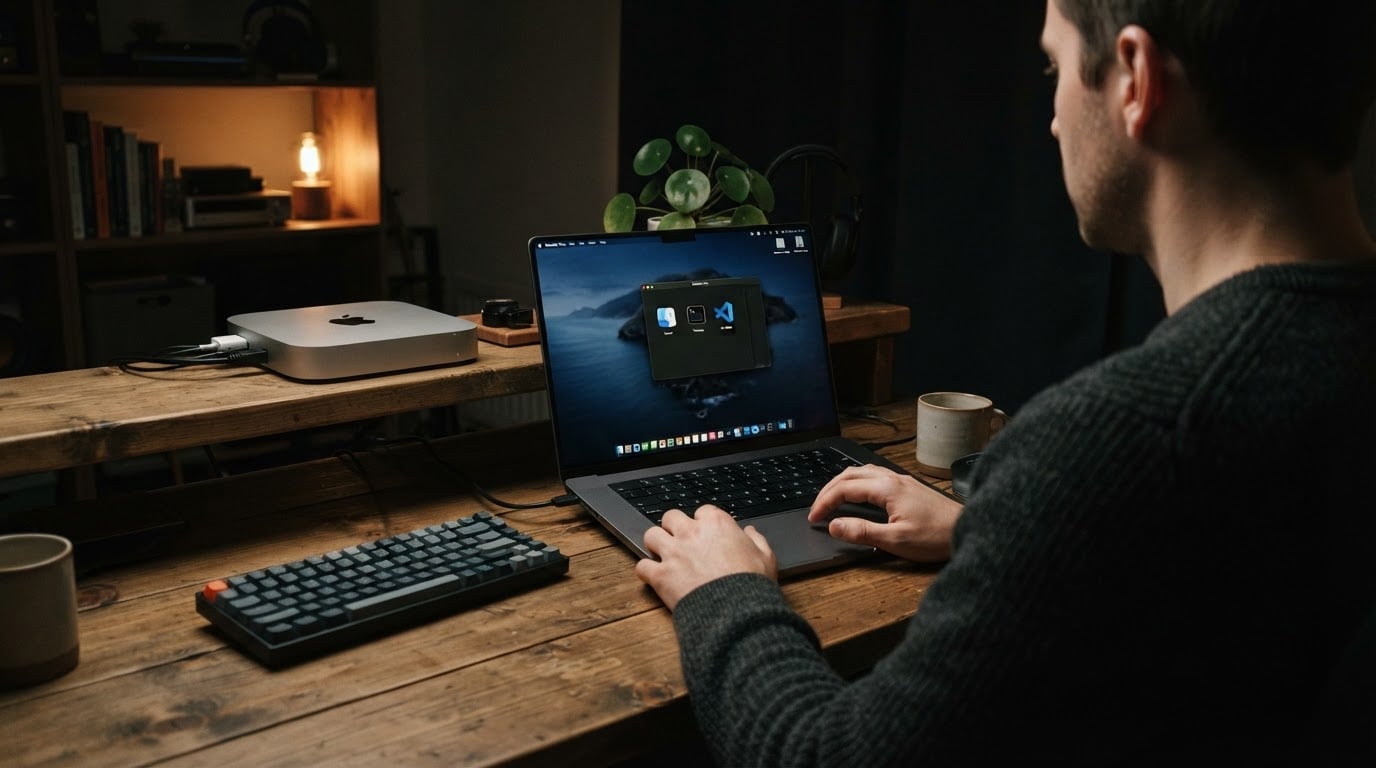
The boundary is in the word virtual. A virtual screen is a render target the GPU draws into; it is not a physical monitor, and nothing plugged into the Mac detects it. That has practical consequences. Some apps behave differently on a virtual screen than on a real one, screen-recording and remote-desktop tools may need extra permissions to see it, and its refresh behavior is not a panel's. None of that is a defect; it is what the word means.
For headless use, the useful test is small: create one virtual screen, connect over screen sharing, and confirm the desktop appears at the resolution you expect. If it does, the setup works. If it does not, the problem is in the remote path or the macOS version, not in the number of virtual screens you created.
Where macOS's own Displays settings stop
System Settings gives you a short list for a display: a default mode, a few scaled options, and sometimes a refresh-rate choice. On Apple displays that list includes HiDPI. On many third-party monitors it does not, and that is exactly the gap this app targets.
The gap has edges. BetterDisplay does not replace macOS color management, so a calibrated profile still comes from your own calibration pass. It does not change the physical density of the panel. And a mode the app creates is still a mode macOS has to accept, so a macOS update can change which timings your Mac allows and force you to recreate a mode. Keep the build number you installed; when a display misbehaves after an update, that number is the first thing to check.
Project facts
Because this is a pre-install evaluation, the honest version of the card marks what was not verified instead of filling every row.
Field | Value |
|---|---|
License | Not verified in this review. A GitHub repository and downloadable builds do not by themselves mean the source is available; read the licence file in the repository before you rely on it. |
Platform | macOS |
Written in | Not verified in this review |
Version reviewed | None pinned, no build was installed for this article |
Repository or official download | The project's GitHub repository, and the download link published in that repository's release page. Take the build from there rather than from a mirror or a bundle site. |
Unverified is not a criticism. It is a statement about what a pre-install review can and cannot claim, and it is the same standard to apply to any tutorial that says just install it.
Pre-install checklist
- macOS version. Read the minimum version in the current release notes. Requirements move with macOS releases, and a guide written a year ago may describe a build that no longer installs.
- Apple silicon or Intel. Check that the release you download lists your architecture. A build for the other architecture is not a small inconvenience.
- Monitor model and the full connector chain. Write the chain down: Mac, cable, dock or hub, monitor. DDC control lives or dies at every link, and the monitor's own menu may have DDC switched off.
- Free and paid boundary. BetterDisplay ships in a free tier with a paid Pro upgrade, and the split between them has changed across releases. Read the current comparison before you install, and do not assume that a feature you saw in a forum post is in the free tier.
- Permissions and privacy. Note what the build asks for at first launch and why. A display utility that overlays content or drives other screens may request screen access, and you should decide whether that trade is acceptable before you agree.
When it is the right tool, and when it is not
Choose it when a third-party monitor gives you only coarse scaling and text looks soft at 1x; when you want the brightness keys to reach a monitor macOS ignores; when a headless Mac needs a desktop for remote access; or when one large panel would be more useful split into two virtual ones.
Skip it when the monitor ignores DDC and you need hardware brightness control; when you expect a 1080p panel to look like a Retina display; when color accuracy is the job and a colorimeter is the right tool; when macOS already offers the mode you want; or when the Mac is managed and you cannot install menu-bar utilities.
Three checks before you install
- Create one HiDPI mode on your actual display and read text on it for a few minutes. If the improvement is not worth the reduced workspace, stop there.
- Test DDC brightness along your real cable and dock chain, not a direct cable on a clean desk. If it does nothing, the monitor or the chain is the reason, and no software setting fixes it.
- Re-read the project facts card, check the current licence and tier comparison, then write down the build you installed. That record is what makes the next macOS update diagnosable.
If all three pass, BetterDisplay is doing the job you want it to do. If one fails, you have learned that from a pre-install check rather than from a refund request.