The short answer: an input lock, not a cleaning product
KeyboardCleanTool is a small macOS menu-bar utility. Its job is to hold input still: while the lock is on, the keyboard, Touch Bar, trackpad, and mouse stop sending the events that make a Mac type, click, or fire a shortcut. A damp cloth over a laptop deck presses dozens of keys at once, and each press is an event the Mac will try to act on.
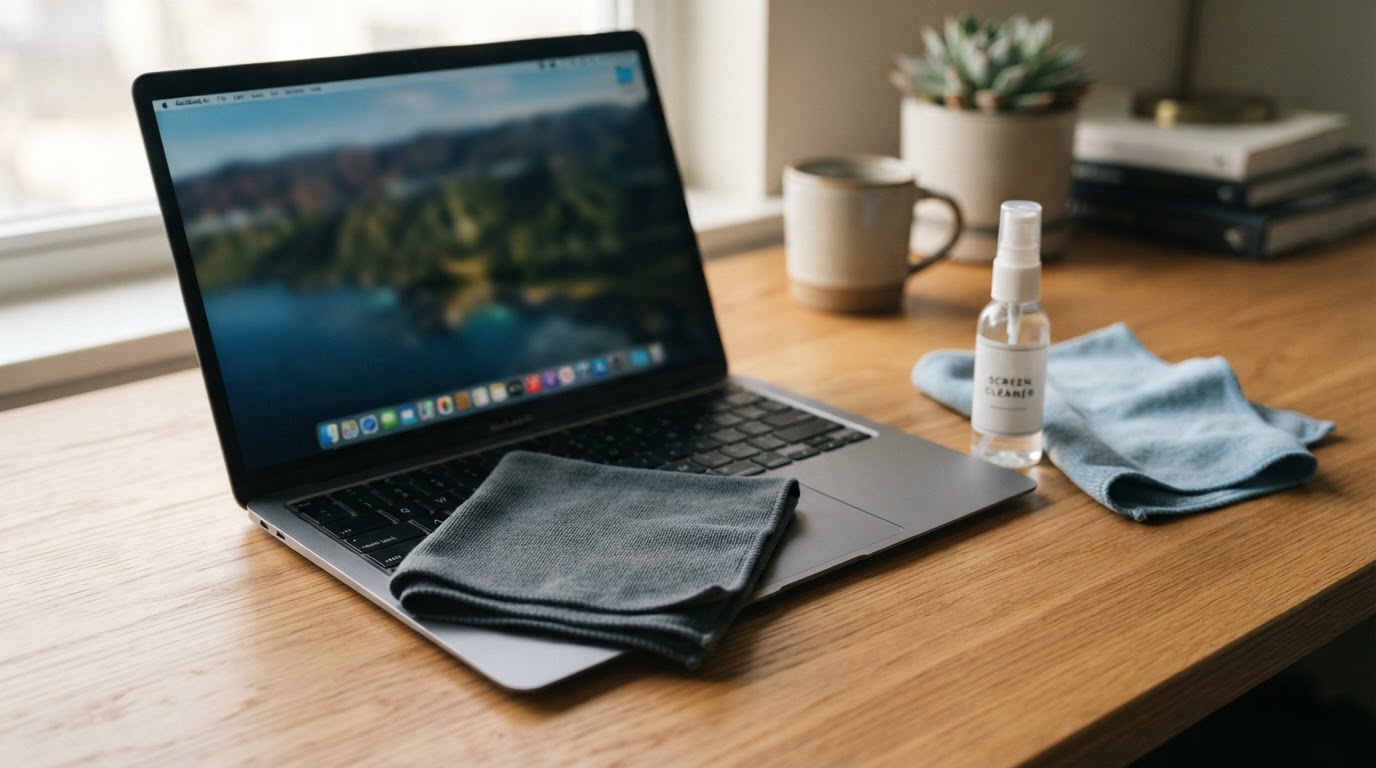
That makes "is it safe?" a narrower question than it sounds. Safe for the cleaning task means no accidental keystrokes reach the system while the lock is engaged. It does not mean the tool protects the MacBook from liquid, and it does not mean the build you download is trustworthy — that depends on where you get it. The lock protects the document you had open, not the hardware under the cloth.
The design also has one sharp edge, and it belongs at the top rather than in a footnote: the same lock that stops stray keystrokes can stop the gesture you need to get back. Most keyboardcleantool for mac searches start with exactly that worry — will the lock let me back in? — and the honest answer is that you should not learn the answer for the first time while holding a wet cloth.
What the lock covers, and what it does not
Input | Documented behavior | What you still have to confirm |
|---|---|---|
Built-in keyboard | Locked: keystrokes do not reach apps | Type into a scratch document to prove it |
Touch Bar | Locked as part of the same input lock | Whether your model has one at all |
Built-in trackpad | Locked: the pointer stops responding | The press-and-hold exit still has to work |
Mouse | Locked, on the same terms as the trackpad | Test with the mouse you will actually use |
External keyboard (Bluetooth or USB) | Not covered by the stated lock scope | Treat it as unusable until you test it |
Keyboard shortcuts and hotkeys | Expected to fail with the keyboard | Check the specific shortcuts you rely on |
Screen brightness or display sleep | Not part of the lock | Manage the display yourself |
Power button and Touch ID | Hardware, outside any userspace lock | This is your last-resort exit |
Read the table as a safety review rather than a feature list: it separates what the tool states from what you have to test, and only two rows decide whether it fits your desk. If the documented press-and-hold exit works, the lock is a convenience. If it does not, the same lock leaves you without input until a hardware restart — which is why the exit gets tested on a dry keyboard first.
A note on the trackpad and mouse rows, because they look contradictory at first glance: the lock suppresses ordinary clicks, and the app still listens for one long press. That press is the documented way out, not a normal click that happens to be held.
Test the exit before you wet the cloth
Do this once, on a dry keyboard, before the first cleaning session.
- Open a scratch document in TextEdit or Notes and click into the text area.
- Turn the lock on from the menu-bar icon.
- Press and hold a trackpad or mouse button for a few seconds. This is the documented exit method.
- Completion signal: the pointer selects text again and a keypress echoes in the scratch document.
- If step 3 does nothing, stop here. Use the recovery ladder below instead of starting the cleaning.
Two minutes of testing is the difference between a tool and a lockout. It also tells you whether your Mac is one of the configurations where the lock behaves as described.
Start the lock and clean, step by step
- Save everything and close any app where a stray keystroke could send, post, or delete. Completion signal: no unsaved-changes dots remain in your open apps.
- Open the scratch document and click into it, so you have somewhere harmless for input to land.
- Turn the lock on from the menu-bar icon. The exact menu wording is not verified for this review, so read the items until you find the one that starts the cleaning lock. Completion signal: the icon changes state and typing stops.
- Press two or three keys, including one shortcut. Completion signal: nothing appears in the document, and focus does not move.
- Clean with a slightly damp, lint-free cloth. Never spray the deck directly, and keep liquid away from the hinge, ports, and speaker grilles.
- Stop at the first sign of moisture near the deck and let the Mac dry before you unlock it.
End the lock
- Press and hold a trackpad or mouse button for a few seconds. This is the documented exit method; there is no verified keyboard shortcut or menu command to quote, so do not go looking for one mid-clean.
- Completion signal: the pointer selects text again and a keypress echoes in the scratch document.
- If the first press does nothing, hold longer — five to ten seconds — then click once.
- Confirm the menu-bar icon is back in its unlocked state before you start typing real work.
The documented exit is the whole reason to test before you wipe. An exit you have practiced is a procedure; an exit you have only read about is a hope.
When it will not unlock: a recovery ladder
Work down the ladder in order and stop at the first step that restores input.
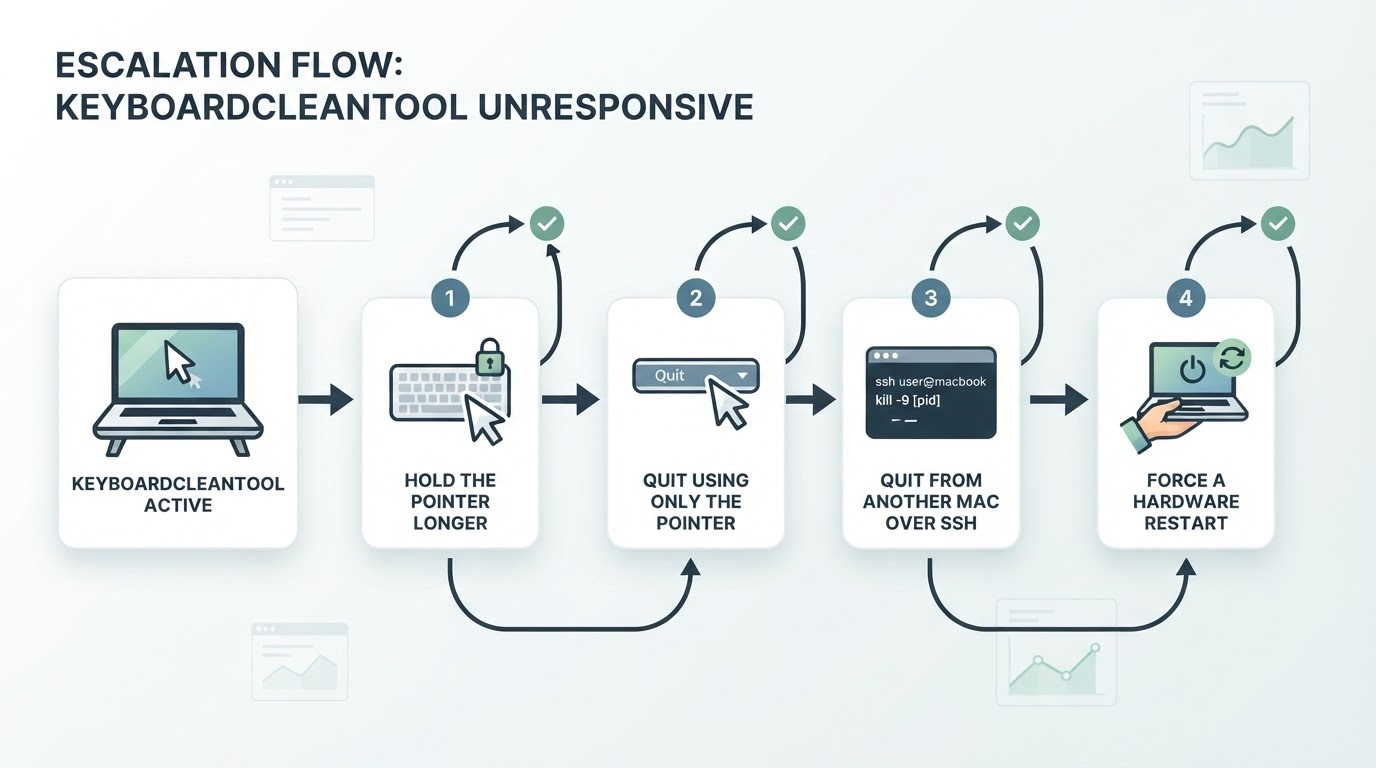
- Hold the pointer longer. Five to ten seconds, then click once. Completion signal: the pointer selects text.
- Quit with the pointer only. If the pointer moves but the keyboard is dead, open Activity Monitor from the Dock or Launchpad, select KeyboardCleanTool in the process list, then use the toolbar's quit or force-quit control. Completion signal: the menu-bar icon disappears and typing echoes again.
- Kill it from another Mac. This works only if Remote Login was already enabled on the locked Mac. Connect with
ssh you@your-mac.local, find the process withpgrep -ifl keyboardclean, then quit it withpkill -i keyboardcleantool. Completion signal: the remote shell prompt returns and the locked Mac types again. - Force a hardware restart. Hold the power button until the Mac powers off; on Apple silicon, press and hold the power button for about ten seconds. Completion signal: the login window appears and the keyboard types your password.
- Clean up after the restart. Open System Settings → General → Login Items and remove KeyboardCleanTool if it launches at login. Then decide whether to keep it, or remove it with
brew uninstall --cask keyboardcleantool.
The failure mode here is not data loss. It is several minutes without input, plus whatever you were doing when the lock engaged. Whether an external keyboard stays usable is unverified, so treat it as a hope rather than a backup plan.
Install it on a Mac: Homebrew cask or official download
Both routes end at the same check: the build comes from the developer, and the version matches what the cask records.
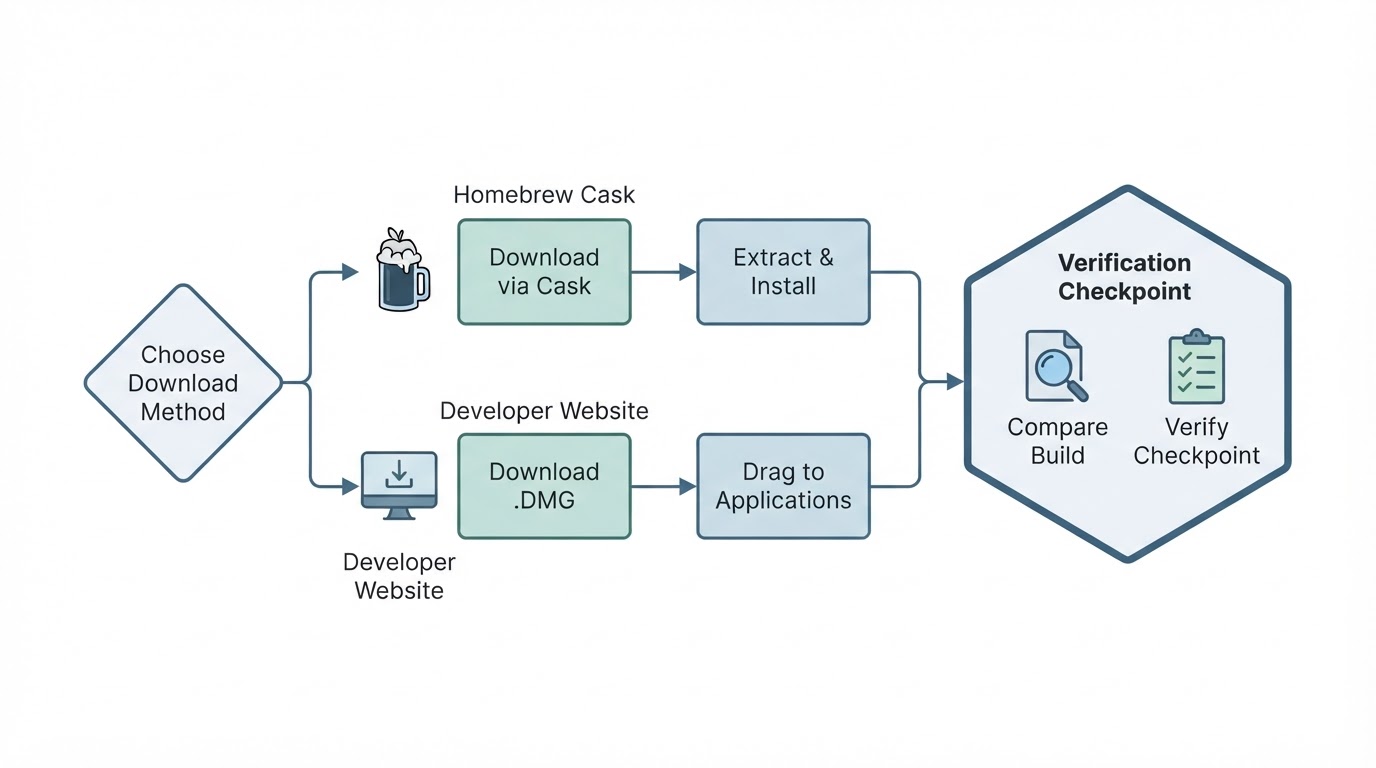
Homebrew cask
brew search keyboardcleantool
brew install --cask keyboardcleantool
brew list --cask | grep -i keyboardclean
Completion signal: the cask installs without an error and the app appears in /Applications. If brew search returns nothing, the token has changed or the cask has been removed — do not guess a name and install the first match.
Official download
Get the build from the developer's own project page rather than a download aggregator. You can find the canonical project URL without trusting a random mirror: brew info --cask keyboardcleantool prints the project URL, the pinned version, and the checksum recorded by Homebrew maintainers. Completion signal: the URL belongs to the developer's own domain and the version matches what you expected.
Compatibility checks
- macOS 13 or later is the current stated requirement. Confirm it on the official page before you install, because minimum versions move between releases.
- Apple silicon: if the build is Intel-only, macOS offers to install Rosetta on first launch. Check the architecture in
brew info --cask keyboardcleantoolor on the project page instead of assuming a universal binary. - Gatekeeper: an unsigned or not-notarized build is blocked on first launch. macOS 15 reports the block in System Settings → Privacy & Security with an Open Anyway button; macOS 13 and 14 offer Open from the right-click menu. Decide whether you trust the source before you click it.
Project facts: what this review can and cannot state
Field | Value in this review |
|---|---|
License | Not verified — check the project page, and do not assume open source |
Platform | macOS menu-bar utility; macOS 13 or later per the current requirement |
Written in | Not verified |
Version reviewed | None — no build was installed or tested for this guide |
Repository | Not verified — |
This is the part most "keyboard cleaner" pages skip. This guide reviews documented lock behavior and the exit method, not a pinned release, so the facts card stays a list of questions to close on the official page rather than a set of numbers copied from somewhere else. If you need a version-numbered assessment before you install anything, this entry is not that — treat it as the workflow and the checklist, and verify the metadata at the source.
Common problems
- "KeyboardCleanTool is damaged" or "cannot be opened". Gatekeeper blocked an unsigned or not-notarized build. Check the source first, then use System Settings → Privacy & Security or the right-click Open menu.
- The cask token is not found. Run
brew search keyboardcleantool. A missing result means the cask was renamed or removed, not that you should install a lookalike. - The menu-bar icon is there but typing still works. The lock is not engaged. Quit the app, relaunch it, and test again in a scratch document.
- Keys start typing mid-clean. The lock was released early. Stop, dry the cloth, and re-test the press-and-hold exit before the next pass.
- Input feels odd after quitting. Check System Settings → Privacy & Security → Accessibility and Input Monitoring for stale entries, and remove permissions you no longer use.
- The pointer never returns. Work the recovery ladder above; if the press-and-hold exit fails twice, go to the hardware restart rather than repeating the same step.
Where this guide stops
- Mechanical keyboard cleaning — keycap pullers, switch cleaning, isopropyl on a bare PCB — is a different job with different risks. This utility only holds input.
- Key remapping tools such as Karabiner-Elements change what a key does. They do not lock input so you can clean.
- Liquid damage, sticky keys, and hardware faults need a service visit, not a menu-bar toggle.
- iOS and iPad keyboards are out of scope. This is a Mac utility.
One-page checklist
Run this list once before you trust keyboardcleantool for mac with a damp cloth.
- Every app where a stray keystroke could send, post, or delete is saved and closed.
- A scratch document is open and focused, so you can hear the keyboard echo.
- The press-and-hold exit has been tested on a dry keyboard.
- You know the recovery ladder, including which step needs a second Mac.
- The cloth is damp, not wet, and you are not spraying the deck.
- You know whether an external keyboard stays usable. If not, treat it as unusable.
- The display is handled separately, because brightness and sleep are not part of the lock.
- The build comes from the developer's page or a Homebrew cask with a matching checksum.
- macOS meets the current stated minimum: macOS 13 or later, confirmed at the source.
- The login item is removed if you decide to uninstall the tool.
The lock is boring by design: it holds input, you clean, you release it. The risk lives in the release, so prove the exit works before the cloth comes out.