The short answer: what Shottr is good for
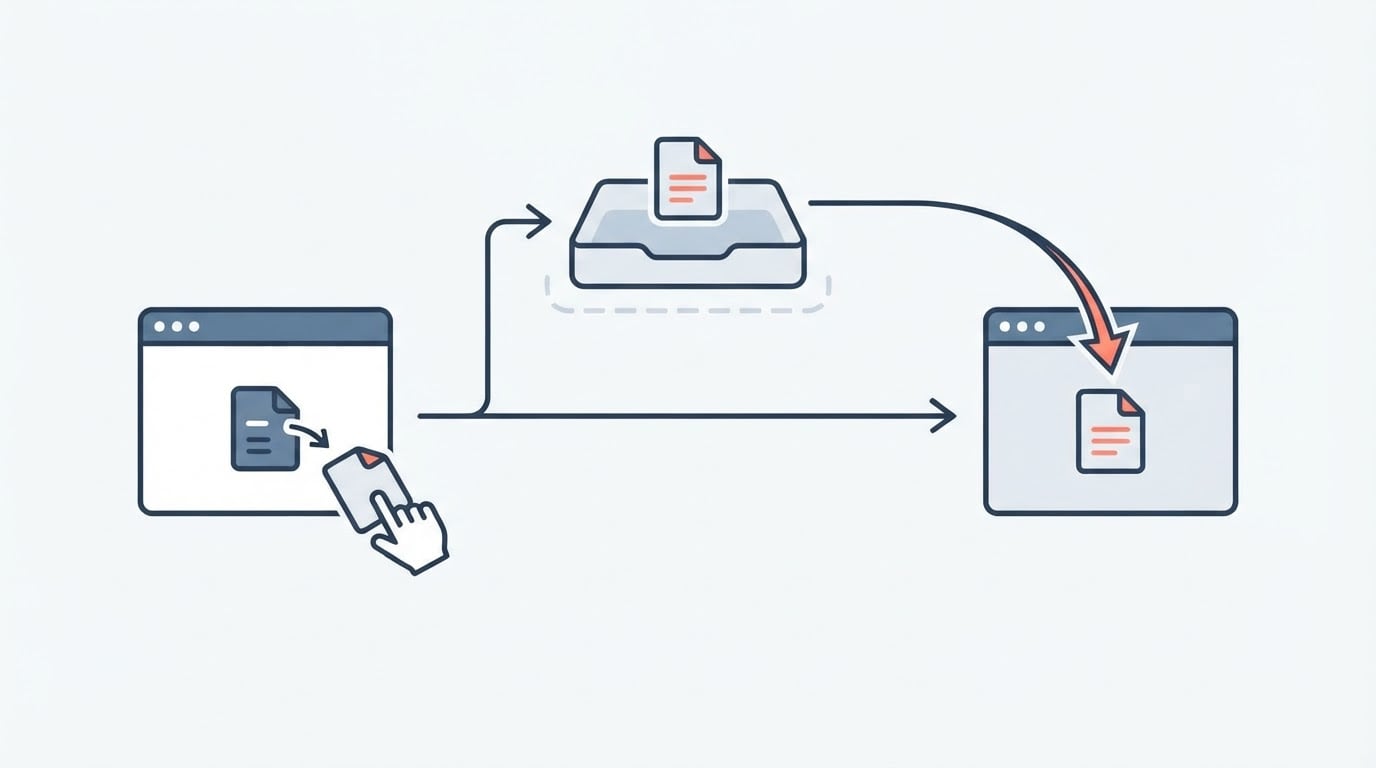
Shottr is a Mac screenshot app built around a single loop: grab part of the screen, mark it up, hand it to someone. Its documented feature set covers three areas — how you capture, what you can annotate, and scrolling capture for content taller than one screen — and the pricing is a free download with a one-time $12 premium purchase option.
That combination fits the person who takes a handful of screenshots every working day: a bug that needs three arrows before it makes sense to an engineer, a settings page to explain to a colleague, a design detail with a color value someone needs to copy. Those tasks reward fast capture plus decent markup far more than they reward an elaborate editor.
It fits much less well if screenshots are an automated or shared resource. Nothing in the published feature description covers batch capture, scripted capture pipelines, or a shared team workspace, and those gaps matter more than annotation polish once you are producing or reviewing screens in volume.
This review also has a factual ceiling worth stating up front. It is assembled from the app's published feature descriptions rather than from a pinned release-tag audit, so it does not fix a reviewed version number, and it has not re-confirmed the license terms or the repository details. The sections below say plainly which claims rest on the published feature set and which still need checking before you install.
Capture methods: what you can grab, and what to check
Capture is the part of Shottr you will use most, so the useful question is not how many capture modes exist but whether the capture step fits the way you work. The published description centers on selecting a region of the screen and producing an image you can annotate immediately, plus scrolling capture for content that does not fit on one screen.
Three checks matter most when you try it:
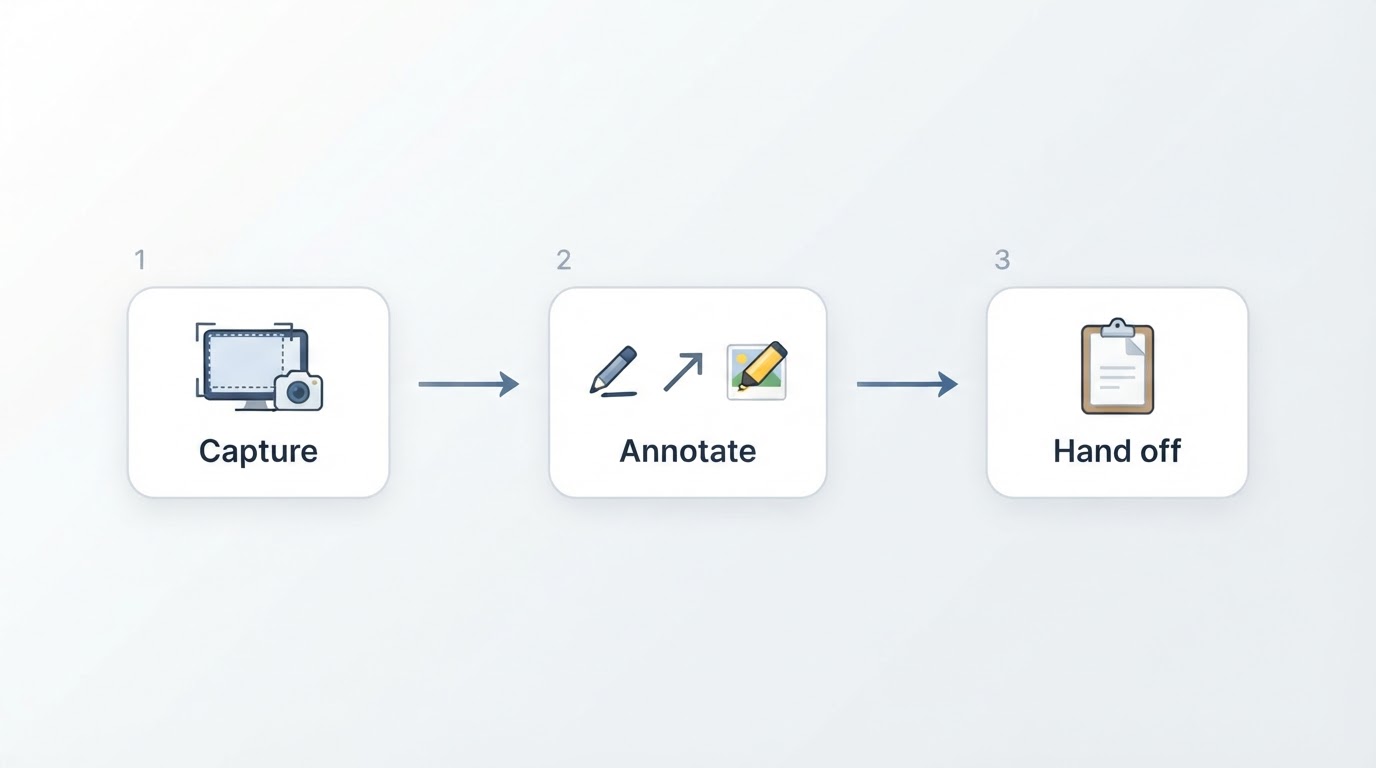
- Start to image. Count the steps between deciding to take a screenshot and having an annotated file you can paste. If it takes more than a couple of gestures, you will drift back to whatever is fastest.
- Selection behavior. Check how the tool behaves on a second display and with a window that is partly off-screen. Multi-monitor capture is where lightweight tools tend to become awkward.
- What the result actually is. Confirm whether you get a file, a clipboard image, or both, because that decides whether the tool fits a documentation workflow or only a chat workflow.
A screenshot example has narrow evidential value. A picture of a capture overlay proves the overlay exists in the version that was photographed; it does not prove capture speed, reliability across hundreds of captures, or behavior on an external display. That is why per-feature screenshots are not used here as proof of capability: in this edition the visual evidence to support them was not available, so the capability claims rest on the published feature description and on what you can confirm in the app in a few minutes.
Worth noting on scope: this review covers screenshot capture, annotation and scrolling capture only. Screen recording tools and the shortcut reference built into macOS are outside its remit.
Annotation tools: the documented set and its practical limits
The annotation and editing set documented for Shottr covers seven tools: text, arrows, shapes, a pixelation curtain, object removal, a screen ruler and a color picker.
Tool | What it is for | What to check before relying on it |
|---|---|---|
Text | Labeling a region, writing the actual instruction next to the thing it refers to | Font size and wrap behavior at export scale |
Arrows | Directing attention to one element when the rest of the screen is noise | Whether arrows stay legible on a downscaled image |
Shapes | Boxing a group of controls or highlighting an area | Fill versus outline options |
Pixelation curtain | Hiding a name, an email address or a token before sharing | Whether the hidden area is truly unrecoverable |
Object removal | Clearing an element you do not want in the shot | Whether the result looks like a plausible background |
Screen ruler | Measuring spacing or element sizes for a design or layout question | Whether the measurement is reported in pixels |
Color picker | Reading a color value from the screen for reuse | How the value is expressed (hex, RGB, or a named format) |
Two of those deserve a caution rather than a feature list. A pixelation curtain and object removal are convenience redaction: they make something hard to read, which is not the same as guaranteeing it is gone. If you are sharing a capture outside your team, open the exported file, zoom to the redacted area, and confirm the text is unreadable before you send it. The same instinct applies to the ruler and the color picker: treat their output as a working measurement, not as a specification, until you have compared one reading against a value you already know.
The trustworthy scope of an annotated sample is also narrower than it looks. A markup sample shows what one result looked like in one version; it does not prove that the same markup survives export, that it can be re-edited later, or that a colleague opening the file sees the same thing. If annotation is the reason you are considering the app, build one real document — not a test rectangle — and check the exported result.
Scrolling capture for long pages and chat histories
Yes: Shottr automatically captures long web pages and chat histories as scrolling screenshots. That single capability is often why people look at a lightweight Mac screenshot tool in the first place, because the alternative — taking four screenshots and stitching them in an image editor — is slow and leaves seams.
Keep the claim at that level, because the published description stops there. It says the app handles long pages and chat threads automatically; it does not spell out how different scroll containers, sticky headers, or lazy-loaded content are treated, and this edition has not verified those edge cases.
So evaluate it the way you would evaluate any automation: on your own content, with a completion standard rather than a gut feeling.
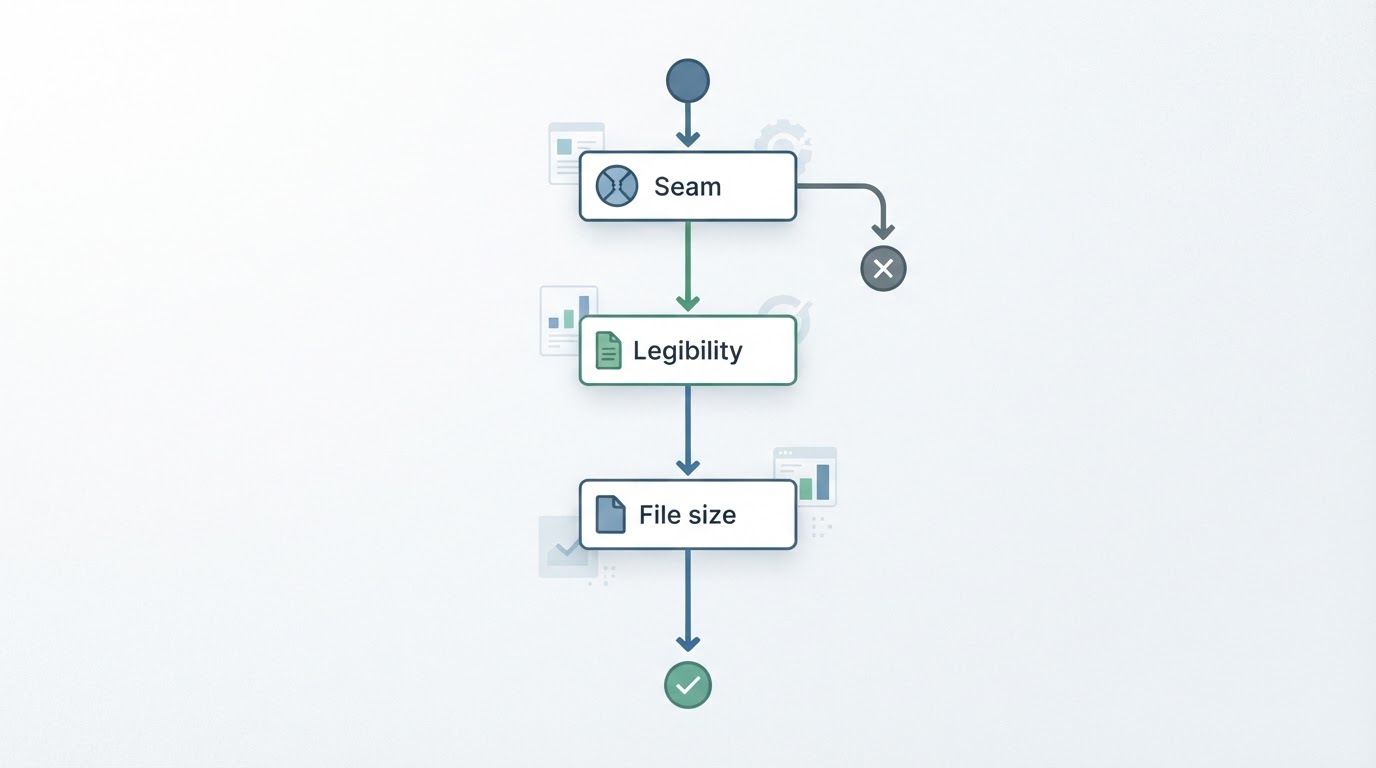
- Capture the longest thread you actually reference — a real support conversation, a real changelog page — not a short demo page.
- Check the seam. Look for a duplicated header, a repeated row, or a band where the background shifts.
- Check legibility. A tall image that is technically complete but unreadable when scrolled is not a win.
- Check the file size and dimensions. A very long capture can be awkward to paste into a ticket or a chat window.
A successful tall capture proves the stitch worked once, on that page, in that version. It does not prove the tool handles every scrollable surface, and it is not a claim about performance. If you rely on long captures weekly, keep a repeatable test page and re-run it after each update.
Price, license and the free-versus-premium boundary
Shottr is free, with a one-time $12 premium purchase option. The one-time shape is the interesting part: it is the opposite of the subscription fatigue that pushes many Mac users to look for an open-source replacement in the first place.
Two qualifications belong next to that number. First, treat $12 as the list price at the time this guide was assembled rather than a figure re-confirmed here; check the developer's own page before you pay, since pricing is exactly the fact that goes stale fastest. Second, this edition does not confirm which features sit behind the purchase. The published requirement for this review is explicit about that boundary: do not assume a specific tool is free or paid until you have seen it on the official page or in the app.
That has a practical consequence for how you evaluate the app: set up your trial around the free tier first. If the free tier covers the capture and annotation loop you need, the $12 purchase is an optional upgrade rather than a gate. If a tool you depend on — a redaction tool, a scroll capture, a ruler — sits behind the purchase, you want to know that before you build a workflow on it, not after.
License terms are the third unconfirmed item. Whether one purchase covers several Macs, how updates are delivered, and what happens to the license if the app changes hands are all questions to answer from the developer's own documentation — worth reading once, carefully, precisely because a one-time price removes the recurring reminder to look.
Limitations and where Shottr is the wrong tool
Being clear about non-fit cases is more useful than a feature list:
- Batch or scripted capture. The documented feature set describes an interactive, person-driven workflow. If you need to capture hundreds of screens as part of an automated pipeline, treat batch capture as unconfirmed and plan around it.
- Team collaboration. Nothing in the published description covers a shared library, review queues, per-seat administration or comment threads on captures. A team that needs a shared, searchable screenshot archive is looking at a different category of tool.
- Cross-platform standardization. Shottr is a Mac app. If half your team is on Windows or Linux, you cannot standardize on it, and a mixed-format screenshot culture is its own small tax.
- Version and license governance. This review cannot pin a reviewed version or confirm license details, so an environment where every tool needs a recorded version, license and source cannot be signed off from these pages alone. Check those items yourself.
- Audit-grade redaction. A pixelation curtain and object removal are convenience tools. If redaction has to satisfy a policy, verify the output manually and treat the tool as one step in that process, not as the guarantee.
Notice the pattern: the gaps are about volume, coordination and records, not about the core capture-and-annotate loop. A single person marking up a few screenshots a day is exactly the profile that does not feel them.
Project facts: what this edition verifies and what it does not
Fact | Status in this edition |
|---|---|
Platform | macOS — the app is examined here as a Mac screenshot tool |
Price | Free download with a one-time $12 premium option; not re-confirmed here |
License | Not verified in this edition |
Written in | Not verified in this edition |
Version reviewed | Not pinned in this edition |
Repository | Not verified in this edition |
The honest reason for those gaps is worth stating rather than hiding: a source-based audit — pinned release tag, check date, license text, repository — needs official and repository evidence that was not available for this edition, and inventing a version number or a repository link would be worse than leaving the row empty. What you can do instead takes about two minutes: open the app's About panel and record the version you actually installed, read the license and the price on the developer's own page, and note the date you checked. Those three facts are what a version pin is for.
How to decide in ten minutes
A short evaluation sequence, with a completion standard, beats a long feature checklist:
- Name three captures you make in a normal week. If they are all quick region grabs for chat, almost any lightweight tool passes this stage. If one of them is a long thread, scrolling capture is the deciding feature.
- Run one real capture end to end. Region, annotate with an arrow and a pixelation curtain, export, then paste it into the destination you actually use — a ticket, a document, a chat.
- Run one long capture on content you know. Compare the seam against the original page and check that the text is readable at the size you will view it.
- Confirm the price boundary. Check which tools you need and whether they are in the free tier, on the developer's own page, on the day you check.
- Test the constraint that would rule it out. Batch volume, a mixed-OS team, or a redaction policy — whichever applies to you.
You are done when you have one exported, annotated image you would be willing to attach to a real ticket or send to a real colleague, and a clear answer to whether $12 buys the specific capabilities you need. If both are true, Shottr fits your workflow. If the export looks wrong, the seam breaks, or the capability you need sits behind the purchase, you have your answer just as quickly — and you have not paid to find it out.