Which Droppy has a file shelf
Searching for Droppy returns more than one unrelated app, and only one of them is a file shelf. This article covers the free, open-source macOS utility that turns the top of the screen — the notch, or a floating pill that mimics the Dynamic Island — into a place to hold files you are moving between windows. It does not cover the social app that shares the name and is distributed through the App Store.
That distinction belongs first because the two products have nothing in common beyond six letters. If the listing you found asks for a birth date, mentions meeting people nearby, or shows a friends feed, you are on the wrong page. If it describes dragging a file to the top of the Mac screen and pulling it out somewhere else, you are in the right place.
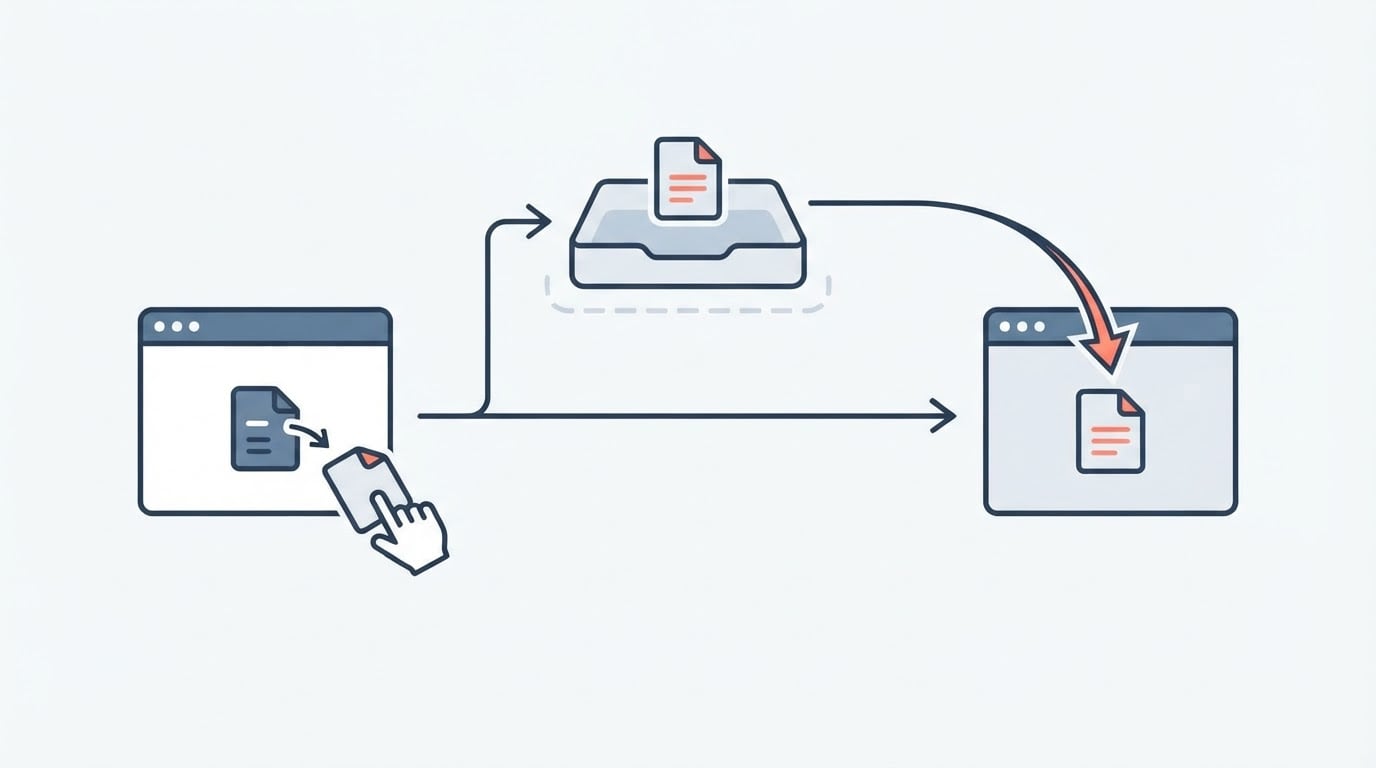
What the utility saves you is window management you would otherwise do by hand. Moving a file from a Finder window into a browser upload field usually means resizing windows, hunting for the target folder, or copying through the Desktop as a halfway house. A shelf replaces that with one gesture: pick the file up, leave it at the top of the screen, navigate to where it belongs, and drop it.
Where the shelf lives on screen
The shelf is anchored at the top of the display, which is the single most important thing to understand before you adopt it.
- On a Mac with a notch, the shelf occupies the notch area at the centre of the menu bar. The file tray and the camera housing compete for the same physical space, so the shelf is only visible when you summon it or when it already holds something.
- On a Mac without a notch, the same shelf appears as a floating pill near the top centre. It behaves like a small always-available window rather than part of the menu bar.
- On an external display, the arrangement follows whichever screen the app treats as home. Check that before you commit to a workflow that spans two monitors.
The position is convenient and slightly fragile at the same time. The top centre of the menu bar is where macOS puts status items, where notifications arrive, and where full-screen apps change the rules. Two checks are worth doing in the first ten minutes:
- Open a full-screen app and see whether the shelf stays reachable. If it does not, your workflow needs a windowed desktop rather than a full-screen one.
- Fill the menu bar with your usual status items and confirm the shelf and the notch do not hide each other.
Neither answer is a defect. They tell you which of your existing habits the shelf can join.
What happens to a file you drag in
A file dropped on the shelf is held at the top of the screen until you take it out again. That is the behaviour the shelf exists for, and it holds for both positions of the tray: drag in, keep working, drag out.
Four details decide whether that is safe for your files, and they are exactly the details this guide will not guess at:
- whether the shelf copies a file, moves it, or stores only a reference to it;
- whether the original file stays where it was;
- whether the items survive a full quit and relaunch;
- where the data lands on disk, if a copy exists at all.
Published write-ups disagree about this app's licensing and distribution, which is a good reason to treat unverified behaviour claims with the same suspicion. The honest position is that the four questions above are testable in about three minutes, on your machine, with files you can afford to break. The next section is that test.
How to test the shelf on your own Mac
Run this in a scratch folder rather than in Documents. Create shelf-test.txt on the Desktop with one line of text in it.
Test 1 — reference or copy. Drag shelf-test.txt onto the shelf. In Finder, rename the file to shelf-test-renamed.txt. Now drag the item off the shelf into another folder and open it.
- If the file opens with its new name, the shelf was pointing at the original all along.
- If a file called
shelf-test.txtappears, the shelf took a copy of the bytes when you dropped it.
Test 2 — what a quit does. Drag three files onto the shelf, then quit the app the way you fully quit a menu-bar utility rather than closing its window. Reopen it. Items that come back were written somewhere durable; an empty shelf is session-scoped, and you should not leave work in it overnight.
Test 3 — disk footprint. Note your free space in System Settings → General → Storage, drag a large file such as a disk image onto the shelf, and look at the same number again. A drop close to the file's size means a copy. No change at all means a reference or a link — and it also means the shelf is not a backup.
The test that matters most is the destructive one. Drag a file in, move the original to the Trash, then try to drag the item out. If it still works, the shelf held its own copy. If the item breaks, the shelf was a shortcut to a file you just deleted, which is precisely the kind of data loss a tray invites when it is mistaken for a folder.
Finding where the files are kept
This guide does not quote a filesystem path for the shelf, because the location could not be confirmed from the project's repository. A path copied from a blog post is worse than no path at all: it sends you to a folder that may belong to a different app or a different version.
You can locate it yourself with one deliberately unique filename. Drag shelf-test-unique.txt onto the shelf, then run this in Terminal:
mdfind -name shelf-test-unique.txtEvery path it prints is a candidate. Cross-check the results against these usual macOS homes, which are starting points rather than a confirmation:
~/Library/Containers/for apps that opt into the sandbox;~/Library/Application Support/and~/Library/Caches/for app-managed data;/private/var/folders/for temporary data that macOS is free to purge;- any folder the app asked you to choose during setup.
If Test 1 showed that the shelf holds references, you will find nothing, and that is the correct result: there is no copy to find, and the shelf's contents live and die with the original files.
Two consequences follow. First, "clear the shelf" is not the same instruction as "delete the files" — one removes a tray entry, the other removes data. Second, a copy-based shelf consumes disk space in proportion to what you park in it. Empty the shelf when a task is done, and check Storage after a week of heavy use.
Project facts, and what to verify yourself
Field | Entry |
|---|---|
Project | Droppy, a macOS file shelf that holds dragged files at the top of the screen |
Not to be confused with | The same-named social app distributed through the App Store |
Repository | Confirm from the project's own site or README, and record the tag or commit you install |
License | Not confirmed here. Read the LICENSE file at the tag you install before quoting it |
Cost | Described as free and open source; confirm on the project's download page |
Platform | macOS. Confirm the minimum version in the release notes for that tag |
Written in | Swift is the reported implementation; confirm from the repository before repeating it |
Version reviewed | None pinned. Record the release tag and the date you checked it |
The unconfirmed rows are the ones people get wrong. "Free and open source" and "written in Swift" circulate as settled facts about this app, but licensing and implementation language are exactly the claims that drift between forks, paid builds and abandoned repositories. A five-minute check at the tag you actually installed settles both, and it is the difference between a description and a fact.
Install, first run and permissions
Install from the project's own release page, or through a package manager if the project publishes one. To check whether a Homebrew cask exists, run the query that tells you without installing anything:
brew info --cask droppyA result means a cask is published under that name; confirm that the version and source URL it prints match the project you meant. "No Cask with this name exists" means there is no cask under that spelling, and the release page is your only route.
Before you launch it, verify what you downloaded. If the release page publishes a checksum, compare it:
shasum -a 256 ~/Downloads/Droppy.dmgThen expect the usual macOS friction. An unsigned or un-notarized build triggers a Gatekeeper warning, and the fix is to read the developer name in the dialog rather than to click through it on reflex. A drag-and-drop helper may also ask for access to Files and Folders, and possibly Accessibility if it handles keyboard shortcuts. Grant only what the feature you actually use requires, and revoke the rest in System Settings → Privacy & Security.
On first run, look at the top of the screen. On a notched Mac the shelf lives behind the notch; on other Macs a floating pill appears. If nothing shows up, confirm the app is running before assuming the install failed, and look for a menu bar item that opens its settings.
Uninstall without leaving copies behind
The order matters when the shelf may hold copies:
- Clear the shelf and move anything you still need into a real folder.
- Quit the app fully.
- Remove the app from its installed location.
- Check System Settings → General → Login Items for a leftover helper and remove it.
- Look in
~/Library/LaunchAgents,~/Library/Preferences,~/Library/Containersand the storage folder you located earlier for files carrying the app's name.
Then repeat the mdfind search from the previous section. A clean uninstall returns nothing but the test file you created. If a folder of parked files survives, you have found the residue a copy-based shelf leaves behind — and you have also found the reason to clear the shelf before deleting the app.
When a temporary shelf helps, and when it hurts
The shelf earns its place if your work looks like this:
- moving screenshots from the Desktop into a document that covers the Desktop;
- collecting files from three folders before one upload;
- parking a file while you navigate a long path in a save dialog;
- keeping a reference image within reach while you write beside it.
It is the wrong tool if your work looks like this:
- treating the shelf as a place where files are safe indefinitely;
- moving large files between volumes, where a hidden copy doubles both the time and the space;
- any task where you must be able to say exactly which copy of a file exists where.
The recurring failure is not a bug in the app. It is the mental model: a tray feels like a folder because it holds things, and the moment you trust it like a folder, a quit, a purge, or a moved original turns a convenience into lost work.

Quick recap
- Confirm you have the macOS file-shelf utility, not the social app with the same name.
- Learn where the shelf sits on your display: notch, floating pill, and which screen it follows.
- Run the rename test and the destructive test before you trust it with real work.
- Record the version and license at the tag you installed, then clear the shelf when the task ends.