Check three things before you install anything
Most recovery attempts fail because they start with a download. Before you install a utility, answer three questions, because each answer sends you down a different route.
- Is the file still in a Trash? Every volume has its own Trash, so a file removed from an external drive is not in the Trash you see for your startup disk.
- Has this Mac been backing up with Time Machine, and does the backup include the file? A backup that stopped two weeks ago cannot restore a file deleted yesterday.
- How was it deleted? Dragging to the Trash, emptying the Trash, deleting inside an app, and removing a file from Terminal leave very different options open.
If you can still see the item in a Trash, stop here and use the first path below. It is the only method that does not depend on a backup or a third-party tool.
If the file is still in the Trash, put it back
This is the fastest and safest recovery available, and it works only while the item remains in the Trash.
- Open the Trash from the Dock.
- Find the item. Use list view or search inside the Trash window if there are many files.
- Right-click or Control-click the item and choose Put Back. It returns to the folder it came from.
- If the original folder no longer exists, drag the item to a folder you choose, such as the Desktop, instead.
Two details catch people out. First, a file moved to the Trash from an external drive lives in that volume's Trash until you empty it, so mount the drive and check there before concluding it is gone. Second, emptying the Trash is the cutoff: after that, Put Back has nothing to work with, and the remaining paths below apply.
If the Trash is empty, use Time Machine
Time Machine is the only path that can restore a file whose Trash copy is gone, provided a backup contains it.
- Connect the backup drive and wait for it to mount.
- Open the folder where the file used to live. Time Machine opens at that location, which makes the right version easier to find.
- Enter Time Machine.
- Browse back to a date before the deletion. Use the on-screen timeline or the arrows to move between backups.
- Select the file, confirm the date in the preview, and click Restore.
The file returns to its original folder. If a file with the same name exists there, macOS asks before replacing it, so read that prompt carefully.
A backup that never included the file cannot help. Neither can a backup made after the deletion removed it on the next run. If your only backup is connected all the time, check whether the deletion has already propagated into it.
Local snapshots are a second chance on the same Mac
On APFS-formatted Macs, Time Machine can keep local snapshots on the startup disk, and the Time Machine browser can show them even when no backup drive is connected. They are useful when you deleted something today and have not connected the backup drive yet.
Treat them as a convenience, not a backup. Local snapshots live on the same drive as the file, so they disappear if the drive fails or is erased, and macOS removes them when space runs low. Availability also depends on the macOS version, the disk format, and whether Time Machine has been enabled. Restore from a snapshot the same way: enter Time Machine, move back to a time before the deletion, select the file, and click Restore.
What Terminal can and cannot do with deleted files
Terminal is an inspection tool here, not a recovery engine. It can show you what is still sitting in a hidden Trash folder and move an existing file back. It cannot bring back data that has already been removed.
open ~/.Trash                      # show the current user's Trash in Finder
ls -la ~/.Trash                    # list everything, including hidden items
mv ~/.Trash/report.pdf ~/Desktop/  # move a file that still exists back out
Use it only when the file still appears in the listing. On external volumes the Trash lives in a hidden folder at the root of the volume, split by user ID, so the path differs from ~/.Trash. Reading another user's Trash or another volume's Trash may require Full Disk Access for Terminal in System Settings.
The risks are real. mv overwrites a file with the same name without asking, and rm inside .Trash destroys the only copy you had. A mistyped path can move the wrong file or fail silently. Never run a "recovery script" from a forum post against the affected volume: a command that writes to that disk reduces the chance of recovering anything.
If there is no backup, stop writing before you scan
Once a file is deleted and the Trash is emptied, the data is not immediately erased. The space it occupied is marked as available, and it stays recoverable until something overwrites it. Every new file, app update, browser download, and log write can claim that space.
That is why the first action is to stop using the affected drive. If the file was on an external drive, eject it. If it was on the internal disk and the Mac is otherwise usable, avoid installing anything, avoid downloading a recovery tool onto that disk, and consider starting the Mac from another volume so the scan runs from outside.

Two hardware details change the odds. Modern Macs use SSDs with TRIM enabled, and APFS can discard deleted blocks quickly, so the window may be much shorter than older hard-drive advice suggests. A drive that is clicking, not mounting, or disappearing from Disk Utility has a physical problem that software cannot fix.
If you decide to try software, look for these categories rather than a single product name:
- File-recovery utilities that scan a volume for deleted file records and recognizable file signatures, and let you preview what they find before you pay.
- Disk-imaging tools that make a byte-for-byte copy of an unstable drive so you can scan the copy instead of the original.
- Professional data-recovery services that work on drives with physical damage or on volumes you cannot mount.
No tool or service can promise a recovery rate. Results depend on the file type, the disk format, whether TRIM already discarded the blocks, whether the volume is encrypted, and how much has been written since the deletion. Treat any "100% recovery" claim as a reason to keep looking.
Why recovery fails: the mistakes that close the door
- Using the same disk for everything. Downloading a recovery app to the affected drive overwrites the space you are trying to recover.
- Reformatting or reinstalling macOS to "clean things up". This is often the step that turns a recoverable file into a lost one.
- Assuming a backup is current. A backup that has not run since the deletion, or that already synced the deletion, cannot restore the file.
- Waiting. Time works against you on SSDs, and every restart or large write narrows the window.
A recovery order that keeps your options open
The order matters more than the tool you pick. Work down this list and stop as soon as you have the file back.
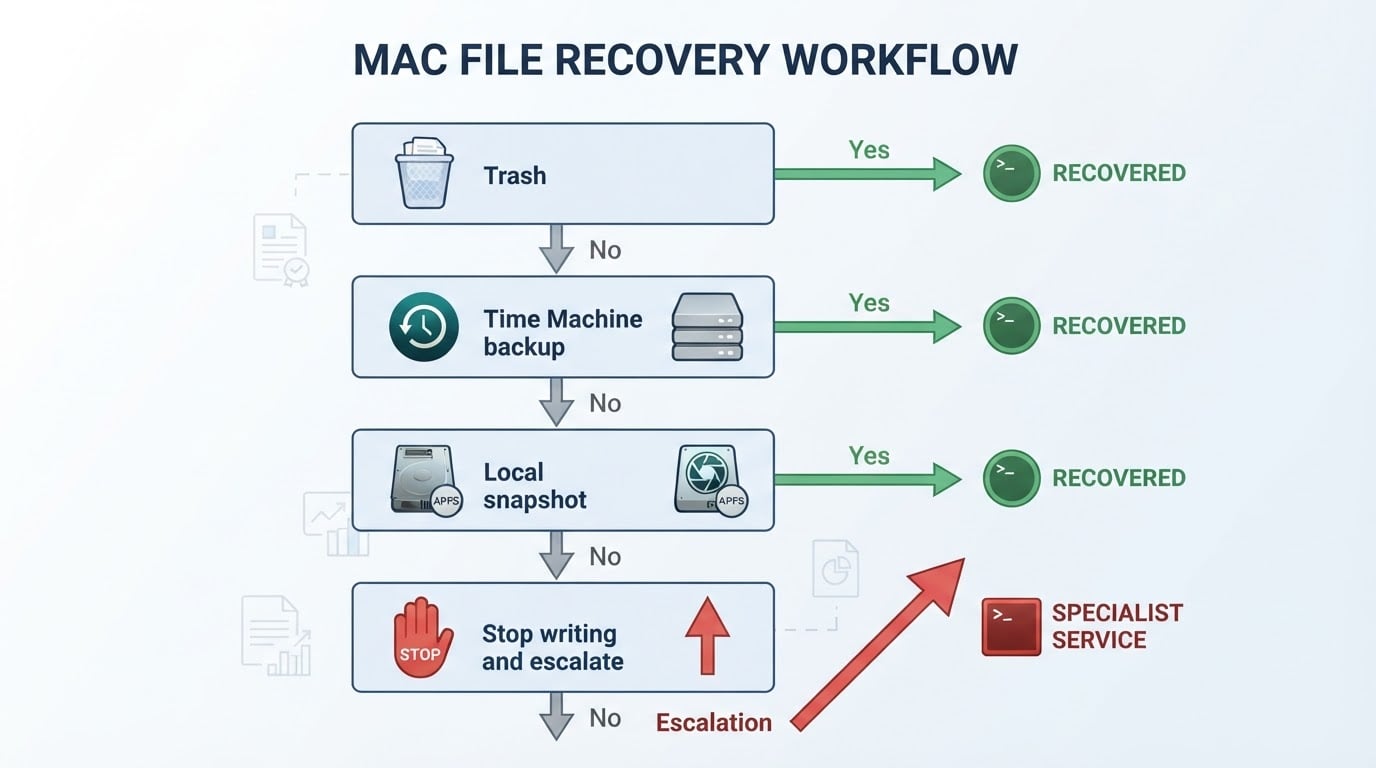
- The Trash, including the Trash of external volumes and any other user account on the Mac.
- Time Machine, restoring to a date before the deletion and checking that the file opens.
- A local snapshot, if Time Machine is enabled and the deletion happened recently.
- The app's own recently deleted area, for files that lived inside iCloud Drive, Photos, or another cloud service. These areas keep items for a limited period, so check before assuming the file is gone.
- A scan of a copy of the drive, after you have stopped writing to the original.
- A professional recovery service, when the drive is failing or the data justifies the cost.
As soon as one path returns the file, open it and check that it is complete, then copy it to a second location. A file that appears in a restore list is not the same as a file that opens.
When to stop and call a professional
Stop trying software and talk to a data-recovery specialist if the drive makes unusual noises, if Disk Utility cannot mount it, if the volume was erased or reformatted, or if the files are business records you cannot reconstruct. For a physically failing drive, every time you power it on can make the damage worse.
Bring these details to the conversation: the Mac model, the macOS version, whether the disk is APFS or HFS+, what was deleted and when, whether FileVault is enabled, and everything you have already tried. That information affects both the method and the price.
Quick recap
- Check every Trash first, including external volumes.
- Restore from Time Machine only if a backup contains the file and predates the deletion.
- Use local snapshots as a same-day convenience, not a backup.
- Terminal can move a file that still exists; it cannot undelete one.
- With no backup, stop writing, work from a copy, and expect no guarantees.
- If the drive is failing or the data is critical, go to a professional before you experiment further.