What a correctly opened JSON file looks like
A file that opened correctly shows its structure as text: one key per line, indentation that matches nesting depth, and brackets that visibly close the level that opened them.
{
  "account": {
    "id": 4812,
    "plan": "team",
    "seats": 4
  },
  "features": ["export", "audit-log"],
  "trialActive": false
}
Read that block in three passes:
- Outermost container: an object, marked by
{and}. An array would start with[. - First-level keys:
account,features, andtrialActive. The first points to another object, the second to an array, the third to a boolean. - Nesting:
"seats": 4belongs to the object that opened after"account", not to the file as a whole.
You have read the file correctly when you can name the outermost container, list the first-level keys, and follow one nested value to the end without guessing where its level ends. If the file opened as one unbroken line, nothing is broken: that is minified JSON, and Step 5 expands it.
Choose one of four ways to open it
JSON is plain text, so no app owns the format. Four tool types work, and the right one depends on how sensitive the file is and whether you need to change it.
Tool type | Use it when | Trade-off |
|---|---|---|
Built-in text editor | You need to read a small file where nothing else is installed | No indentation or color, so a long line stays one long line |
Code editor | You need to edit, search, or reformat | Extensions can reformat the file when you save |
Web browser | You want a quick look at a file on disk, or at a URL that returns JSON | Rendering varies, and some responses download instead of display |
Online JSON viewer | You need to collapse levels in a file that is safe to share | The file is uploaded, so it leaves your machine |
Treat those as options, not ranks: a built-in editor is not a lesser tool for a 40-line config.
Is it safe to upload a JSON file to an online viewer?
Not if the file contains anything you would not publish. JSON is often where an application keeps API keys, tokens, connection strings, internal hostnames, customer records, or feature flags that reveal an unreleased plan. Uploading it hands a copy to a third party, and you cannot verify how that copy is logged, retained, or reused.
- Safe to upload: public sample data, documentation examples, test fixtures you generated, files with no real names, keys, or hostnames.
- Keep local: credentials, personal data, internal configuration, anything under an NDA.
For the second group use a local text editor, a local code editor, or the browser, all of which read the file on your machine without sending it anywhere. That is a rule about the file, not a verdict on online viewers as a category.
Open and inspect the file: step by step
Step 1 — Note where the file came from and whether it holds secrets
Name the source first: a support-page download, an app export, a saved API response, a repository checkout, or an attachment. The source tells you how much to trust the file and whether a copy already exists elsewhere. Then scan the first screen for keys such as token, secret, password, apiKey, session, email, or userId.
Done when: you can say in one sentence where the file came from and whether it holds credentials or personal data. If you cannot answer, treat it as sensitive.
Step 2 — Make a copy if there is any chance you will edit
Reading is safe; saving is not. One stray keystroke in a config file can change a value another program depends on, and JSON gives you no undo once the window closes.
If you may edit, copy first and open the copy:
cp config.json config.inspect.jsoncopy config.json config.inspect.jsonKeep the .json extension so editors and viewers still treat it as JSON.
Done when: two files exist and you know which one you are about to open.
Step 3 — Open the file in Notepad on Windows
- Right-click the
.jsonfile. - Choose Open with, then Notepad; if Notepad is not listed, use Choose another app.
- Leave the file untouched while you read it.
Done when: the first line is visible and selectable as text.
Step 4 — Open the file in TextEdit on macOS
- Right-click the file, or Control-click on a single-button device.
- Choose Open With, then TextEdit.
- If the text appears styled rather than plain, switch to plain text before changing anything.
Done when: the contents appear as selectable text in a TextEdit window.
A code editor is an optional improvement, not a requirement: it adds indentation, color-coding, and bracket matching, which make deep nesting easier to follow. If the built-in editor already shows the structure, install nothing.
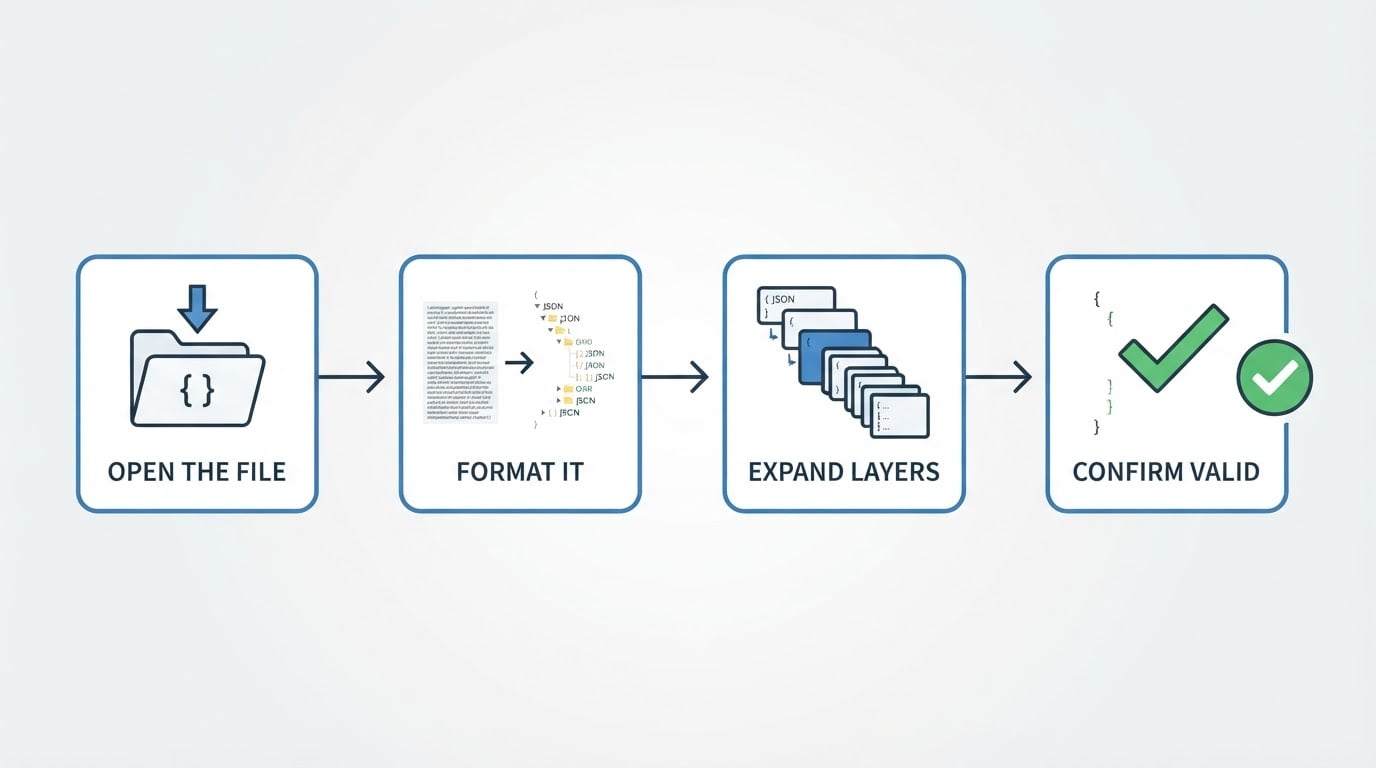
Step 5 — Format it so the indentation shows the hierarchy
A minified file is valid JSON that has lost its visual shape. Formatting restores line breaks and indentation without changing the data.

- Run your editor's format or indent command on the open document.
- If it has none, copy the text into a JSON viewer or formatter that indents on paste, and read it there.
- With Python installed,
python3 -m json.tool config.inspect.jsonprints an indented copy and stops at a line and column if the syntax is broken.
Done when: braces and brackets sit on their own lines at increasing indentation, and you can see where one object closes before the next key begins.
Formatting doubles as a cheap syntax check: a formatter that refuses the file has found a real error, and a file that formats cleanly is structurally valid even if its values are wrong.
Step 6 — Collapse and expand the levels, one layer at a time
In a viewer with a tree, collapse everything, expand the root, then expand only the branch you came for. Read in this order:
- Root type: object (
{) or array ([). - First-level keys: their names and how many there are.
- Value types: string, number, boolean,
null, object, or array for each key. A number in quotes is a string, and that distinction usually matters downstream. - Array entries: whether they share a shape. An array of objects where most entries have
idandnamebut one has neither is often the bug you are hunting.
Done when: you can list the first-level keys without scrolling back and predict the type of a nested value before expanding it.
Step 7 — Check the bracket, comma, quote, and escape mistakes that look like content errors
Most "the data is wrong" reports are syntax errors that stopped the file from being read the way you assumed:
- Trailing comma after the last member. JSON does not allow it.
- Missing comma between two members: the second key is read as part of the first value, or parsing fails further down.
- Single quotes or unquoted keys. Every key and every string value needs double quotes.
- Unescaped quote or line break inside a string: the value ends early. Write
\"for a quote and\nfor a break. - Unbalanced
{,},[, or]: the error usually appears far from the bracket that caused it. - Byte-order mark or curly quotes pasted from a word processor: both surface as an error at the very start of the file.
Done when: the formatter or validator reports no error and the structure matches the shape the source promised.
Step 8 — Save edits to the copy, never over the original
Viewing and editing are different jobs, and mixing them is how files get damaged.
- Viewing: close without saving, and decline the save prompt.
- Editing: use Save As on the copy, re-run the format check, and compare the two files before replacing anything.
- Formatting: treat a formatted save as an edit. It rewrites whitespace, and a program comparing checksums or exact bytes will see a different file.
Done when: the original still matches its previous size and modification time, and the copy passes the same format check.
When the file will not open, looks garbled, or reports a format error
Symptom | Likely cause | What to do |
|---|---|---|
Blank window | The file is empty or was truncated during download | Check the file size, then download or export it again |
One endless line | Minified JSON | Format it, as in Step 5 |
Garbled characters or symbols at the start | Wrong text encoding, or a byte-order mark | Reopen as UTF-8, then save without the mark |
"Unexpected token" with a line and column | Trailing comma, single quotes, or an unquoted key | Go to the reported position and check the character just before it |
The browser downloads the file instead of showing it | The server sent a content type the browser will not render | Open the downloaded file locally |
A page of HTML instead of data | The request returned an error page or a login page | Fix the request or the authentication, then fetch it again |
The editor freezes or takes minutes to scroll | The file is very large | Use a viewer that collapses levels, or read a slice at a time |
Done when: the file displays as structured text and the check in Step 5 or Step 7 passes.
Checklist: before you trust what you read
- You know where the file came from and whether it contains credentials or personal data.
- You opened a copy, or you are certain you will not save.
- The file is formatted, so indentation shows the depth.
- You identified the outermost container as an object or an array.
- You listed the first-level keys and checked the value type of each one.
- The formatter or validator reports no syntax error.
- The original file is unchanged, and any edit lives in the copy.
If an item on that list is still open, the structure remains a guess. Work through the missing step, then draw a conclusion about what the data says.