File synchronization has two very different jobs. One is copying a folder to an attached disk or another machine; the other is building a full system backup with a recovery image. RsyncOSX sits firmly in the first category. Its main application, RsyncUI, makes the powerful rsync command-line engine easier to configure, verify and repeat without turning it into a cloud service.
There is an important naming detail before you install anything: the supplied RsyncOSX repository is a collection and landing page, not one application bundle. Its current README points to RsyncUI for graphical file synchronization, RawCull for Sony RAW photo culling and GitBranchStatus for local-versus-GitHub status. This article focuses on the installable RsyncUI path, while keeping the wider collection in view.
What It Is
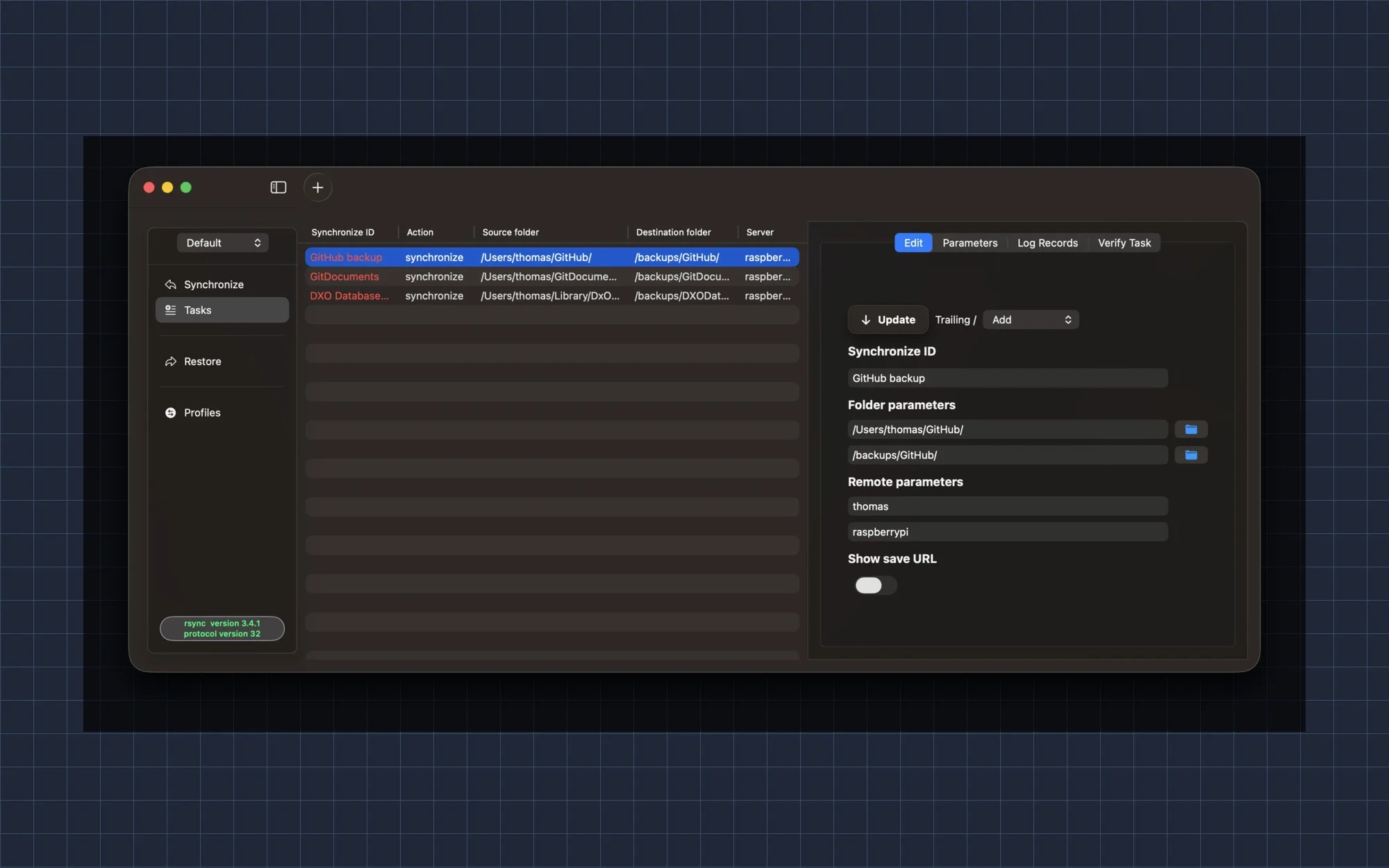
RsyncUI is a native SwiftUI macOS interface for rsync. It organises source and destination paths into named tasks, exposes the parameters that matter for each job, and shows the output and logs that rsync produces. The actual file synchronization is still performed by rsync; RsyncUI is the control surface around it.
The current app is a universal Intel and Apple Silicon binary for macOS Sonoma and later. It is a desktop-only application with no server component, and its task data and logs stay on the Mac unless you create a task that targets a remote server. The app is signed and notarized, but not sandboxed: the documentation explains that sandboxing would interfere with hidden SSH and RsyncUI directories and with a Homebrew-installed rsync binary.
The parent collection is useful context rather than an installer. RsyncUI is the backup-and-sync tool; RawCull is a separate Sony ARW photo-culling application with its own App Store and release paths; GitBranchStatus is a small status utility in another repository. Do not expect one download from RsyncOSX to install all of them.
How to Install It
RsyncUI does not have a Mac App Store listing in the current project documentation. Use the official RsyncUI 3.0.5 Release or download the direct universal DMG. It requires macOS Sonoma or later and the release is signed and notarized by Apple. If you prefer Homebrew, the documented command is brew install --cask rsyncui; source building is for contributors, not the normal installation path.
# Download the signed and notarized universal DMG:
open https://github.com/rsyncOSX/RsyncUI/releases/download/v3.0.5/RsyncUI.3.0.5.dmg

# Open the DMG and drag RsyncUI.app to /Applications.
Open the DMG, drag RsyncUI.app to Applications and launch it. The v3.0.5 release notes publish SHA-256 hashes for both the universal and arm64 DMGs, so a security-conscious install can verify the downloaded file before opening it. After launch, check which rsync binary the app is using. macOS Sonoma ships an old 2.6.9 rsync, while Sequoia and later use openrsync; the project recommends installing rsync 3.x with Homebrew for the full feature set.
How to Use It
Create a task with a source folder, destination folder and, when needed, a remote login and server name. A local attached disk is the simplest first test. For an internet or LAN server, prepare passwordless SSH key authentication, then add the local path, remote path and account details. Profiles keep unrelated task groups separate, which is useful when work backups and personal archives should not share one long task list.
Treat verification as part of creating a task, not as an optional preview. RsyncUI uses a dry-run estimate before execution, and the documentation recommends selecting Verify tasks after adding or changing a task or its parameters. Pay particular attention to the delete setting: when --delete is enabled, files removed from the source are removed from the destination too, and an empty source can produce a disastrous mirror.
# Install a current rsync 3.x:
brew install rsync

# Then open RsyncUI:
# Settings → Rsync and path → enable Rsync ver3.x
The Synchronize view provides a compact operating loop. Command-E estimates all or selected tasks, Command-R runs the selected synchronization without an estimate, and Command-K aborts an active task. A progress bar depends on doing the estimate first; after execution, RsyncUI updates the logs and lets you inspect the detailed rsync output for a selected task.
# Examples of task-specific rsync parameters:
--dry-run
--stats
--exclude-from=/Volumes/backup/exclude-list.txt
Backups, Restore and Snapshots
RsyncUI can go beyond a plain one-way copy. The backup switch asks rsync to save changed or deleted files in a separate backup directory, while snapshots use hardlinks so unchanged files do not need a full duplicate. Snapshot tasks require rsync 3.x, and RsyncUI keeps the first and last snapshots out of the deletion plan even when older snapshots are being cleaned up.
Remote Servers and SSH
Remote synchronization is built around passwordless SSH keys. RsyncUI can target a server on the internet or on a local network, append the SSH transport parameters, and override the global SSH configuration for one task when a different port or key is required. QuickTask offers a faster push or pull flow for remote servers, but it still requires the same passwordless login setup.
This is also the point where the privacy boundary becomes concrete. The app has no server component and keeps task data and logs locally, but a remote task necessarily sends the selected files to the destination you configured. Check the account, host, path and SSH key before running a real synchronization, especially when a task includes delete or backup parameters.
Scheduling and Automation
Schedules are stored automatically and can notify you from the sidebar or toolbar. The scheduler runs while RsyncUI is open and you are logged in. If the Mac sleeps, missed tasks appear in the Schedule view after wake but do not run automatically; you can move them back into the queue. URL commands and export/import features provide additional automation for users who want to keep task definitions under their own control.
Sleep is an operational limitation worth planning around. An active rsync process does not prevent the Mac from sleeping, and a sleep interruption can stop the transfer. Rsync may resume from where it stopped when you restart the task, but RsyncUI may not log that interrupted run because it records the result after receiving rsync's termination signal. Let an abort finish cleaning up before starting another task.
Repository and Related Apps
The parent RsyncOSX repository is the author's collection page, while the installable sync application lives in the RsyncUI repository. The current release is v3.0.5; the RsyncUI documentation covers task creation, SSH, snapshots, parameters and limitations. The same collection also links the separate RawCull App Store listing and other projects, each with its own installation story.
What to Verify Before Running It
Confirm that the Mac runs Sonoma or later, that the source and destination are exactly the paths you intend, and that a current rsync 3.x is configured if you need snapshots or the newer remote-restore features. For SSH jobs, test passwordless login independently and verify the account, host, port and key path. For local jobs, mount the destination disk first and make sure it is writable.
Always inspect a dry-run before the first real synchronization and after changing parameters. Check whether --delete is enabled, whether an exclude rule is doing what you expect, and whether the estimate contains the files you intended to move. If the task is a backup rather than a mirror, consider the backup switch or snapshots before pressing the execute action.
RsyncUI is not a complete disk-image or disaster-recovery product. It gives you a careful interface for rsync's file-level operations, but you remain responsible for the command parameters and the destination's retention plan. The project also notes that the default openrsync implementation may not provide ideal real-time progress; updating to rsync 3.x is the safer baseline for advanced workflows.
License
RsyncUI is released under the MIT License. You can inspect, modify, use and redistribute the application code, including in commercial software, as long as the copyright and license notice remain with the relevant distribution. The license is provided without warranty.
The MIT notice belongs to RsyncUI's code. The parent collection's other applications, the rsync engine itself, Homebrew formulas and any bundled or downloaded components can have their own licenses and obligations. Apple signing and notarization help verify the release artifact and its publisher identity; they do not mean Apple has reviewed the application's design or guarantees its behavior.
Should You Install It
If you want a native Mac interface around rsync and are willing to understand source, destination and delete semantics, start with the signed RsyncUI 3.0.5 DMG. Use a dry-run before every new or changed task, install rsync 3.x for snapshots and advanced remote work, and treat the RsyncOSX parent repository as a map to related native Mac tools rather than as one all-in-one installer.
Project facts
- License
- MIT
- Platform
- macOS Sonoma or later; universal Intel and Apple Silicon binary
- Written in
- Swift, SwiftUI, rsync
- Version reviewed
- RsyncUI 3.0.5 (2026-09-10)
- Repository
- github.com/rsyncOSX/RsyncOSX
Install
# Download the signed and notarized universal DMG:
open https://github.com/rsyncOSX/RsyncUI/releases/download/v3.0.5/RsyncUI.3.0.5.dmg

# Open the DMG and drag RsyncUI.app to /Applications.
License summary
RsyncUI is MIT-licensed. The RsyncOSX collection links other applications with their own repositories, licenses and distribution channels.


