What youtube-dl Is, And What It Will Not Do
youtube-dl is a command-line program that saves a video or an audio track from a supported site onto your own disk. It is not an app window, not a browser extension, and not a streaming client. You give it the address of a page; it reads the media streams that the site publishes to an ordinary viewer, downloads the file, and writes it into the directory you name. The project lives in the ytdl-org/youtube-dl repository on GitHub, is written in Python, and runs on macOS, Linux, and Windows.
Two boundaries are worth stating before anything else, because they decide whether this is even the right tool. It does not record live broadcasts, and it does not break DRM. A live stream that is still running is not a file yet, and a title protected by digital rights management is encrypted by design, so a downloader that reads ordinary page data has nothing to extract. Films and series sold behind a subscription app fall into that second category.
One more boundary is legal rather than technical. The tool moves a file from a site to your Mac; it does not grant permission to keep that file. Save material you have the right to keep — your own uploads, openly licensed work, or anything the site itself offers for download — and read the terms of the site you are using.
Install With Homebrew
The project's README lists Homebrew as the macOS installation path, and that is the shortest route if Homebrew is already on the machine. Ask Homebrew what it would install before you commit:
brew info youtube-dl
brew install youtube-dl
The first command prints the version Homebrew would install, the license line, and the dependencies, so it also answers the question of whether the formula is still available before you spend time on it. If Homebrew reports that no formula exists, take one of the alternative routes in the next section. This is the step in the guide most likely to change over time, so treat the command as the shape of the fix rather than a permanently frozen string.
Homebrew also owns the update path afterwards. Running brew upgrade youtube-dl updates just that formula, while brew upgrade on its own updates everything you have installed, which is rarely what you want in the middle of a task.
Install From PyPI, pipx, Or The Source Tree
The alternative routes matter when Homebrew has no formula, when you want a version that is not packaged yet, or when you already manage Python tools yourself.
The project is published on PyPI:
python3 -m pip install --user youtube-dlA --user install drops the launcher into a per-user bin directory, which on macOS normally sits under ~/Library/Python/. That directory is often absent from PATH, and that is the reason the verification section below matters. If you manage command-line tools with pipx, the isolated form avoids the problem because pipx links the launcher into ~/.local/bin:
pipx install youtube-dlThe source route is for the newest commit rather than a release, and it assumes a Python 3 interpreter and a standard command-line toolchain:
git clone <repository-url-from-the-project-page>
cd youtube-dl
make
./youtube-dl --version
Each route has its own owner: Homebrew updates through Homebrew, pip through pip, pipx through pipx, and a source checkout through git pull followed by make again. Mixing two of them on one machine is the usual reason two terminals disagree about which version is running.
Verify The Install Before Downloading Anything
youtube-dl --version
command -v youtube-dl
The first command prints the build the launcher is running. The second prints the full path of the file your shell would execute. If it prints nothing, the directory holding the launcher is not on your PATH, and every download command below will fail with command not found.
Homebrew installs into /opt/homebrew on Apple silicon Macs and /usr/local on Intel Macs, so those two bin directories are the first places to look. A pip --user install lands in the ~/Library/Python/... directory mentioned above. To test a path without editing any file, prepend it in the current window:
export PATH="/opt/homebrew/bin:$PATH"
youtube-dl --version
When that works, add the same directory to your shell profile so new terminals inherit it. Note the version string and the date somewhere, because a build date is the first thing to check when a download starts failing months later: extractor problems are almost always fixed by a newer build.
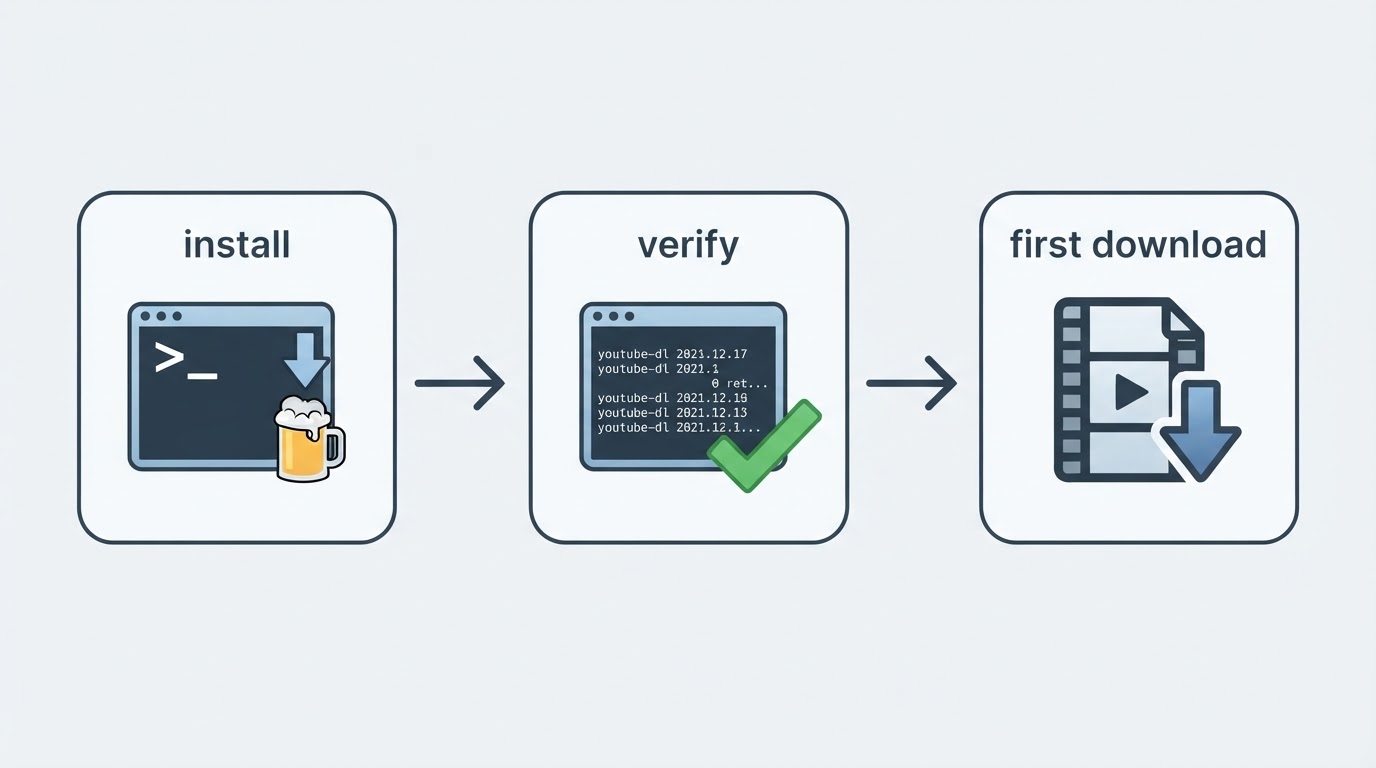
Download Your First Video
Start with the simplest possible command, run from the directory where you want the file to appear:
youtube-dl "<video-url>"With no output option, the file is written next to your terminal's working directory using the title of the video and the extension of the selected stream. That is fine for a first test and untidy after the third download. Name the destination explicitly with an output template:
mkdir -p ~/Movies/youtube
youtube-dl -o "~/Movies/youtube/%(title)s.%(ext)s" "<video-url>"
The template is the part worth understanding. %(title)s is replaced by the title of the video, and %(ext)s by the extension of the file that was actually downloaded. Add %(id)s when you want a stable suffix that survives a retitled video, and add --restrict-filenames if you would rather not deal with spaces and punctuation in file names. When the address in your browser carries a playlist parameter, --no-playlist keeps the command to the single video you pasted.
The path in the output template is the contract: whatever directory you name there is where the finished file appears, and youtube-dl expands a leading ~. Before the progress bar starts, the command prints the destination it resolved, so the first line of output tells you whether the template did what you intended.
Choose A Format Without Guessing
Download quality is where most confusion begins, because a modern site does not serve one file per video. It serves many: separate video-only and audio-only streams at different resolutions, and on some videos an older single file as well. List what is actually available for the video in front of you:
youtube-dl -F "<video-url>"The table that appears shows a format code, an extension, a resolution, and a note. Codes differ from site to site and from video to video, which is why the useful habit is to run -F first and never copy a code from a guide. Then choose one:
youtube-dl -f 137+140 "<video-url>"
youtube-dl -f "bestvideo+bestaudio" "<video-url>"
youtube-dl -f best "<video-url>"
A single code downloads one stream and asks nothing more of your machine. A + selection asks youtube-dl to download two streams and merge them into one file, and that merge is the work of an external program — ffmpeg or avconv — rather than of youtube-dl itself. Without either program the download itself finishes and the merge step then fails, which is the most common failure report that is not really a youtube-dl problem. Install one and repeat:
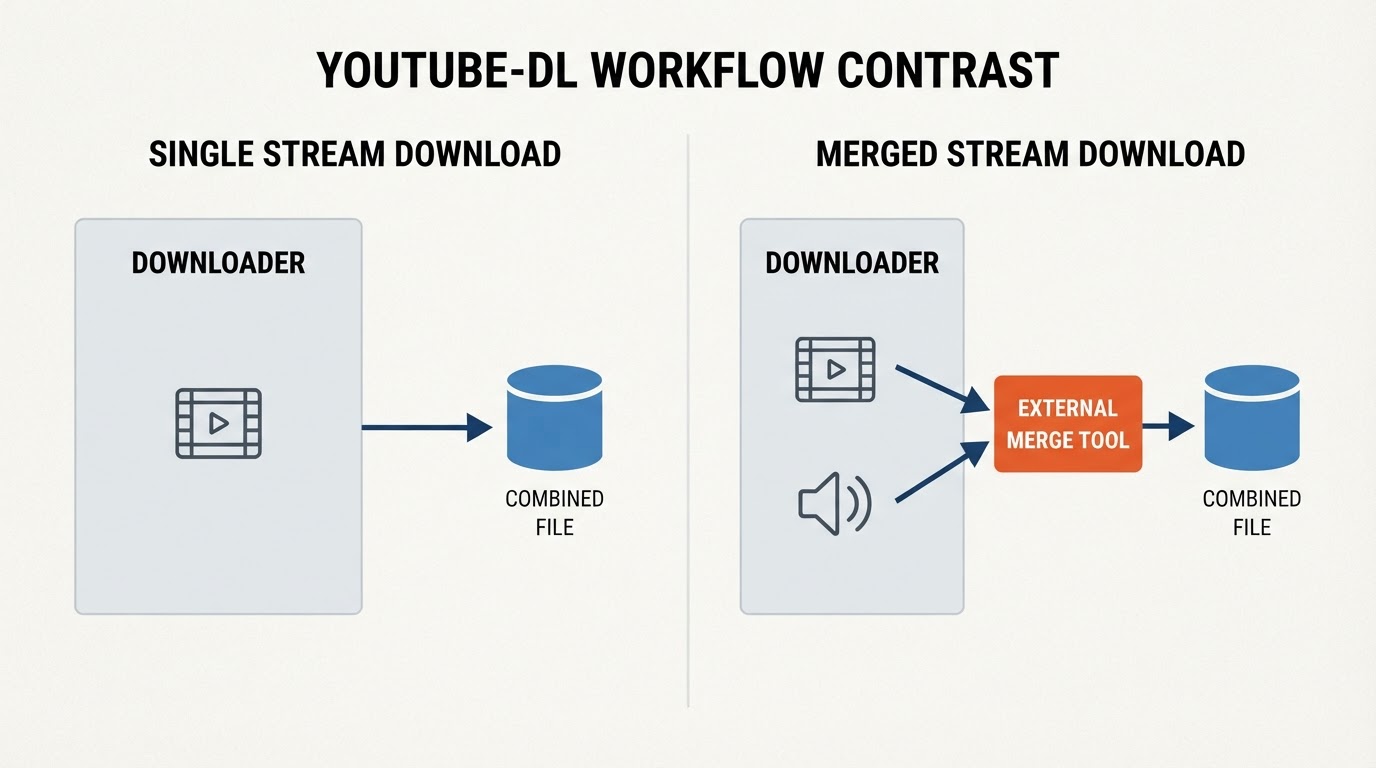
brew install ffmpegThat install is large, so there is a legitimate reason to skip it: -f best selects the best single-file format the site offers, usually at a lower resolution than the merged streams, and it needs no external tool. The same dependency applies to audio extraction, where -x --audio-format mp3 asks ffmpeg to transcode the downloaded stream.
Make Good Defaults Automatic
Repeating a long command is a sign that its options belong in a configuration file. youtube-dl reads a per-user file at ~/.config/youtube-dl/config, one option per line, written in the same form you would type them. A working version of that file looks like this:
-o ~/Movies/youtube/%(title)s.%(ext)s
--no-playlist
--restrict-filenames
The file applies to every later run, which is convenient until a one-off download needs the opposite behaviour. Two escape hatches cover that: --ignore-config skips the file for a single command, and --config-location <path> points at a different file. A short, commented configuration file stays more maintainable than a shell alias, because the options remain visible the next time you wonder why a file landed somewhere unexpected.
When A Download Fails, Check In This Order
Most failures fall into a small number of patterns, and the order below resolves the common ones without guesswork.
youtube-dl: command not found. The shell cannot find the launcher. Runcommand -v youtube-dl, open a new terminal window, and if the path is still missing, check the directories named above. This is aPATHproblem, not a download problem.Requested format is not available. A format code was copied from somewhere, or the site removed that stream. Run-Fagain, choose a code that exists, or use a fallback selection that lets youtube-dl decide, such as-f "bestvideo+bestaudio/best".- An extraction error or a network error on the media file, on a video that worked last month. Update the tool first, because extractors are tied to the current page structure of each site:
brew upgrade youtube-dlfor Homebrew,python3 -m pip install --user --upgrade youtube-dlfor pip, andgit pullplusmakefor a source checkout. The self-update flag-Uapplies only to the standalone binary the project distributes, not to package-managed installs. - A download that stopped halfway. Run the same command again with
--continue, which resumes the partial.partfile instead of starting over; add--retries 10for a flaky connection and--limit-rate 1Mwhen a fast connection seems to make things worse. Confirm there is free disk space before blaming the network. - A video that requires signing in, such as an age-gated one. youtube-dl can read cookies exported from a browser where you are already signed in: pass the file with
--cookies <cookies.txt>. Treat that file as a credential, because it is one, and use it only for content you are entitled to download. - Everything above checks out and the error persists. Search the project's issue tracker for the site name and the exact error line. Extractor breakage is reported there site by site, and an open issue is usually the fastest confirmation that the problem is not on your machine.
Limits, And When To Use A Different Tool
The boundaries from the start of this article are also the practical ones. There is no live-stream recording, so a broadcast that is still running is out of scope. There is no DRM support, so titles from subscription film and television services are out of scope by design rather than by accident. Extractor coverage is a moving target as well: when a site changes its pages, the fix ships in a new release of the tool.
That last point is the reason to consider a fork. yt-dlp began as a fork of youtube-dl and keeps the same command-line shape, so -F, -f, -o, --cookies, and --continue carry over; the difference is release cadence and the pace of new site support. The choice is not permanent. Keep youtube-dl while your sites work and your scripts already call it, and switch when you spend real time on extractor errors, when you need a site that was added after your build, or when you want updates more often than the formula changes. Installing the alternative is one more Homebrew command, not a migration project.
Project facts
- License: public domain, under the Unlicense, as stated in the repository's license file
- Platform: macOS, Linux, and Windows (command line)
- Written in: Python
- Version reviewed: not pinned here; run
youtube-dl --versionafter installing and note the build and date - Repository: the youtube-dl project on GitHub,
ytdl-org/youtube-dl - Guide updated: 2026-10-03
License summary
youtube-dl is published into the public domain under the Unlicense, which waives the copyright in the tool's own source and permits use, modification, and redistribution without a condition attached. That license covers the program, and nothing else. It does not cover what you download: the videos themselves remain under the copyright of their owners and the terms of the site that served them, so a permissive tool license says nothing about your rights to the media. Check the two separately, and when in doubt prefer material that is explicitly offered for download.
Install: Quick Recap
brew info youtube-dl, thenbrew install youtube-dl; fall back to pip, pipx, or the source tree if no formula is available.youtube-dl --versionandcommand -v youtube-dlconfirm that the launcher runs and that the shell can find it.youtube-dl -o "~/Movies/youtube/%(title)s.%(ext)s" "<video-url>"downloads one video into a folder you chose.- Run
youtube-dl -Fbefore any-f, and install ffmpeg only when you need merged streams or audio conversion.


