What Homebrew Is: Install, Update, Remove
Homebrew is a free and open-source software package management system that simplifies the installation of software on macOS and Linux (). The phrase hides something more useful than it first appears: a package manager is the middleman between you and the software you already know you want.
Without one, getting a developer tool onto a Mac is a small manual project. You find the project's website, work out which download matches your machine, unpack the archive, move the result into place, and then remember to repeat the whole thing when a new release appears. Homebrew turns that routine into one program that fetches, places and keeps track of packages for you.
Three everyday chores show what that removes:
- Hunting a download page for each tool, and guessing which file suits your Mac.
- Updating those tools one at a time and remembering where each one came from.
- Watching an install fail because a library it depends on is missing or is the wrong version.
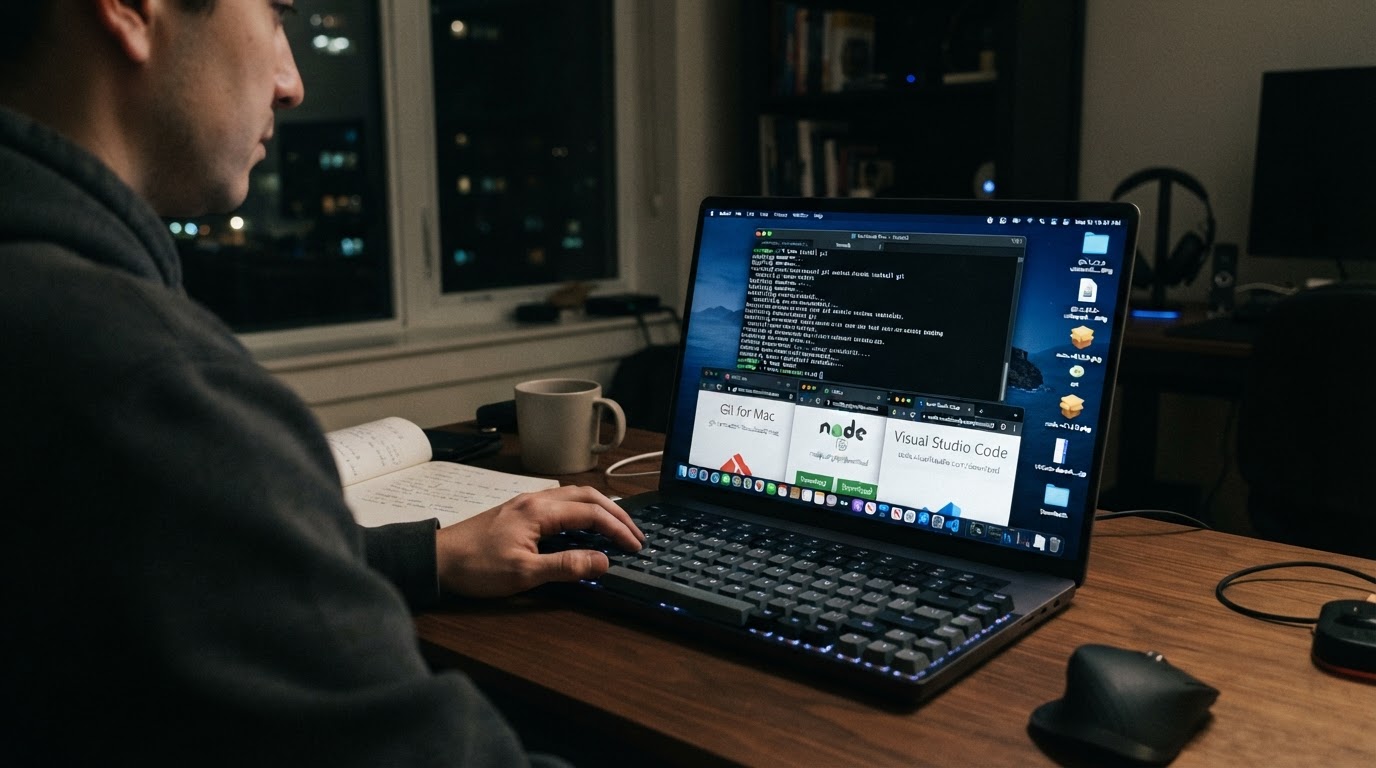
Homebrew's packages come in two shapes, and both are managed from the same command line. A formula is a package definition that builds command-line tools, libraries and services from upstream source code. A cask is a package definition that installs upstream pre-built binaries such as applications, fonts and plugins, and Homebrew Cask is described as focusing on the installation of GUI applications (; ). The beer-themed vocabulary continues past those two words: third-party repositories are taps, and pre-built binary packages are bottles.
None of that vocabulary has to be memorized on day one. What matters is the split: formulae lean toward the terminal and the tools used there, while casks lean toward the applications you double-click.
How It Works: Cellar, Prefix, Bottles
Under the hood, Homebrew is deliberately boring about where files go. Each package is installed into its own keg inside the Cellar, and Homebrew then creates symlinks from that keg into a single prefix directory. Because the real files stay in their own keg, two versions can sit side by side, and removing a package means deleting its keg instead of reverse-engineering an installer.
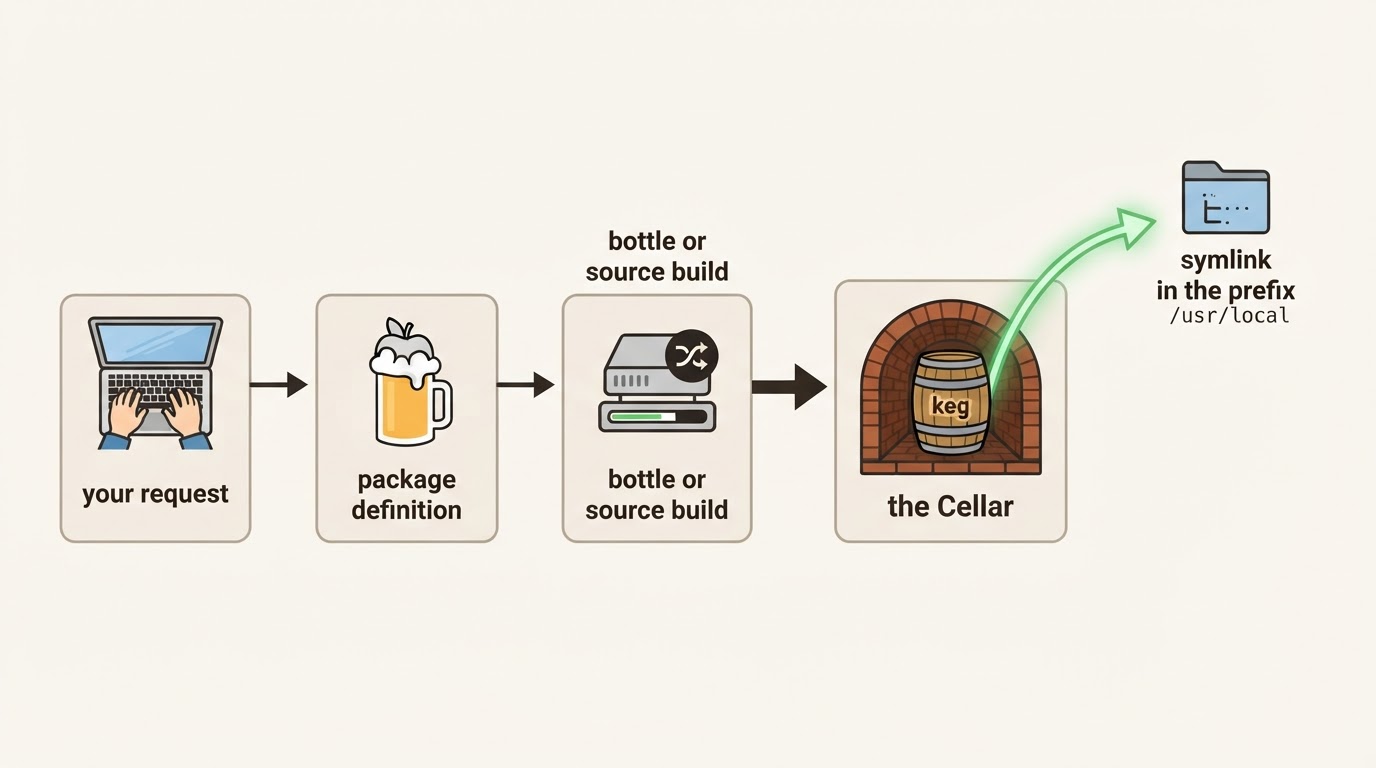
The prefix depends on the machine. Apple Silicon Macs use /opt/homebrew, Intel Macs use /usr/local, and Linux and WSL use /home/linuxbrew/.linuxbrew (). That prefix is also what you add to your shell path so the installed commands can be found.
The second mechanism is what you actually download. For many formulae Homebrew provides a bottle, a pre-built binary package that is used by default, so a typical install is a download rather than a compile. Building from source still happens — for example when no bottle exists for your operating system version, when a formula option is passed, or when a source build is requested — and the same bottle mechanism is noted in the community encyclopedia entry (). This is the part that makes Homebrew pleasant on a common machine and slower on an unusual one.
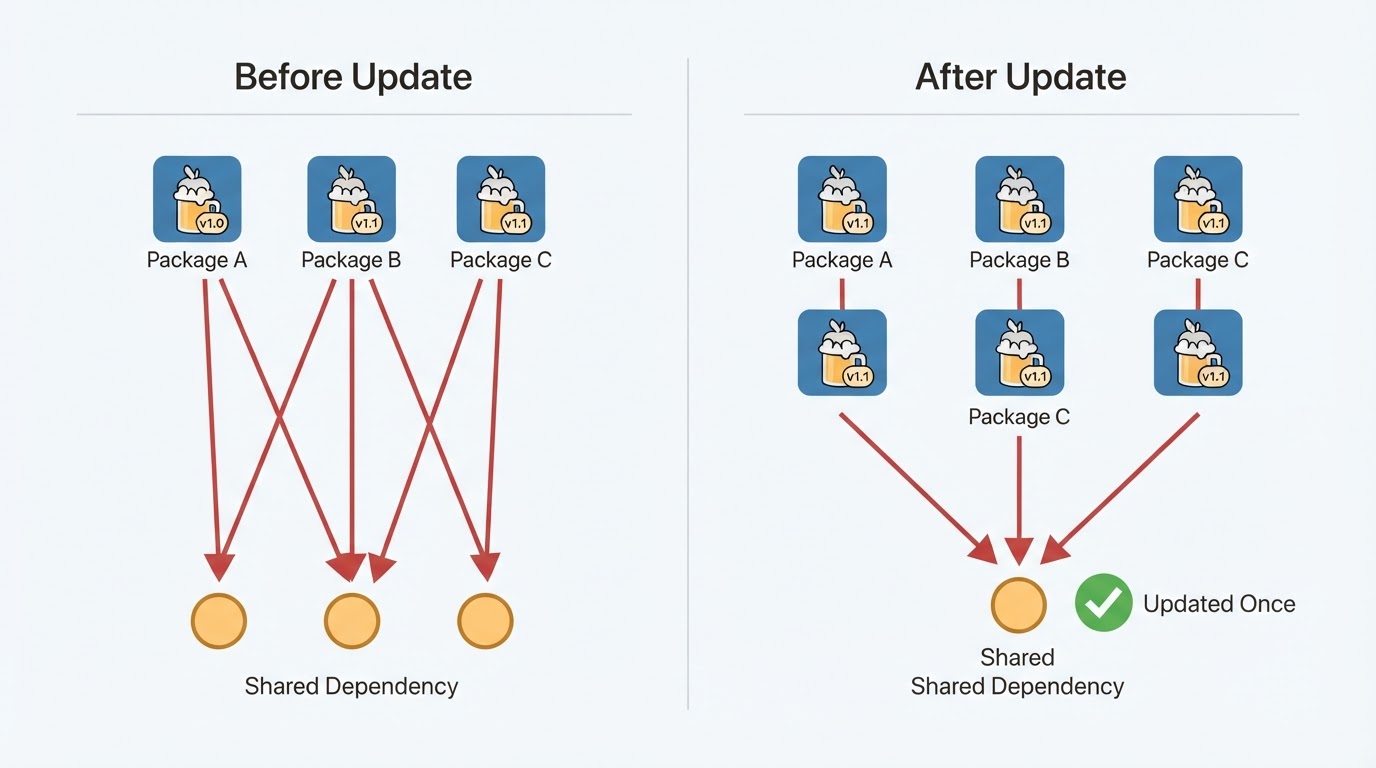
The third mechanism is the update path. Homebrew keeps its own catalog current, can tell you what is outdated, and can upgrade what you ask it to. It does not support mixing and matching arbitrary formula versions, so an install or upgrade also touches a formula's dependencies and the packages that depend on it. The practical consequence is that one upgrade run can move a long list of formulae, including some you never installed directly (). That behavior is usually a feature: it is how related tools stay compatible with each other. It is worth knowing before you run an upgrade on a machine where versions are pinned deliberately.
Platform reach is wider than the Mac-only reputation suggests. The same package manager runs on macOS, Linux and the Windows Subsystem for Linux (WSL) 2, where it was formerly known as Linuxbrew; it avoids using host libraries except glibc and gcc when those are new enough, and it does not replace the distribution's own package manager (). On Linux it needs a working system C compiler and the standard development tools, while the install script places Homebrew in the prefix listed above so that routine use does not need administrator rights. Some casks and system services may still ask for elevated privileges.
That reach is the reason some people keep it installed on more than one operating system. It can supply software the host distribution does not package, offer a newer version when the distribution's own copy has grown old, and give one package manager across macOS, Linux and WSL instead of three separate habits (). For anyone who rebuilds a machine every year or two, Homebrew can also work from a single manifest file that describes the packages you want; one run then fills in what is missing and refreshes what is outdated, covering formulae, casks, taps and entries for the Mac App Store ().
One short caution is worth carrying into the terminal: a macOS graphical application does not see Homebrew's prefix in its PATH by default, so a .app program may fail to find a command-line tool that is installed and working in your shell until the user path is configured (). That single detail explains most "but I installed it" moments.
Whether You Need It: Fit, Friction, Alternatives
Homebrew earns its place when software installation is a recurring chore rather than a one-off. Developers who need compilers and command-line utilities, people who try open-source Mac apps, and anyone who wants the same tools on a Mac and a Linux box get a real return from one update pass instead of a dozen manual reminders.
It is worth being honest about the friction, though. Three limits matter most:
- It is command-line first. Formulae are aimed at the terminal and the tools used there, and Mac apps installed as casks still sit outside the App Store's update and permission model.
- Updates can be broader than expected. Because formula versions are not mixed freely, one upgrade may move dependencies you never chose directly.
- It is a companion, not a replacement. On Linux it installs into its own prefix and needs a working compiler and development tools, so software your distribution already packages is usually better left to the distribution.
There is a trust and control dimension as well. Homebrew runs builds and installations as your own account rather than granting every build script unrestricted system access, core formulae are reviewed before they enter the main collection, and some casks and services may still call for administrator approval (; ).
Put together, the cases where you can skip it are as easy to name as the cases where you cannot. If every app you use comes from the App Store, a browser, or a suite that updates itself; if your Linux distribution already ships and updates the tools you rely on; or if you would rather never open a terminal, then Homebrew adds a second update system to learn for very little in return.
Machines sit on a spectrum, too. The official installation page states the current macOS and CPU requirements and treats Intel Macs differently, so it is worth a look before assuming a particular Mac is supported (). On Linux, the equivalent check is whether a suitable compiler and the standard development tools are available.
Homebrew is one command line for installing, updating and removing software that macOS, Linux and WSL do not hand you conveniently. It repays that simplicity when you install tools often, and it stays optional when the App Store or your distribution already covers what you use. If you recognize your own workflow in the chores above, the next step is the official installation page, which lists current requirements and sets Homebrew up in the right prefix; if you do not, you can close the tab without missing anything.


