What the Seashore app is, and who it is for
Seashore is a free, open-source image editor for macOS that puts layers at the center of the editing model. It belongs to the same broad category as GIMP and Photoshop, but it is positioned much narrower: a small Mac editor for straightforward work rather than a full production suite. That positioning is the entire decision, and it is worth stating plainly before any feature list.
The jobs it fits are ordinary ones. Opening a screenshot or a photograph, correcting brightness and color, resizing or cropping, removing a distraction, cutting a subject out of its background, stacking two or three elements into one image, and exporting a PNG or JPEG. If that is the shape of your work, the Seashore app is aimed at you.
The jobs it does not fit are the ones where professional editors earn their price: camera RAW development, color-managed output for print, long non-destructive edit histories, and complex composites built from many masked layers. Those are not edge cases. They are a different class of work, and a lightweight editor is not a substitute for a full suite once a job grows into them.
How layer editing works
A layer is an independent sheet of pixels stacked above the image. The value of the stacking is that an edit made on one sheet can be hidden, reordered, softened, or discarded without touching the pixels underneath. That idea is what separates a real editor from a viewer with filter presets.
For a simple editor, the workflow is stable across versions and runs in five moves.
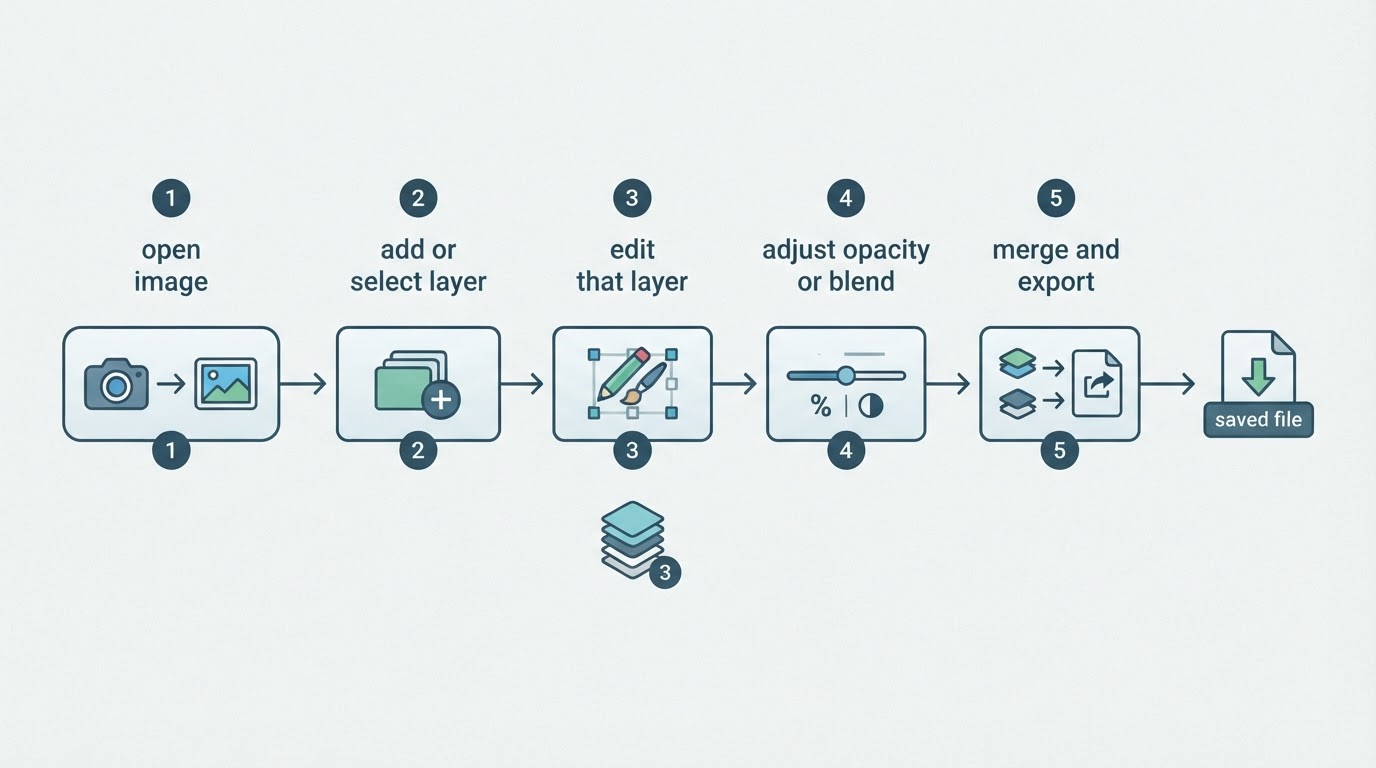
- Open the source image.
- Add a new layer, or select the layer you intend to change, before touching any pixels.
- Make the local change on that layer: paint, fill a selection, paste a copied region, or apply a filter or adjustment.
- Adjust how the layer sits on the image underneath, whether through its opacity or through its blending mode.
- Merge or flatten once the composite is correct, then export a copy.
Menu names, keyboard shortcuts, and the exact order of the steps differ between releases, so treat the outline as the shape of the job rather than a script that matches a particular build. Confirm the current labels against the release you download.
An edit is finished when it survives two checks. Hide the layer you changed: if the result underneath is exactly the original, the change stayed where it belongs. Then undo and redo the last operation, and inspect the image at 100 percent. If the composite is still clean at full size and the history reaches back far enough to recover the original, the result is ready to export. If undo stops earlier than expected, keep the working file instead of overwriting the original.
Installing the Seashore app: two routes
There are two practical routes to get the Seashore app onto a Mac: a direct download from the project's GitHub repository, and the Mac App Store. The difference is not the editing model. It is who controls the version you run and how it is updated.
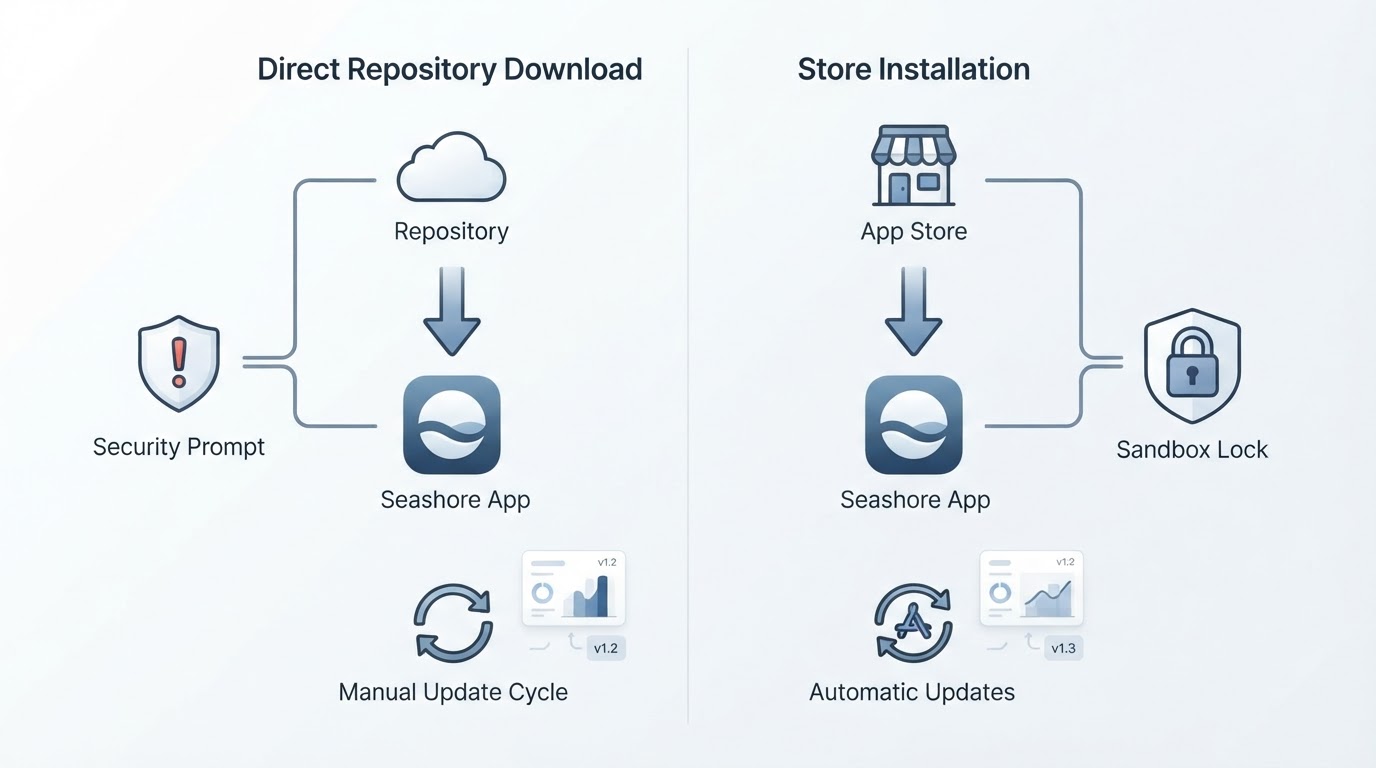
Route detail | GitHub release download | Mac App Store |
|---|---|---|
Effort | a few manual steps | one click |
Updates | manual: you check for a newer release | handled by the App Store |
Version currency | usually the most recent published build | may trail the repository |
Launch friction | Gatekeeper prompts are possible on first launch | installs through the store's checks |
Removal | move the app to the Trash | remove it from the store list, then the Trash |
The repository route, step by step:
- Confirm you are on the project's own page. Reach the repository from the project's links rather than from a download aggregator that redistributes the build.
- Download the release asset for the newest published version.
- Open the downloaded file and move the app into the Applications folder.
- On first launch, macOS may block the app. If it does, open System Settings, go to Privacy & Security, and use the Open Anyway option for that app. Do not disable Gatekeeper for the whole system.
- Check the version shown in the app's About panel against the release you downloaded.
The App Store route is shorter: search for the app, install it, and let the store handle updates. Choose this route if you want the version to be maintained without your attention and you accept that a store build can trail the repository.
After either route, verify two things before doing real work: that the version which launched is the one you meant to install, and that the app opens a file you already have. On both routes, confirm that a current release exists before you depend on the tool for a repeating workflow. Small open-source projects can pause, and a paused project is a planning fact rather than a failure.
Permissions and data flow: a five-minute check
An image editor works on files you choose, so the permission question is narrow: which files can it reach, and does anything leave the machine? The answer depends on the build you install, which is why this is a check rather than a claim.
- Note what the app asks for on first launch. Access to a file you explicitly open is expected. A request for the Photos library, the camera, or full disk access is a decision point, not a routine one.
- Prefer the build whose permissions match the job. A sandboxed build from the Mac App Store can generally reach only the files you hand it through the system file picker. A direct download may be sandboxed or not, so check System Settings under Privacy & Security to see which permissions the app has actually been granted.
- Watch for network activity during a local edit. Open Activity Monitor, select the Network tab, and edit an image for a few minutes. A local editor has no structural reason to send your photos anywhere. If connections appear, investigate before trusting the app with private material.
- Revoke what you do not want. macOS lets you remove a permission from an app in System Settings at any time, and the app is expected to keep working on files you select afterward.
The larger principle is simple: the tool should ask for the access its job requires and nothing more. If the permission list looks broader than the work, treat that as information about the project.
Project facts: the five fields worth confirming
Reviews of small open-source apps rest on facts that change between releases. Confirm these five on the project's own pages before you install, and note the date you checked. Where a value matters, copy it exactly rather than paraphrasing it.
Field | What to verify | Why it matters |
|---|---|---|
License | Copy the license name exactly as the repository's license file states it, including the version, and record the date you checked. | The license decides whether you may modify or redistribute the app. A short label such as GPL in a summary is not the same as the version stated in the file. |
Platform | The minimum macOS version required by the release you are downloading. | A build that runs on one major macOS release may not launch on an older machine, and the requirement changes over time. |
Written in | The language and frameworks named in the repository. | It shapes who can contribute, how quickly the project can respond to a macOS change, and how the app behaves on current systems. |
Version reviewed | The exact release tag or version number you installed, recorded with the date. | Without a number, a review describes a moving target. |
Repository | The canonical location for releases and issue reports. | When a download page is not the project's own repository, treat it as a redistribution and verify the source before running anything. |
Where a simple layer editor stops
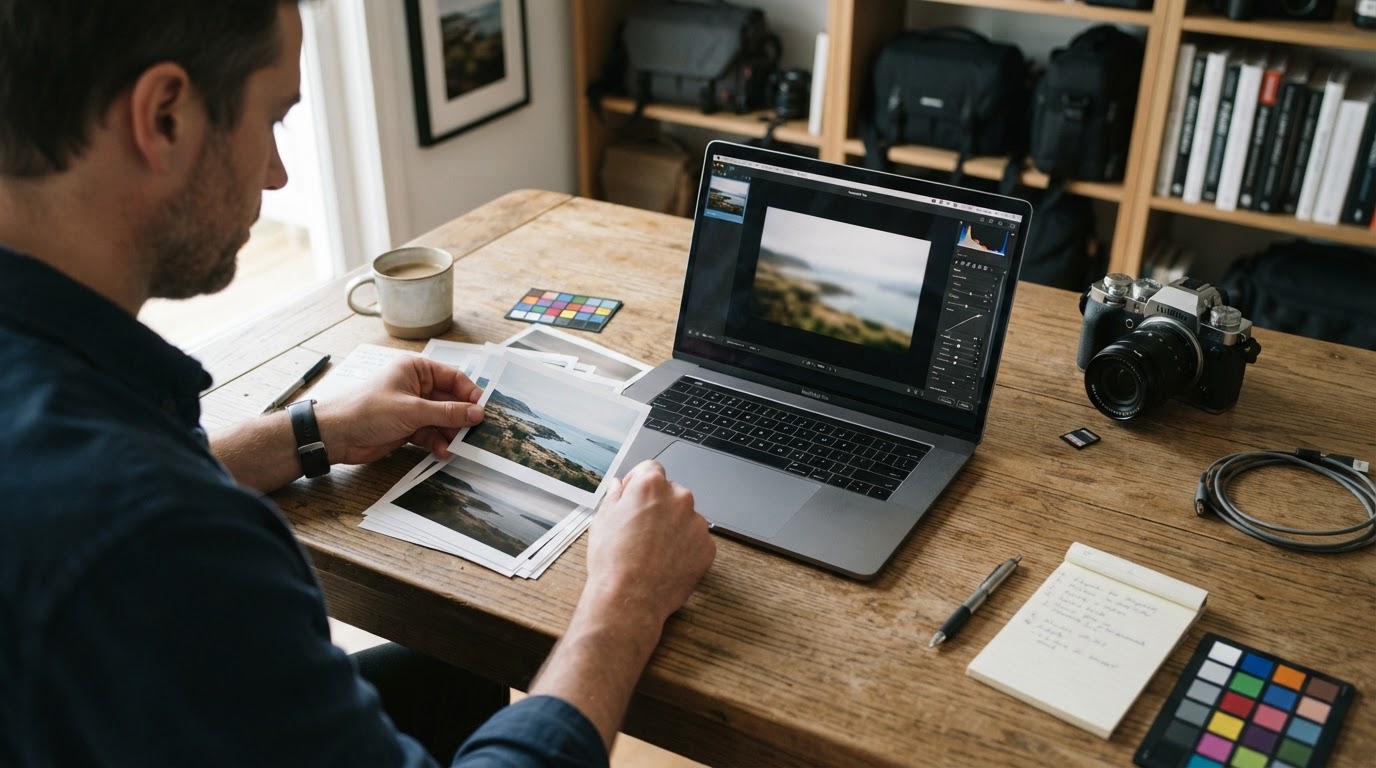
The boundary is easiest to see in what this class of editor does not try to do.
- RAW development. Camera RAW files need a processing pipeline before they become editable images. A lightweight layer editor is built for finished images, not for raw sensor data, and professional RAW work belongs with a tool designed around it.
- Color-managed output. Print work depends on accurate color spaces, ICC profiles, and soft proofing. A simple editor is not the place to make final decisions about how an image will look on paper.
- Complex compositing. Many masked layers, channels, adjustment stacks, and reusable smart objects are the daily tools of professional retouching. Simplifying the interface means those tools are elsewhere.
- Non-destructive histories that survive restarts. If your workflow depends on revisiting every adjustment later, choose a tool built around that model from the start.
- Ecosystem support. Tutorials, plugins, and community answers follow the large editors. A small project means learning from the application itself and from its issue tracker.
- Maintenance pace. Check how recently the repository has published a release and answered issues. A project you adopt for a repeating workflow needs a plausible maintenance story, not a promise.
None of this makes the small editor worse. It makes the trade explicit: fewer moving parts and a shorter learning curve in exchange for a ceiling that arrives sooner.
Verdict: does the Seashore app fit your work?
Adopt the Seashore app when the work is mostly local and mostly final: cropping, resizing, correcting tone and color, cleaning up screenshots, and assembling two or three layers into one export. It is a reasonable choice when you want layers without a subscription, when you want an editor that opens quickly for small jobs, and when you are comfortable checking a repository for releases.
Plan for a professional tool instead when the work depends on RAW files, precise color for print, long non-destructive histories, or heavy composites. Those needs are specific enough to justify a heavier application, and forcing them into a simple editor costs more time than it saves.
A practical way to decide is a single-file trial. Pick one real image, run the four tasks you repeat most often (crop, color, retouch, and export), and stop when you either finish or reach something the editor cannot do. Finishing means the tool fits the job. Reaching for a workaround means the workaround is the signal to size up.
Corrections: if a fact here is wrong or a link has gone stale, report it through the publication's contact page. Corrections are applied in place.


