Why macOS gives you one direction for two devices
macOS exposes a single scrolling direction setting for pointing devices. The toggle is labelled Natural scrolling, and it does not distinguish between the built-in trackpad and a mouse you plug in.
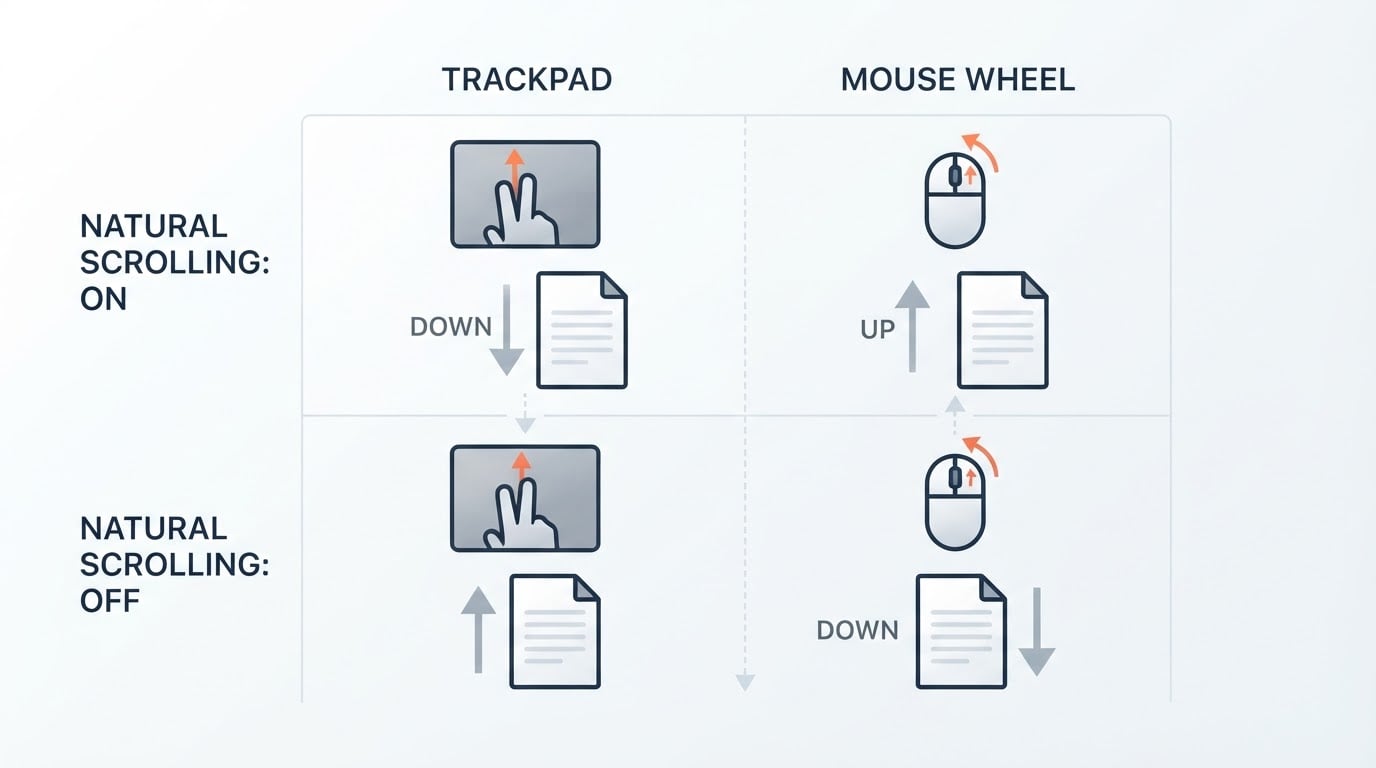
That design suits a trackpad. With natural scrolling on, content moves with your fingers: swipe up and the page follows. A wheel carries a different physical expectation. With the setting off, rolling the wheel forward scrolls toward the top of a document; with it on, the same wheel movement scrolls toward the bottom.
One switch cannot honour both habits. Turn natural scrolling on for the trackpad and the wheel reverses; turn it off for the wheel and the trackpad reverses. Tracking speed and button assignments are stored per device, but direction is shared across every pointing device the system sees.
Decide which direction belongs to which device
Work from muscle memory rather than convention. A trackpad is a direct-manipulation surface: your fingers touch the content, so most people prefer the content to follow them. A wheel is an indirect control: you turn a physical object, so most people expect that turning it away from them moves the view further down the page, the same convention a scrollbar follows.
The test is not which setting is correct but which combination needs no conscious thought. Set each device so that you never pause to remember, then leave the settings alone for a week. If one device keeps feeling wrong, that is the device to flip, not the pair.
What a scroll reverser changes, and what it leaves alone
A scroll reverser is a small background utility that reads scroll events from each connected device, flips the direction for the devices you nominate, and passes the events on to macOS. The per-device rule is the part the system setting cannot express.
The reversal is deliberately narrow. It changes direction only:
- not pointer speed, acceleration, DPI, or how far a single wheel notch scrolls;
- not system settings, which stay where you left them;
- not per-application scrolling, so an application that handles scroll input itself may behave differently.
Two consequences follow. First, the utility has to keep running: the reversal is a process, not a stored preference. Second, reading input events normally requires Input Monitoring or Accessibility permission on recent macOS releases. Those two facts explain most of the failures covered below.
Set the two directions
Labels differ between utilities and releases, so treat the following as the sequence to expect rather than a screenshot walkthrough, and confirm each label against the documentation that ships with the build you installed.
- Install from a source you can verify. Prefer the project's own download page, then the release artefacts it publishes, then a package-manager formula or cask if the project maintains one. Skip download aggregators entirely.
- Grant the permission it requests. If macOS shows an Input Monitoring or Accessibility prompt, approve it, then restart the utility. If no icon appears afterwards, this is the first thing to re-check.
- Open the menu-bar item and find the device list. Utilities of this kind normally list the devices they can see and let you set a direction for each device or device type.
- Set one device at a time. Leave the trackpad on natural scrolling and invert the mouse, or the reverse. Change a single device, test immediately, then move on to the next.
- Locate the quick switch. Most utilities include a quick on/off toggle in the menu bar. Knowing where it is makes it easy to confirm that the utility, and not the system setting, is controlling what you see.
- Turn on launch at login. Use the utility's own preference if it has one; otherwise add it under General → Login Items in System Settings, or under Users & Groups → Login Items on older releases. Without this step the reversal ends at the next restart.
- Check completion. Open a long page and scroll a few lines with the trackpad, then a few with the wheel. The setup is complete when each device moves the view in the direction your hand expects and the system's Natural scrolling toggle is where you left it.
Record five project facts before you install
Versions, licences and supported operating systems change between releases, and any tutorial that pins them goes stale. Record these five fields from the release you actually installed and keep them with your notes for the machine:
- Project and repository — the canonical source host and owner, so you can tell whether the build you hold is current.
- Licence and what it permits — read the licence file, not the download page. A permissive licence such as MIT, BSD or Apache-2.0 allows reuse and redistribution with attribution. A copyleft licence such as GPL requires derivative distributions to keep the same terms. With no licence file, all rights are reserved by default and redistribution is not permitted.
- The release you installed — the version or tag and its build date, copied from the artefact itself.
- Supported macOS range — as stated by the project for that release. Ranges quoted in older tutorials are the most common stale fact in this topic.
- The date you checked — because every field above is only true as of a point in time.
The last field matters more than it looks. A fact recorded without a check date cannot be audited later, by you or by anyone reading your notes, and the other four move without notice.
Routes that avoid a background utility
Not everyone wants a third-party process running for a scroll preference. Two alternatives are worth knowing:
- Change the system toggle and retrain one device. This costs nothing and survives updates, but it means living with the same direction on both devices.
- Use the pointing device's own software. Some mice ship with vendor software that can invert wheel direction for that device alone. Check the vendor's settings before adding a utility; when such a driver exists, it sits closer to the hardware and usually survives updates the way the system setting does.
What does not work is expecting the system to remember two directions, because the preference it stores is not per device. Anything that promises to split the direction without a running process should be checked carefully before you rely on it.
Troubleshoot the failures that actually happen
The mouse is treated as a trackpad, or the other way round. Utilities often infer a device's class from the shape of its event stream rather than its name. A mouse with a horizontal wheel, a Magic Mouse, or a device using a trackpad-style driver can fall on the wrong side of that inference, so a rule written for the mouse is applied to something the utility grouped as a trackpad. Check the device name the utility shows, look for a manual override, and unplug and replug the device so the utility re-reads it.
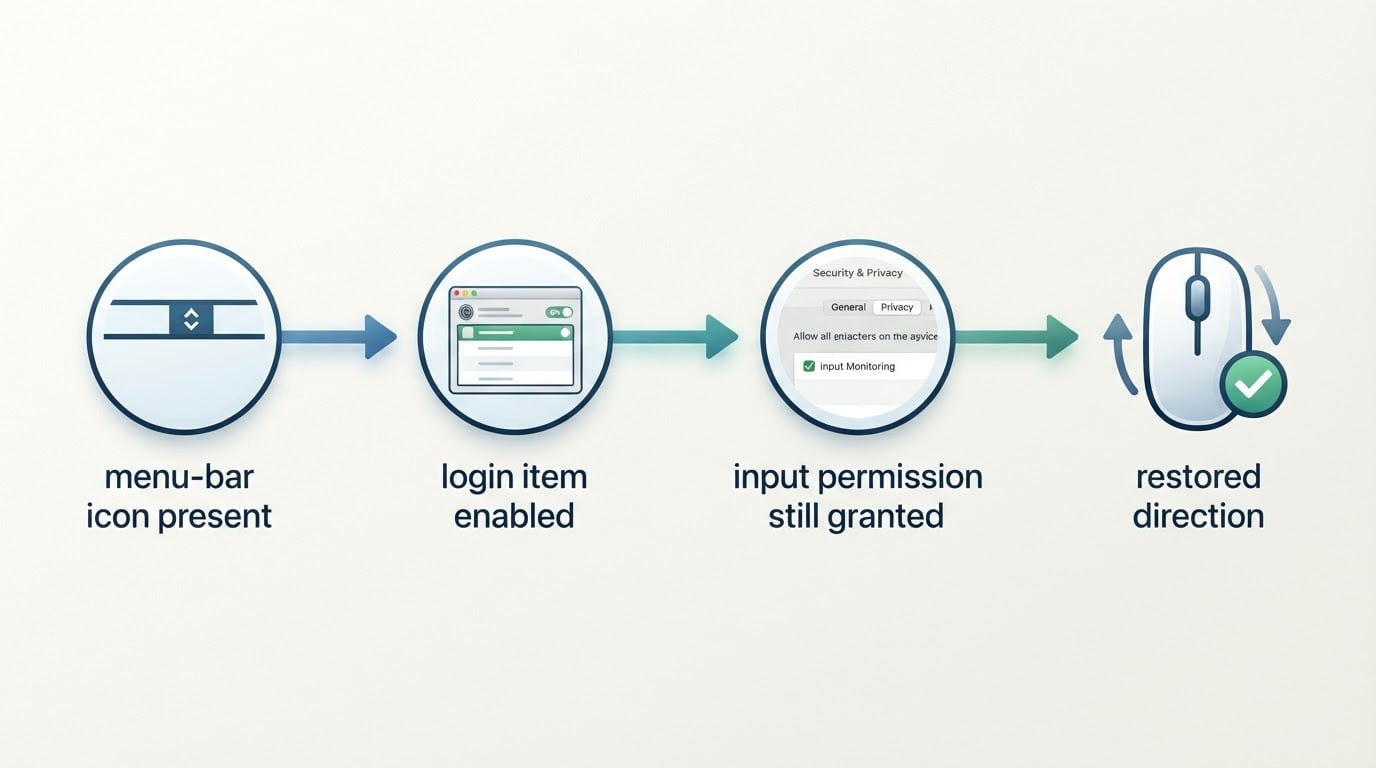
The direction returns after a restart or an update. Three causes cover most cases: the utility is no longer running, its login item has been disabled, or its Input Monitoring permission was reset. Work through them in that order — menu bar first, then Login Items, then Privacy & Security. A utility update can also reset its preferences, so re-check the per-device rules after any version bump.
The system toggle and the utility disagree. The utility reverses whatever the system setting already did, so the two layers compose. Change the system toggle after setting a per-device rule and that device flips twice. Decide which layer owns which device, change one layer at a time, and test between changes. Running two input utilities at once creates the same confusion, so keep one active.
The trade-off, and where the scope ends
The trade-off is structural. The system setting survives macOS updates because macOS owns it. A per-device rule depends on a third-party process, a permission grant and a login item, and any of the three can be reset by an update. If your direction preference is mild, the system toggle is the lower-maintenance answer. If the trackpad and the wheel genuinely need opposite directions, a per-device utility or a vendor driver is the way to get there, and the maintenance is the price.
The scope stays narrow for the same reason. DPI, pointer speed, acceleration, wheel distance and button remapping belong to the system's mouse pane or to a general input remapper; folding them into one utility is how a configuration becomes hard to debug. Applications that implement their own scrolling — some games and canvas-based editors, for example — may ignore the reversal entirely, and that is application behaviour rather than a fault in the utility.


