What the Patcher Changes, and What It Leaves Alone
OpenCore Legacy Patcher is a community project that starts an older Intel Mac through a modified OpenCore boot manager and then patches the running copy of macOS so the hardware Apple dropped from support keeps working: graphics acceleration, wireless networking, and the smaller components that quietly stop functioning on a new system.
The important boundary is where those patches live. The project's own documentation describes the design as zero firmware patching: the changes are applied in memory at boot and are never permanently written into the Mac's firmware. That distinction matters, because it means a bad outcome is usually recovered by erasing the disk and reinstalling rather than by sending the machine in for service.
Three boundaries are worth stating before you spend an evening on this:
- The Mac still runs an unsupported configuration. Nothing here turns it into a machine Apple supports, and there is no support case to open when something misbehaves.
- Only Intel Macs are in scope. Apple Silicon machines boot through a different chain and run current macOS releases natively, so none of this applies to them.
- Support is version-specific. Which models, which macOS builds, and which patches work together is decided by the project's release documentation, not by the fact that an earlier release once worked on your machine.
Treat that documentation as the source of truth for your exact model and target macOS version. It is the reference to trust when a third-party page, a forum post, and a download site disagree with each other.
A Checkpoint Model: Where You Can Safely Stop
A patched Mac is a small project, not a single click. It is easier to survive if you treat it as four stages, each with a completion standard and a failure path. Decide before you start whether each stage is worth the risk to you.
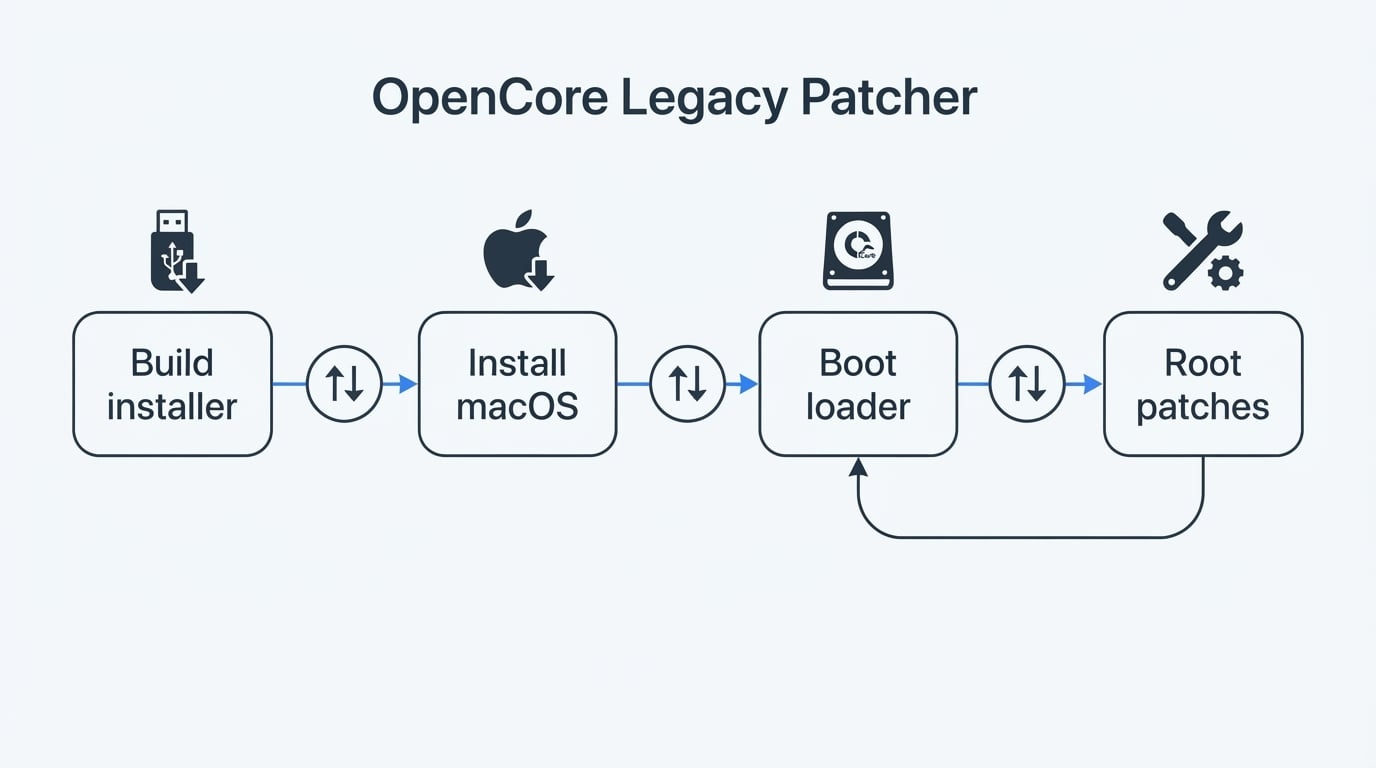
Stage | What it touches | You are done when | If it goes wrong |
|---|---|---|---|
Build the installer | only the USB drive and the Mac doing the building | the USB boots the target Mac into the macOS installer | rebuild the media; nothing on the target Mac has changed |
Install macOS | the target disk | the new system reaches setup and boots, with the USB still attached | restore from your backup |
Install the boot loader | the internal EFI partition | the Mac reaches macOS with the USB removed | boot from the USB again and repeat the loader step |
Root patches | the system volume and the protections around it | graphics and networking behave after a reboot | boot from the USB, re-apply the patches, or restore |
Writing it out this way shows where the cheap exits are. The first stage risks nothing on the target Mac, and the last stage is the one you cannot undo casually. If you only get as far as building the installer media, you have lost an evening at most.
Prerequisites, Starting With the Backup That Actually Counts
A backup that has never been restored is a hope. If you have a second drive, make a full clone alongside a Time Machine backup, and confirm the copy is complete and readable before you change anything. The install stage can erase the target volume, and the whole exercise is pointless if the only copy of your data lives on the disk you are about to reformat.
A second working Mac is the other prerequisite people skip. You need one to build the installer, and you may need one to recover the target machine if it refuses to boot. Older Macs without a T2 chip can often be rescued through internet recovery, but you should not plan around that working on the evening you need it. Then come the smaller items:
- A USB drive of 16 GB or more; 32 GB is a safer floor for current installer sizes. Use a drive you are happy to erase and keep afterwards.
- A macOS installer you can verify. Take it from Apple's own distribution channels or let the tooling fetch it from Apple's servers. Installer images from download sites are the one component you truly cannot inspect, and this is the component that writes to your disk.
- An unlocked Mac. Clear any firmware password first, and on T2-secured machines allow startup from external media before you begin. A locked machine stops you at the boot picker with no useful error message.
- Decisions made in advance: whether you need FileVault on this machine, whether it holds anything you cannot lose, and how you would recover if it did not boot tomorrow. An afternoon with no deadline is the right amount of pressure for this work. The evening before a presentation is not.
Step 1: Build the Installer Media
Do this on the working Mac. The patcher provides an installer-building step: you point it at the macOS installer you obtained and at the USB drive, and it writes a bootable copy of that installer onto the drive. Interface wording changes between releases, so follow the documentation for the version you are using rather than a screenshot from an older guide, and treat the labels below as descriptions of outcomes rather than exact button names.
Two checks before you move on:
- The USB drive appears as a boot option on the target Mac and opens the macOS installer.
- You can still boot the target Mac normally into its current system, with its data intact.
Nothing on the target Mac has been modified yet, so both failures are cheap. Start over with the media rather than carrying a problem forward.
Step 2: Install macOS on the Unsupported Mac
Insert the installer USB, restart the Mac while holding the startup-manager key, and choose the installer volume from the boot picker. From there the installer behaves much like it does on a supported Mac: pick the destination volume, start the installation, and expect several restarts along the way.
Practical notes that come from the process itself rather than from any particular release:
- Expect this phase to take noticeably longer than on a current Mac, especially with older storage. Give it an uninterrupted hour or two and keep it on mains power.
- Do not unplug the installer USB when the system restarts. Early in the process the Mac may only be able to boot with the USB attached.
- If a progress bar sits still for a long time, wait rather than forcing a restart, and only treat it as failed when the documentation for your build says a longer wait means nothing.
When this stage finishes you have a Mac running the new macOS with the installer still plugged in. Broken graphics, no Wi-Fi, or visibly slow animation is expected here rather than a sign of a mistake, because the patches come last.
Step 3: Put the Boot Loader on the Internal Disk
Now install the boot loader onto the internal disk's EFI partition so the Mac can start the patched system without the USB drive. This is the step that turns a rescue boot into a normal boot.
Verify it properly: shut the Mac down, unplug the USB drive, and start it. You should reach a normal login. If the machine refuses to start, or clearly still depends on the USB, boot from the USB again and repeat the step.
Do not repurpose the installer USB afterwards. Keep it, matched to the release you installed. You will want it after a macOS update, and you will want it if a patch ever fails during boot.
Step 4: Root Patches and the First Real Boot
The final stage applies the root patches: the driver-level work that makes older graphics chips, Wi-Fi cards, and other components function under a macOS release that no longer ships code for them. This is the part of the process that changes the system volume and relaxes the protections around it, which is why it is also the point of no easy return.
After the patch step completes and the Mac restarts, check the things you actually use:
- Window movement, video playback, and scrolling should be smooth rather than visibly redrawn frame by frame.
- Wi-Fi and Bluetooth should connect without a dongle. If they do not, that is a chip-and-model issue rather than a mis-click.
- Sleep and wake, external displays, audio, and the built-in camera are the next most common surprises. Test them now instead of discovering them in a meeting.
The rule that follows you from here on is that a macOS update is not finished until the patches are re-applied. A system update can reboot the machine into a state with partially working or missing drivers. Keep the installer USB close and re-run the patch step after updates.
Known Issue Categories, and What Only Your Machine Can Confirm
Patch outcomes group by hardware family rather than by macOS marketing name. What follows are the categories to check; the current per-model status has to come from the project's release documentation, because it moves with every release.
Graphics acceleration. Intel integrated GPUs and older AMD discrete GPUs depend on patches to keep acceleration working. Machines with Nvidia graphics are the most limited, and some combinations lose hardware video decode entirely. The practical test is whether applications that rely on Metal run smoothly and whether high-definition streaming plays at full quality instead of falling back to a lower resolution. Treat anything you read about one specific chip as unconfirmed until you see the result on your own screen.
Wireless and Bluetooth. Broadcom-based Wi-Fi cards generally work after patching, but continuity-style features are the fragile part, and Bluetooth behaviour depends on the chipset. If Wi-Fi cannot be restored at all, a supported USB adapter is the fallback that keeps the machine usable.
Everything peripheral. The card reader, Touch Bar, keyboard backlight, fingerprint sensor, and external display arrangements all vary by model. Test each one you depend on before deciding the project is finished.
Power, thermals, and updates. A newer macOS on older silicon can run warmer and drain faster than the system the machine shipped with. Point updates usually work once the patches are re-applied, while a full version upgrade needs a patcher release that supports it; beta builds are the riskiest thing to put on a machine you rely on.
Apple services. Features that validate hardware identifiers can behave unpredictably on an unsupported configuration. Check them before you depend on them.
None of the categories above is a promise in either direction. Two identical-looking Macs can produce different results, and only a real install on your exact model shows which category you are in. Where third-party pages conflict about a specific model, this guide does not settle the disagreement; the release documentation and the release tag you installed do.
The limits are worth understanding
The case against doing this is not that the patches are bad. It is that you are trading a supported, predictable machine for a configuration that only you maintain.
- Security posture. Root patching means relaxing protections around the system volume, and that stays true for as long as the machine runs this way.
- Maintenance burden. Every system update is an opportunity to break drivers, and the fix is the same manual step each time. That repeats for the life of the machine.
- Recovery risk. The failure mode is a Mac that will not boot, at whatever moment it chooses. If the machine's job is to be available, that risk is the whole argument.
- No vendor support. Apple does not support this configuration, and the project is community-run. When something breaks, the answer comes from documentation and issue threads rather than a support line.
- Not a firmware hack. The mitigating factor, and the reason the risk is survivable, is that patches are applied in memory instead of being written to firmware. A clean erase and a supported reinstall normally bring the machine back.
There is a licensing dimension too: macOS is Apple's software under Apple's terms, and the patcher's own terms are published in its repository. If your situation needs a vendor-supported configuration, this project is not the tool for it, however well a test install goes.
Should you use it?
Use it when the machine is a spare, the work you do on it is replaceable, and you are comfortable keeping a tested backup and re-applying patches after updates. It is a good answer for an older Mac that you want current enough for modern apps, or that you want to pass on as a second machine.
Do not use it when any of these is true:
- It is your only computer, or the computer that runs something you cannot afford to have offline.
- It is managed by an employer, covered by a security baseline, or needs FileVault and a predictable boot chain.
- You depend on protected high-definition streaming, hardware-accelerated video editing, or another workload where graphics performance is the point.
- You are not willing to keep an installer USB matched to every macOS update you install.
- The Mac is an Apple Silicon model, where none of this applies at all.
A reasonable middle path: install it, use it for a couple of weeks, and keep the old system's backup until the new one has survived an update cycle. If the machine has earned its place after that, keep going.
Project Facts
Field | Value |
|---|---|
License | Published in the project repository's licence file; confirm the exact terms there before redistributing the patcher |
Platform | Intel Macs; building the installer requires a working Mac |
Written in | Python, on top of the OpenCore boot manager |
Version reviewed | Not independently verified for this guide; check the repository's release tags and record the tag and the date you checked it |
Repository | The official OpenCore Legacy Patcher repository published by the dortania project on GitHub |
Install
Get an OpenCore Legacy Patcher download only from the project's own release page. If you arrived by searching for "open core legacy patcher download" or for "opencore legacy patcher", both spellings refer to the same project, and both appear on sites that repackage the app or bundle it with installer images, so the files you run are not the files the project published. Check the release tag, read the release notes for the macOS version you plan to install, and read the licence file that ships with the release.
Expect the tool to need administrative privileges, because it writes to disks and later to the system volume. Follow the release documentation for the current flow, keep the installer USB you built, and re-check your model against the support documentation before you start.
License summary
The patcher publishes its own licence in its repository, and the terms attached to the tag you use are the terms that apply to your copy. Read that file before you redistribute the tool, bundle it with anything, or ship it inside a product, because its obligations are specific and can include source-disclosure requirements. macOS itself is Apple's software under Apple's terms; this guide covers the community patcher only, and running the system on hardware Apple no longer supports sits outside the configuration Apple supports.


