What Paintbrush is, and the jobs it fits
Paintbrush is a bitmap paint program for macOS in the MacPaint and Microsoft Paint tradition. The whole idea is deliberate narrowness: one canvas, a small set of drawing tools, and a save dialog. It is the program to reach for when you want to change a screenshot or tidy a photo in under a minute, and the one to skip when the job is closer to illustration or photographic retouching.
That narrowness is the feature, not a shortcoming. A paint program of this kind starts instantly, does not ask for an account, and keeps the mental model to a single question: which pixels should change? For a Paintbrush for Mac task — retouching a screenshot, painting out a stray cursor, filling a flat area with a new colour, cropping a photo to the part that matters — that is all the structure you need.
The limits are as clear as the pitch. Paintbrush is a bitmap editor, so it works on a grid of pixels. That makes it excellent for correcting finished images and poor for anything that has to stay sharp at any size, which is a vector job. It is also not a photo pipeline: RAW development, colour-managed output and long non-destructive edit histories belong with tools built around those models.
Installing Paintbrush on a Mac
There is essentially one decision to make when you install: where the build comes from.
- Start at the project's own page. Open the project's website or repository and use its release or download link. Downloads that arrive through a general software portal are copies of a copy, and they can lag behind the current release or wrap the app in an installer you did not ask for.
- Check the release facts at the source. Before you download, note the version number and the file size that the project's own page states, and compare them with whatever a portal advertises. If the numbers disagree, the project's page wins. This is a two-minute check that tells you whether the build you are about to run is current.
- Record what you install. Write down the version number and the date you checked it. Open-source projects release on their own schedule, and a review — including this one — can go stale the week after it is written.
- Move the app to Applications. Open the downloaded file, drag the app into Applications, and keep the downloaded copy until you have launched it once successfully.
If the project ships more than one build, choose the newest stable release rather than a beta, unless you are deliberately testing a pre-release. Version numbers and download sizes move quickly, so verify them on the project page before you commit to a workflow that depends on a specific build.
First launch: if macOS blocks the app
Free and open-source apps are often distributed outside the Mac App Store, and macOS is cautious about them. A block on first launch is normal, and it has a per-app answer.
- Try to open the app first. If macOS refuses, read the dialog before clicking anything. A warning that the developer cannot be verified is the common case; a message that the app is damaged can also mean a corrupted download, in which case delete it and download it again from the same official link.
- Use the per-app override. Open System Settings, go to Privacy & Security, and look for the notice about the blocked app. Choose Open Anyway, confirm, and launch the app again. On current macOS versions this is the intended path for software from an identified but not notarised developer.
- Do not weaken the system. There is no reason to disable Gatekeeper globally for a paint program, and you should not run terminal commands copied from an unknown download page. Approving one app is a decision you can reverse; changing the system's security posture is a much larger one.
- Review the permissions it asks for. A paint program needs access to the files you choose to open — typically granted through the file picker when you pick one. If a build asks for the camera, the photo library, or full disk access, treat that as a decision point rather than a formality, and check what has actually been granted under Privacy & Security afterwards.
- Confirm the app stays local. Open Activity Monitor, select the Network tab, and paint for a few minutes. Editing an image on your own machine gives the app no structural reason to send your work anywhere. If you see traffic, investigate before you trust it with private screenshots.
None of these steps is specific to Paintbrush. They are the standard cost of running software that lives outside the App Store, and once paid, they do not come back.
The quick-edit checklist
This is the routine that a Paint-family program is good at — the sixty-second pass over an image, start to finish. Exact tool names differ between releases, so read the steps by what they do, and confirm the labels against your build.
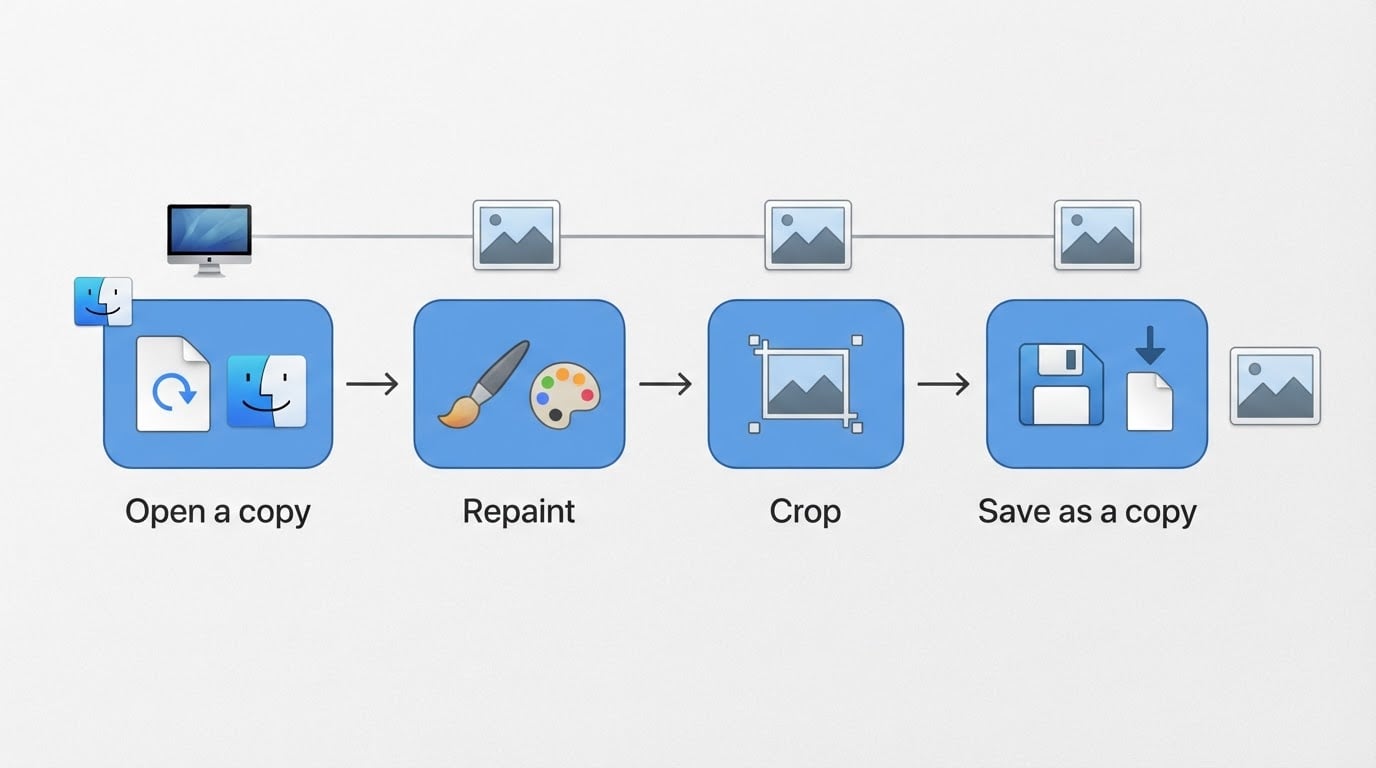
- Open the image and make working room. Open your original, then duplicate it before you touch a pixel — most paint programs keep that under a File menu, and some also offer a duplicate button in the toolbar. Keep the original on disk in any case.
- Retouch the pixels that are wrong. Choose the brush or pencil tool and repaint the small area — a stray cursor in a screenshot, a speck of dust on a plain background. If you overshoot, step back with Undo. If you need to remove rather than repaint, the eraser does the same job with the background colour or transparency.
- Fill a region with colour. Pick the fill or bucket tool, choose the colour you want, and click inside the region. If the fill floods past the edge you meant, undo it and either close the gap in the boundary first or raise the selection tightness that the tool offers.
- Pick a colour from the image. Use the eyedropper — the tool with the dropper icon — to sample an existing colour from the canvas. This is how you match a background exactly instead of guessing at it.
- Crop to the part that matters. Select a rectangle around the area you want to keep, then choose the crop action. Cropping last is deliberate: every pixel you remove is gone from the saved copy, so fix the content first.
- Save a copy in the right format. Use Save As or Export rather than overwriting the original. PNG suits screenshots and line art because it keeps flat colours and sharp edges; JPEG suits photographs because it stores continuous tone in a smaller file. Give the edited copy a new name so the untouched original stays available.
The pass is finished when the saved copy passes two checks. First, compare it with the original side by side: every intentional change should be visible, and nothing unintended should have moved. Second, view the copy at full size, not fitted to the window. Paint-class tools show the damage they cause best at 100 percent, and the pixels you left alone are as much a part of the result as the ones you changed.
What the MS Paint habit gets — and where it stops
Most people arrive with an exported list of expectations from years of using Microsoft Paint: immediate, single-window, no ceremony. That habit maps cleanly onto the jobs above and stops abruptly at three others.
The expectation | How a Paint-class app answers |
|---|---|
Open and mark up an image in seconds | Yes — this is the overlap, and the reason the program exists |
Retouch or fill a small area | Yes — brush, eraser, fill and eyedropper cover it |
Resize and crop for the web | Yes — the pixel workflow is exactly what these jobs need |
Text, arrows and callouts on a screenshot | Check the tool list in your build before you rely on it; annotation sets vary by program and release |
Layers, masks and non-destructive edits | No — that class of work belongs to a full editor |
Vector output that stays sharp at any size | No — a bitmap canvas is the wrong foundation |
RAW files and print-ready colour | No — those need a photo pipeline, not a paint window |
The rows that end in No are not defects to fix; they describe a different tool. Judging a paint program by a retoucher's checklist produces a bad review and a worse purchase decision.
Project facts: five fields to confirm
Small open-source projects change between releases, and the facts that matter most are the ones most often repeated from stale reviews. Confirm these five on the project's own pages, and record the date you checked.
Field | What to verify | Why it matters |
|---|---|---|
License | Copy the licence name exactly as the project's licence file states it, including the version, then note the date you checked. | The licence decides whether you can modify or redistribute the software, and a general label such as open source is not a substitute for the exact terms. |
Platform | The minimum macOS version the release you are downloading requires. | A build that runs on one major release may not launch on an older Mac, and the requirement moves over time. |
Written in | The language and frameworks named in the repository. | It shapes how quickly the project can react to a macOS change and how easily you can read the source or build it yourself. |
Version reviewed | The exact release tag you installed, with the date. | Without a number, any description of the software is a description of a moving target. |
Repository | The canonical location for releases and issue reports. | When a download page is not the project's own, treat it as a redistribution and check the source before you run anything. |
A licence summary is useful only at this level of precision: read the file, copy the name, and let the exact wording govern what you may do. If a review you read does not state a version and a checked date, treat it as a pointer to the project rather than as evidence about the build on your disk.
When to switch tools
Paintbrush is a solution for finished images and short jobs. Switch when the work changes class.
- Vector drawing. Logos, icons, page layouts and anything that must stay crisp when scaled need a vector editor, not a pixel grid. Repainting a bitmap logo at a larger size will not recover the sharpness the original never stored.
- Photo-grade retouching. RAW development, colour-managed output and careful masking belong in a tool built around those pipelines. A paint program will open a photograph and let you paint on it; that is not the same as developing it.
- Long, revisitable edit histories and layered composites. If your workflow depends on returning to an adjustment weeks later, choose an editor designed around that model from the start.
- Repeating production work. Batch resizing, watermarking or format conversion at scale is a job for a dedicated utility, not for the sixty-second pass.
A fair test takes one file, not a week. Take a real image you actually need to fix, do the three things you do most often — clean up, crop, export — and stop when you either finish or hit something the program cannot do. Finishing means the tool fits the job. Hitting the wall immediately means you were looking for a different tool, and now you know which one.
Corrections: if a fact here is wrong or a link has gone stale, report it through the publication's contact page. Corrections are applied in place.


