What a Mac app leaves behind
Dragging an application from /Applications to the Trash removes one folder: the app bundle. Everything the app wrote for your user account stays where it was. macOS keeps that data in per-user folders named after the app's bundle identifier, the reverse-DNS string such as com.example.app that every bundle declares in its Info.plist. Collect that identifier before you delete anything, because it is the thread that ties the leftovers together:
mdls -name kMDItemCFBundleIdentifier /Applications/YourApp.appIf the bundle is already gone, the identifier is usually still visible in the file names inside ~/Library/Caches, ~/Library/Preferences and ~/Library/Containers. Once you have it, these are the places a typical app touches:
Location | What usually lives there |
|---|---|
| The app bundle itself; removing it stops the app from launching but deletes none of the rows below |
| Settings, profiles, local databases, plugins and assets the app downloaded |
| Regenerable data: thumbnails, indexes, downloaded copies |
| One or more |
| Window and tab state used to restore the app on relaunch |
| Sandboxed app data; group containers may be shared by several apps from the same vendor |
| Crash reports and diagnostic logs |
| Web caches, cookies and local storage for apps that embed a browser |
| User-level background items that start the app or its helper at login |
| System-wide helpers installed with administrator rights |
Not every app creates every row. Menu-bar utilities and updaters are the ones that add launch agents, media and communication apps tend to add large caches, and an app installed from the App Store keeps most of its data inside Containers rather than scattered across the Library.
The order that avoids collateral damage
The order matters: quit and disable first, delete second, empty the Trash last. Deleting files while a process still holds them open can leave the app in a half-configured state, and removing a login item after its target is gone leaves a broken entry that keeps failing quietly in the background.
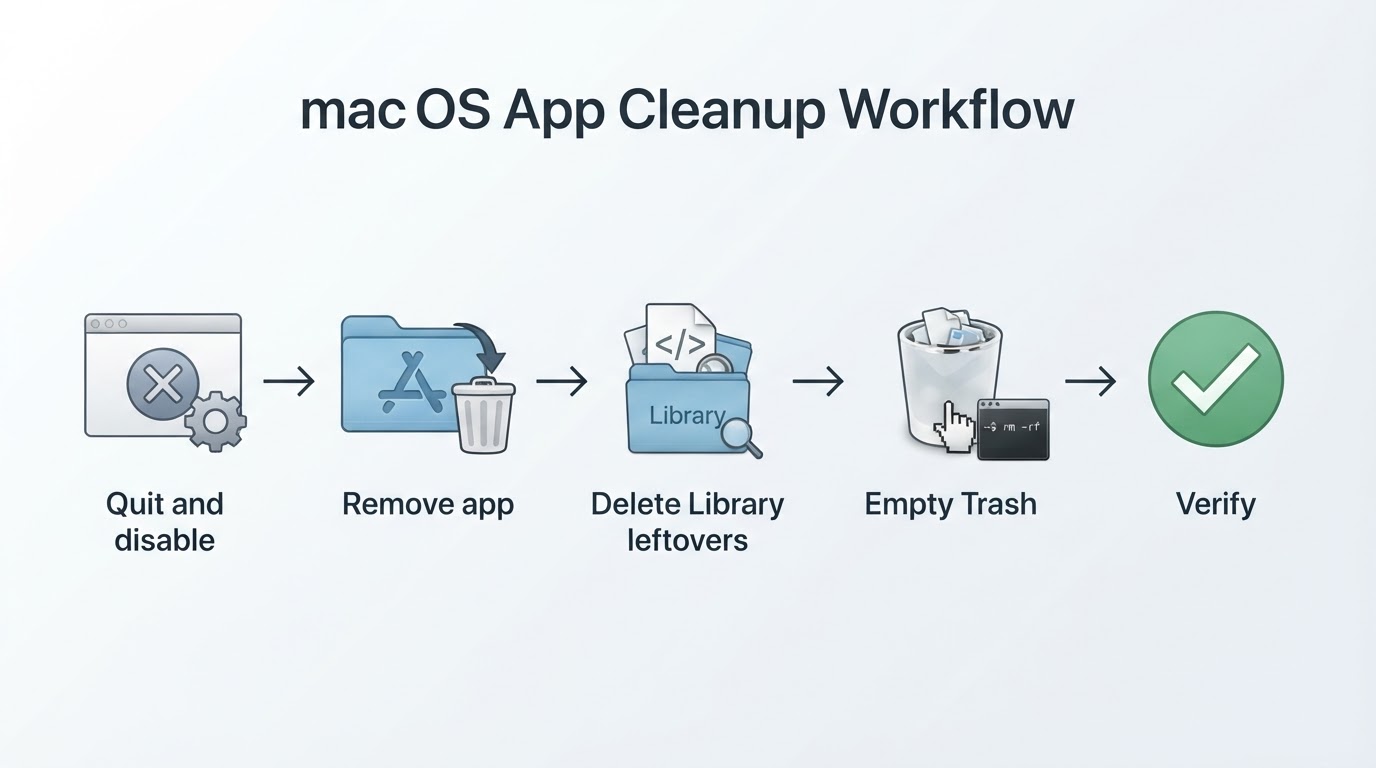
1. Quit the app and turn off its background items. Check what is running, then quit it:
pgrep -fl YourApp
osascript -e 'quit app "YourApp"'
Open System Settings, then General, then Login Items & Extensions (the exact name differs between macOS versions), remove the app from Login Items, and switch off its row in the background-items list. If you cannot find a row, note the bundle identifier and continue; the verification step at the end will catch a missed agent.
2. Remove the app bundle. Move /Applications/YourApp.app to the Trash. What happens: the icon disappears, the app can no longer launch, and nothing else changes, because your preferences and support files are still on disk.
3. Delete the per-user leftovers. Start with a search restricted to your own Library so you see the real scope before deleting anything:
find ~/Library -maxdepth 4 -iname "*com.example.app*" 2>/dev/nullReview the list, then delete the entries you recognize from the table above. What happens: preferences and window state are gone, sandboxed data inside Containers is gone, and a future install starts as a clean install. Any document or library the app kept inside its container or support folder goes with it, so this is the step that is genuinely irreversible.
4. Handle system-level files last. List the installed background jobs and search them for the identifier:
ls -la /Library/LaunchAgents /Library/LaunchDaemons 2>/dev/null
grep -r "com.example.app" /Library/LaunchAgents /Library/LaunchDaemons 2>/dev/null
Unload a matching job before deleting its file (for example launchctl bootout gui/$UID/<label>), then delete only the entries that name the app you are removing. What happens: if you remove a helper that another application also uses, that application loses a component and may fail to update or start.
5. Empty the Trash. Until you do, the bundle still exists inside ~/.Trash, and a login item can still point at it. Emptying the Trash is what makes the removal final for the bundle and for every file you moved there.
What is safe to delete, and what deserves a pause
Almost all of it is safe in the sense that you will not damage macOS or the rest of your files. The real question is what you cannot get back, so sort the rows into three groups before deleting.
Rebuilt automatically. Caches, Saved Application State, HTTPStorages, WebKit, and most files under Logs are recreated on demand. Deleting them costs only the time the app spends rebuilding them, and once the app is gone they are dead weight. These are the leftovers a cleanup pass should take first.
Your data, not the app's. Preferences, Application Support, Containers, and any local database inside them hold things you created: preferences, account sessions, playlists, projects, saved documents. The app will not come back to reclaim them, so deleting them is the whole point when you are removing an app for good, and a mistake when you plan to reinstall and keep your setup. The common mistake is deleting this group by habit on an app you plan to use again.

Shared or system-owned. Group Containers can be shared by several applications from one vendor, so deleting the wrong folder removes data that belongs to a sibling app. A launch agent or daemon whose label does not contain your bundle identifier may belong to another tool entirely, which is why the grep above matters before you delete. Files under /Library were installed with administrator rights and are often helpers used by more than one application. Anything under /System or /private/var/folders is macOS's own working storage and is not an app leftover at all.
The basis for each call is the same pattern: macOS names per-user application files after the bundle identifier, App Store apps are sandboxed and keep their content inside Containers, and files that do not follow either pattern are usually owned by something else. When a file's name does not clearly match the app, leave it and write it down; a leftover you do not understand is cheaper to keep than a shared component you break.
Manual cleanup or an uninstaller utility
Most searches for a macOS app cleaner are really asking one question: how do I remove everything the app left behind without damaging the rest of the system? Manual removal and a utility answer that question differently, and they fail in different ways.
Doing it by hand costs nothing, shows you exactly what the app owns, and reaches the awkward cases: applications installed outside /Applications, helpers named after a vendor rather than an app, leftovers from two versions ago. Its failure mode is judgment. It depends on you not deleting a shared container, and it is slow by the time you reach the tenth app in one session.
A utility's value is the scan. It finds candidate paths in seconds, matches them to the app, and offers a list you can review. Its failure modes are the opposite of manual work: you see a list without the reasoning behind it, it can miss non-standard locations just as easily as a person can, and it usually installs its own privileged helper or asks for broad disk access to do its job. A tool that shows exact paths and lets you deselect rows is more useful than one that only reports a count of files cleaned.
If you are comparing tools, judge them on what you can verify: whether it previews exact paths before deleting, whether it separates caches from user data, whether it marks files that are shared, whether it can remove itself cleanly, and whether the project still receives releases. A short, inspectable list from a maintained project beats a long automated one you cannot audit.
For any project you are about to install, record five facts together with the date you checked them: License, Platform, Written in, Version reviewed, and Repository. Read the version from the repository's pinned release tag and the supported systems from the project's own documentation; if the two disagree, report the conflict instead of deciding for the reader. That habit is what separates a removal decision from a rumor.
If you installed the app with a package manager such as Homebrew, the manager may track files the app created and offer a deeper removal path than dragging the bundle. Package-manager behavior changes between versions, so check the current documentation for the exact option before relying on it.
How to confirm the app is really gone
Run these checks after emptying the Trash, using the bundle identifier you collected at the start:
pgrep -fl YourApp
launchctl list | grep -i "com.example.app"
grep -rl "com.example.app" ~/Library/LaunchAgents /Library/LaunchAgents /Library/LaunchDaemons 2>/dev/null
mdfind "kMDItemCFBundleIdentifier == 'com.example.app'"
Read the output as a checklist. pgrep prints nothing when no process with that name is running. launchctl list shows a matching row only if a background job is still loaded. The grep returns nothing when no launch agent or daemon still points at the app. mdfind is the check that catches a second copy of the bundle you forgot about: a copy in ~/Applications, a leftover inside an old backup folder, or an installer image that is still mounted. Then open System Settings, go to General, then Login Items & Extensions, and confirm that no row mentions the app. The wording of that pane changes between macOS versions, so read the whole list rather than one section.
Log out and back in, then run the same checks again. That second run after a fresh login is the real completion standard: if nothing returns, the app has no way to start itself and the cleanup is done. If something does come back, ps -o ppid= -p <pid> shows which process started it, which is almost always a launch agent or a login item you have not removed yet.
What may still remain
A few traces are normal even after a complete uninstall. Installer receipts (pkgutil --pkgs) keep a record of packages you installed, which is why a vendor can still appear in some listings long after the app is gone; they are harmless and removing them is optional. Data synchronized to a cloud service lives on the server as well, so deleting local files does not delete the account copy. System extensions such as network filters and VPN components are approved separately from the application and may need to be switched off in System Settings after the app itself is gone.
The short version
Get the bundle identifier, quit the app and disable its login items, remove the bundle, delete the per-user leftovers you recognized, inspect the shared and system-level components, empty the Trash, verify with pgrep, launchctl list, grep and mdfind, then log out and back in and verify once more. If a path does not clearly belong to the app, leave it for the next pass.


