What Mac Mouse Fix Actually Changes
A third-party mouse usually arrives with five or more buttons, but macOS hands most applications only the left click, the right click, and the scroll wheel. Everything else stays invisible unless a utility claims those events and turns them into something the system already understands.
Mac Mouse Fix is that utility. It watches the buttons your mouse sends and lets you assign an action to each one: a single click, a double click, a click and drag, or a scroll gesture. The action itself can be Mission Control, a switch between Spaces, Launchpad, App Expose, Quick Look, a media key, or a keyboard shortcut that you record yourself. The result is the behaviour people expect from an Apple trackpad, applied to whichever mouse they already own.
What it does not do is change the mouse. Sensor accuracy, switch feel, weight, and wireless latency are hardware questions and stay outside this article.
A typical layout for a five-button mouse looks like this:
Mouse input | Action | Why it earns a slot |
|---|---|---|
Middle click | Mission Control | Replaces a keyboard shortcut you use dozens of times a day |
Button 4 | Previous Space | Turns a small side button into desktop switching |
Button 5 | Next Space | Keeps the pair together in muscle memory |
Button 4 + Command | Paste | Puts one repeated edit action under the thumb |
Middle click and drag | Scroll or zoom | Gives the wheel a second behaviour without a modifier |
Treat the table as a starting point, not a fixed template. The names of the configuration screens and the exact wording of the action list change between releases, so match controls by function rather than by label.
Before You Install
Four checks save most of the troubleshooting later:
- macOS version. The release you download should list your version of macOS as supported. If your Mac is held back a major version, look for a build that still carries that support instead of assuming the newest download works.
- Mouse. You need at least one button beyond the left and right click and the scroll wheel. Three extra buttons are enough for a comfortable setup; a two-button mouse gains little.
- Permissions. The app needs Accessibility and Input Monitoring. Confirm that you can unlock System Settings and approve both, because a managed or shared Mac may prevent it.
- Existing software. Check whether vendor software such as Logitech Options+, Razer Synapse, SteelSeries GG, or a similar utility is installed and whether it already maps the same buttons. Running two handlers on one button is the most common reason a mapping appears to do nothing.
Decide the actions before you start mapping. Write down what each button should do and, where an action has a keyboard equivalent, learn the shortcut first: the app can record a shortcut, but it cannot invent one for a menu item that has none.
Install Mac Mouse Fix
Both installation paths deliver the same application. Choose one and skip the other.
Official download. Download the current release from the project's official page, open the disk image, and drag the application into the Applications folder. Do not run it from the mounted disk image or from the Downloads folder; macOS permissions are tied to the location, so an app that lives on a disk image loses its grants as soon as the image is ejected.
If macOS blocks the first launch because the app does not come from the App Store, open System Settings, go to Privacy & Security, and use the Open Anyway control for that app. This is a one-time confirmation.
Homebrew cask. Homebrew installs the same signed release and keeps it updatable from the terminal:
brew search mac-mouse-fix
brew install --cask mac-mouse-fix
Confirm the cask token with the search command before installing. If the project ever renames the formula, the search finds the current name, and the install command fails cleanly instead of installing something unrelated. Running brew info --cask mac-mouse-fix first also shows the version and the licence that Homebrew recorded.
Checkpoint: the application appears in Applications, launches, and reaches its main window without a crash or a damaged-file dialog.
Grant Accessibility and Input Monitoring
Two separate permissions are involved. Accessibility lets the app observe and synthesise input events. Input Monitoring lets some button events reach the app at all. Granting one without the other produces the confusing half-working state where a mapping fires once and then stops.
- Open System Settings, then Privacy & Security, then Accessibility.
- Add the app if it is not listed, or switch it on if macOS already added it, and use the exact copy in Applications.
- Move to Input Monitoring and repeat: add the same application and enable it.
- Quit the app and open it again. Some builds only pick up a new grant on a fresh launch.
- If macOS showed its own permission dialog when you first pressed a button during setup, approve it and check that both lists still contain exactly one entry for the app.
Permissions are not permanent. macOS can reset them after a system update, after the application updates, or after you migrate to a new Mac, and the symptom is always the same: the buttons stop working even though nothing was changed.
To recover:
- Check for a duplicate entry. A reinstall or an update can leave the old row behind while the new copy waits unapproved.
- Remove the stale entry with the minus button, then add the application again from Applications.
- Enable the toggle and relaunch the app.
- If the toggles already look correct but the app still reports missing permissions, switch both toggles off and on again, then log out and back in as the last step.
Checkpoint: both lists show a single enabled entry for the app, and the app no longer opens with a permission warning.
Map Single Buttons, Combinations, and Drag Actions
Open the button configuration view and work through the buttons one at a time.
- Use the add control, then press the physical button you want to capture. The app records the button number, so you do not have to guess whether it is button 4 or button 5.
- Assign a single-click action. Start with the highest-value mapping: Mission Control on the middle button is the usual first choice.
- Add a modifier combination. Choose the modifier control, pick Command, Option, or Control, and press the same button again. One button now carries two jobs. Middle click for Mission Control and Command + middle click for Paste is a pairing that pays for itself immediately.
- Configure a click-and-drag action. Press the button, hold it, and move the mouse. Where the build separates click from drag, the drag row takes its own action, which is how a plain button imitates a gesture such as switching Spaces or zooming.
- Repeat for every remaining button. Keep the written map from the planning step beside you; five mappings are easy to forget a week later.
- Test in a neutral window such as Finder or a browser, then quit the app, open it again, and test the same buttons. The mapping only counts as finished when it survives a relaunch.
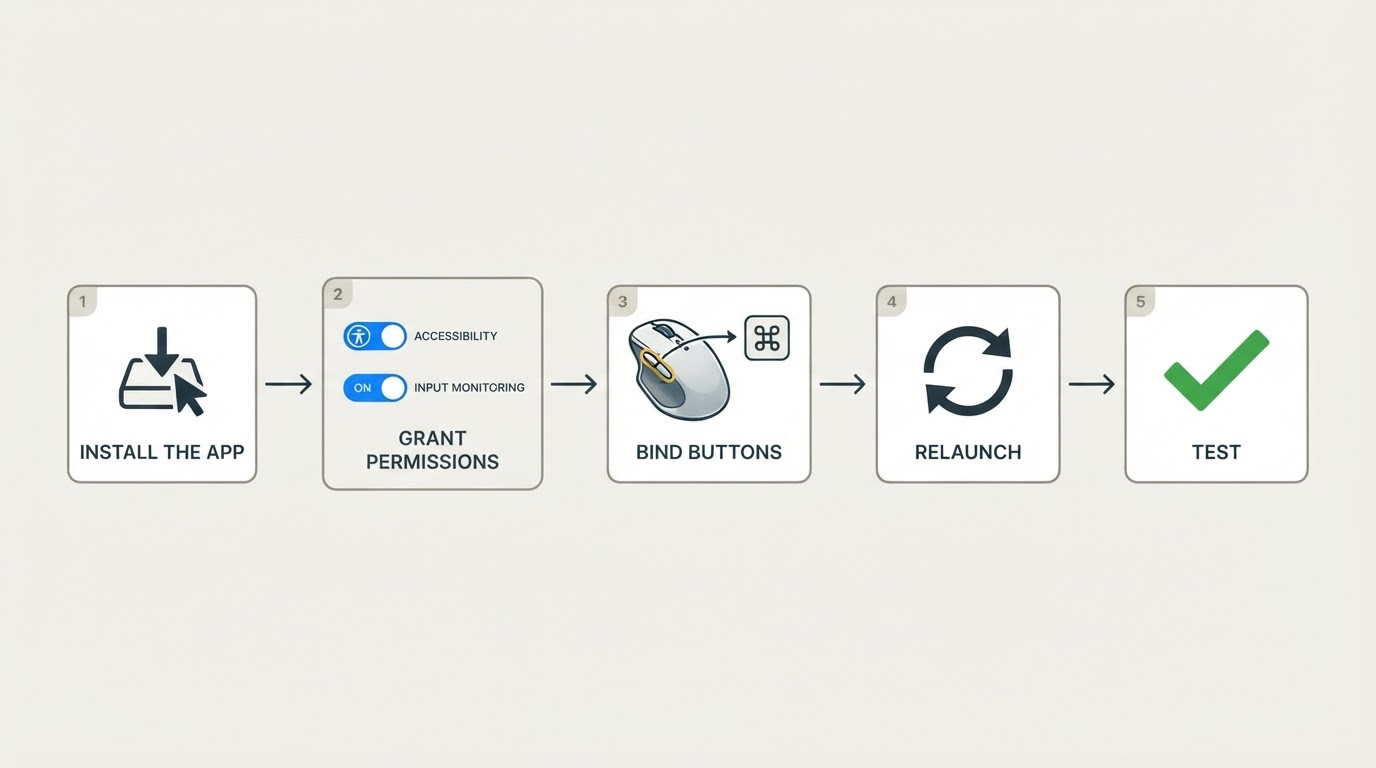
Per-app behaviour deserves its own check. Some builds expose app-specific settings or an exceptions list; others apply every mapping globally. Look for an app-specific control before you design a mapping around it. If your version has one, add the application and either give it a different action or disable the button there. If it does not, use a modifier-scoped binding as the exception: leave the plain button alone for the app's own function and put your remap on the modifier combination. Be careful with buttons an app already uses, such as middle-click paste in a terminal; a global remap takes that behaviour away in every application at once.
The Limits Are Worth Understanding
- Vendor software competes for the same buttons. A mouse driver that already intercepts button 4 or button 5 can win the race, and the two handlers may alternate. Decide which tool owns the buttons and turn the other one's mapping off.
- Some buttons never reach macOS. Firmware-level controls such as a profile switch or an on-board DPI cycle are handled inside the mouse and never appear as events, so no software utility, including this one, can remap them.
- A button drag is not a trackpad gesture. A drag action reproduces a gesture's outcome, but it does not become a multi-touch input, and applications that demand a real trackpad gesture will still not accept it.
- Version differences are real. The wording of menus and the availability of individual features change between the 2.x and 3.x lines and between macOS releases. Check the release notes for the version you installed instead of relying on a screenshot from an older walkthrough.
- Permissions can be revoked. Every macOS update is a possible reset, so keep the recovery steps above somewhere you can find them.
- The app needs deep access by design. A utility that observes and synthesises input events cannot work without Accessibility. Grant it only because you decided to trust the source, and remove the grant when you stop using the app.
Should You Use It?
Mac Mouse Fix is worth the install when several of these are true:
- Your mouse has three or more extra buttons that currently do nothing.
- You switch Spaces, open Mission Control, or trigger Quick Look many times a day.
- You want one tool to handle both button mapping and smoother scrolling.
- You prefer to avoid vendor utilities that install background services and account sign-ins.
It is probably not worth it when:
- You use a trackpad, or a two-button mouse with no side buttons.
- Your vendor software already maps the buttons the way you want and you are happy with it.
- You need macros executed inside the mouse firmware for competitive gaming, where host software is not allowed to participate.
- You need per-app profiles and the build you installed has no app-specific controls. A broader keyboard-level remapper may fit that job better.
One practical matter is deliberately left unconfirmed here. The project runs a trial and then asks for a licence, and the price, trial length, and licence terms need to be read on the official page and in the repository's licence file at the moment you buy. Those numbers were not verifiable when this article was written, so treat any figure you saw elsewhere as out of date until the official page confirms it.
Project Facts
Field | Value |
|---|---|
Project | Mac Mouse Fix, a macOS utility for third-party mice |
Repository | The project publishes its source on GitHub; confirm the exact repository from the official page |
Licence | To be confirmed from the repository's LICENSE file |
Version reviewed | Not verified for this article |
Facts checked | No external fact check was completed; version-specific details above are described functionally and should be confirmed against your installed release |
The block normally links to the repository and its licence file. Those links are left out until they can be checked against the project's own sources, because a link that cannot be verified is worse than no link.
Completion standard: with the app running and both permissions enabled, a middle click opens Mission Control, buttons 4 and 5 move between Spaces, the modifier combination fires its shortcut, and every one of those still works after quitting and relaunching the app and after a logout.


