What Karabiner-Elements actually changes
Karabiner-Elements sits between your keyboard and macOS. It takes the raw key events that arrive from a device, applies the rules you configured, and then sends the result through a virtual keyboard that macOS treats as ordinary hardware. Every application receives the rewritten keys, which is why one rule can change behavior in your editor, browser and terminal at the same time.
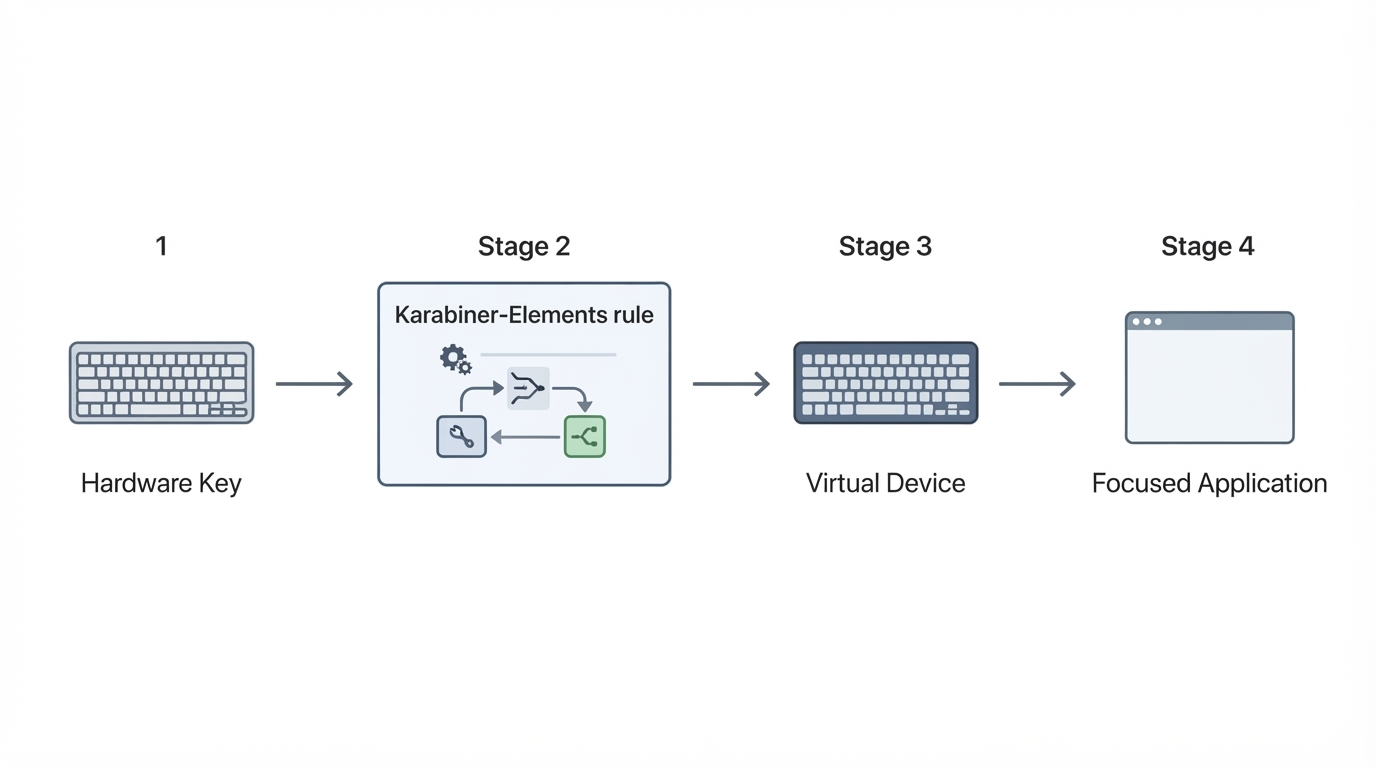
That position in the stack explains both the reach and the cost. Sitting below the applications means Karabiner-Elements can change keys that macOS and most apps treat as fixed: Caps Lock, the function row, modifier-only keys, or one external keyboard while the built-in keyboard stays untouched. The price is a background process and a virtual keyboard driver that has to be installed with system-level privileges and approved by macOS.
You may also see the name written as "Karabiner Elements" without the hyphen. Both spellings refer to the same application, and both searches lead to the same project.
If your goal is to swap two shortcuts inside a single application, that application's own settings are simpler and carry no system-level risk. Karabiner-Elements earns its place when the change has to hold across everything you run.
What you can remap, by use case
Most requests fall into four groups. Deciding which group your task belongs to tells you how much configuration the change needs.
Single keys and modifier swaps
The simplest rule takes one key and sends another: Caps Lock becomes Escape, right Command becomes Option, a rarely used key becomes a paste shortcut. Simple modifications run globally, take effect after saving, and are the right place to start.
Combinations, chords, and hold behavior
Rules can require more than one key or a specific timing. A modifier plus a letter can produce a different key sequence, and a single key can behave differently depending on whether you tap it or hold it. Hold Control to send Escape, or hold a home-row key to turn it into a modifier, and a short press can still do the old thing. Rules like these preserve most of your existing muscle memory.
Device-specific rules
Each keyboard macOS exposes can carry its own rule set. That is what lets you keep a notebook keyboard standard while remapping an external board, or keep a trackpad's scrolling direction separate from a mouse it is sharing. The device list follows what macOS reports, so a keyboard that pairs over Bluetooth and connects over USB can appear as two devices and need the rule set configured for each one.

Community complex modifications
Complex modifications are rule bundles that can be imported into the app rather than written by hand. Community collections cover home-row modifiers, Vim-style navigation, window-management chords and language-specific layouts. An imported bundle does nothing until you enable it, and individual rules stay toggled separately, so the safe workflow is to import, read the rule list, and switch on only what you understand. Treat a downloaded rule like any third-party configuration: it will run with the same access as the app itself.
Every configuration surface ends up in the profile file at ~/.config/karabiner/karabiner.json. That single file holds your profiles, devices and rules, which makes it easy to back up and compare after a change.
Install Karabiner-Elements on a Mac
There are two installation routes, and both end with the same approval step.
The first route is the project's official download. You get the signed installer for the current release, and the download page also states which macOS versions and which Mac architectures that release supports. Read that line before you commit, because support for Intel-based and Apple Silicon Macs is declared per release rather than guaranteed forever.
The second route suits anyone who already keeps Mac software in Homebrew:
brew search karabiner
brew install --cask karabiner-elements
Search first and install second. The search confirms the exact cask name in your Homebrew setup, and the install command pulls the same signed build you would get from the download page.
Then comes the part that surprises people. Karabiner-Elements needs Input Monitoring permission for its background components, and it installs a virtual keyboard driver that macOS has to approve like any other system extension. On a first install macOS will ask for that approval, and the app stays without access to your keys until it is granted. After approving, log out and back in, or restart, so the driver loads before you judge whether the remap works.
Managed Macs deserve a warning here. Installing a keyboard driver needs administrator rights, and mobile device management policies can block the extension approval outright. Check with whoever administers the machine before you build a workflow that depends on it.
Write and verify your first rule
Change one key, prove it with an independent check, and only then grow the configuration.
- Open the app and confirm it can see your keyboard. Press a key while a device or event view is open, and check that the press registers.
- Add the change in the simple modifications editor: choose the source key, then the key or modifier it should send.
- Save the profile and test in a plain text editor rather than in the application you are configuring.
- Verify the event path in the bundled EventViewer. The physical key appears as the input, and the replacement appears as the output. If the input never arrives, the problem is permission or the driver, not the rule.
- Only after the simple rule survives a reboot should you add a chord, a hold behavior, or an imported complex modification.
The graphical editor writes to ~/.config/karabiner/karabiner.json. Hand-editing that file is possible, but a syntax error can leave the profile unusable. Copy the file before editing it by hand, and keep the copy with the rest of your dotfile backups.
Check that the rule actually fired
- Press the source key in a text field and look for the replacement character.
- If the rule uses hold behavior, test a short tap and a long press separately.
- Confirm the destination key still works normally when the app is paused.
- Repeat the test in a second application to prove the change is system-wide rather than local to one window.
The limits are worth understanding
Karabiner-Elements is powerful in a specific direction, and the boundaries are easier to accept before installation than after.
- It rewrites keys, not application behavior. Sending
Cmd+Sstill means "save" only in applications that already implement it. A remap cannot give an application a shortcut it does not have. - Keyboard firmware can fight it. Many mechanical and gaming keyboards offer their own remapping, and some Apple keyboards expose their own function-key settings. Configure the change in one layer. Two layers produce rules that are hard to reason about and symptoms that are hard to reproduce.
- Secure input can bypass remapping. While macOS is in a secure input context — password fields, the login window, some authentication prompts — key events are protected from interception, so a rule may not fire there. Test in a password field before you depend on a remap for logging in or unlocking.
- macOS upgrades can reset approvals. Major system upgrades occasionally require the virtual driver to be approved or installed again. Keep the release you installed, note the version, and re-check the keyboard after each big upgrade instead of assuming it still works.
- Not every key is interceptable. Keys handled by the keyboard firmware itself, and some special function combinations, sit below the layer Karabiner-Elements controls.
- It has to keep running. Remapping depends on a background process and the virtual driver. If either one stops, the keyboard reverts to stock behavior: safe, but confusing when you are mid-task.

Should you use it?
Migrate if the friction is a key that macOS will not remap, if you move between several keyboards and want a consistent layout, and if you are comfortable approving a system-level driver and maintaining it across upgrades. In that situation the tool removes a daily annoyance that no application setting can reach.
Do not migrate for one or two shortcuts inside one application, on a managed Mac where the driver cannot be approved, if you need the remap to work in password fields, or if you already configured the change in the keyboard's own firmware. Those cases either have a simpler answer or fall outside what the tool can do.
A staged migration works better than a full rewrite. Write down the shortcuts that matter, move one key, live with it for a week, and expand only when the first change stopped being noticeable. By the end you know which rules serve you and which ones only looked clever in a rule list.
Project facts to record before you commit
Release details age faster than articles, so record them from the project's own artifacts instead of trusting any summary. This table lists the five fields worth capturing and where each one lives.
Field | What to record | Where to find it |
|---|---|---|
License | The license file shipped with the exact version you install | The repository root, in its license file |
Platform | The macOS versions and Mac architectures the release declares | The release notes or download page for that version |
Written in | The primary languages of the source tree | The repository's language summary and source folders |
Version reviewed | The release tag plus the date you checked it | The release page; write down both values |
Repository | The canonical source location for the project | Linked from the download page; confirm it is the same project |
Fill the table from the release you actually install, and note the date next to it. A version note without a date loses most of its value, which is why the two belong in the same row.
The pattern that matters is simple: install, prove one rule with an independent check, then expand. The limits above are not reasons to avoid the tool. They are the checklist for deciding whether a system-level remapper is the right layer for the change you want.


