What Homebrew Is, And What The Install Does
Homebrew is a package manager: a program whose only job is to install, update, and remove other programs. macOS ships with a useful set of Unix tools, but most open-source command-line software is not among them. Without a package manager, installing something like jq means finding the project page, choosing the right build, placing the binary somewhere on your PATH, and repeating that process for every dependency.

The installer does three things in one pass:
- It checks for the Xcode Command Line Tools and offers to install them when they are missing.
- It downloads the Homebrew tree into a prefix directory, which is
/opt/homebrewon Apple silicon Macs and/usr/localon Intel Macs. - It prints a short "Next steps" block containing the exact command that adds Homebrew to your shell.
The trade-off is that Homebrew owns a directory of its own and adds one line to your shell profile. In return, one command works from any directory, and updates do not depend on a vendor download page.
Before You Run The Installer
Three conditions should hold before the first command:
- The Mac runs a macOS version the project still supports. Check the requirement on Homebrew's documentation page, because that list changes with each release; this guide deliberately does not pin a macOS version.
- Your account can use
sudo. The installer needs administrator rights once, to create the prefix directory and set its ownership. The install command itself is not run withsudo, and neither isbrew install. - You have a terminal open. Terminal.app is enough, and no shell configuration is needed to begin.
When the Command Line Tools are missing, the installer can start that download for you. Running xcode-select --install first is easier to follow, because the system installer window and the terminal output stay separate.
Install Homebrew
The install command is a one-line shell invocation that fetches the project's install script and hands it to bash. The project publishes the current form of that line on its official install page, and the script is served from the project's own distribution location. Copy the line from that page rather than from a tutorial, because it is the one part of this process most likely to change.
The command has this shape:
/bin/bash -c "$(curl -fsSL <install script location from the official install page>)"What you should see while it runs:
- progress lines as the script checks for the Command Line Tools and prepares the prefix;
- one password prompt, where
sudoasks for your login password; - a closing "Next steps" section that prints the shell line to add for your machine.
If the command exits with an error, read the last few lines before scrolling. The installer normally names the missing prerequisite. A permission error at this stage usually means the account cannot use sudo, while a download error usually points at the network rather than at Homebrew.
Add brew To Your PATH
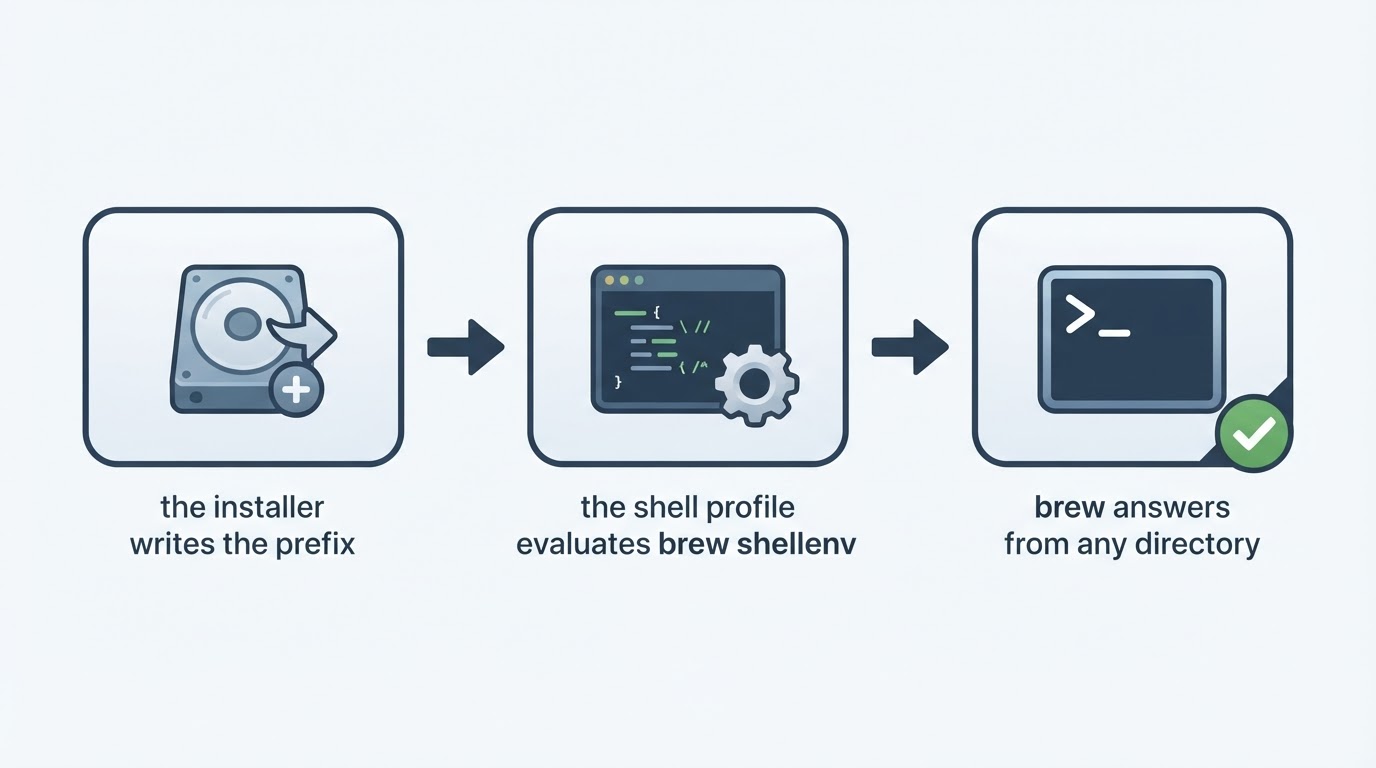
A completed install is not usable in a new terminal until the shell knows where brew lives. The installer prints the exact line for your Mac in its "Next steps" block. There are two common forms:
On an Apple silicon Mac:
echo 'eval "$(/opt/homebrew/bin/brew shellenv)"' >> ~/.zprofile
eval "$(/opt/homebrew/bin/brew shellenv)"
On an Intel Mac:
echo 'eval "$(/usr/local/bin/brew shellenv)"' >> ~/.zprofile
eval "$(/usr/local/bin/brew shellenv)"
When your login shell is bash rather than zsh, append the same eval line to ~/.bash_profile instead. The difference between the two prefixes is not cosmetic: the prefix printed by the installer is the prefix your shell must be told about.
Check the result in the same window:
brew --version
brew config
brew --version prints the Homebrew version and identifies the build. brew config prints the environment Homebrew will use, including the prefix, the macOS version it detected, and the Command Line Tools installation it found. If brew --version reports that the command cannot be found, the shell has not read the profile change yet; open a new terminal window before changing anything else.
Install Your First Tool
Choose something small whose output is easy to confirm. jq, a command-line JSON processor, is a good first package, because it has no dependencies you need to track and it prints its own version on demand:
brew install jq
jq --version
During brew install jq, Homebrew resolves the formula, downloads a prebuilt bottle for your macOS version and processor, unpacks it into the prefix, and links the executable into the prefix's bin directory. That last step is what puts jq on your PATH, and no binary is copied by hand.
Casks work the same way at the command level, but they install a prebuilt application bundle into /Applications instead of a command-line tool:
brew install --cask <application name>The distinction matters when a package turns out to be distributed as a cask rather than a formula, which is common for graphical applications.
When A Command Is Not Found
The most common failure after a fresh install is not an installation failure at all. It is a terminal session that was opened before the profile line was added. Work through these checks in order:
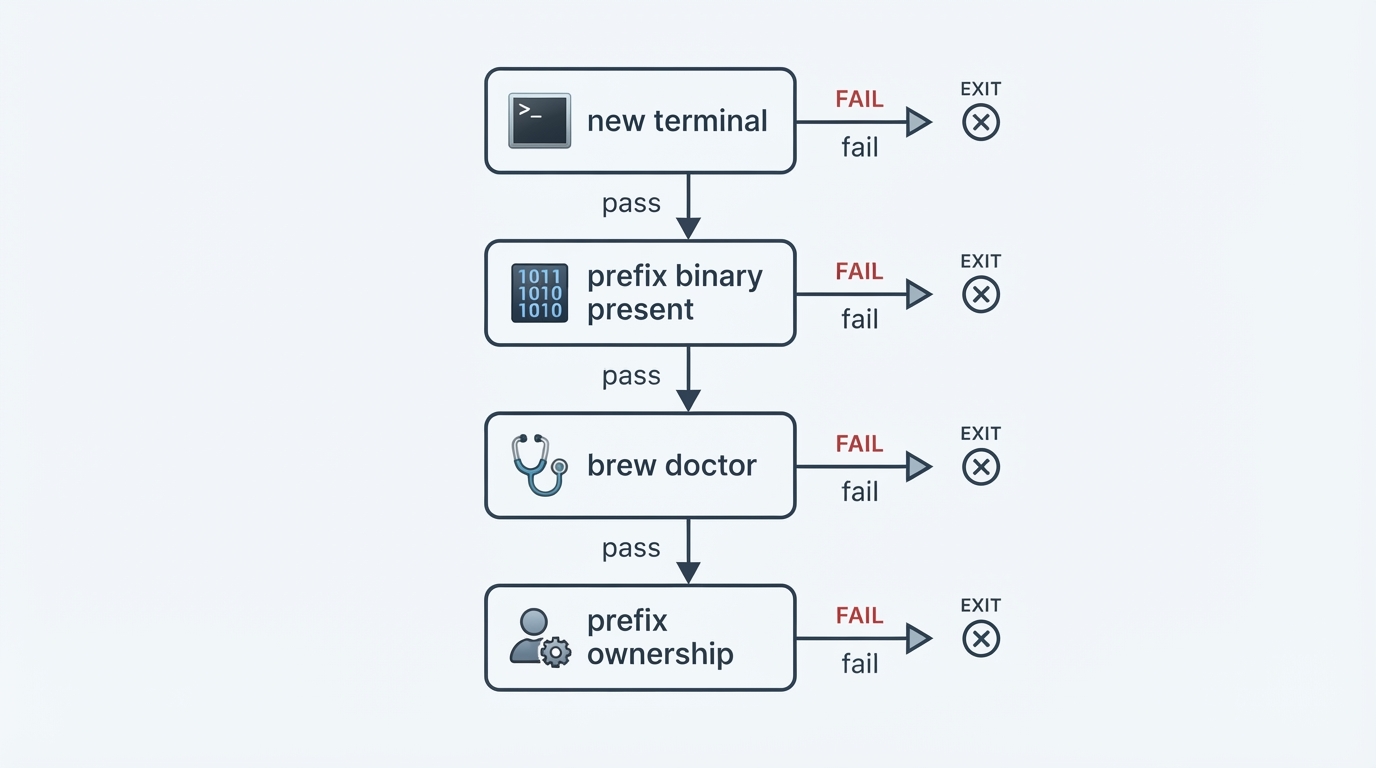
which brewprints nothing and you are in an old terminal window. Open a new one, or run the installer'sevalline directly in the current session.ls /opt/homebrew/bin/brewon Apple silicon, orls /usr/local/bin/brewon Intel, reports that the file is missing. The install did not finish, so rerun the install command from the official page.brew doctorreports the configuration problems it can detect, including a prefix that is not writable by your account, an outdated Command Line Tools installation, andPATHentries that shadow system tools.- Permission errors appear during
brew install. Check the ownership of the prefix. Never solve this withsudo brew, because files created as the root user inside the prefix break later upgrades. The project documents the ownership fix for each prefix, which is a singlechownon the prefix directory.
Network failures have their own pattern. Repeated download errors across unrelated packages usually mean a proxy, a VPN, or a corporate filter is intercepting the connection. Homebrew supports alternate mirrors for those environments, and the current variables are listed in its documentation.
Keep The Install Healthy
Four commands cover most maintenance:
brew updaterefreshes Homebrew's own metadata, so it knows about current versions.brew upgradeinstalls newer versions of the packages you already have. Running it alone upgrades everything, and naming a package upgrades only that package.brew list --versionsshows what is installed and at which version, which is the fastest way to confirm that an upgrade did what you expected.brew info <name>prints the current version, the dependencies, and the license line for a package, and states whether it is installed as a formula or a cask.
brew cleanup removes old versions and cached downloads, and brew uninstall <name> removes a package. Neither command touches the files that macOS ships with.
Trade-Offs And Limits
Homebrew keeps its packages in its own prefix rather than modifying the system copies of the same tools. That separation is what makes an update reversible, and it also means anything installed outside Homebrew is invisible to it.
Two limits are worth knowing before you rely on it. A cask installs a ready-made application bundle, so the application's own updater continues to manage that application rather than Homebrew. A formula is a public, community-maintained definition: when no prebuilt bottle exists for your system, the formula's build steps run on your machine. Installing a package you do not recognize deserves the same care as running any other install script.
Project facts
- License: BSD-2-Clause
- Platform: macOS and Linux
- Written in: Ruby, with shell scripts for installation and packaging
- Version reviewed: not pinned; confirm the current version after installing with
brew --version - Repository: the Homebrew project on GitHub,
Homebrew/brew - Guide updated: 2026-09-22
License summary
Homebrew itself is released under the BSD 2-Clause license, which permits use, modification, and redistribution as long as the license text and copyright notice are preserved. Each formula declares its own license, and brew info <formula> prints the license line that applies to that package. A package manager does not standardize the licensing of what it installs.
Install: Quick Recap
xcode-select --install- Copy the current install one-liner from the project's official install page and run it.
- Add the shell line printed by the installer to
~/.zprofile, or to~/.bash_profilefor bash, then open a new terminal. brew install jqandjq --versionprove that the path from install to usable tool works.


