Quick answers
Is there a central update button on Apple TV? No. tvOS has no single list of pending app updates, so there is nothing to press that updates everything at once.
Do Apple TV apps update themselves? Yes, by default. tvOS installs new versions in the background, so most apps stay current without any action from you.
How do I manually update one app? Open the App Store, find the app, open its page, and select Update when the button appears.
How do I control updates for a single app? Open Settings, select Apps, choose the app, and set its automatic update option.
What should I do if no update appears? Relaunch the App Store, restart the Apple TV, and reinstall the app only as a last resort, because deleting an app also removes the data it stored on the device.
Why Apple TV has no update-all control
Apple TV treats app updates as a background job rather than a task you manage. The App Store on tvOS is built around discovering and downloading apps, and the pending-updates list you know from the iPhone and iPad is not consistently part of it. When a new version is published, the TV decides when to install it, and the store page changes to reflect the result.
That design removes routine maintenance, and it also removes the single button most people look for first. On a phone, an updates queue lets you clear a batch in one pass. On Apple TV there is no batch to clear, so an app that looks out of date has to be handled one app at a time. The two routes below cover the manual case and the per-app setting, and both are short.
How to update a single app from the App Store
Open the App Store, find the app, and select Update on its page. That is the direct manual route, and it works the same way on Apple TV HD and Apple TV 4K.
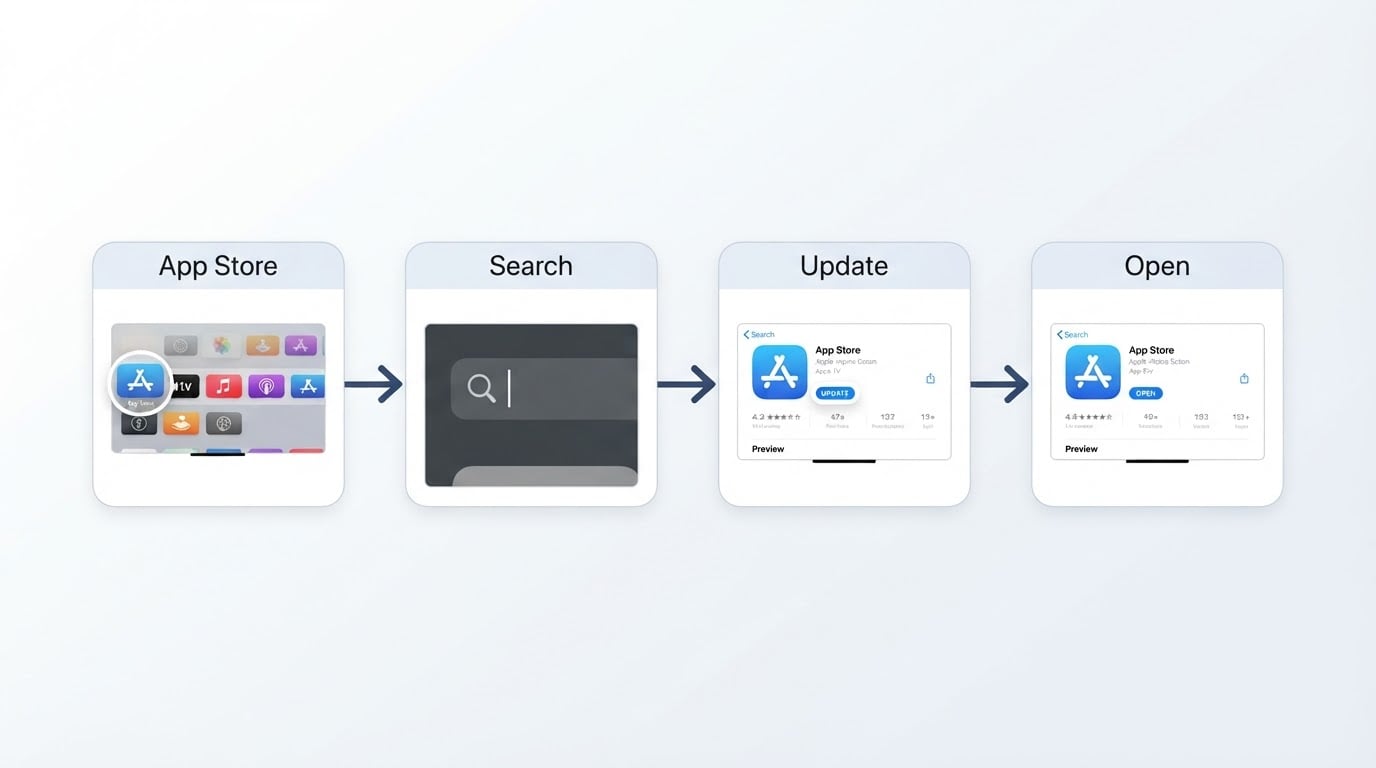
- From the Apple TV Home screen, open the App Store.
- Select the search icon and look up the app by name, or browse to it through its category.
- Open the app's page.
- If a new version is waiting, the button reads Update. Select it and let the download finish.
- When the button changes to Open, the new version is installed. Select Open to launch the app.
If the page shows Open instead of Update, tvOS has either installed the app already or not queued a new build yet. The section on stuck updates below walks through that case.
Check the App Store account area
Some Apple TV models and tvOS versions keep a small account area at the very bottom of the App Store home screen, and pending updates can appear there.
- Open the App Store.
- Scroll to the bottom of the store home screen.
- Select Account.
- If an Updates entry is present, open it and select Update next to each app you want to refresh.
Not every Apple TV shows that list. Because tvOS updates apps on its own, some versions keep the account area for purchases and subscriptions only. If your device offers no Updates entry, nothing is missing or misconfigured; the app page route above is the manual alternative.
How to turn automatic updates on or off for one app
You can leave automatic updates on, switch them off, or restore them for a single app in Settings, and that per-app option is the closest thing Apple TV offers to update control.
- Open Settings from the Home screen.
- Select Apps.
- Select the app you want to manage.
- Turn its automatic update option on or off.
- Return to the Home screen. The choice applies the next time a new version is released.
Menu labels move between tvOS releases. The same switch may read Automatic Updates, Automatically Update, or sit under a similar heading, so look for the automatic-update option inside the app's own settings screen instead of a system-wide list. There is no global control that forces every app to update on demand. Automatic updates are the mechanism that keeps apps current, and the per-app switch is what you restore when an app should take care of itself again.
When manual updating is worth the effort
Automatic updates cover the routine cases. Three situations are worth a manual check.
- The app is broken or missing a feature. If an app misbehaves, or lacks something a recent release note mentions, the new version may not have been installed yet, so the app's store page is the first place to look.
- A login-based app refuses to connect. Streaming and account-based apps sometimes fail on an old build, and checking for an Update button is faster than deleting the app.
- You turned automatic updates off earlier. An app with that setting disabled changes only when you update it by hand, so the store page is the only route.
If the App Store still shows the old version
When an update exists but the Apple TV does not offer it, the cause is usually a stale store session rather than a missing button. Refresh the device before deleting anything.
- Leave the App Store and open it again. The store refreshes its state when it is relaunched.
- Restart the Apple TV from the System section of Settings. A restart also clears a stuck download.
- Recheck the app's automatic update setting to make sure it was not switched off.
- If the app still runs an old version, delete it and reinstall it from the App Store. Reinstalling is the reliable fallback, but it removes data the app stored on the device, so keep it as the last step.
FAQ
Can I update all Apple TV apps at once?
No. Apple TV has no update-all control, and it does not need one: tvOS updates apps automatically, so only an individual app that looks stale is worth handling by hand.
Do Apple TV apps update while the device is asleep?
Usually, yes. Updates run as a background task, so a powered Apple TV with a working network connection can install them while the screen is off.
Why does the App Store show Open when an update is available?
Either tvOS has already installed the new version, or it has not queued that build yet. Relaunching the App Store and restarting the Apple TV resolves most of these cases.
Will updating an app delete my data?
Normally no. An update replaces the app's code and keeps its settings and sign-ins. Deleting and reinstalling is the step that removes locally stored data.
How can I tell that an app was updated?
Open the app's page in the App Store. Once the installed version is current, the button reads Open instead of Update.
The bottom line
Apple TV apps update themselves, so a manual update is a repair tool rather than routine maintenance. Update a single app from its App Store page, use Settings and the Apps section to control automatic updates per app, and keep delete-and-reinstall as the last step.


