Choose the right path first
Apple supports two ways to wipe an iPhone, and the right one depends on the state of the phone rather than personal preference. Apple calls the first path "Erase All Content and Settings" and the second one a "Restore". Both end with a phone that behaves like a new one; they differ in what they require and in what they leave installed. Throughout this guide, menu names are given as Apple documents them, with a note when the wording depends on the iOS release. Check the label on your own device before tapping, because Apple moves these options between versions.
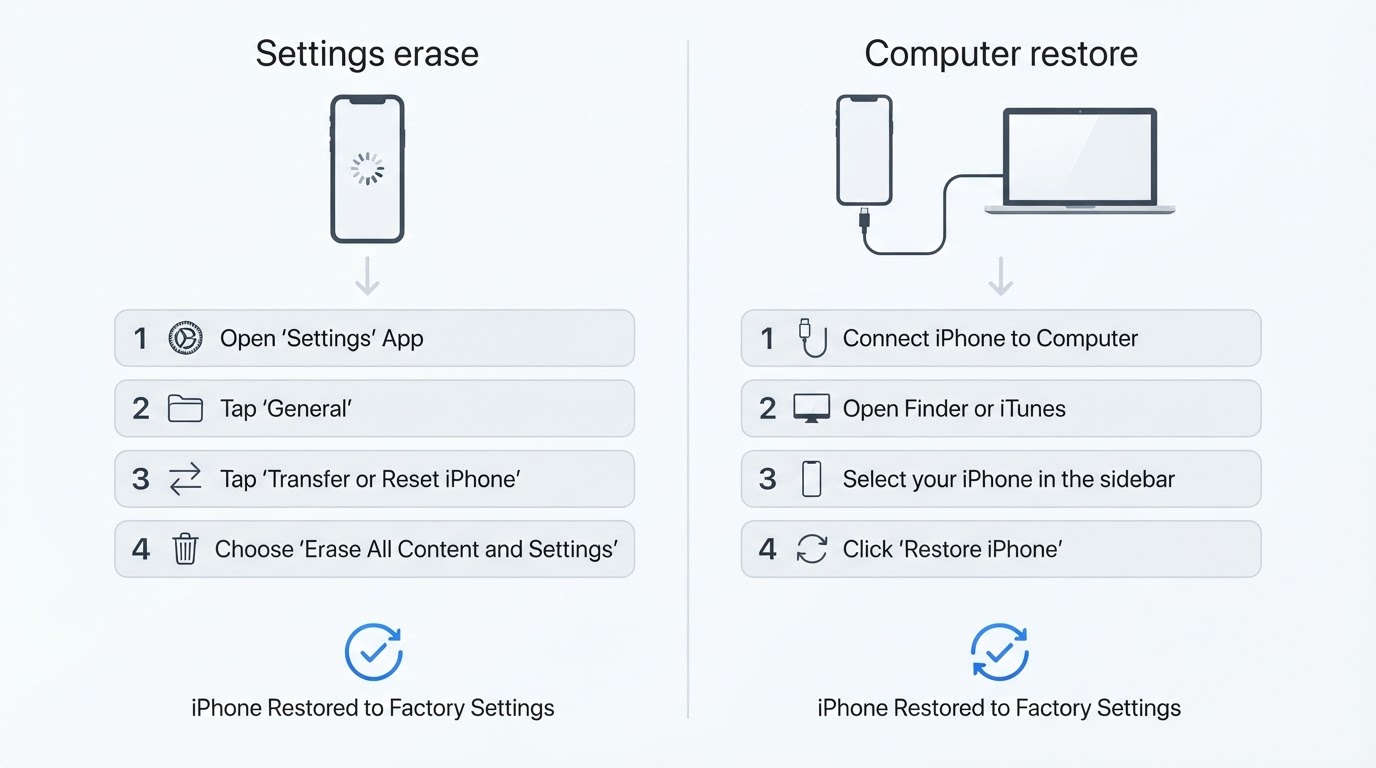
Use the Settings path when the iPhone starts normally, reaches the Home screen or Settings, and you know the device passcode. It takes minutes, needs no cable, and keeps the iOS version already installed. This is the normal choice when you are selling, trading in, giving the phone away, or starting fresh on the same hardware.
Use the computer path when the iPhone will not boot, is disabled or stuck on the Apple logo, when the Settings path fails, or when the erase option is missing. A restore erases the phone and installs the latest compatible version of iOS, so it is also the better choice if the phone has been unstable and you want a clean system instead of a clean user profile.
Three questions settle most cases:
- Does the iPhone reach Settings? If yes, begin with the Settings path.
- Do you know the passcode? If not, the phone has to be erased with a computer, and Find My may still ask for the Apple Account password when the phone is set up again.
- Do you want the newest iOS installed as part of the wipe? If yes, use the computer.
One warning about terminology: a so-called hard reset, the quick button sequence that forces a frozen iPhone to reboot, is not a factory reset. It restarts the phone and keeps every photo, message, and setting, so it never substitutes for erasing the device when the goal is a clean phone.
Prerequisites: what must be true before you erase
The erase itself is short; the preparation is what decides whether it finishes cleanly. Work through these before you touch the erase button.
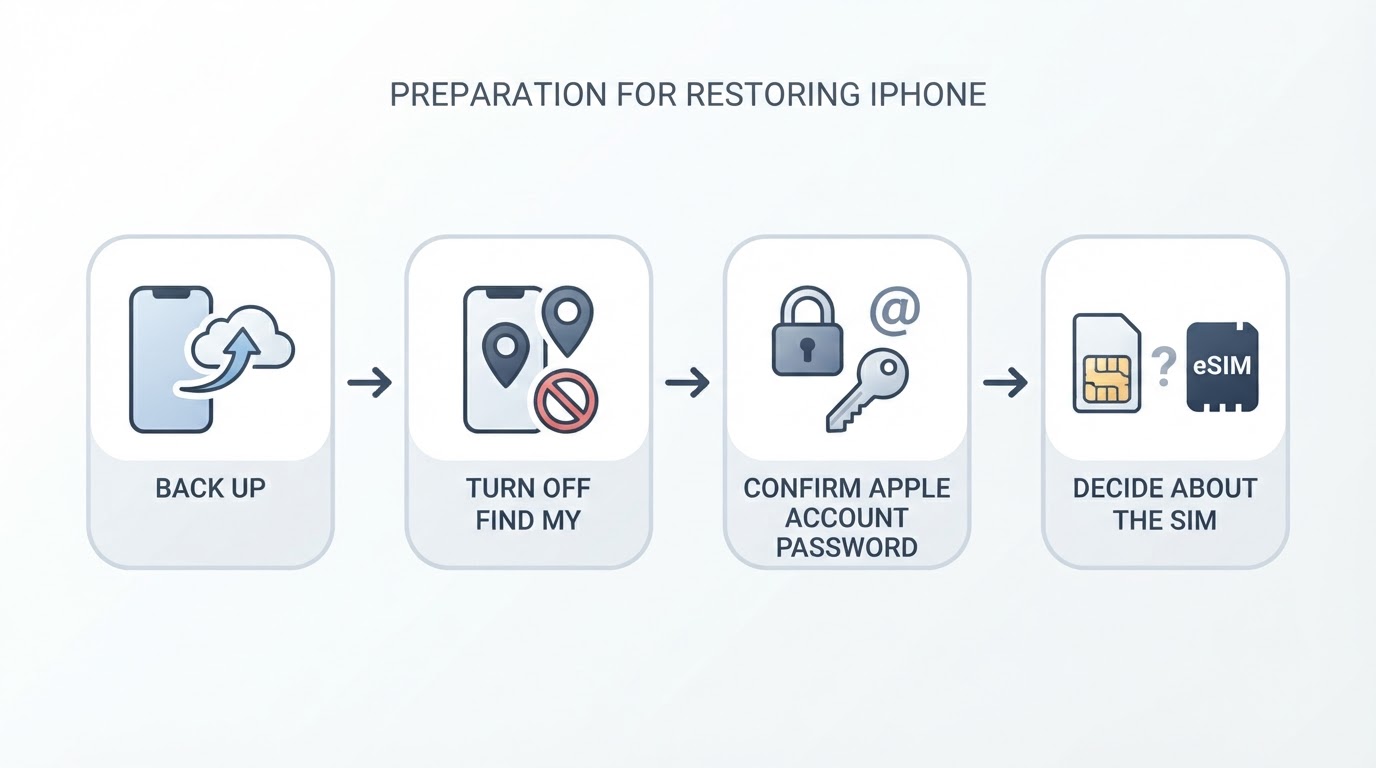
A current backup. Decide which data you are keeping and where it lives. An iCloud backup covers the essentials and restores during setup, while a computer backup can preserve more, including passwords and health data, when you choose encryption. Check the date and time of the most recent backup rather than assuming one exists, because an old backup loses everything created since it was made.
Find My off, or the Apple Account password ready. Find My iPhone is what powers Activation Lock. Turning it off under your name in Settings, then Find My, requires the Apple Account password and immediately removes the lock. If you skip this step, the erase flow will ask for the same password while Find My is still active; if the password is never supplied, the phone stays linked to the account after a computer restore.
Your Apple Account password, not just the passcode. The device passcode unlocks the phone; the Apple Account password controls Find My, Activation Lock, and sign-out. They are different credentials. If you do not know the account password, reset it through Apple's account recovery before you erase, while the phone is still usable and still able to receive verification codes.
A decision about the SIM. If the iPhone uses a physical SIM, remove the tray before the phone changes hands, unless the next owner needs the plan. If it uses an eSIM, read the erase screen carefully: depending on the carrier and the iOS version, the plan may stay with the phone, transfer to a new phone, or be deleted, and the on-screen note is the only reliable guide for your case.
A decision about the Apple Account itself. If the phone is moving to another person, sign out of your Apple Account during the process so the device disappears from your account's device list. If you are wiping your own phone for a fresh start, signing out is optional; the erase will handle it once you authenticate.
Path 1: Erase from Settings (when the iPhone works)
- Back up the phone if anything on it matters, and confirm the backup finished before you start.
- If the phone is changing owners, turn off Find My by entering your Apple Account password, and consider signing out of your Apple Account.
- Open Settings and look for General, then Transfer or Reset iPhone. On older releases the same option sits under General > Reset. The labels have moved between iOS versions; the section that holds "Transfer or Reset" or "Reset" is the one you want.
- Choose Erase All Content and Settings.
- An information screen lists what will be removed and may offer choices such as keeping or transferring the eSIM. Read it before you confirm, especially if the phone is going to a new owner.
- Enter the device passcode, and then the Apple Account password if the phone asks for it. That prompt means Find My is still on; entering the password turns the protection off as part of the erase.
- Confirm the erase and leave the phone connected to power. It restarts, shows a progress indicator, and may restart more than once.
Completion check: the process is done when the iPhone comes back to the Hello screen, the language picker that looks like a brand-new device, with no Home screen, no apps, and no prompt for the old passcode. Anything less, including a phone that still shows your wallpaper, means the erase did not complete; connect it to a computer and use the restore path instead.
Path 2: Restore with a computer (when the iPhone won't cooperate)
- Install or open the device tool the computer actually has: Finder on most Macs, a separate Apple Devices app on some recent systems and on Windows, or iTunes on older setups. The app name depends on the operating system version, so follow the on-screen label rather than a tutorial written for another release.
- Connect the iPhone with a cable that carries data, not a charge-only cable. Unlock the phone and tap Trust if it asks.
- Select the iPhone in the device window. Choose Back Up Now if the phone still works well enough to back up; skip this step if it does not.
- Click Restore iPhone, then confirm. If Find My is on, the tool may ask for the Apple Account password to turn Activation Lock off; provide it, or the phone will stay linked to that account after the restore.
- The computer downloads the latest compatible iOS for the model and installs it. This is the slow part, so allow enough time and do not unplug the cable.
- If the phone is so unresponsive that the computer does not see it, put it into recovery mode and try again. The button sequence differs by model: recent iPhones use a quick press of volume up, a quick press of volume down, then a long press of the side button, while older models use different combinations. Hold until the recovery screen appears on the phone, then restore from the device window.
Completion check: the restore is finished when the phone restarts to the Hello screen and the device window reports that the restore completed. If the phone returns to the same frozen state, run the restore once more; if it still fails, the hardware may be the problem rather than the software.
Activation Lock and the Apple Account password
Activation Lock is the reason a factory reset sometimes appears to fail at the very end, during setup rather than during the erase. It is tied to Find My and to one specific Apple Account, and it is designed so that a lost or stolen phone cannot be wiped and reused by someone else.
The rule is simple: if Find My is on for the phone, the erase does not truly release it until the matching Apple Account is authenticated. In the Settings path, that happens when you enter the password on the erase screen. In the computer path, it happens when the tool asks for the password to disable Activation Lock. If the password is never provided, the phone reaches the Hello screen and then stops, asking for the previous owner's Apple Account.
This matters most in three situations:
- A phone you bought used. If setup asks for a previous owner's account, only that owner can remove the lock, usually by signing in on the web, removing the device from their account, or supplying the password. No passcode, receipt, or repair-shop tool replaces that step, and paying for a locked phone is a risk that cannot be fixed later.
- A phone you inherited or found. The same rule applies. Apple cannot release Activation Lock from a device alone; the account owner has to act.
- Your own phone. Keep the Apple Account password somewhere you can reach after the wipe. Many people store it only in a password manager that lives on the phone they are about to erase, then discover at the Hello screen that they cannot complete setup.
The device passcode is not a substitute. It confirms that you can use the phone; the Apple Account password confirms that you own the account that protects it. A phone that is disabled after too many passcode attempts can still be erased with a computer, but Activation Lock survives that erase and is waiting at setup.
Pre-erase checklist
- Most recent backup verified, with its date and location known.
- Apple Account password confirmed, and account recovery set up in case it is needed.
- Find My turned off, or the password available for the erase prompt.
- Apple Account signed out if the phone is changing owners.
- Physical SIM removed, or the eSIM decision understood from the erase screen.
- Company or school management checked: if the phone is supervised by an organization, ask IT to remove it from management before you erase, or setup will demand an enrollment profile you may not have.
- Two-factor codes and authenticator apps moved to another device; anything that sends codes to this phone number will stop working after the wipe.
- Charger and, for the computer path, a data cable and a computer with the right device app.

The two paths side by side
Question | Erase from Settings | Restore with a computer |
|---|---|---|
Best when | The iPhone boots and you know the passcode | The iPhone won't boot, is disabled, or the erase fails |
Requirement | Passcode, plus the Apple Account password if Find My is on | A computer, a data cable, and the device app |
iOS after the wipe | The version already installed | The latest compatible version, freshly installed |
How Activation Lock clears | When you authenticate on the erase screen | When the tool asks for the password; otherwise the lock stays |
Time | Minutes | Longer, because the computer downloads iOS first |
Done when | The Hello screen appears after a restart | The restore completes and the Hello screen appears |
Common failure points
The erase option is missing or greyed out. That usually means the phone is managed by an organization or is still completing setup. Check for a management profile in Settings and contact the administrator.
The phone shows the Apple logo for a long time. Give the restore real time, because a slow connection means a multi-gigabyte download. If progress stops completely, put the phone in recovery mode and restore again.
Setup asks for someone else's Apple Account. Activation Lock is doing its job. Only the account owner can release it, so contact the seller, the previous owner, or Apple Support with proof of purchase.
The eSIM does not appear where expected. Carrier behavior differs by region and plan. Contact the carrier instead of erasing the phone a second time hoping it reappears.
The phone is still in your account after the wipe. You skipped the password prompt during the erase, or the restore finished without turning Find My off. Sign in to your Apple Account from another device and remove the phone from Find My before the new owner sets it up.


