The direct answer, by model
Every iPhone restart comes down to the same two things: getting the power-off slider on screen, or bypassing it entirely when the screen is frozen. Find your model group below, then use that sequence.
- iPhone X and later (Face ID, no Home button): press and hold the side button and either volume button together until the power-off slider appears.
- iPhone 8, 7, 6s, 6, and iPhone SE (2nd or 3rd generation): press and hold the side button until the slider appears.
- iPhone SE (1st generation) and earlier Home button models: press and hold the button on the top edge of the phone instead of the side button.
- Any model: Settings, then General, then Shut Down reaches the same slider without touching the power controls.
- If the screen is frozen: skip the slider and use the force restart sequence for your model.
Once the slider is on screen, the rest is identical on every model: drag it to the right, wait for the screen to go dark, then press and hold the side button (or the top button on older models) until the Apple logo appears.
Find your buttons first
Button names are where most restart instructions become confusing, because Apple has moved the power control over the years.
- Side button: the long button on the right edge of every iPhone from the iPhone 6 onward. On the iPhone SE (1st generation) and earlier models, the equivalent button sits on the top edge.
- Volume buttons: the two buttons on the left edge. The upper one is volume up, the lower one is volume down.
- Home button: the round button below the screen on the iPhone 8 and earlier, and on the iPhone SE (2nd and 3rd generation).
- The power-off slider: a horizontal slider that appears near the top of the screen after you hold the right buttons. It is labelled "slide to power off", and you drag it to the right.
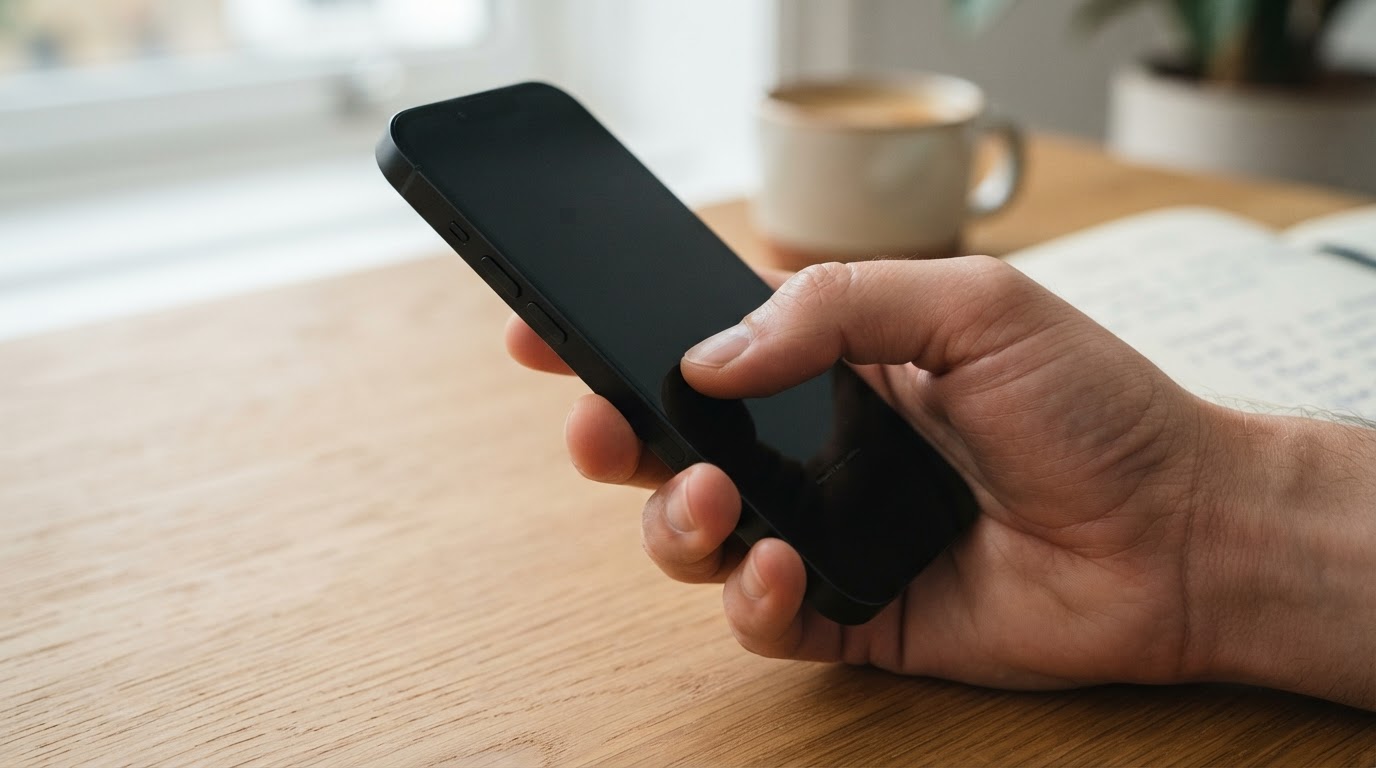
On the iPhone 8 and later, the same combination that reveals the slider is also the one that starts an Emergency SOS countdown if you keep holding. The countdown is loud, so drag the slider as soon as it appears. If a countdown begins instead, take your fingers off the buttons, let it stop, and use Settings, then General, then Shut Down for a normal restart.
Normal restart on Face ID iPhones (X and later)
This is the sequence for every iPhone without a Home button, including the iPhone X, XR, XS, 11, 12, 13, 14, 15, 16 and later models that keep the same hardware layout.
- Press and hold the side button and either volume button at the same time.
- Keep holding until the power-off slider appears. This usually takes one or two seconds.
- Drag the slider to the right and wait for the screen to turn black.
- Press and hold the side button until the Apple logo appears, then release it immediately.
- Wait for the lock screen, then unlock the phone as usual.
Step 4 is the completion check for every restart in this article: the Apple logo is the signal that the system has booted again, so release the buttons the moment you see it. A normal restart returns you to the lock screen, and nothing else about the phone should look different afterwards.
Normal restart on Home button iPhones
The iPhone 8, 7, 6s and 6 keep the power control on the right edge, so the sequence is shorter:
- Press and hold the side button until the power-off slider appears.
- Drag the slider to the right and wait for the screen to go dark.
- Press and hold the side button until the Apple logo appears, then release.
On the iPhone SE (1st generation) and older models with the power button on the top edge, the same three steps apply. Use the top button in step 1 and step 3. A case that covers the button tightly can make this harder than it sounds, so if the press does not register, take the phone out of the case before trying again.
The Settings route, which works on every model
If the side button is stiff, a case is in the way, or you simply cannot get the two-button hold right, the slider is also available from the software:
- Open Settings, then General.
- Scroll to the bottom and tap Shut Down.
- Drag the slider to the right and wait for the screen to go dark.
- Press and hold the side button until the Apple logo appears.
The Settings route does one thing the hardware route cannot: it proves the screen still responds to touch. If you can tap through Settings and drag that slider, the touchscreen is fine and the problem is limited to the buttons or to the combination you used. If the screen will not respond at all, no software route will help, and a force restart is the correct next step.
When the physical buttons are unusable, AssistiveTouch (Settings, then Accessibility, then Touch) adds an on-screen Device menu with a Restart option, so the phone can still be restarted from the display.
Force restart: when the slider will not move
Force restart exists for the case where the touch screen is dead but the phone is still powered on. It cuts power to the system and boots it again at the hardware level, which is why it works when the slider cannot be dragged, when an app has taken over the display, or when the screen is black while the phone is still running in the background.
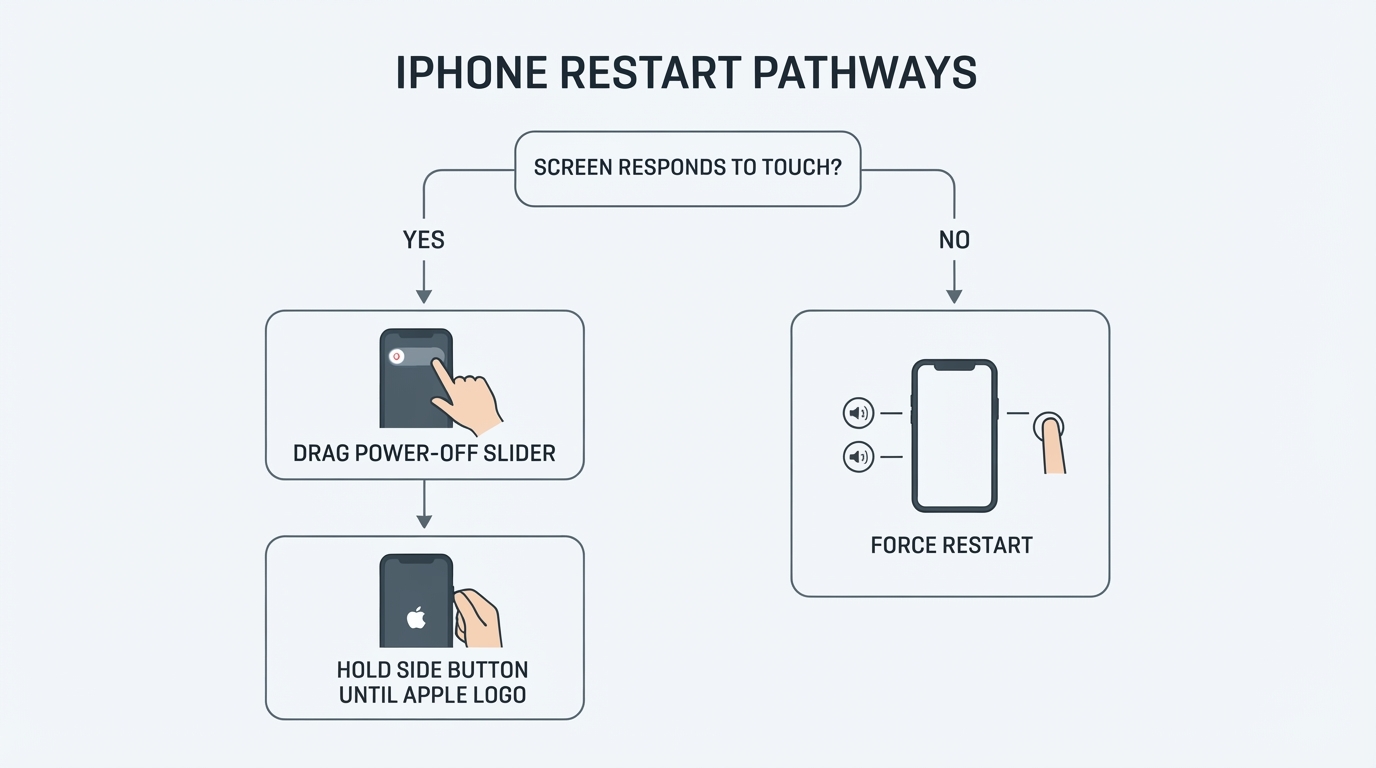
Use it only in those situations. A force restart does not erase your data or your settings, and it is not the same as Erase All Content and Settings, but it does interrupt whatever was running, so anything an app had not saved yet can be lost. Treat it as a recovery step rather than a habit: when the screen responds normally, a normal restart is the cleaner option.
iPhone 8 or later, including iPhone SE (2nd and 3rd generation)
- Press and quickly release the volume up button.
- Press and quickly release the volume down button.
- Press and hold the side button.
- Ignore the power-off slider if it appears, and keep holding until the Apple logo appears. Release the side button at that moment.
The fourth step is the one people miss. If you release when the slider appears, the phone returns to the same frozen screen and no restart happens. If the Apple logo has not appeared after about 20 seconds, release the button and start the sequence again; the two quick presses in steps 1 and 2 may have been too slow.
iPhone 7 and iPhone 7 Plus
Press and hold the volume down button and the side button together until the Apple logo appears, then release both. The Home button in the iPhone 7 generation is not a mechanical button; it uses the Taptic Engine and cannot act as a hardware reset control, which is why the Home button combination from older models does not work here.
iPhone 6s, iPhone 6, and iPhone SE (1st generation) or earlier
Press and hold the Home button and the power button together until the Apple logo appears, then release both. On the iPhone 6s and iPhone 6 the power button is on the right edge; on the iPhone SE (1st generation), the iPhone 5s and earlier models, it sits on the top edge.
Common mistakes and how to fix them
What you did | What you saw | What to do next |
|---|---|---|
Released the side button when the slider appeared during a force restart | The same frozen screen came back | Run the force sequence again, ignore the slider, and hold until the Apple logo |
Pressed and held the volume buttons on an iPhone 8 or later | The volume changed, or nothing happened | Release both quickly; only the side button stays held |
Used the Home button and the side button on an iPhone 7 | Nothing happened | Use volume down plus the side button instead |
Tried to drag the slider on a frozen screen | No response at all | Force restart |
Held the side button alone on a Face ID iPhone | An Emergency SOS countdown started | Release the buttons, let the countdown stop, then hold side plus volume again, or use Settings |
Assumed that a force restart erased the phone | Unnecessary worry about data | A force restart keeps content and settings; erasing is a separate action |
If the phone still does not start
- Charge it first. A fully drained battery can look like a frozen or dead phone. Connect the phone and leave it for at least 30 minutes before judging the screen.
- Repeat the force sequence once. With the phone plugged in, run the sequence again and hold the final button until the Apple logo appears.
- Check the buttons and the case. A jammed side button or a stiff case can stop the press from registering; remove the case and try again.
- Watch for the charging indicator. If no charging icon appears after a while, the problem may be the cable, the port, or the battery rather than the software.
If none of that produces an Apple logo, you have reached a hardware or firmware problem that a restart cannot fix. The next options, a service appointment or a recovery-mode restore, go beyond a restart and can involve erasing the phone, so check your backup before you choose one.
Restart, force restart, and erase are three different things
People often use "restart", "hard reset" and "factory reset" as if they meant the same thing. On an iPhone they do not:
- Normal restart shuts the system down in order, then boots it again. Nothing is removed.
- Force restart cuts power and boots the phone again at the hardware level. Nothing is removed, but unsaved work in open apps can be lost.
- Erase All Content and Settings removes your accounts, apps and files and returns the phone to a new-device state. It is a setup or selling step, not a troubleshooting step, and neither kind of restart needs it.
That distinction matters when you search for help: instructions that reach for a factory reset when the screen freezes skip the one sequence that usually solves it in under a minute.
Quick reference card
Save or screenshot these two tables; between them they cover every iPhone in the groups above.
Normal restart
Model group | Step one | Then |
|---|---|---|
iPhone X and later (Face ID) | Hold the side button and either volume button | Drag the slider, then hold the side button until the Apple logo |
iPhone 8, 7, 6s, 6, and SE (2nd or 3rd generation) | Hold the side button | Drag the slider, then hold the side button until the Apple logo |
iPhone SE (1st generation) and earlier | Hold the top button | Drag the slider, then hold the same button until the Apple logo |
Any model, buttons unusable | Settings, then General, then Shut Down | Drag the slider, then hold the side button until the Apple logo |
Force restart (hold until the Apple logo appears, then release)
Model group | Button combination |
|---|---|
iPhone 8 or later, including SE (2nd and 3rd generation) | Quick press volume up, quick press volume down, hold the side button |
iPhone 7 and 7 Plus | Hold volume down and the side button together |
iPhone 6s, 6, and SE (1st generation) or earlier | Hold the Home button and the power button together |
Release everything the moment the Apple logo appears. If the logo does not appear within about 20 seconds, let go and start again, and keep the quick presses genuinely quick.


