The whole task in five moves
Screen recording on iPhone is a built-in control, not an app you install, and the complete job is short: add the button, set the microphone, start, stop, and find the file. The part that regularly trips people up is that labels and positions shift between iOS versions, so each section below also names what to look for on your own device. Use the five-item map first, then work through the steps in order for the details.
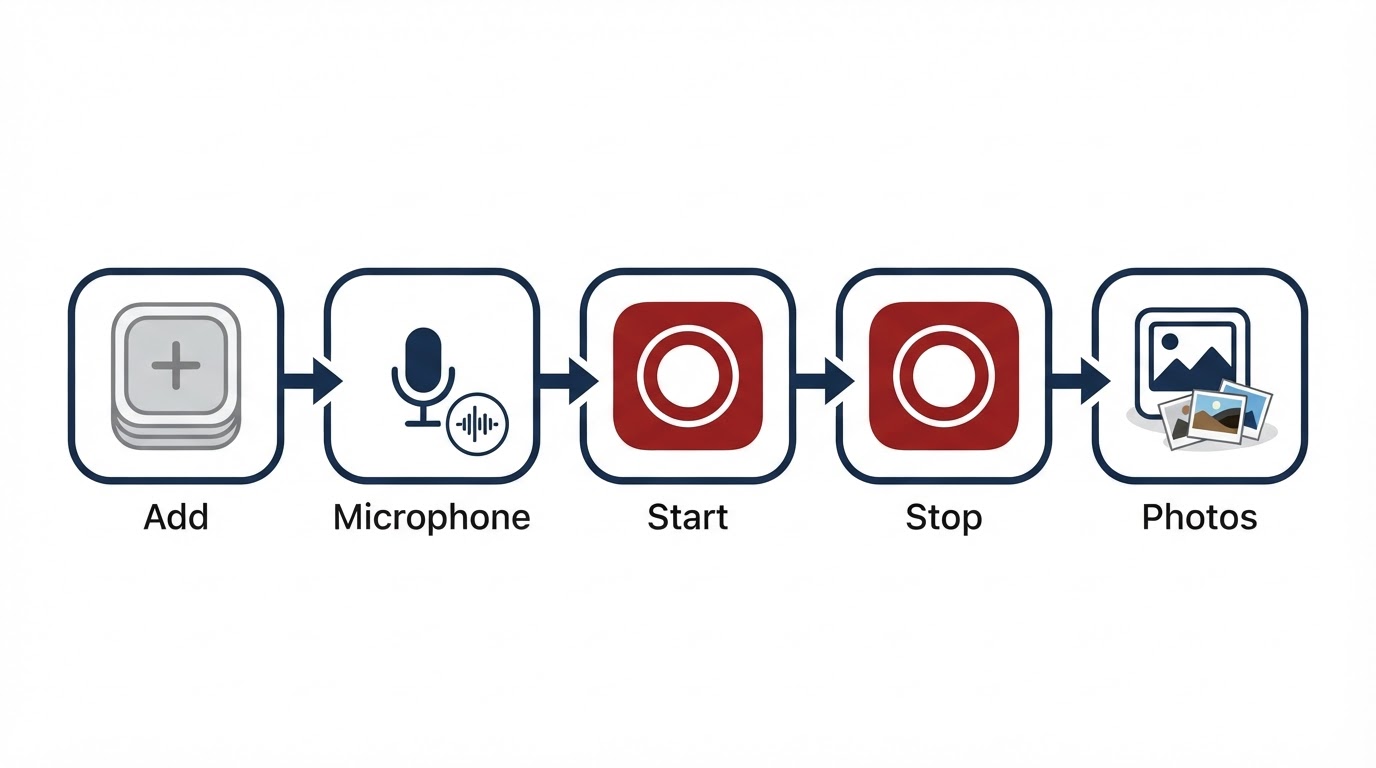
- Add the Screen Recording button in Settings.
- Set the Microphone toggle by touching and holding the button in Control Center.
- Tap the button and wait out the three-second countdown.
- Stop from the red indicator in the status bar.
- Play the clip from Photos.
Before you start
Two things are worth confirming before a recording you care about.
First, the control has to exist on your device. Screen Recording is part of iOS, but on a phone managed by an employer, a device management profile can disable screen recording outright. If the control never appears in Settings, that restriction is the most likely explanation, and the fix belongs to whoever manages the device rather than to the phone.
Second, storage. A screen recording is a video file, and video files grow with length and screen activity. A short clip is trivial; a long session or a high-motion game produces a much larger file. Check free space in Settings before a long recording so the capture does not stop early.
Finally, treat the wording in this guide as a description of intent rather than an exact string. Apple rewrites Control Center labels and rearranges the layout between releases, and recent versions also let you add controls from inside Control Center itself. The stable anchors are the name Screen Recording and the record-style icon: a circle with a solid dot inside.
Step 1: Add Screen Recording to Control Center
Open Settings and tap Control Center. In the list of available controls, find Screen Recording and tap the plus button beside it. The item moves into the included-controls list, which is the set of buttons your Control Center actually shows. Older versions call the available list Customize Controls; the item name is the same.
On recent iOS versions you can edit Control Center directly as well: open Control Center and look for a plus or an edit option, then add Screen Recording from the control gallery. Either route works, and both end at the same place.
Once it is added, confirm the button is really there. How you open Control Center depends on the phone: on iPhone X and later, swipe down from the top-right corner of the screen; on Home-button models such as the iPhone SE, swipe up from the bottom edge. The added button carries the record icon — a circle with a solid dot inside.
If you cannot find the item, pull down on the Settings home screen to reveal the search field, type Screen Recording, and open the Control Center result directly. That shortcut works even when the surrounding wording has changed.
Step 2: Set the microphone before you start
With the button in Control Center, touch and hold it, and a small menu opens with a Microphone option. Tap that option to switch it on or off. The control remembers your last choice, so check the state before every new recording; the setting that was right for a narrated walkthrough is the wrong one for a silent game clip.
What each state captures:
- Microphone off (the default): the recording keeps the audio your phone plays — game sound, video sound, music, and app audio — but not your voice or the room around you. Use this when the sound you care about comes from the device itself.
- Microphone on: your voice and nearby sounds are recorded together with the device audio. Use this for narration and anything where you explain the steps out loud.
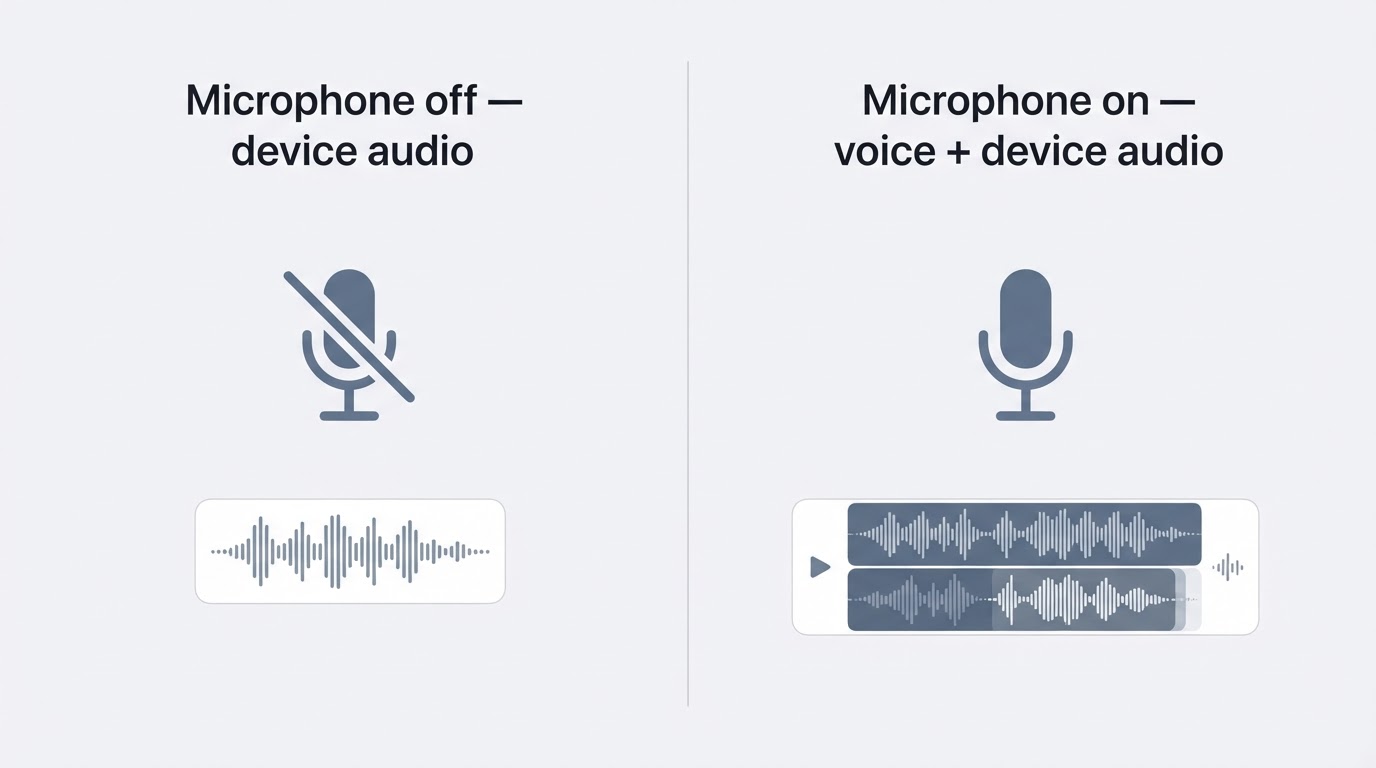
Two limits are worth knowing before you rely on either setting:
- Some apps mute or block their own audio while the screen is being recorded, and protected video from streaming services can appear black instead of captured. That behavior belongs to the app, and no phone setting overrides it.
- With the microphone on, sound played through the phone's speakers can be picked up by the microphone as well. For clean narration over quiet device audio, use headphones or record in a quiet room.
The cheapest way to avoid a surprise is a ten-second test: record one short clip with the microphone off and one with it on, play both back, and keep the setting that produced the track you actually want.
Step 3: Start the recording and use the countdown
When the microphone state is correct, open Control Center and tap the Screen Recording button once. A three-second countdown appears at the top of the screen before capture begins. Treat it as runway: swipe back to the app or screen you plan to record during those three seconds, because anything you do after the countdown clears is on the recording.
Control Center closes by itself when the countdown finishes, and capture is running at that point. If the thing you want to record is a deliberate action, start it only after the countdown has ended; tapping during the countdown often means the first second of the clip misses the action.
Step 4: Confirm it is running and stop cleanly
While the recording runs, the phone shows a live indicator: the status bar area — or the Dynamic Island on newer models — turns red, and some versions also show a small red pill at the top of the screen. That indicator doubles as the stop control.
To stop, tap the red indicator and choose Stop in the confirmation that appears, or open Control Center again and tap the now-red Screen Recording button a second time. Both routes end the capture and write the file.
Two habits protect the clip. Stop from the indicator instead of force-restarting or shutting the phone down mid-capture, because an interrupted recording may not be saved at all. Then give the phone a moment to finish writing before you start another recording or open a heavy app.
Step 5: Find the video in Photos
Open Photos and start with Recents, where the newest clip sits first. If it is not there, open Albums, then Media Types, then Videos; several iOS versions also gather screen recordings into a Screen Recordings album of their own. Screen recordings are ordinary video files — typically .mp4 — and play back like any other clip in the library.
If iCloud Photos is enabled, the recording joins the rest of the library and syncs to your other devices. If it does not, check that iCloud Photos is turned on in your iCloud settings rather than concluding that the recording failed.
Calls, notifications, and audio during a recording
Three things behave differently while the screen is being recorded.
Notifications: incoming banners are held back during the capture so an alert does not slide into the video. They are not lost — they collect in Notification Center and appear after you stop. If a notification itself has to appear in the recording, it has to arrive when no recording is running.
Calls: an incoming call is the most common reason a recording ends by itself. The call interface takes over the screen, and answering typically interrupts or stops the capture. For a take you cannot easily repeat, turn on Do Not Disturb or another Focus mode before you start.
Audio playback: with the microphone off, whatever the phone plays is what gets captured; with the microphone on, that device audio is combined with the microphone track. The recording does not stop when the audio stops — silence continues to be recorded until you end the capture, so stop when the part you need is over rather than waiting for sound to resume.
A sixty-second pre-flight check
The failures people hit are almost always set-up problems that a short check catches. Run this checklist before a recording you cannot easily repeat:
- Screen Recording is present in Control Center, not merely listed in Settings.
- Touching and holding the button shows the microphone state you intend to use.
- Do Not Disturb or another Focus mode is on if the take must not be interrupted.
- Storage is sufficient for the length you plan to record.
- A recent test clip played back with the audio you expected.
If all five are true, start the recording. If any one is false, fix it first; the recording itself takes seconds, but repeating a long take does not.
When something goes wrong
- The button is missing: re-add it in Settings, then check Control Center again. If it never appears, the device may be managed and screen recording disabled by policy.
- The recording has no sound: check the Microphone toggle from Step 2. If it was off, your voice is not in the file; if you wanted app audio, the app may mute itself during capture.
- The recording stops by itself: an incoming call is the usual cause, and low storage is the next. Confirm Focus and free space, then try again.
- Part of the video is black: protected streaming video is deliberately excluded from screen capture, and no setting changes that.
- The countdown appears but nothing records: wait out the full three seconds, then watch for the red indicator; if it never turns red, restart the phone and try again.
What a finished recording looks like
You have completed the task when a clip exists in Photos, plays back with the audio you chose, and covers the action you set out to capture. Everything before that point — the button, the microphone, the countdown, the red indicator — is setup for that single verifiable result.


