How to hard reset an iPhone: the three-step sequence
On every iPhone from the iPhone 8 onward — including iPhone SE (2nd generation) and later — a hard reset is a three-step sequence, and the order matters:
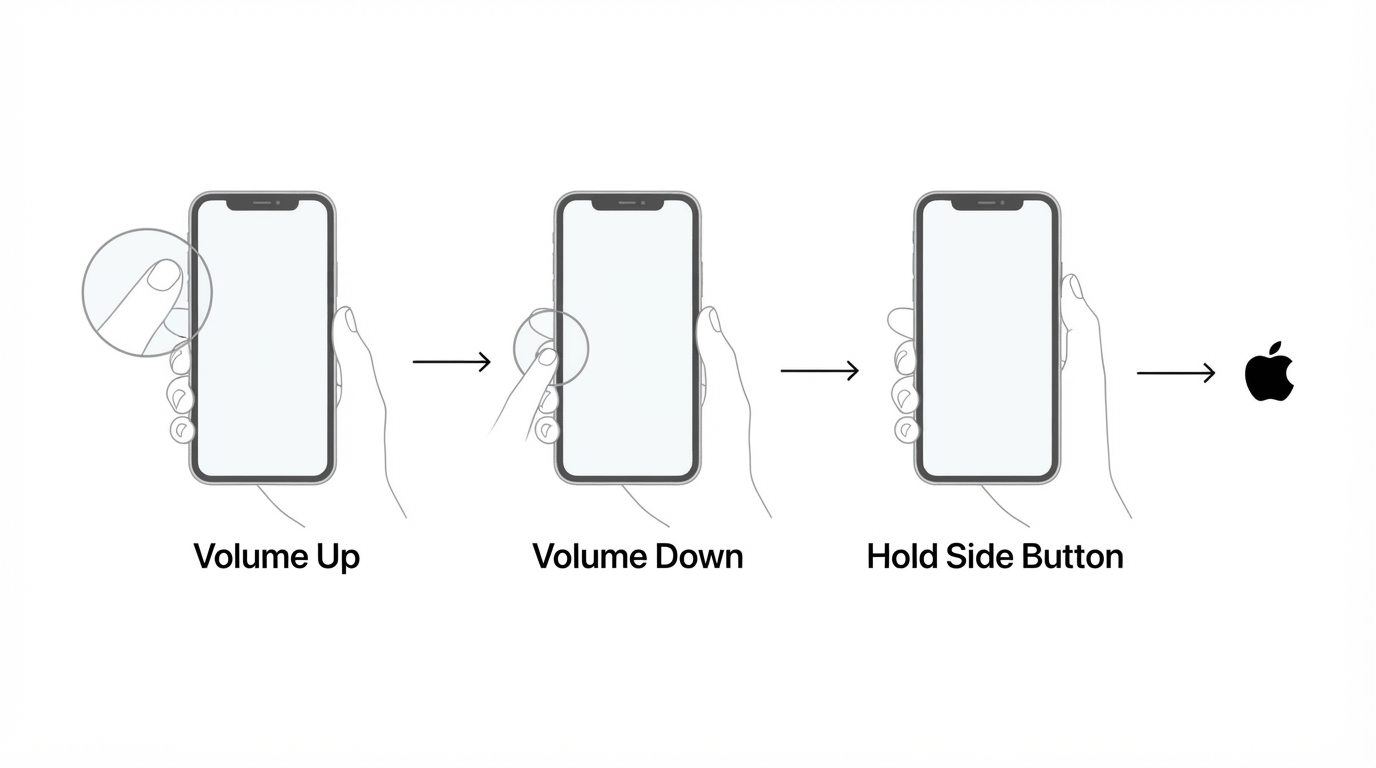
- Press and quickly release the Volume Up button.
- Press and quickly release the Volume Down button.
- Press and hold the side button on the right edge, also called the sleep/wake button. Keep holding it until the Apple logo appears, then release.
Two details decide whether the sequence works.
- The volume presses are taps, not holds. Press and release each volume button in turn, and do not grip both volume buttons at the same time.
- Only the side button is held. After the two volume taps, your finger moves to the side button and stays there. Holding a volume button at the same time is the most common reason nothing happens.
The hold itself can feel longer than expected. On a phone that has stopped responding completely, 20 seconds or more can pass before the screen changes, and the display may stay black for most of that time. The Apple logo — not a stopwatch — is the signal that the restart has started, so keep holding until you see it.
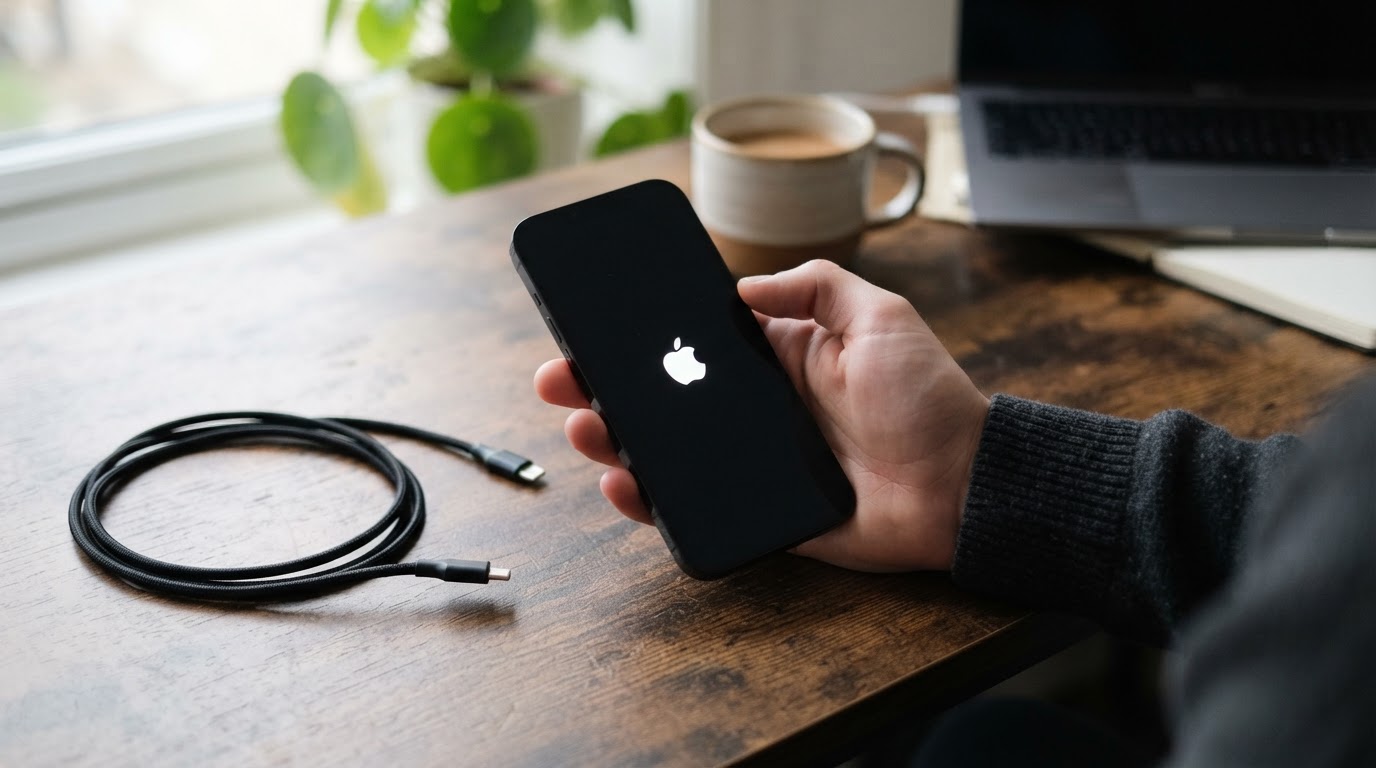
If a "slide to power off" slider appears instead, the screen is still responding. A force restart is unnecessary at that point: swipe the slider to power the iPhone off, then press the side button again to turn it back on. Save the three-step sequence for the times when the screen or the software has stopped answering.
Where the buttons are on each iPhone model
The sequence changes with the hardware, because older iPhones use different buttons in different positions. Find your model family in the table, then read the layout notes below it.
iPhone family | Buttons used | What to do |
|---|---|---|
iPhone 8 and later; iPhone SE (2nd generation) and later | Volume Up, Volume Down, side button | Tap each volume button once, then hold the side button until the Apple logo appears |
iPhone 7 and iPhone 7 Plus | Volume Down, sleep/wake button | Hold both buttons together until the Apple logo appears |
iPhone 6s and earlier; iPhone SE (1st generation) | Home button, power button | Hold both buttons together until the Apple logo appears |
On modern iPhones the two volume buttons sit stacked on the left edge, and the side button sits alone on the right edge, roughly level with them. Nothing else on the frame is part of the sequence. On the iPhone 15 Pro and iPhone 16 models, the Action button is the small button above the volume buttons on the left edge, and Camera Control on the iPhone 16 models is the lower right-edge button below the side button. Both can be ignored during a restart.
On the iPhone 7 and iPhone 7 Plus, the sleep/wake button is still on the right edge and the volume buttons are still on the left edge. The difference is the combination: you hold Volume Down and the sleep/wake button together, with no separate volume-up step.
On the iPhone 6, iPhone 6 Plus, iPhone 6s, and iPhone 6s Plus, the power button moved to the right edge, where the side button sits today. On the iPhone 5s, iPhone 5, and earlier models, and on the first-generation iPhone SE, the power button is on the top edge. In every one of these cases the second button is the Home button on the front of the phone, and you hold the power button and the Home button together until the Apple logo appears.
A hard reset does not erase anything
A hard reset is a forced power cycle. It restarts the operating system, and that is all:
- Photos, messages, apps, notes, and downloads stay where they were.
- You do not need the device passcode to perform it.
- You are not signed out of your Apple Account, and the passcode is not removed.
- No settings, accounts, or files are deleted.
That is why the name is misleading. "Hard reset" sounds destructive, but on an iPhone it does the same job as holding the power button on a frozen computer. Because nothing is deleted, it is the first thing to try when the screen goes black or an app freezes, and in most of those cases it is the only step you need.
The operation that erases an iPhone is a factory reset, which Apple calls Erase All Content and Settings and places under Settings, then General, then Transfer or Reset iPhone. That action removes everything, signs the device out of your account, and leaves it at the setup assistant; it asks for the device passcode and, when Find My or Activation Lock is active, your Apple Account credentials. A forced restart is also not a way past a forgotten passcode. The two operations are unrelated: restarting unlocks nothing, and erasing still requires credentials that belong to the device or the account.
If the Apple logo never appears
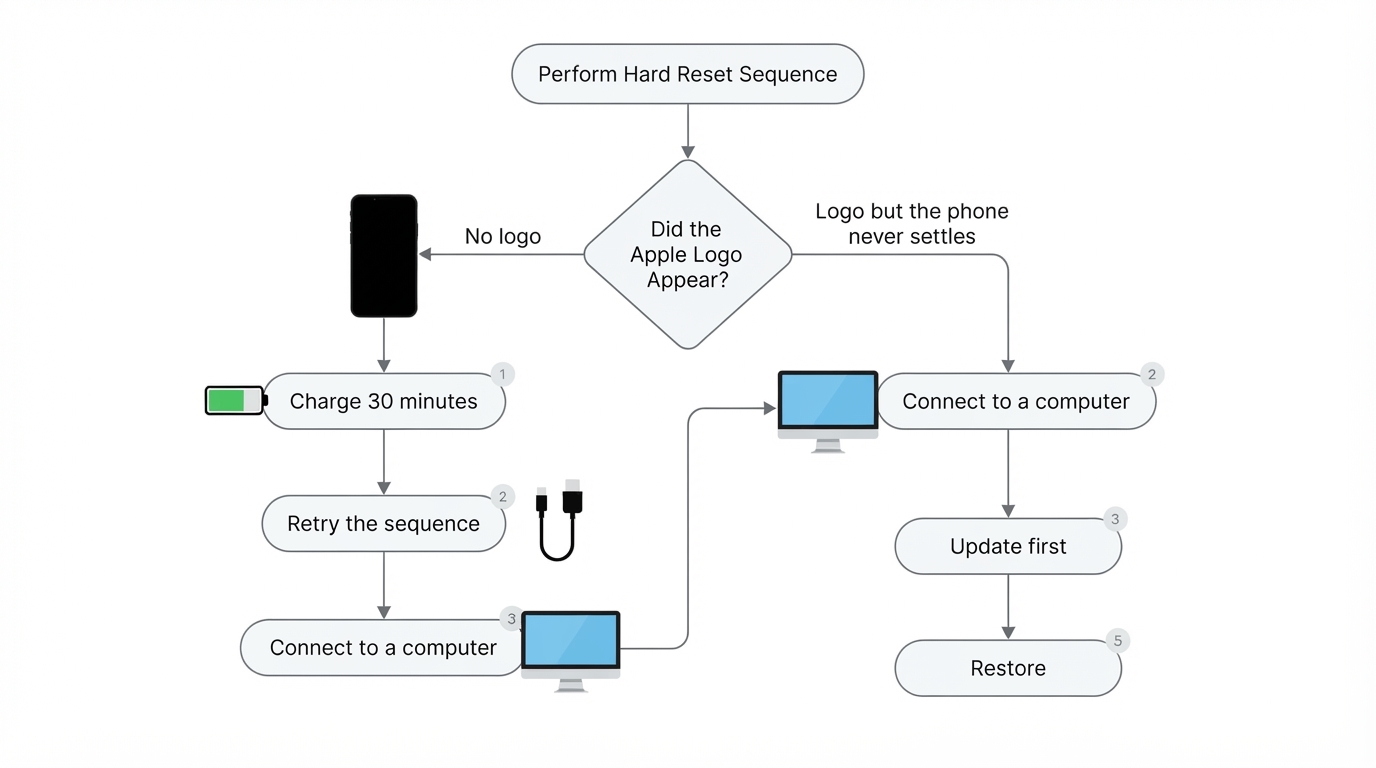
A black screen with no logo usually means the phone is not getting far enough to start. Work through these checks in order and stop as soon as the phone responds.
- Charge it for at least 30 minutes. A deeply discharged battery can look exactly like a dead phone. Use a cable and power adapter you know work, and leave the phone alone while it charges before repeating the sequence.
- Look and listen for signs of life. A vibration, a ring when you call it from another phone, a startup sound, or a phone that grows slightly warm is a sign the hardware is running even if the display is not.
- Redo the sequence slowly. Tap Volume Up, tap Volume Down, then move your finger to the side button and hold without pressing anything else. On the older models, make sure you are holding the correct pair of buttons together.
- Connect it to a computer. A Mac with macOS Catalina or later uses Finder, recent Windows versions use the Apple Devices app, and older systems use iTunes. If the computer sees the iPhone, you have left the black-screen state and can update or restore from there.
- Consider the display. If the phone vibrates or rings on a call but the screen stays dark, the phone may be running with a failed display rather than failing to boot. That is a repair decision, not a button sequence.
If the phone has been dropped, bent, or exposed to liquid, stop before repeating the sequence. In those cases a restart does not address the cause, and a service provider should look at the hardware first.
If the screen stays black after a full charge and a correct retry, stop repeating the sequence and connect the iPhone to a computer instead.
If the Apple logo appears but the iPhone stays stuck
Getting the logo means the restart worked. What happens next depends on how long the logo stays.
- Give it several minutes. The first startup after an update, a restore, or a long period powered off can sit on the Apple logo longer than a routine restart.
- Expect a passcode prompt. iPhones with Face ID or Touch ID always ask for the passcode the first time they unlock after a restart. That prompt is normal security behavior, not a failure.
- Treat a loop as a software or storage problem. If the logo appears, the screen goes dark, and the cycle repeats, connect the iPhone to a computer. Try an update first, because it preserves your data; restore only when an update does not help, because a restore erases the device.
- Stop force-restarting after a few honest attempts. Repeated resets do not repair failing storage or a software image that never boots. At that point the useful step is a computer-based update or restore, followed by Apple Support or an authorized service provider.
How to tell the restart actually worked
Use these checkpoints to confirm a clean force restart:
- The lock screen appears and responds to touch.
- The iPhone asks for the passcode on the first unlock, which is expected after every restart.
- Calls, messages, and notifications arrive again.
- Your apps, photos, and settings are all still present, with the same storage usage as before.
If the original problem — a frozen app, a screen that ignores touch, or a phone that shuts down under load — comes back after a successful restart, the restart repaired the symptom, not the cause. The next useful steps are an iOS update, reinstalling the app involved, and checking free storage, in that order.
Where third-party instructions go wrong
Most of the confusion around hard resets comes from instructions written for one generation and then reused for another. Four common claims are worth treating with care:
- "Hold all three buttons." The documented modern sequence taps each volume button and holds only the side button.
- "Hold for exactly 10 seconds." The reliable signal is the Apple logo, not a count in your head, and some phones take noticeably longer than 10 seconds.
- "A hard reset wipes the phone." It does not. Erasing is a separate action that deletes data and requires credentials.
- "It works the same on every iPhone." It does not. The iPhone 7 family and the Home-button generations use different button pairs.
For your exact model, Apple's own support documentation is the authority. Sequences, button names, and hold behavior can differ by generation, and third-party pages — including this one — sometimes carry details over from the wrong model. Confirm the sequence against Apple's page for your iPhone if anything above does not match the buttons you can see and feel.


