Clear history and website data from Settings
Open Settings and find the Safari section. On iOS 18 and later, Safari sits under Settings → Apps → Safari; on iOS 17 and earlier it appears directly in the Settings list. Inside that screen, tap Clear History and Website Data and confirm.
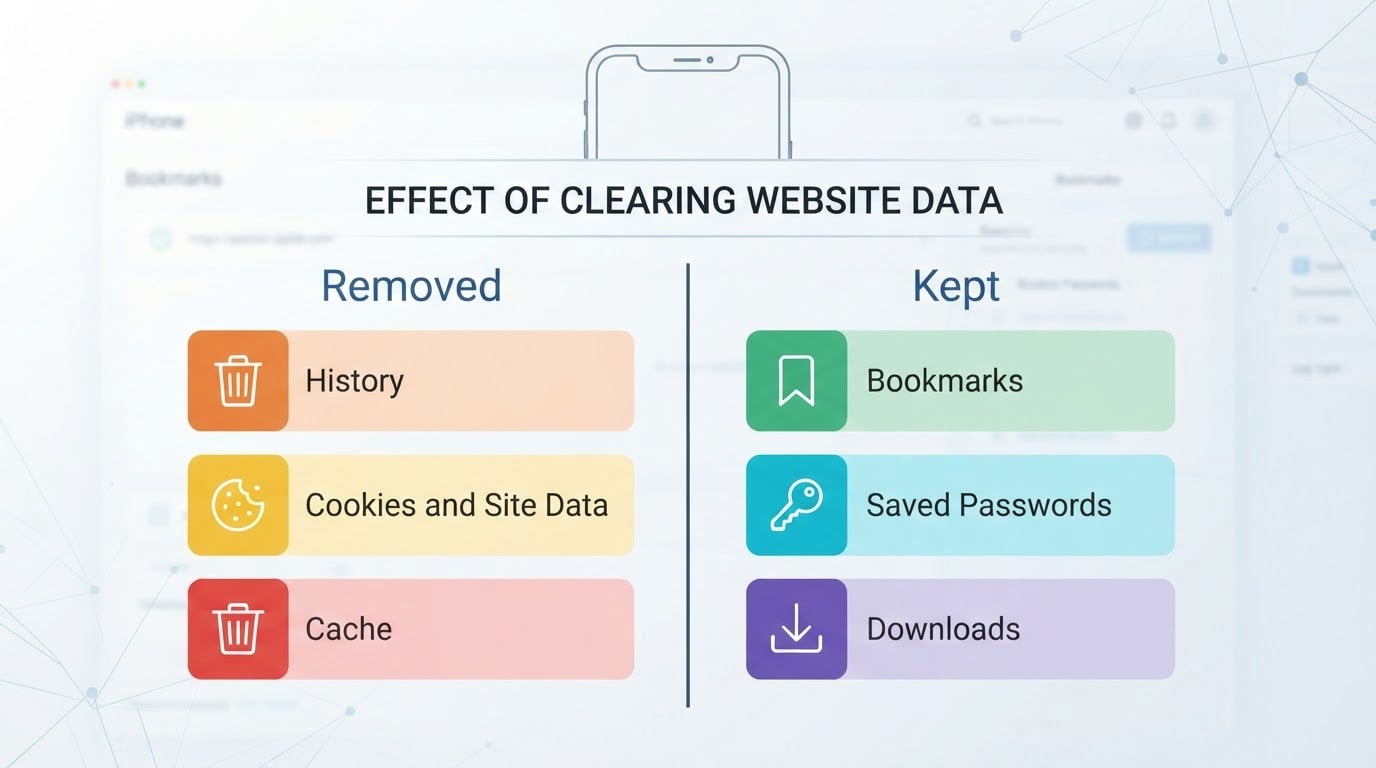
That one button is the full clear. It removes your browsing history, the cookies and site data that keep you signed in to websites, and the cached files Safari stored to make pages load faster.
On some iOS releases the button asks you to choose a time range first — the last hour, today, today and yesterday, or all history. On others, the confirmation clears everything at once. Read the sheet before you tap; if it offers a range, pick all history unless you deliberately want the last hour to stay.
Two things decide whether a tutorial you found matches your phone:
- The Safari section moved in iOS 18. If Safari is not in the main Settings list, open Apps and look there.
- The wording has changed between releases. Look for the option that names history and website data together — that is the one that clears cookies as well as the list.
Completion check: reopen Safari, tap the book icon, then History. The list should be empty. Open a site you used to be signed in to and it should ask for your login again. When both are true, the clear worked.
Choose the option that matches what you want gone
iPhone gives you more than one way to clear browsing data, and they do not remove the same things. If you searched for a way to erase search history on iPhone, note that the searches you typed in Safari's address bar live in the same History list as the pages you opened. The table below describes the option families to look for; the exact wording depends on your iOS version.
Option | Where it lives | What it removes | What it leaves |
|---|---|---|---|
Clear History and Website Data | Settings → Safari on iOS 17 and earlier, or Settings → Apps → Safari on iOS 18 and later | Browsing history, cookies and website data, cached files | Bookmarks, saved passwords, AutoFill cards, downloads |
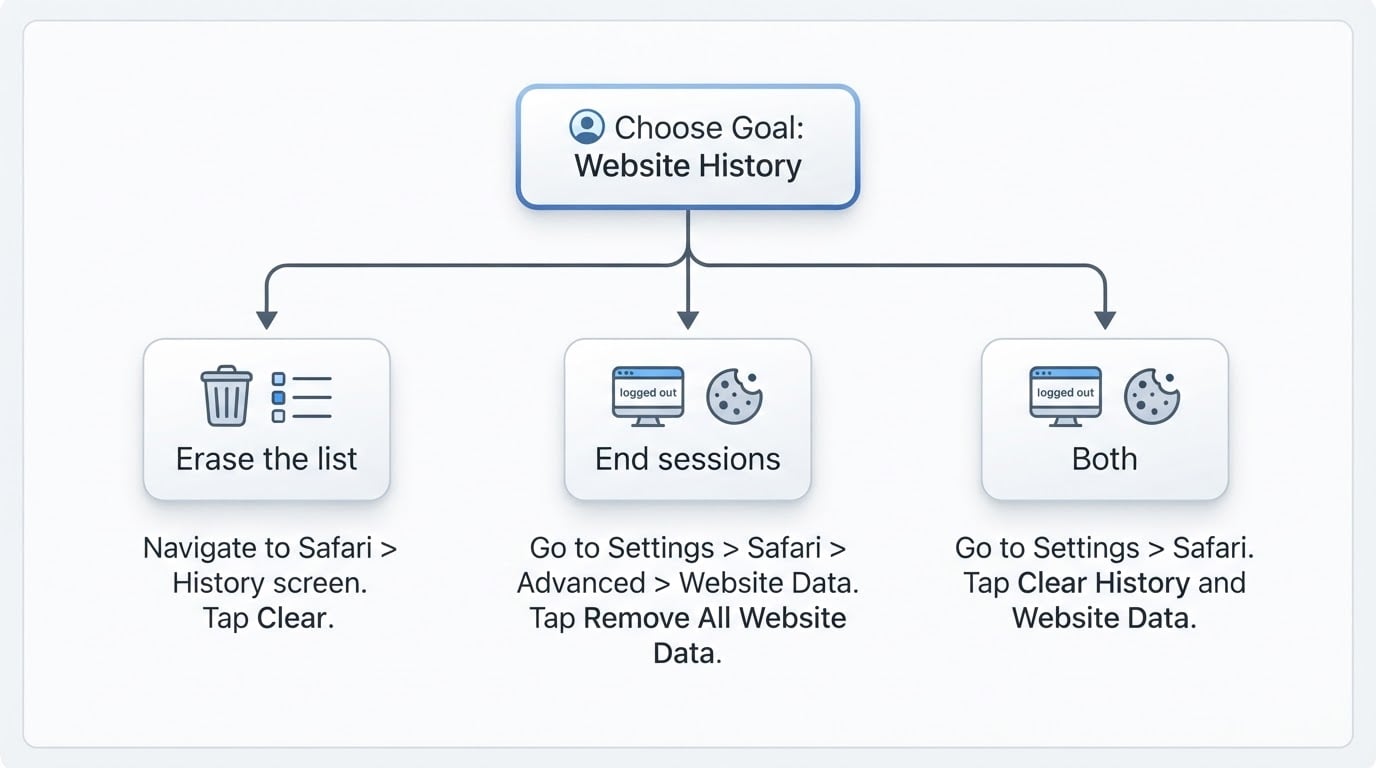
Clear, inside History | Safari → book icon → History → Clear | History entries for the window you pick, on most versions | Cookies and site logins can survive, so a site may still open with you signed in |
Remove All Website Data | Settings → Safari → Advanced → Website Data | Cookies, caches, and local storage for every site | Your history list stays readable |
One site's data only | Settings → Safari → Advanced → Website Data → swipe a site → Delete | That site's cookies and local storage | Everything else, including your full history |
Two traps are worth knowing, whether you want to clear history on iPhone for privacy or to erase history in iPhone Safari before handing the phone to someone else:
- The Clear button inside Safari's History screen is narrower than the Settings button. On many versions it empties the list but leaves cookies in place, so a site still opens with you signed in. If you want to look like a first-time visitor, use the Settings option.
- Remove All Website Data does the opposite trade. It ends sessions everywhere but leaves the history list readable. Use it when the goal is to log out, not to hide where you have been.
What changes right after you clear
Cookies are what tell a site who you are, so removing them ends most sessions at once.
- Sites sign you out. Expect a login prompt on email, social, shopping, banking, and streaming sites the next time you open them.
- Saved passwords still work. Your credentials live in the Passwords app and iCloud Keychain, not in Safari's cookies. AutoFill still offers them, and clearing does not revoke them.
- Site preferences reset. Theme, language, region, and cookie-consent choices are stored per site. They return to defaults, and consent banners come back.
- Saved state disappears. A cart, a recently viewed list, or a discount a store kept in a cookie is gone when the cookie is gone.
- First loads get slower, briefly. With no cache, pages download images and scripts again. The cache rebuilds as you browse.
- Verification prompts return. A site that skipped a check because it recognized your cookie may ask for it again. Two-factor codes and passkeys continue to work.
Two boundaries are worth stating plainly. This clears Safari's data, so native iPhone apps keep their own sessions — clearing Safari does not sign you out of Mail or a banking app. Other browsers on your phone store their own history and cookies, so Chrome, Firefox, and Edge each need their own clear.
If Safari history syncs through iCloud, your clear may also affect other Apple devices signed in to the same account. Check those devices if you were relying on that history somewhere else.
What clearing does not touch
Nothing below is deleted when you clear history and website data, which is why the clear is safe to run when you only want a session reset.
- Bookmarks and favorites, in every folder.
- Pages you saved to Reading List for later.
- Saved passwords and passkeys, plus AutoFill payment cards, in the Passwords app and iCloud Keychain.
- Files you downloaded through Safari.
- Other browsers' data, and native apps' own logins.
The clear removes the trail and the sessions, not the things you chose to save. Those have separate controls, and removing them is a different task.
Match the path to your iOS version
Apple changes Settings between releases, so a tutorial that quotes one version's labels can send you to the wrong screen on another. Treat any path as a map and confirm each step against what your phone shows.
- Check your version first. Settings → General → About → Software Version names the release you are on. Note it before you compare a tutorial against your screen.
- Look for the grouping, not the exact words. An option named Clear History and Website Data is the full clear on the releases that use that label. If you only find Clear History, check nearby for a separate Website Data option.
- Read the confirmation before you tap. A sheet that lists history, cookies, and other browsing data is the full clear. A sheet that offers only time ranges for History can leave cookies in place.
- Assume settings moved rather than vanished. iOS 18 put Safari inside Apps, and restrictions can hide the section entirely.
Because labels move between releases, the steps here are written to be confirmed on the device in front of you rather than copied from a screenshot. When a word does not match, find the option that deletes history and website data together.
If the clear option is missing or greyed out
Before you assume a bug, check the two controls that can remove the option:
- Screen Time web restrictions. Settings → Screen Time → Content & Privacy Restrictions → Web Content governs what Safari may store. With restrictions on, clearing may be blocked.
- A managed or supervised device. A company or school profile can limit Safari settings, including clearing history and data.
Remove the restriction, or ask whoever manages the device, and the option should return.
Quick recap
- Settings → Safari, or Settings → Apps → Safari on iOS 18 and later, then Clear History and Website Data.
- If a time range appears, choose all history, then confirm.
- Reopen Safari and check that History is empty — that is your completion check.
- Sign back in where you need to; bookmarks and saved passwords were never touched.


