Where Safari keeps cookies and website data
Start in Settings, then open Apps → Safari → Advanced → Website Data. That list is Safari's cookie jar — every domain that has stored something on your iPhone, with the space each one occupies. On earlier releases the same screen sits at Settings → Safari → Advanced → Website Data, because Safari gets its own row directly in Settings instead of living inside the Apps group. Both routes lead to the same list.
Two controls on that screen matter, and they are easy to confuse:
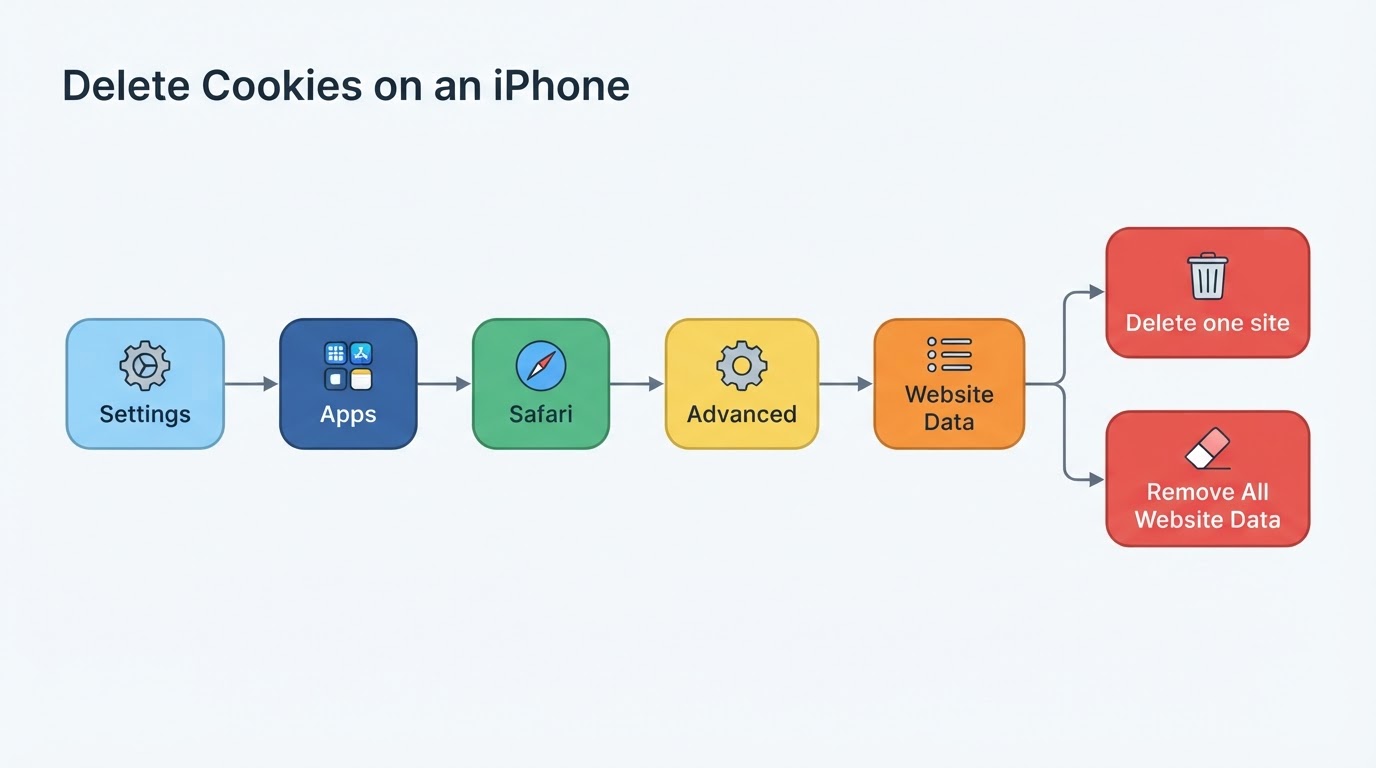
- Edit removes one domain at a time.
- Remove All Website Data clears every domain at once.
A third control sits on the Safari settings screen rather than inside Advanced: Clear History and Website Data. It performs both jobs in one step, which makes it the right choice when the goal is "make this iPhone forget my browsing" rather than "sign me out of one site."
If your Settings app matches neither path, stop at the Safari settings screen and look for the option whose wording names website data. Apple moves and renames these rows between releases, so the label on your device is the authority; any single universal path, including the two above, is version-dependent.
One site or every site: pick the right delete
The two removal actions look alike and do very different things.

Action | Removes | Keeps |
|---|---|---|
Delete one site in Website Data | That site's cookies, cache, and local storage | Sign-ins and preferences for every other site |
Remove All Website Data | Cookies, cache, and local storage for every site | History, bookmarks, Reading List, saved passwords |
Clear History and Website Data | History plus cookies and cache for every site | Bookmarks, Reading List, saved passwords |
To remove cookies for one site, open Settings → Apps → Safari → Advanced → Website Data, find the domain, then swipe left on it and tap Delete (or tap Edit, tap the red minus, then Delete). Confirm the row disappears before leaving the screen. This is the option to use when a single site is misbehaving, or when you want to log out of one account without disturbing the rest. If what you are really after is how to remove cookies on iPhone for one account, that single row is the entire operation — no need to touch anything else in the list.
To remove every cookie, choose Remove All Website Data and confirm. The list should then be empty. Every site you visit afterward begins writing fresh entries, so an empty list is a temporary state, not a permanent setting.
Sites appear by domain rather than page title, so an account that lives on a subdomain is usually grouped under the main domain. Scan the list for the base name rather than the full address of the page you were on.
What changes after you clear cookies and website data
- Sites that relied on cookies ask you to sign in again. Many services keep a session cookie in the browser, so removing website data ends that login. A few keep sessions on their servers, in which case you may stay signed in until the session expires; if that happens, use the site's own sign-out control.
- Preferences stored in the browser reset. Theme choices, language selections, dismissed banners, and consent prompts often live in local storage, so expect them to return to defaults and to be asked again.
- Shopping carts and saved filters may empty. Carts kept in cookies or local storage disappear with the data; carts stored on the server usually survive.
- The first visit afterward is slower. Cached images, scripts, and fonts are gone, so the site downloads them again. That is the cache rebuilding, not a fault.
- Saved passwords, bookmarks, and the Reading List stay. Passwords live in the keychain, and bookmarks and the Reading List are stored separately from website data. Autofill keeps working.
- Other browsers and apps are untouched. The Website Data list covers Safari only. If the same account is signed in inside an app or a different browser, that session stays until you clear it there.
- Other devices are untouched. Clearing is a per-device action, so cookies on an iPad, a Mac, or a second iPhone remain in place.
Cookies versus history: the difference that trips people up
History is the record of where you have been. Cookies and website data are a site's memory of you. Clearing one does not clear the other, and that gap is where most half-finished attempts come from.
- Clearing history empties the visited-page list used by the History screen and by address-bar suggestions. It does not sign you out of anything.
- Clearing website data ends cookie-based sessions and resets site preferences. It does not erase the record of pages you visited.
- Clear History and Website Data performs both at once, which is why it signs you out of cookie-based sessions and empties the History list in the same step.
Choose by outcome. For a clean sign-out, remove website data. To remove the trail, clear history. For both, use Clear History and Website Data and then confirm on the Website Data screen that the list is empty; if you completed only one of the two actions, the other half is still on the device.
Verify the labels on your iPhone
The paths above follow the two layouts that appear across iOS releases, but the exact option names move between versions, and this guide does not claim one universal path. Confirm three things on the device in front of you before trusting a written route:
- Where Safari lives. It is either a top-level row in Settings or a row inside the Apps group, depending on the release.
- Whether an Advanced screen exists. Newer releases place Website Data one level inside it. Releases old enough to predate that screen expose Clear History and Website Data directly, with no Advanced step.
- What the data screen is called. The label on the screen that lists domains can differ even when the function is identical.
If neither layout matches, treat the exact wording as unverified for your release and pick the option whose function is the one you want. The split between history and website data is what matters; the menu path is only how you reach it.
Completion check
The job is finished when all three of these hold:
- The site is gone from Website Data for a single-site delete, or the list is empty after a full removal.
- Reloading the site shows a signed-out state, or the site asks you to sign in again.
- Site preferences behave like a first visit — a theme, language setting, or consent banner returns to its default.
If a site reappears in the list after you visit it, that is expected: the site is writing new cookies, and clearing data is a reset rather than a block. If a sign-out does not stick, the account is probably using a server-side session, and the fix is the site's own sign-out control rather than another round of clearing.
Quick answers
How do you delete cookies on iPhone for one site only?
Open Settings → Apps → Safari → Advanced → Website Data, find the domain, and delete that single row. Every other site keeps its sign-ins.
Does deleting cookies sign you out of apps?
No. The Website Data list belongs to Safari, and apps keep their own storage. Clear or sign out inside the app when that is what you need.
How often should you clear website data?
Only when there is a reason: a stuck session, a page that will not load correctly, or a sign-out you want to force. It costs a re-login and a slower first load, and it does nothing useful as routine maintenance.


