What Deleting an App Actually Does
Deleting an app removes it from the Home screen and clears the copy of the app and its locally stored data from that Apple TV. It is not an account action: your Apple ID, your download history, and any subscription attached to the app stay as they are, so a deleted app can normally be downloaded again later under the same account.
That distinction matters before you start. If your goal is to free up space or get an unused icon out of the way, deletion is the right move. If your goal is to remove an account or hand the Apple TV to someone else, you are looking at a different job entirely — this guide only covers removing apps from the Home screen, not account or personal data.
Before You Start
- An Apple TV that is powered on and awake, showing the Home screen.
- The remote that came with it, or a compatible replacement. A recent Siri Remote with a clickpad or touch surface handles the long press directly; older and third-party remotes map the same action to their center or select button.
- A little patience: the key gesture is press and hold, not a quick click. A short tap only selects the app and opens it, which is the most common reason people think the delete option is missing.
No computer, cable, or reinstall is required, and you do not need to open Settings for the basic removal.
How to Delete an App
- Find the app on the Home screen. Move the highlight with the remote's touch surface or directional buttons until the icon you want to remove is selected. Do not open it.
- Press and hold. Press and hold the center of the clickpad or touch surface — the same press you would use to select — and keep holding for about two seconds. On a remote without a touch surface, press and hold the center or select button instead.
- Wait for the menu. The icon will shrink or lift slightly and a small menu appears beside it. If nothing appears after a few seconds, release, make sure the icon is still selected, and hold again — a quick tap opens the app rather than showing the menu.
- Choose Delete. Move to the Delete App entry (some versions word it simply Delete) and select it.
- Confirm the removal. A confirmation prompt appears; select Delete to finish. The icon disappears from the Home screen immediately.

Locate the app → press and hold → choose Delete → confirm → verify the icon is gone.
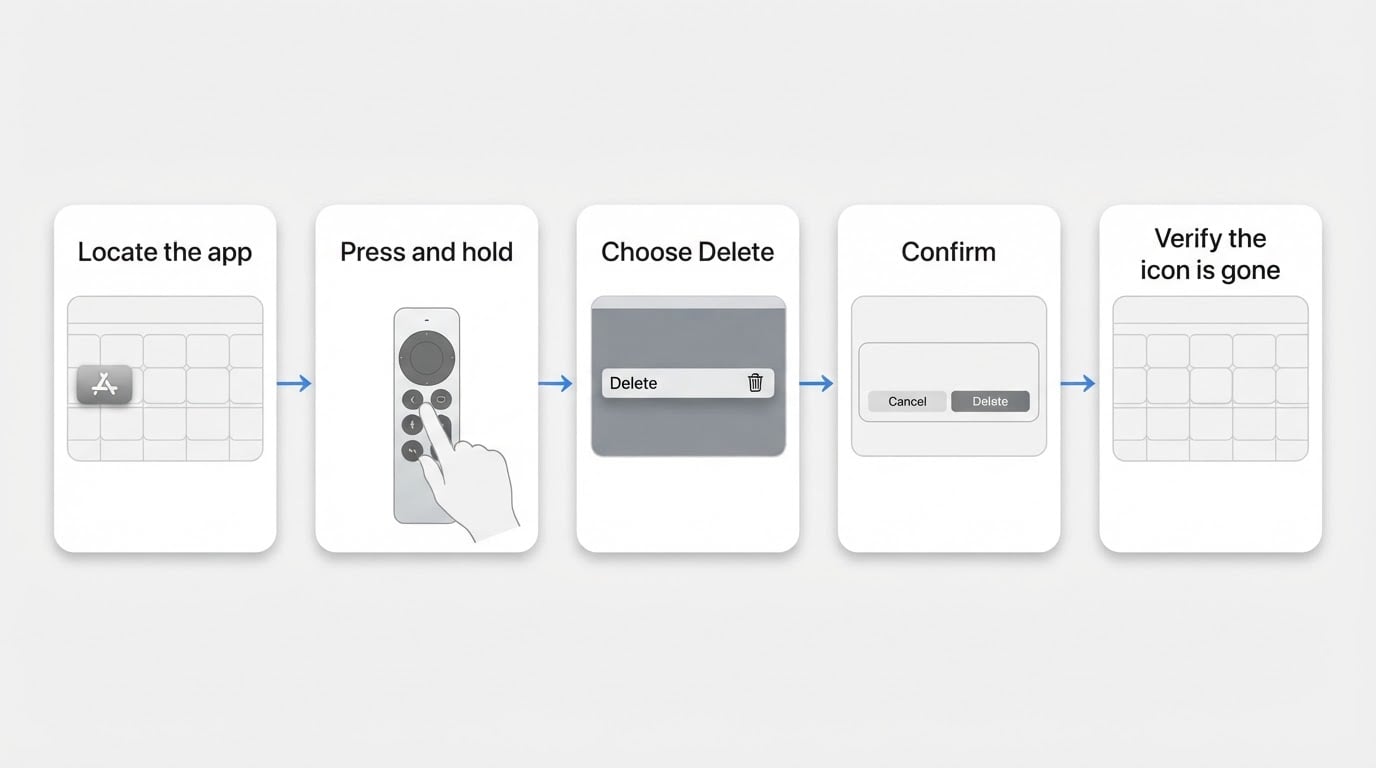
If the menu includes other entries, such as moving the app or adding it to the top row, read the wording before selecting. A mis-selected option can rearrange the Home screen instead of removing the app.
Remote and tvOS Differences to Expect
The gesture itself is stable: a press and hold on the remote opens a contextual menu for the highlighted app, and deletion happens from that menu. What changes between Siri Remote generations and TV software releases is the presentation — the exact menu wording, how long the press takes to register, and whether the icon animates before the menu appears.
Treat any very specific description you find online as version-dependent. Match on meaning rather than on a fixed position: you are looking for the entry that says Delete or Delete App, and for a confirmation step before the app disappears. The confirmation prompt after selecting that entry is the checkpoint that tells you the right action was chosen. Menus also change with language and accessibility settings, so a menu item will not sit in the same place on every device.
These small differences cannot be confirmed for every combination of remote generation and software version, so check the wording on your own device before repeating instructions from any source as if the menu were identical everywhere.
After Deletion: What Changes and What Stays
Changed:
- The icon is gone from the Home screen, and the app no longer launches on that device.
- The app's locally stored data — its cache, downloads, and saved positions on that Apple TV — goes with it.
Unchanged:
- Your Apple ID and its purchase or download history.
- A subscription you bought outside the App Store and manage in the app or on the web.
- Other devices signed in to the same account. Deleting on one Apple TV does not remove the app from an iPhone, an iPad, or another Apple TV.
Because the download record stays with the account, removal is reversible in practice: if you want the app back, you can download it again under the same Apple ID, and you will not normally pay for it twice. Data that lived only inside the app on that device will not return with the reinstall.
How to Confirm the App Is Gone
The completion check takes a few seconds:
- Press the Home or TV button to return to the Home screen.
- Move across the Home screen and confirm the icon is not present, including inside folders and on the top row.
- Open the App Store under your account and confirm the app now shows a download option rather than an Open button.
- If you deleted the app to free space, check the device storage view to confirm that available space reflects the removal.
If the icon is still there, the confirmation step was probably missed — repeat the press and hold and finish the delete. If it reappears later, something put it back: check for other people using the same Apple TV, a paired device that re-downloaded a purchase, or an update that reinstalled the app. Removal has succeeded the moment the icon is gone and the app is no longer listed as installed.
Troubleshooting When the Menu Will Not Appear
A quick tap opens the app. That is expected behavior. Hold the press longer and do not release until the icon animates or the menu appears.
Nothing happens at all. Move the highlight one icon away and back, then hold again. If the press still feels unresponsive, replace the battery in the remote or try the center button instead of the touch surface.
The app comes back. Confirm that nobody else in the household and no paired device reinstalled it. Deleting on one device is not a permanent account-level block.
The app cannot be deleted. Some apps that are part of the system experience on certain models do not offer a delete entry, and a menu with no delete option means the app is not removable on that device. In that case, move it out of the main row or into a folder rather than fighting the menu.
Deleting, Force-Quitting, and Erasing Are Different
Three different problems call for three different actions:
- Delete removes the app and its local data from the device. Use it for apps you no longer want.
- Force-quit stops a running app that is frozen. Use it when the app misbehaves but you still want to keep it.
- Erase resets the whole Apple TV, including every app, setting, and account on it. Use it before selling or handing the device on.
If you are here because one app will not open, force-quit first. Deleting is the fix for clutter and storage, not for a single bad session.
Quick Recap
- Highlight the app on the Home screen without opening it.
- Press and hold the clickpad or touch surface until the menu appears.
- Select Delete App (or Delete) and confirm.
- Verify that the icon is gone and that the App Store shows the app as available to download again.
Deleting an app on Apple TV is a two-second gesture with one checkpoint: the confirmation before the icon disappears. Match the menu by meaning, check the wording on your device when your remote or software differs, and remember that removal is reversible — the account keeps the download, and the device keeps only what you left installed.


