The three-step path, and what it does not remove
Deleting a Mac app is three actions, and the third one is the step people skip.
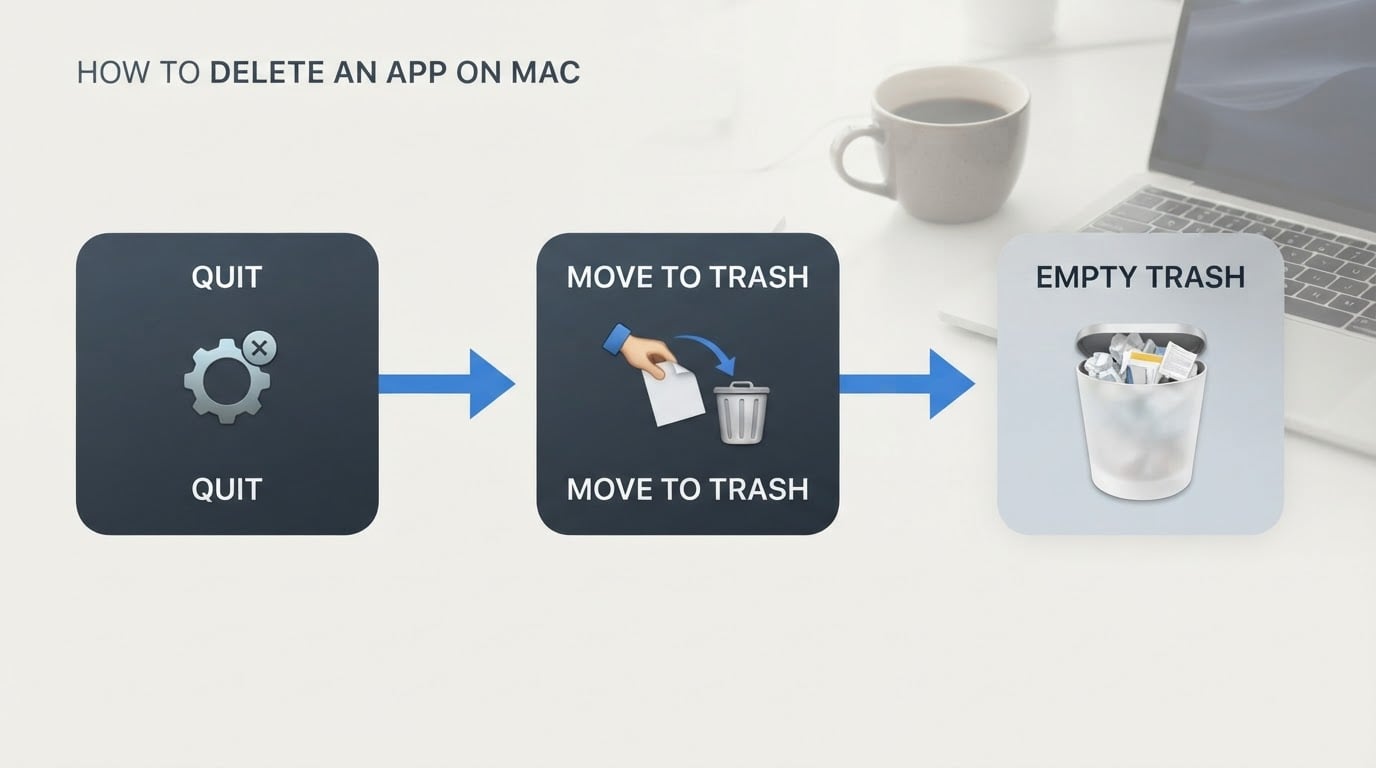
- Quit the app. A running app can block removal or trigger an "in use" warning.
- Move the app to the Trash in Finder. Drag the app out of the Applications folder, or select it and choose File > Move to Trash.
- Empty the Trash. Until you do, the app is still on the disk and its space is still in use.
Before you start, check whether the app ships its own uninstaller. Apple recommends using an "Uninstall" or "Uninstaller" tool first if one exists, because it can also handle login items, extensions, and data the app keeps in other locations (Delete or uninstall apps on Mac).
Two things this path does not touch. Deleting an app does not remove documents you created with it, and it does not cancel subscriptions you bought with it — both points are stated on the same Apple page (Apple support). If either applies to you, deal with it separately before emptying the Trash.
Step 1: Quit the app
Quit the app, then try the removal again. If macOS still tells you the app is in use, work through Apple's documented fallbacks in order: make sure it is not open, restart the Mac, or start up in safe mode and repeat the steps (Apple support).
Do not start deleting files to force a quit. The documented path is quitting, restarting, or safe mode, and it is enough for a normal uninstall.
Step 2: Find the app and move it to the Trash
Most apps live in the Applications folder. Open Finder and click Applications in the sidebar. A few apps install into the Applications folder inside your home folder instead, so look there if you cannot find the app (Apple support). The same path applies whether you are working on a MacBook or a desktop Mac.
To remove the app:
- Drag it to the Trash.
- Or select it and choose File > Move to Trash.
- If macOS asks for permission, enter an administrator account name and password.
If the app came from the App Store, the App Store User Guide documents two more routes: Control-click the app in Finder and choose Move to Trash, or click the Apps icon in the Dock, press and hold the app icon until it jiggles, then click the close button (Install and uninstall purchased apps). The Dock route is still in the current guide, but it does not appear on every macOS version; the Finder path works either way, so prefer it.
Step 3: Empty the Trash
Choose Finder > Empty Trash. This is the step that permanently deletes the app and makes its storage available for other items (Apple support). Apple states the rule plainly on its storage page: files you move to the Trash keep using space until the Trash is emptied (How to free up storage space on Mac).
What an app leaves behind in the Library folder
The app bundle is one folder. Removing it is the visible half of a full uninstall; the other half is the data the app wrote outside that bundle, which is why uninstalling an app on Mac takes more than one drag to the Trash.
Apple's File System Programming Guide lists the Library subfolders apps rely on (File System Programming Guide):
- ~/Library/Application Support — app-specific data and support files, kept by convention in a subfolder named after the app's bundle identifier, such as
~/Library/Application Support/com.example.MyApp/. - ~/Library/Caches — data the app can regenerate. Apple expects apps not to depend on caches and to store them under a bundle-identifier subfolder.
- ~/Library/Containers — the home directory of a sandboxed app, present only in the user domain.
- ~/Library/Autosave Information — per-app autosave data.
- ~/Library/Preferences — user preferences. Apple's guidance says apps should read and write preferences through system interfaces rather than create files here themselves, so an obvious per-app file is not guaranteed.
The same directory table covers other locations, including Logs, LaunchAgents, and Cookies. None of these folders is cleaned up automatically when you move an app to the Trash — the .app bundle is the only part you see.

To open the Library folder, click the Finder Go menu while holding Option and choose Library. Apple's user guide documents that shortcut, and it also explains Go > Go to Folder: a leading slash means the top of your disk, a tilde (~) means your home folder, and a trailing slash marks a folder path (Go directly to a specific folder on Mac).
Two cautions before you remove anything there. First, the folder conventions above come from Apple's archived developer documentation, which does not list per-app file names, sizes, or counts; check the actual folders on your Mac and confirm what an item belongs to before deleting it. Second, Apple's uninstall pages do not document a cleanup procedure for data stored outside the app bundle — this Library review is careful manual work, not a one-click official fix. Removing the wrong folder can take settings, saved data, or documents with it.
How to check that the uninstall worked
Open System Settings, click General, then Storage. That is the path on macOS Ventura 13 and later; earlier versions use Apple menu > About This Mac > Storage. Apple notes that the storage figures refresh as you work through its freeing-space steps, and that a category called System Data (or Other on older versions) counts files that do not belong to a more specific category (How to free up storage space on Mac).
Check two things there. Free space should increase after the Trash is emptied, not before. And if the space freed is smaller than you expected, remember that the summary reports categories: files that do not fit a named category are counted in System Data, so leftovers you chose to keep sit somewhere in those totals rather than under the app's own name.
Reinstalling is a weaker check than it sounds. If you bought the app, the App Store guide shows the reinstall path: open the App Store, click your name at the bottom of the sidebar (sign in if needed), find the app, and click the download button (Install and uninstall purchased apps). What a reinstall tells you is whether the app starts like a fresh install; if the first-run setup appears again, the app did not find the state it expected. What it does not prove is that every leftover file is gone. Treat a clean first launch as one useful signal, not as evidence of a clean system.
I moved the app to the Trash and it is still there
Two causes are documented, and both have a safe next step.
The app is still in use
Quit it, restart the Mac, or start up in safe mode, then try the removal again (Apple support).
The app is required by macOS
Finder will not delete apps that are part of macOS, including Mail, Music, Books, Notes, Podcasts, Maps, News, and Stocks, or anything inside the System folder (Apple support). Safari and Mail are also listed as apps you cannot uninstall in the App Store guide (Install and uninstall purchased apps). Leave these alone; there is no supported way to remove them.
If something else still points at the app — a Dock icon, a menu-bar extra, a search result — treat it as a separate item to identify. Work out what it belongs to before deleting anything else, and change one thing at a time so you can tell which change mattered.
A short completion checklist
- The app was quit, then moved to the Trash from Finder.
- The Trash is empty, so the space is genuinely free.
- You reviewed
~/Library/Application Support,Caches,Containers, andPreferencesfor a folder matching the app's bundle identifier, and removed only what you could identify. - If you reinstalled as a test, the app started like a first run — a useful signal, not proof.
- Storage in System Settings shows the change in free space after the Trash was emptied.
Run those checks in order and you have done everything Apple documents for a complete app removal, plus the Library review the official pages leave out.


