The three shortcuts: what each one does
Command-C copies the current selection. The original stays where it is, and a reference to it goes on the clipboard. Command-V pastes whatever the clipboard holds into the current target: a text cursor, a document, a folder, an image canvas, or a form field. Command-X cuts, meaning it removes the selection and puts it on the clipboard in one action, ready to be moved somewhere else.
That trio is consistent across most of macOS. Text fields, documents, spreadsheets, and image editors all respond to the same keys. Files in Finder are the famous exception, and most of this guide is about that exception and about what "paste" means in different apps.
Shortcut | What it does | Where it works |
|---|---|---|
Command-C | Copies the selection; the original stays put | Text, files, images, most selections |
Command-V | Pastes the clipboard contents | Anywhere with an editable target |
Command-X | Cuts: removes the selection and keeps it for pasting | Editable text and content, not Finder files |
Option-Shift-Command-V | Pastes text and matches the destination's style | Rich-text apps that support it |
Command-Option-V | Moves the copied file to the current folder | Finder |
Common mis-presses are predictable. Press Command-X on a file in Finder and you get the alert sound instead of a cut file, because Finder refuses to cut files at all. Press Command-V twice and you paste twice, which duplicates text or creates a second copy of a file. Press Command-C again and the clipboard is replaced, since macOS holds one item at a time. Press Command-Z after pasting and you undo the paste, not the copy.
Copy, cut, and paste text on a Mac
The basic loop takes four seconds: select the text, press Command-C, click once where you want the text to land, and press Command-V. If you want to move the text rather than duplicate it, use Command-X in place of Command-C.
Selection has shortcuts of its own. Double-click selects a word. Triple-click selects a paragraph in many apps. Command-A selects everything in the focused field or document, which is handy before a copy but risky before a cut. The keyboard commands work the same in a browser, in a form field, and in a document, so the only thing that changes is what counts as "the selection" in that app.
Cut removes the original immediately. If the destination then refuses the paste, in a read-only document or a password field, the text is gone from the source until you paste it somewhere else or undo with Command-Z. A safer habit for anything important: copy first, paste, confirm it arrived, then delete the original.
The clipboard holds one item. Copying a second thing replaces the first, so if you copy a file and then copy a paragraph of text, the file reference is gone. macOS itself keeps no history. Third-party clipboard managers add one, but nothing in the system will recover a replaced item for you.
Paste and Match Style: strip formatting with Option-Shift-Command-V
When you copy from a web page or a formatted document and paste into Mail, Notes, or Pages, you often get the source's fonts, colors, and sizes. Press Option-Shift-Command-V instead of Command-V and the text adopts the destination's formatting. Apple calls this Paste and Match Style; other apps label the same idea Paste as Plain Text, Paste Text Only, or Paste Without Formatting. If the shortcut does nothing in an app, open the Edit menu and look for the equivalent command, since the menu also shows the app's own key combination.

Two limits are worth knowing. First, Match Style removes formatting, not links: a URL pasted this way can still arrive as a clickable link in apps that auto-detect addresses. Second, it is a paste command, not a clipboard setting. You choose it at paste time, and it applies to that paste only. The next Command-V brings the rich formatting back.
Don't confuse it with the Finder's file move. Option-Shift-Command-V strips text formatting; Command-Option-V moves a copied file. The two shortcuts differ by one key and do completely different jobs.
Why Command-X doesn't cut files in Finder
Select a file in Finder, press Command-X, and nothing happens except the alert sound. There is no hidden setting to enable it. macOS treats a cut file as an item that exists nowhere until you paste it, and that state invites accidents: switch folders, get interrupted, restart the Mac, and the file's location becomes ambiguous. Instead of risking silent data loss, Finder keeps file moves explicit.
The restriction is about file items, not about Finder as a whole. You can cut and paste text in Finder's search field, in a rename field, and in the Comments box of the Get Info window. Only the file and folder icons refuse the command.
The practical takeaway: when you want to move a file, don't reach for Command-X. Copy the file, then tell Finder what to do with it at the destination. That is one extra keystroke compared with Windows, and it is also the reason a half-finished move cannot quietly lose the file.
How to move a file instead of copying it
There are three reliable ways to move a file in Finder.
The clipboard route is the closest equivalent to cut and paste. Select the file, press Command-C, open the destination folder, and press Command-Option-V. Finder moves the original instead of duplicating it. The same command appears in the Edit menu as Move Item Here, in place of Paste Item, while a file is on the clipboard.
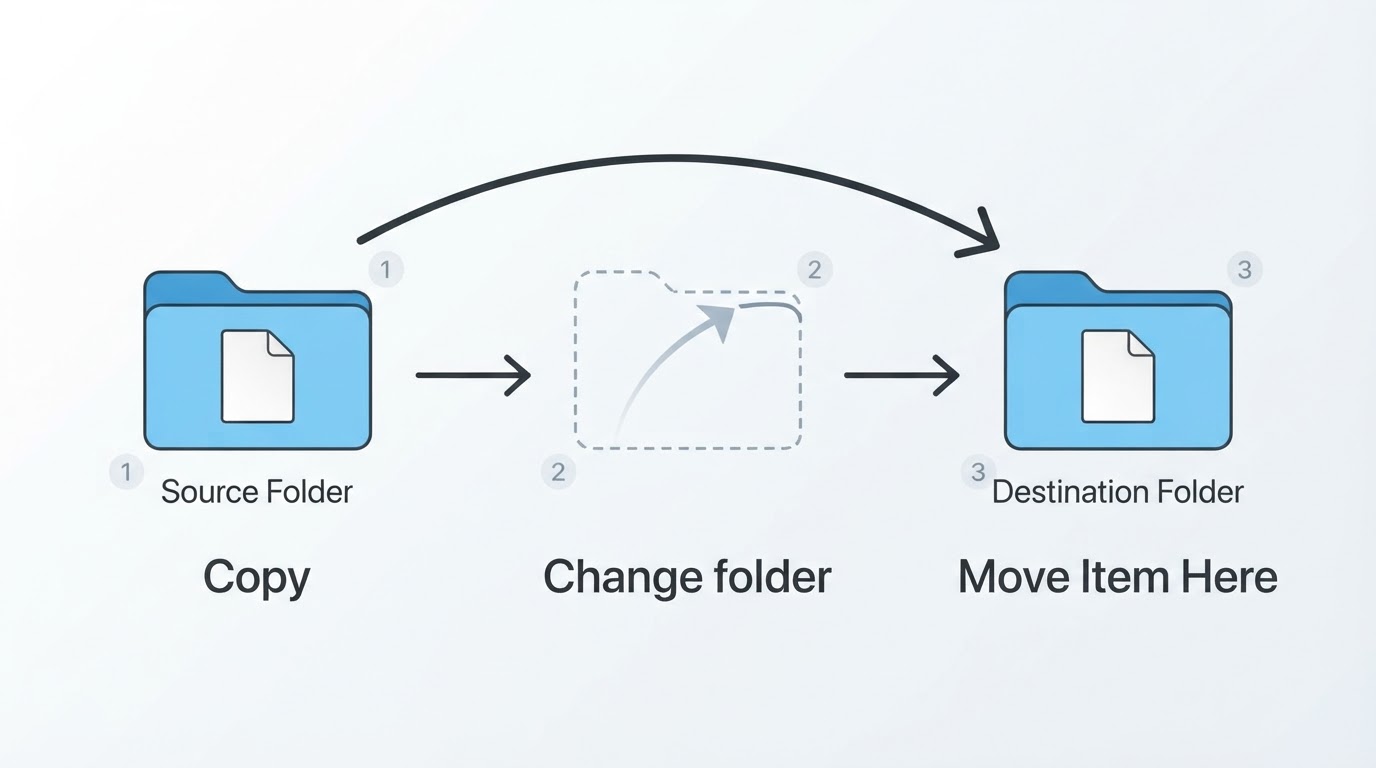
The drag route uses a modifier. Dragging a file to another folder on the same disk moves it. Hold Option while you drop, and Finder makes a copy instead and leaves the original in place. Drag to a different disk and the default flips: a plain drag copies, and holding Command moves the original. The cursor changes as you drag, but it is still worth checking the destination folder name before you let go.
The attachment route handles files that are leaving the Finder entirely. Copying a file and pasting it into Mail attaches it to the message. In that context you are not moving anything, and the original is untouched.
One detail about cross-disk moves: when the destination is another volume, a move is really a copy followed by a delete. Large files take time, and interrupting the process can leave you with two partial copies. On the same disk, a move is instant because only the file's location changes.
The Edit menu and Control-click equivalents
Every keyboard shortcut has a menu twin, which makes the menu bar the fastest way to learn what an app supports.
Open the Edit menu and you will find Cut, Copy, Paste, and Paste and Match Style, each with its key combination shown on the right. The menu is also honest about limits: when the current selection cannot be cut, Cut is dimmed. That grey state tells you the same thing the alert sound does when you press Command-X on a Finder file.
Control-click, or right-click with a mouse, or two-finger click on a trackpad, opens the contextual menu for whatever is under the pointer. On a text selection it offers Cut, Copy, and Paste. On a file or folder in Finder it offers Copy, along with Rename, Compress, and the other file actions, but no Cut. Some apps add their own entries, such as Copy Link or Copy Image Address in a browser, and those options reveal which formats an app is willing to place on the clipboard.
If you cannot remember a shortcut, the menu will teach it to you in one look. If a command is missing from the menu entirely, the app does not support it, and no keyboard combination will bring it back.
Paste behavior across apps: text, files, and images
The clipboard can hold more than one representation of the same item, and the app you paste into picks the one it understands. That single fact explains most "paste did something strange" moments.
Text
Rich-text apps such as Pages, Word, Notes, and Mail keep the source formatting by default and honor Paste and Match Style when you ask for it. Plain text editors and code editors take the characters and silently drop the rest. Browser fields and web apps decide for themselves: some strip formatting, some accept HTML, and some, password fields especially, block pasting altogether. Terminals always receive plain text, and several of them ask for confirmation before pasting text that contains line breaks, because a single paste can contain a whole list of commands.
Files
Pasting a copied file into Finder creates a duplicate in the current folder; if a file with that name already exists, Finder appends "copy" or a number. Pasting a file into Mail adds it as an attachment, and pasting it into a text editor usually produces the file's name or path, if anything at all, because the editor has no use for binary data. Command-Option-V is the escape hatch in every folder view: it moves the file instead of copying it.
Images
Copy an image from a web page or an image viewer, and image-aware apps paste it as an image you can resize and move. Pasting that same clipboard content into a plain text editor does nothing, because there is no text representation to insert. Copying an image file in Finder is a different operation from copying the image itself: some apps paste the picture, others attach the file, and some ignore it. When a paste looks empty, the clipboard usually holds a format the destination does not accept.
When paste does nothing: quick checks
What you see | Likely cause | What to do |
|---|---|---|
Command-X does nothing in Finder | Cut is unavailable for files | Press Command-C, then Command-Option-V at the destination |
Command-V does nothing anywhere | The clipboard is empty or the app cleared it on quit | Copy the item again from the source |
Pasted text keeps foreign fonts and colors | You used Command-V in a rich-text app | Press Option-Shift-Command-V instead |
A pasted file shows up twice | You copied and pasted instead of moving | Delete the duplicate and move the file with Command-Option-V |
Paste is dimmed in a password field | The field blocks pasting by design | Type the value manually; this is a deliberate security choice |
A second item will not paste | macOS keeps one clipboard item | Copy the item again; the previous one was replaced |
Practice run: check your work in five minutes
A short drill proves every shortcut in this guide on your own Mac.
- On a styled web page, select a bold heading and press Command-C.
- Open Notes and paste it with Command-V. Paste the same text again with Option-Shift-Command-V. The second version should adopt the note's font instead of the web page's.
- In Finder, copy a small file with Command-C, open a different folder, and press Command-Option-V. Then check the original folder: the file should be gone from there and present once in the destination, with the same size and modification date.
- Copy an image from a web page, paste it into Notes, then paste it into a plain text editor. It should appear in the note and nowhere in the text editor.
The finish line: two text versions that look different, one file that exists in exactly one place, and an image that only lands where the app understands images. If all three checks pass, the shortcuts in this guide are working on your machine. If the file move failed, the file is still in the original folder, which is exactly what the copy-first design is meant to guarantee.


