The short answer: double-press, then swipe up
Closing a running app on Apple TV takes about five seconds, and it is one continuous gesture rather than a menu command. Double-press the TV button on the remote — two quick presses, not one press held down. A horizontal row of app cards slides into view from the bottom of the screen. That row is the app switcher, and it holds the apps tvOS is still keeping open. Swipe left or right on the touch surface or clickpad until the app you want to quit is highlighted, then swipe up on that card. The card lifts and flies out of the row, and the app stops running.
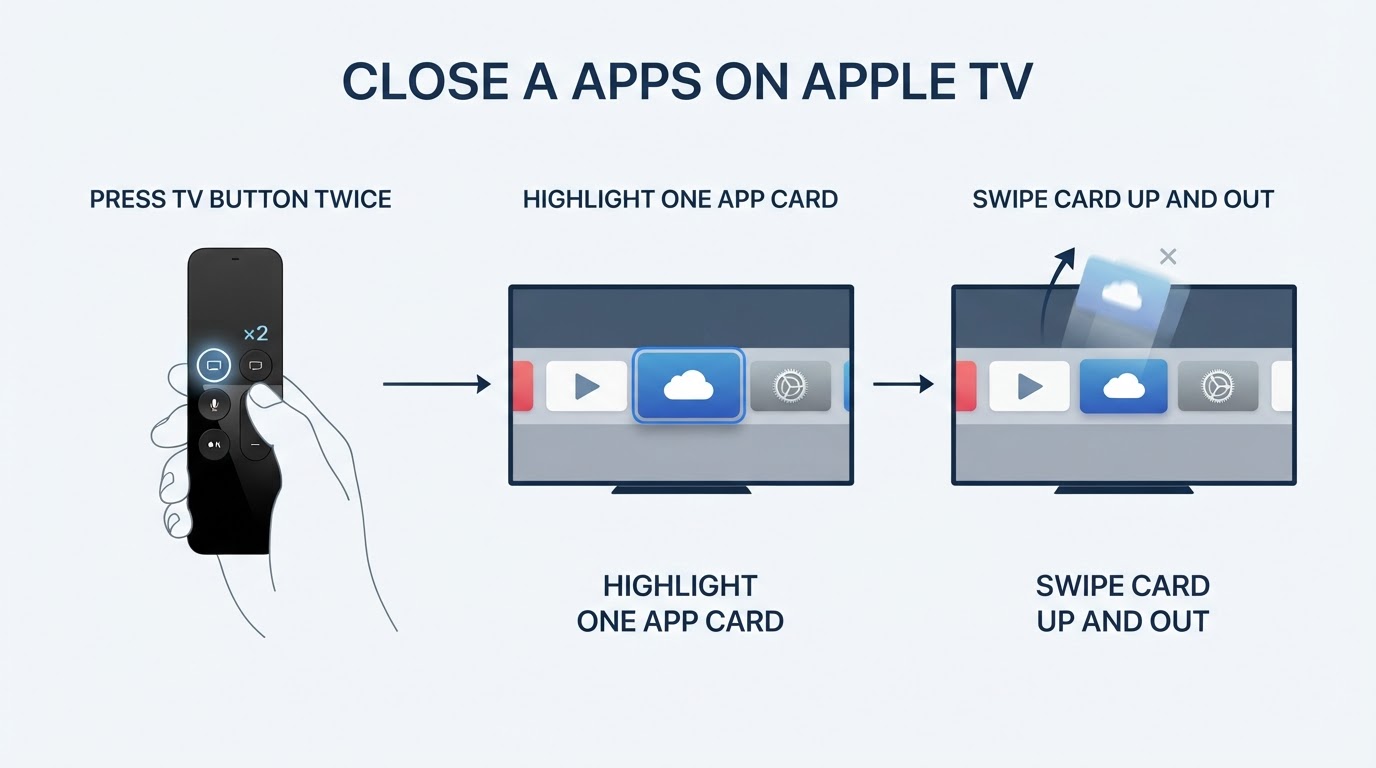
Whether you phrase it as closing apps in Apple TV or as closing Apple TV apps, the gesture is the same one, and the row behaves the same way on current Apple TV 4K and Apple TV HD hardware running a recent tvOS release.
One detail is worth fixing in your head before you try it: the swipe is what closes the app. A tap selects the card and takes you back into the app, which can look like the gesture failed when it did not.
Close a running app, step by step
If you prefer a procedure with checkpoints rather than the one-paragraph version, work through these five steps.
- Wake the Apple TV. Press any button on the remote so the screen is active and you can see the result of each step.
- Double-press the TV button. Two presses in a quick, even rhythm. The app switcher row should appear across the bottom of the screen.
- Move to the app you want to close. Swipe left or right to walk the highlight along the row. The highlighted card — not the app playing behind it — is the one that will close.
- Swipe up on the highlighted card. One deliberate upward flick. The card leaves the row and the app quits.
- Confirm the result. The card is gone from the switcher. Relaunch the app and it starts from its own loading screen instead of resuming exactly where you left it.
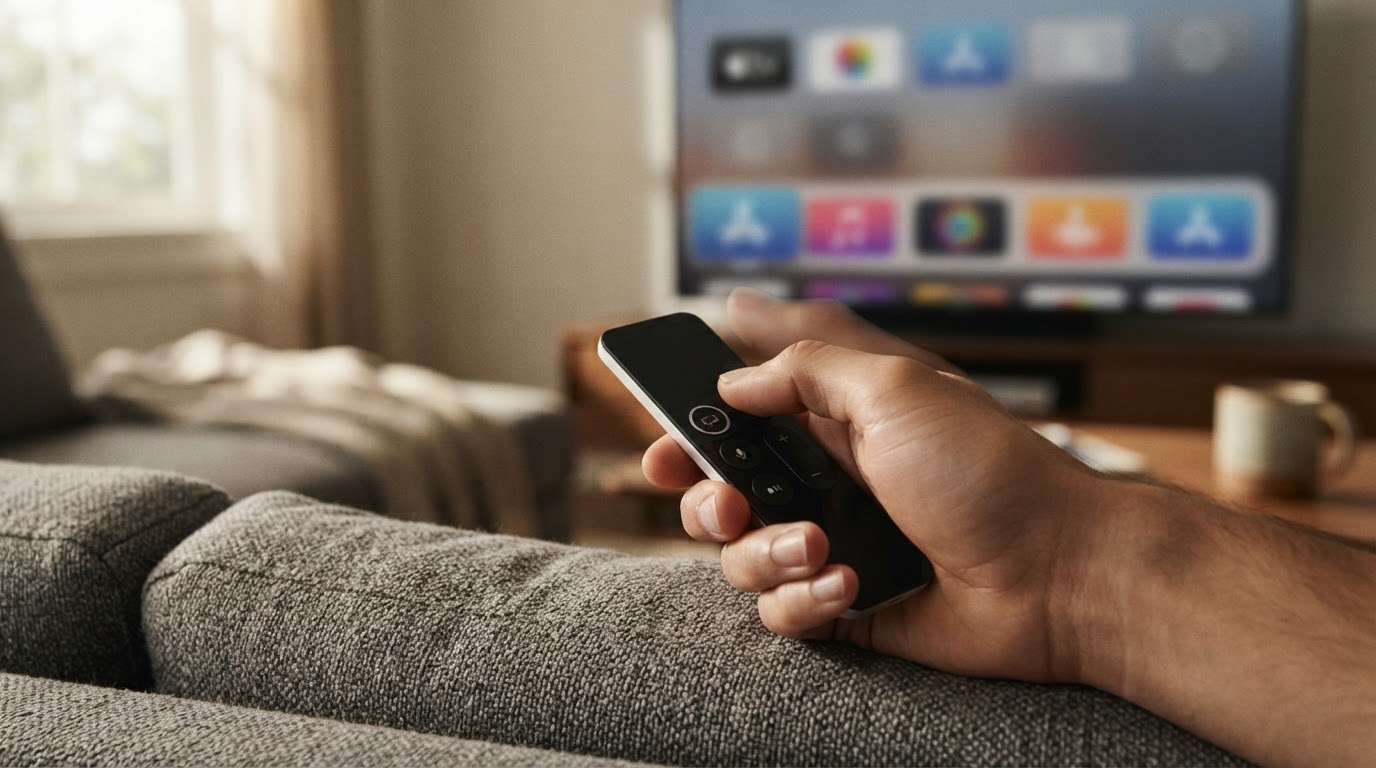
Two failures are common, and both come from the gesture rather than from the Apple TV. A double-press that is too slow registers as two separate presses, so focus moves instead of the switcher opening. And tapping the card, or swiping down, reopens the app rather than closing it. Press the TV button once to step back and repeat the gesture.
What the app switcher is actually showing you
The row that appears after the double-press is not the Home screen. The Home screen lists every app installed on the Apple TV; the app switcher lists only the apps that are currently suspended in the background. An app you have not opened since the last restart will not be in the row, which is useful feedback in itself: if an app is not in the row, there is nothing to close.
That difference explains why the gesture is so short. You are not browsing installed software or managing storage — you are looking at a short list of live sessions and ending one of them.
Closing is not deleting
The most common confusion around this gesture is what it leaves behind. Force-quitting an app ends its running session only. The app stays installed, its icon stays on the Home screen, and its settings, sign-ins and saved data are untouched. Removing an app from the Home screen is a separate action that deletes the app and its local data, and it is a different task from the one described here.
What you do | What it ends | What it keeps |
|---|---|---|
Close the app (double-press, swipe up) | The running session | The app, its data, and its Home screen icon |
Restart the Apple TV | Every running session | The app, its data, and its Home screen icon |
Delete the app (remove from Home screen) | The app and its local data | Nothing — the app must be installed again |
Keep the first and third rows apart. If your goal is to stop an app from misbehaving right now, close it. If your goal is to stop it existing on the device at all, that is deletion, not closing.
It is also worth being honest about how often closing is needed. tvOS manages memory on its own, and a suspended app normally costs nothing you can measure. Closing is a troubleshooting gesture, not housekeeping: use it when an app is frozen, misbehaving, or needs to start from a clean state — for example after changing a setting that only takes effect at launch. Closing apps one by one on a schedule is not required, and it will not make the Apple TV faster.
If the app will not close
Most failed attempts are gesture problems. Check these in order.
- The row never appears. The double-press was probably too slow. Press the TV button twice in one quick rhythm, as if typing the same key twice.
- Nothing closes when you swipe. Find the highlighted card first. The swipe acts on the highlighted app, not on the app visible in the background.
- The wrong app closes. Move the highlight one card at a time and pause before the swipe; the highlight is easy to lose when you swipe quickly.
- The remote stops responding. Check that it is charged and still paired. A remote that was just recharged or re-paired can need a moment before it registers again.
- The app still refuses to close. Restart the Apple TV and try the app once more. Open Settings, go to System, and choose Restart — the exact label depends on your tvOS version, so if you cannot find it, look up the restart steps for your specific model on Apple's support site. A restart ends every suspended session, including the stubborn one.
- The app freezes again immediately. That points to the app or its data rather than to the switcher. Check for an app update before assuming the gesture is at fault.
Remote generations: what changes and what does not
The double-press gesture assumes a remote with a TV button and a touch surface or clickpad for the swipe. That is the modern Siri Remote shipped with current Apple TV models, where the button and the surface are exactly what the gesture needs. The concept — open the row of running apps, highlight a card, swipe it up — has been stable across recent tvOS releases.
Older Apple TV remotes are a different story. Their button layout and swipe surface differ, and the app-switcher button is not always labelled "TV". Because those details vary by model, the responsible move is to check the remote in your hand against Apple's support documentation for that specific Apple TV generation rather than following a generic diagram. If your hardware is several generations old, confirm that the app switcher is available in your tvOS version before assuming this gesture applies.
Quick recap
- Double-press the TV button to open the row of apps that are still running.
- Swipe left or right to highlight the app card.
- Swipe up on the card to close that app.
- The card leaving the row is the confirmation, and the app remains installed.
- Use closing for stuck or misbehaving apps, not as regular maintenance.


