What you need before you start
Installing an app on Apple TV happens on the device itself: the App Store downloads it over your network and adds it to the Home screen. Before you start, confirm three things.
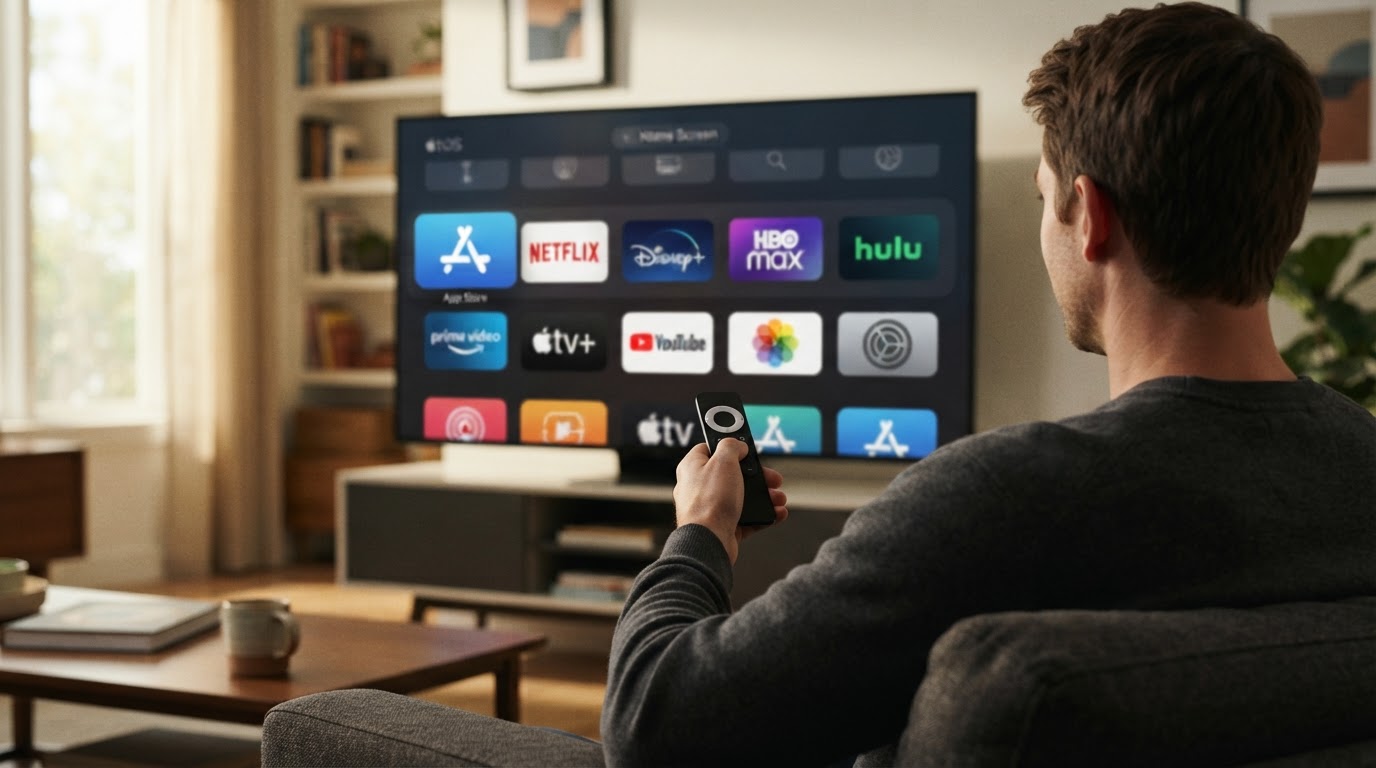
- A tvOS-based Apple TV. The App Store is available on Apple TV HD and Apple TV 4K, which run tvOS. Older Apple TV generations that predate tvOS do not include the App Store, so the steps below do not apply to them.
- An Apple ID signed in on the Apple TV. App Store downloads are tied to the account that is signed in on the device. Creating that account and setting up family sharing sit outside this guide.
- A working internet connection and the remote. Downloads go through the Apple TV's Wi-Fi or Ethernet connection, and every step below uses the remote.
App availability can also depend on the store region tied to your account: an app listed in one country's store may not appear in another. If a well-known app is missing later in these steps, that region difference is one of the first things to check.
Step 1: Open the App Store from the Home screen
Press the Home button on the remote to return to the Home screen, then move across the top row of apps until the App Store icon is highlighted and select it.
If the App Store icon is not immediately visible, look through the other app rows on the Home screen before assuming it is missing. Built-in app icons can sit in different positions depending on the tvOS version and how the Home screen has been arranged, so a specific position is not a reliable signal on its own.
Step 2: Browse or search for the app
Once the App Store is open, you have two ways to find what you want:
- Browse. Use the store's featured, category, and chart rows to move through apps grouped by type, such as entertainment, games, or utilities.
- Search. Select the Search tab, type the app name with the on-screen keyboard, and select the matching result. Search is the faster route when you already know which app you want.
Before you select an app, check the listing for the developer name and the description text. App names get reused and imitated, and the listing is where you confirm you have the right one.
Step 3: Select Get or the price button
With the app's listing open, move to the primary button below the app icon and description:
- A free app shows Get.
- A paid app shows its price instead of Get.
Select that button to start the download. Depending on the Apple TV's settings, the store may ask you to confirm the action or to sign in again before the download begins. Complete that prompt, and the button changes to show that the app is being installed.
The button label tells you what the download itself costs. Apps that are free to download can still have paid features inside them, and the listing is where those details appear, so it is worth reading the description before you select the button rather than after.
Step 4: Open the app and confirm the install finished
Installation runs in the background, and the app appears on the Home screen when it is done. You have a finished install when all three of these are true:
- The button in the App Store listing reads Open instead of Get or the price.
- The app's icon appears on the Apple TV Home screen alongside the built-in apps.
- Selecting the icon or the Open button loads the app's own first screen instead of returning you to the store.
If the button still shows an Installing state, wait a little longer before treating it as a failure. A slow or interrupted connection is the most common reason a download stalls. Check the Apple TV's network connection, then reopen the app's listing and select Get or the price again if the install did not resume.
If the App Store or the Get button is missing
Two different problems can look the same here, and they have different checks.
The App Store is not on the Home screen at all. Confirm the device is an Apple TV HD or Apple TV 4K running tvOS. If it is, check the software version and install an update if one is available, because the App Store's arrangement and labels can change between tvOS releases. Menu wording differs slightly across versions, so look for the software update and device information entries inside Settings rather than relying on one exact path.
The listing has no Get or price button. This usually means the app is not available in your account's store region or is not offered for tvOS. Compare the app in another device's store if you have one, or look for an alternative that covers the same task.
Frequently asked questions
Do I need an Apple ID to add apps to Apple TV?
The App Store uses the account signed in on the Apple TV, so a device-level sign-in is normally part of the setup. Creating and sharing that account sits outside this guide; if the store asks you to sign in during a download, complete that prompt first and then repeat Step 3.
Can I install an app that is not in the App Store?
Apple TV installs apps through the App Store. There is no general sideloading path for regular users, so an app that is absent from the store cannot be added with these steps.
Why does the button show a price instead of Get?
The button shows what the download costs. Get means the app is free to download; a price means the store treats it as a paid app. Free downloads can still include paid features inside the app, which the listing describes.
Where do installed apps end up?
New apps are added to the Apple TV Home screen. They are not filed into a separate folder by default, so the Home screen is the first place to look after an install.
A short recap
To add apps to Apple TV, open the App Store from the Home screen, browse or search for the app, select Get or the price, and confirm the download. Treat the install as finished when the button reads Open, the new icon appears on the Home screen, and selecting it opens the app itself. If a step looks different on your device, check the tvOS version first: the workflow stays the same across versions, but labels and icon positions can move.


