What a right-click means on a Mac
macOS calls this action the secondary click. A Mac trackpad has no second button, so Apple maps the same contextual menu to a modifier key, a two-finger gesture, and — on an external mouse — the right button. The menu is not a fixed list either: it is assembled from whatever sits under the pointer, whether that is a file in Finder, an empty patch of the desktop, a Dock icon, a link in a browser, or a misspelled word in a document.
The practical consequence is that "how do I right click on a Mac" has more than one correct answer. Pick the method that matches the hardware in front of you, and confirm every method the same way: if a contextual menu opens, the secondary click worked.
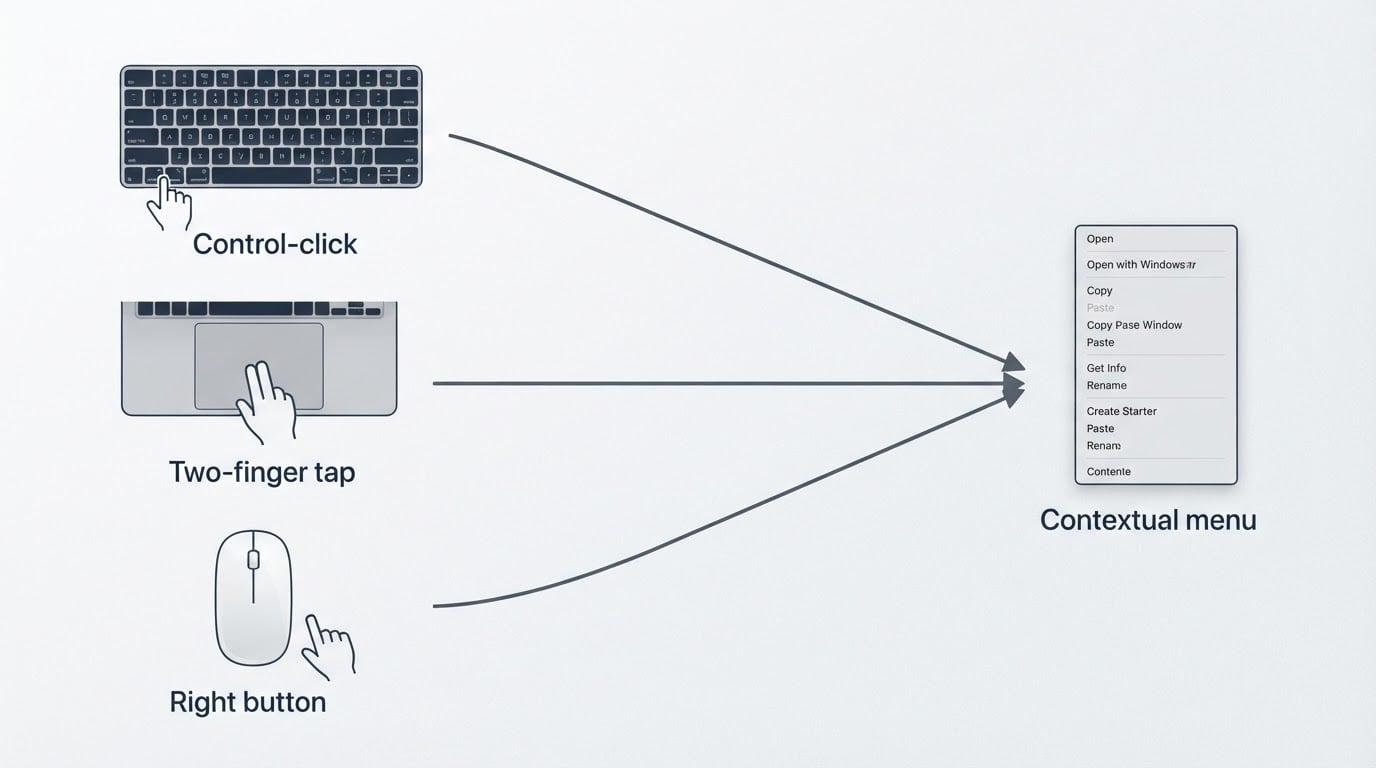
Method 1: Control-click works on every Mac
Control-click is the method that never depends on a setting. It works on every Mac laptop and desktop, with a trackpad, a Magic Mouse, or a third-party mouse, and it keeps working when trackpad gestures are turned off. If you remember only one thing from this guide, remember this one.
- Point at the item you want to act on.
- Hold down the Control key.
- Click once with your normal click — press the trackpad down, tap it if tap-to-click is enabled, or press the left mouse button.
- Release the Control key, then choose a menu item with an ordinary click.
The menu stays open after you release Control, so you do not need to hold the key while reading it. The same click works on the desktop ("New Folder"), a file in Finder ("Open With", "Get Info"), a Dock icon (the app's own menu), and selected text (look-up and Services items).

Two habits cause most Control-click failures. Moving the pointer while Control is still held can start a drag instead of a menu, so click and stop. And the menu always opens at the pointer, not at the frontmost window, so a menu that "does not appear" may simply have opened behind the window you were looking at.
Method 2: Two-finger tap or click on the trackpad
If you would rather not hold a key, a two-finger gesture on the trackpad sends the same secondary click — once it is switched on. Whether you are searching for how to right click on a Mac or how do you right click on a Mac, this is the method most people end up using on a laptop.
Where the setting lives:
- Open System Settings from the Apple menu.
- Go to Trackpad → Point & Click.
- Turn on "Secondary click" and choose the gesture from its menu: "Tap with two fingers", "Click with two fingers", "Click in the bottom-right corner", or "Click in the bottom-left corner".
"Click with two fingers" means pressing the trackpad down with two fingers; "Tap with two fingers" uses a light tap. If one option does not respond the way you expect, switch to the other and test again.
To confirm the setting, click on an empty part of the desktop with two fingers. A menu with options such as "New Folder" should appear. The desktop is the safest test target because it always has a contextual menu of its own; if the gesture works there but not somewhere else, the problem is the item or the app you clicked, not the trackpad.
Keep one trade-off in mind: this method travels with the settings on that Mac. Turn off Secondary click, or sit down at a different machine, and the gesture stops producing a menu — while Control-click keeps working everywhere.
Method 3: The right button on an external mouse
With an external mouse, the answer is usually just the right button. On most mice, the right button is mapped to the secondary click as soon as the mouse is paired or plugged in, and no Mac setting is involved.
If the right button does nothing, or if you use a Magic Mouse whose right side seems inert:
- Open System Settings → Mouse.
- Find the "Secondary click" control.
- Choose "Click Right Side" — or "Click Left Side" if you prefer to trigger the menu with the other button.
It is worth checking that control after a macOS upgrade, because a mouse that worked before can reset. Extra buttons, gesture buttons, and per-application button mapping are a different job from making a right-click work, and they belong to the utility that came with the mouse rather than to this guide.
Which method should you rely on?
The three methods produce the same result, but they fail in different ways:
Method | Hardware | Setup | Best for |
|---|---|---|---|
Control-click | Any Mac and any pointing device | None | One-off use, an unfamiliar Mac, troubleshooting |
Two-finger tap or click | Built-in multi-touch trackpad | Secondary click enabled in Trackpad settings | Everyday use on your own MacBook |
Mouse right button | External mouse | None, unless the button was remapped | Desktops and long sessions |
The settings-based methods are faster once configured, but they fail silently when a setting changes or when you move to another Mac. Control-click is the fallback that always works. Set up the gesture you like for comfort, and keep Control-click as the habit that gets you out of trouble.
When the menu does not appear
When the menu does not appear, the cause is usually the click target, the gesture setting, or the app itself. Work through this list in order:
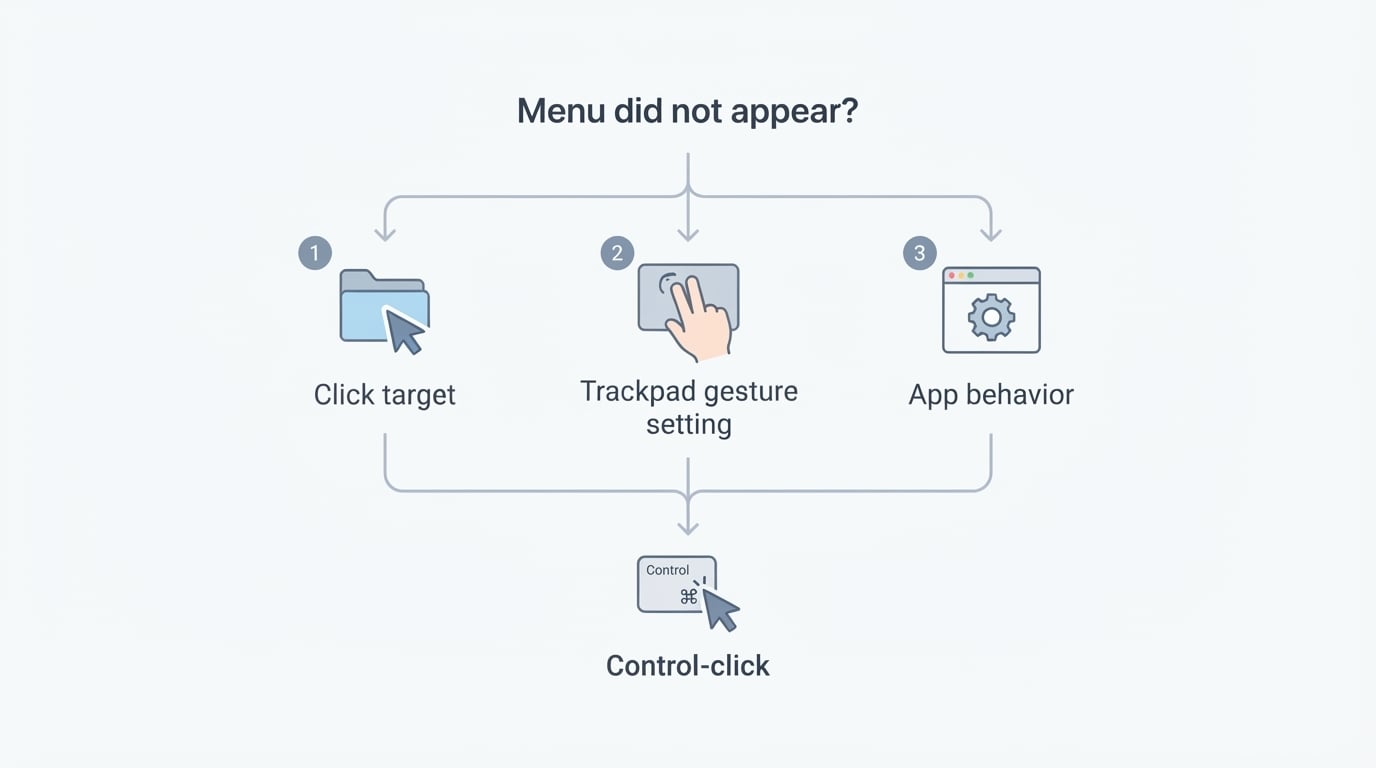
- Check the target. Some surfaces have no contextual menu of their own — an empty toolbar, a status indicator, or a decorative image. Move to a file, a folder, the desktop, or a link and try again.
- Check the gesture, not the hardware. If Control-click opens a menu but a two-finger tap does not, the trackpad setting is the problem, not the trackpad. Revisit Trackpad → Point & Click and confirm which option is selected.
- Check the app. Some apps replace the system menu with their own or suppress it on certain surfaces, such as a drawing canvas, a video player, or a full-screen game. In that case, use the app's own toolbar or menu bar — the system menu is not meant to override it.
- Rule out a remapped input. A mouse utility or another input tool can intercept the right button or a held modifier key. Quit that utility and test again; if the menu returns, remap the button in the utility rather than in macOS.
- Reset the surface. Quit and reopen the app. If the menu is missing in every app, restart the Mac before assuming a hardware fault.
Version check: the labels to look for
Settings moved in macOS Ventura, when System Preferences became System Settings, and a few panel names changed with it. The labels that matter for a secondary click have stayed stable, so this table is mostly a map of where to look:
macOS release | Settings app | Trackpad path | Control label |
|---|---|---|---|
macOS 13 Ventura or later | System Settings | Trackpad → Point & Click | Secondary click |
macOS 12 Monterey or earlier | System Preferences | Trackpad → Point & Click | Secondary click |
External mouse, any release | System Settings or System Preferences | Mouse | Secondary click |
Menu names inside apps vary more than settings names do: some say "right-click", some say "secondary click", and a localized Mac translates both. What matters is the location, not the wording. If you cannot find the panel at all, type "Trackpad" or "Mouse" into the search field in the Settings toolbar and open the first result.
How to verify in under a minute
- Control-click the desktop. If a menu appears, the Mac responds to secondary clicks, and the problem — if there is one — is elsewhere.
- Two-finger click the desktop. If a menu appears, the trackpad gesture is enabled.
- Right-click with the external mouse. If a menu appears, the button is mapped.
If two of the three work, you know exactly which setting or device to fix. If none of them work, test in a second app before you restart: a single app that suppresses the menu is more common than a Mac that has stopped responding to secondary clicks altogether.


