What the notch shelf is for
Dragging a file from one window to another is simple when both windows are visible and the destination sits one step away. It stops being simple when the destination is a full-screen app on another Space, a chat window buried behind three others, or a folder you have not opened yet. Holding the mouse button while you hunt for the target is the part that fails, and the drag is cancelled at the worst possible moment.

A notch shelf removes that pressure. You drop the file on the notch at the top of the screen, let go, and keep working. The file waits there until you pick it up again. droppy is built around exactly this idea: the notch becomes the place where a drag can pause.
The change looks small, but it alters the order of the task. Instead of arranging two windows side by side before you begin, you collect files first and distribute them second.
How the staging loop works
The loop has five parts: start a drag, hover the notch, let the shelf appear, drop the files, and drag them out later.
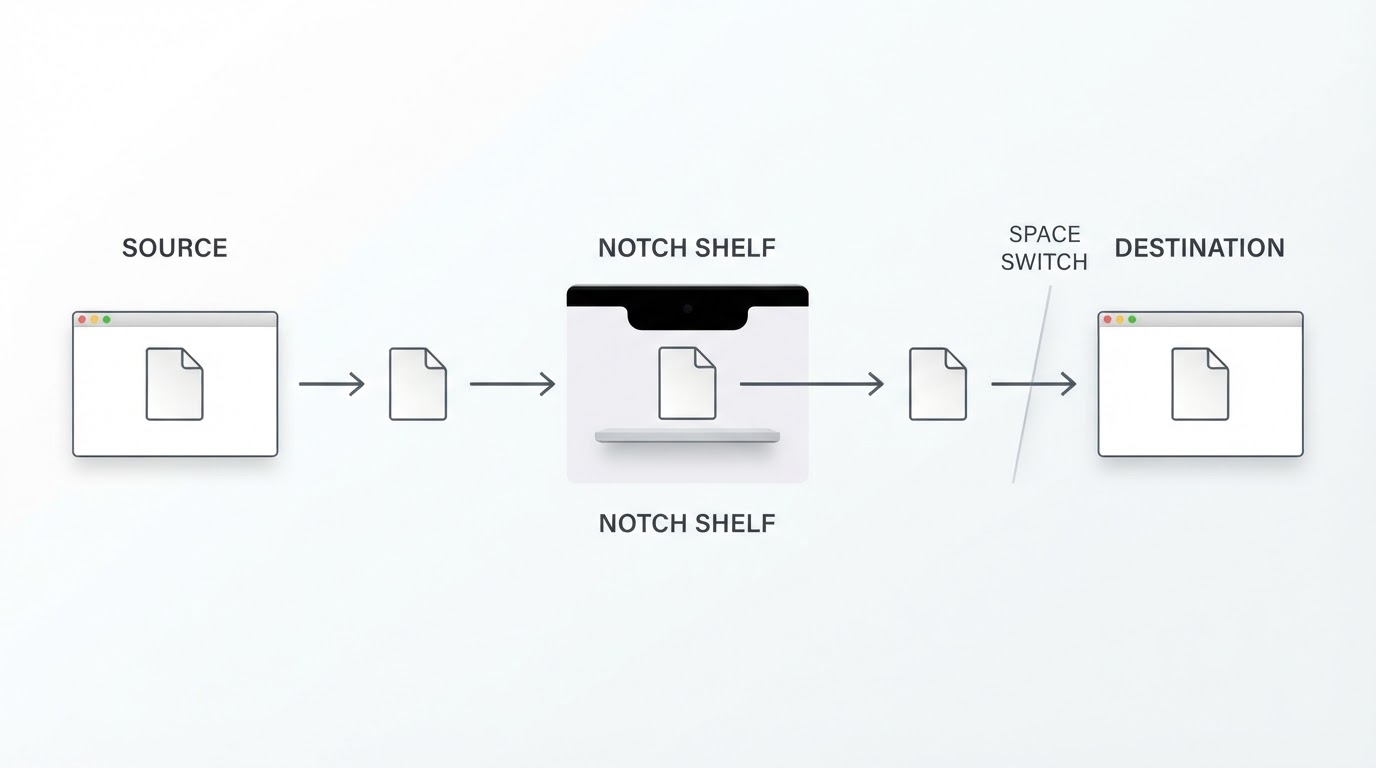
In practice the sequence runs like this. You select one or more files in Finder, a download list, or an image browser and begin dragging. While the drag is active, you move the pointer to the notch at the top of the display. The shelf opens, you release the files into it, and the drag ends cleanly. The files stay in the shelf while you switch to the window or Space where they belong. When you arrive, you drag them out one last time and drop them on the destination.
The point of the middle step is the release. Releasing the mouse button ends the fragile part of the interaction. Everything after that is a normal drag from a shelf that is already open.
Judge the fit of any shelf app by three checks before you rely on it for real work:
- Drop a single file, then switch to another app and back. Confirm the file is still there.
- Drop three or four files at once, including one with a long file name. Confirm the shelf keeps the whole batch together.
- Pick the batch back up and drop it into a folder. Confirm the files land where you expect and that nothing was renamed.
Failing any of those checks does not make the tool useless, but it tells you how much of your workflow the shelf can carry.
Multi-file drops and mixed selections
A shelf earns its place when it accepts a batch. Dragging a dozen screenshots out of a folder one at a time is slower than dragging the folder itself, so the useful test is a mixed selection: images, a PDF, and a folder in one drag.
Two things deserve attention. First, the shelf should show you what it is holding, so you can see that five items went in and five items come out. Second, order matters when the destination is a list, an upload form, or a numbered sequence. Check whether the shelf preserves the order you selected, and if it does not, drag items out one at a time where order matters.
Full-screen apps, Spaces and second displays
This is where shelf behaviour differs most between tools, and where assumptions cause the loudest frustration. A shelf that sits at the notch is tied to a physical area of one display. macOS spreads work across Spaces, full-screen apps, and any external monitors you have connected.
Test the awkward cases on your own machine rather than trusting a demo:
- Start a full-screen app and try to reach the shelf. If the shelf is not available there, you know to stage files before you go full screen.
- Move to a second Space and repeat. A shelf that follows you across Spaces is doing more work than one that stays put.
- If you use an external display with the lid closed, check where the shelf lives. The notch exists on the built-in display, so a floating basket may be the only part you can reach.
None of these behaviours is universal. They depend on the app, its version, and the macOS release you run, so the first ten minutes of testing tell you more than any feature list.
Installing droppy and the permissions it asks for
Install a notch utility the same way you would install any small Mac app: from the project's own site or a package source you already trust.
If you prefer a package manager, check that a Homebrew cask exists and who maintains it before you install. Casks are community-maintained more often than not, and a cask can lag behind the current release while pointing at an older build. When the official site offers a signed and notarised download, that is the copy to compare against.
Expect macOS to ask questions on first launch. A staging shelf receives dragged files and draws itself over other windows, so it will request some form of system access. Two rules keep that process honest. Grant only what the app explains, and prefer a permission that can be revoked later over one that is broadly scoped. If a request looks unrelated to putting files on a shelf, ask why before clicking through it.
After a week of use, open System Settings, review Privacy and Security, and remove any permission the app does not need. This habit costs a minute and limits what a small utility can reach.
Extensions, paid tiers and what to verify first
Notch utilities rarely stop at file staging. The category has grown a bundle of extras: clipboard history, media controls, window shortcuts, system monitors, and extension systems that let users add small modules. Some of those features are free, some sit behind a paid tier, and the line moves between releases.
That is not a reason to avoid the app. It is a reason to verify the specific features you care about before you pay. Three questions cover most of the ground:
- Which parts of the app are free, and which require a licence?
- Does the licence cover future major versions, or only the current one?
- If the paid features are unavailable on an older macOS release, does the free workflow still work?
Answers belong on the project's own pricing page and in its release notes, not in a download listing. Read them before you commit, and treat a missing answer as a reason to test longer before paying.
Where the shelf approach breaks down
A shelf is a pause, not a destination. The files you stage remain ordinary files in their original locations, and the shelf usually holds a reference to them rather than a copy. If the original disappears, changes, or sits on a drive you eject, the shelf cannot restore it.
Four habits follow from that:
- Empty the shelf at the end of a work session. A shelf that doubles as a parking lot stops being useful.
- Test what happens to staged items after you quit the app or restart the Mac. Anything that does not survive should not be the only copy of an important file.
- Keep large batches on the copy's schedule, not the shelf's. Long copies take time, and a shelf does not shorten them.
- Do not treat the shelf as cloud storage or an archive. It does not sync between devices, and it does not organise anything for you. Filing still happens in folders, on a drive, or in a backup.
The last point is the boundary that matters most. droppy and tools like it solve a gap of seconds, not a problem of storage.
The name is not unique: droppy versus the archived storage project
Search for droppy and you will find results that have nothing to do with the Mac app. The name also belongs to an older, now-archived project: a self-hosted file storage server with a web interface. That project is no longer maintained and runs on a server, not on your Mac.
The confusion costs a few minutes if you land on the wrong page. Check three signals before you download anything. The app you want is a macOS application, it is distributed from the project's own site, and it puts files on the notch. A repository full of Node.js server instructions is the other project.
The same trap catches people looking for help. Troubleshooting threads about server ports and Docker containers belong to the archived project. If your problem is a drag that will not release on the notch, you are in the right place.
Should you use it?
Use a notch shelf if your work regularly moves files between windows that cannot be seen at the same time. The classic cases are assembling attachments from several folders before sending an email, collecting screenshots for a report, and moving files from a Finder window into a full-screen editor or design tool.
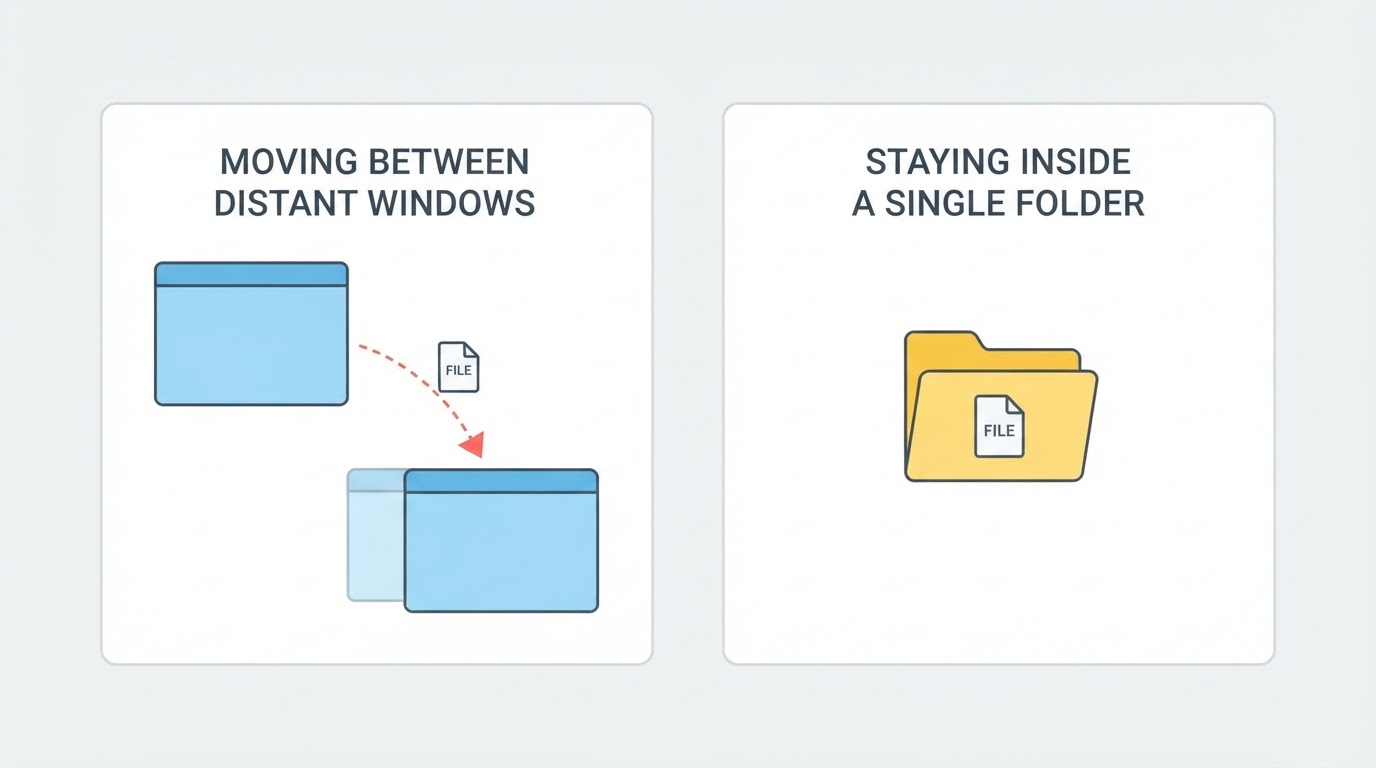
Skip it if your files already live in one place. If you work inside a single project folder and rarely drag across applications, the shelf adds a step without removing one. Skip it as well if you need syncing, versioning, or long-term organisation; those belong to cloud storage, a backup tool, or a disciplined folder structure.
The deciding test is cheap. Install droppy from its official source, spend ten minutes on the checks above, and watch whether the shelf survives contact with your real workflow. A tool that changes how you move files should prove itself on the first day, not after a month of configuration.


