What the Delta iOS app is, and what it is not
Delta is a game emulator for iPhone and iPad. It plays classic console games locally on your device: the games run from files you already hold, and nothing is streamed from a remote server. The app is distributed through the App Store, and its App Store listing is the source of record for the current version, the systems it supports, and the minimum system requirements.
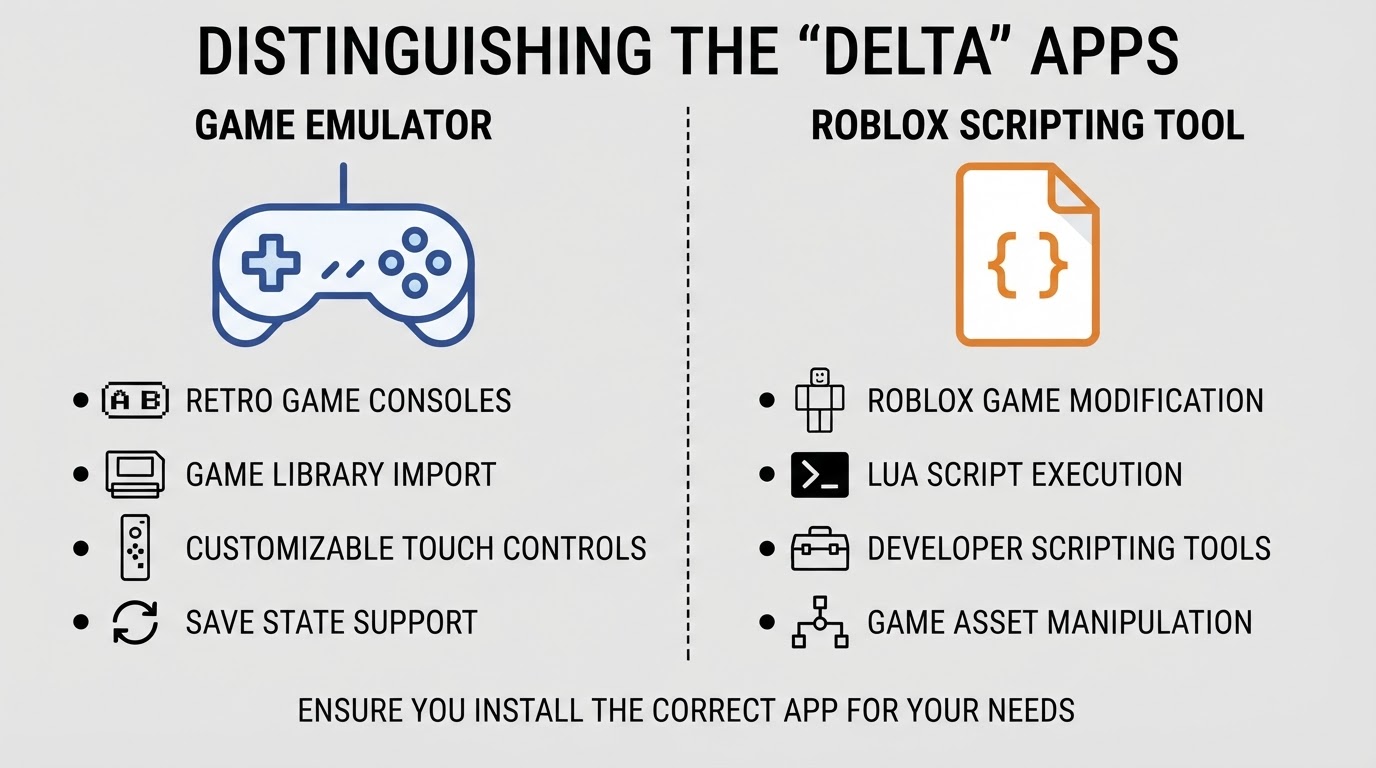
The name is the first obstacle. A search for the emulator routinely surfaces a same-named tool associated with Roblox script execution, promoted from download pages that have nothing to do with the emulator project. The two have different purposes, different distribution channels, and different risks. A page that offers a "direct install" outside the App Store is a warning sign, not a shortcut. An emulator listing talks about game systems, game files, and controllers; a Roblox scripting tool talks about scripts and executors.
Before you tap Get, check three things on the listing: the developer name, the category, and the supported-system description. If none of them describe an app that plays your own game files, close the page and search again.
Which systems Delta emulates
Delta targets the classic Nintendo catalog, and the App Store description is the authoritative list for the version you are installing. At the time of writing, the app covers the handheld lines — Game Boy, Game Boy Color, Game Boy Advance, and the DS family — and the home consoles — NES, SNES, and Nintendo 64. That list grows between releases, so treat the listing and the project's own documentation as the current answer rather than this paragraph.
The games are a separate matter. An emulator is only the player; the game files come from you, and no legitimate version of the app bundles them.
Before you install: a three-item checklist
- A device running a supported version of iOS or iPadOS. The listing states the minimum, and an older device can sit one release below it.
- A game file you are entitled to use. That means a copy made from a cartridge or disc you own, or a title the rights holder distributes for free, such as homebrew releases and public-domain games.
- Storage, and optionally a controller. DS and Nintendo 64 games are the largest; a Bluetooth controller makes long sessions easier.
Install from the App Store
- Open the App Store and search for Delta. Confirm that the listing you open matches the developer, category, and system description you checked above.
- Tap Get, then authenticate with Face ID, Touch ID, or your Apple Account password. App Store installs go through your account, so there is no profile to trust and no file to sideload.
- Wait for the download to finish, then open the app. If the listing does not appear in your region, stop there. A copy from a third-party site is a different build with different provenance, and this guide does not recommend it.
First launch: permissions and setup
The library is empty at first because no games have been imported yet. On the first run, iOS may ask for access to your photos or files when you import a game. Grant access only when a step in the app actually needs it, and choose the narrowest option that works, such as selected items rather than the whole library. A game emulator has no reason to request location, contacts, or background tracking, so any such prompt deserves a second look.
If the app offers an onboarding screen or a settings walkthrough, take it. Controller and skin options live there, and finding them before importing a library is easier than hunting for them later.
Add game files legally
Emulators ship without games. Import a file only when you are allowed to use it, and treat that rule as part of the setup rather than an afterthought.
The import path is short: put the game file somewhere the Files app can see — On My iPhone, iCloud Drive, or another provider — then open it from Files and choose Delta as the app to open it with. Some versions also accept a file through the system share sheet. After the import, the game appears in the library and can be launched.
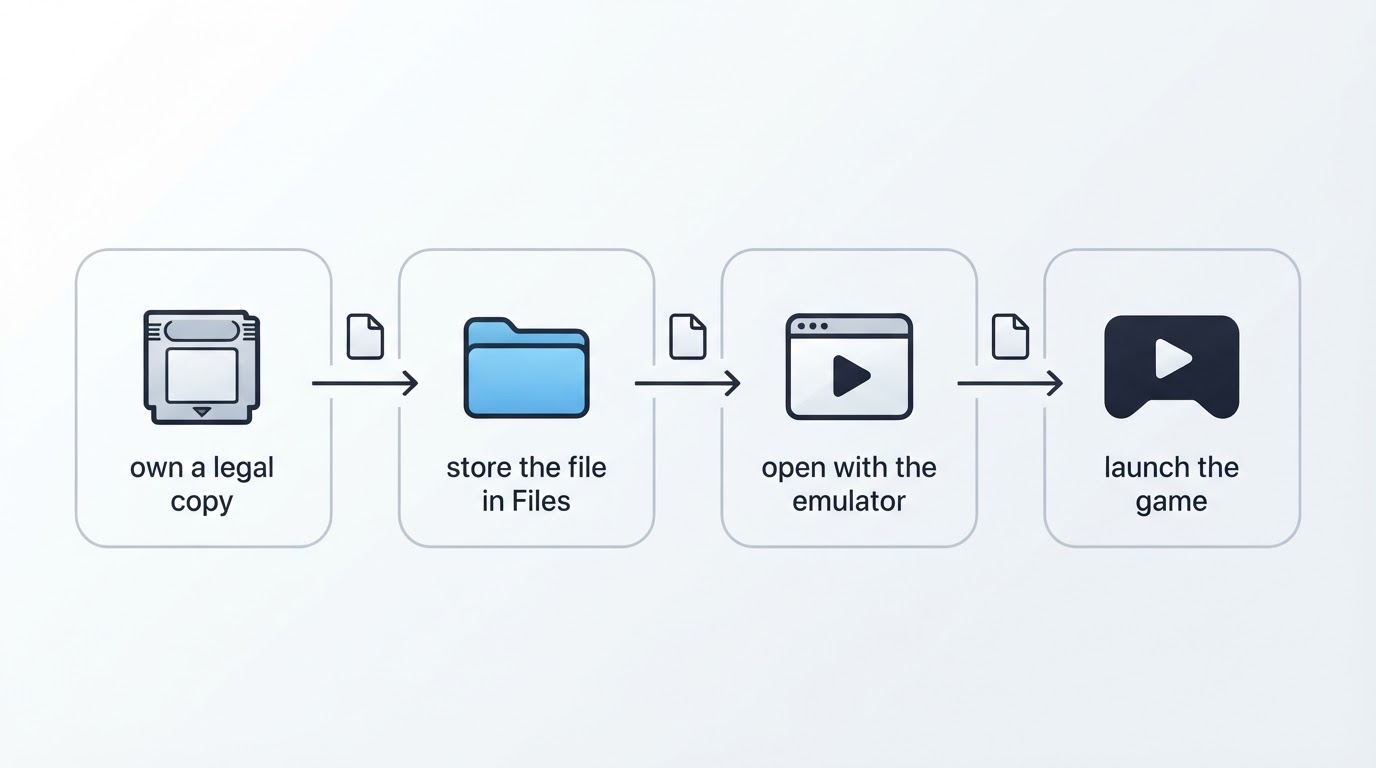
Two practical notes. First, keep the file unzipped if the app refuses it, because archives are not always supported. Second, keep a backup of the folder you import from; a deleted game file is gone, and re-creating it the same way twice is not always possible.
Set up controls: Bluetooth controller or touch
Delta supports both input methods, and the choice changes how the games feel.
Bluetooth controller. Put the controller into pairing mode using its own instructions, then open Settings, choose Bluetooth, and leave that screen open. When the controller appears in the list, tap it and wait for the status to change to connected. Most games then use the controller automatically; if one does not respond, close the app and reopen it with the controller already connected. A few controllers need to be paired again after a firmware update, so keep the pairing step in mind if a controller that used to work stops working.
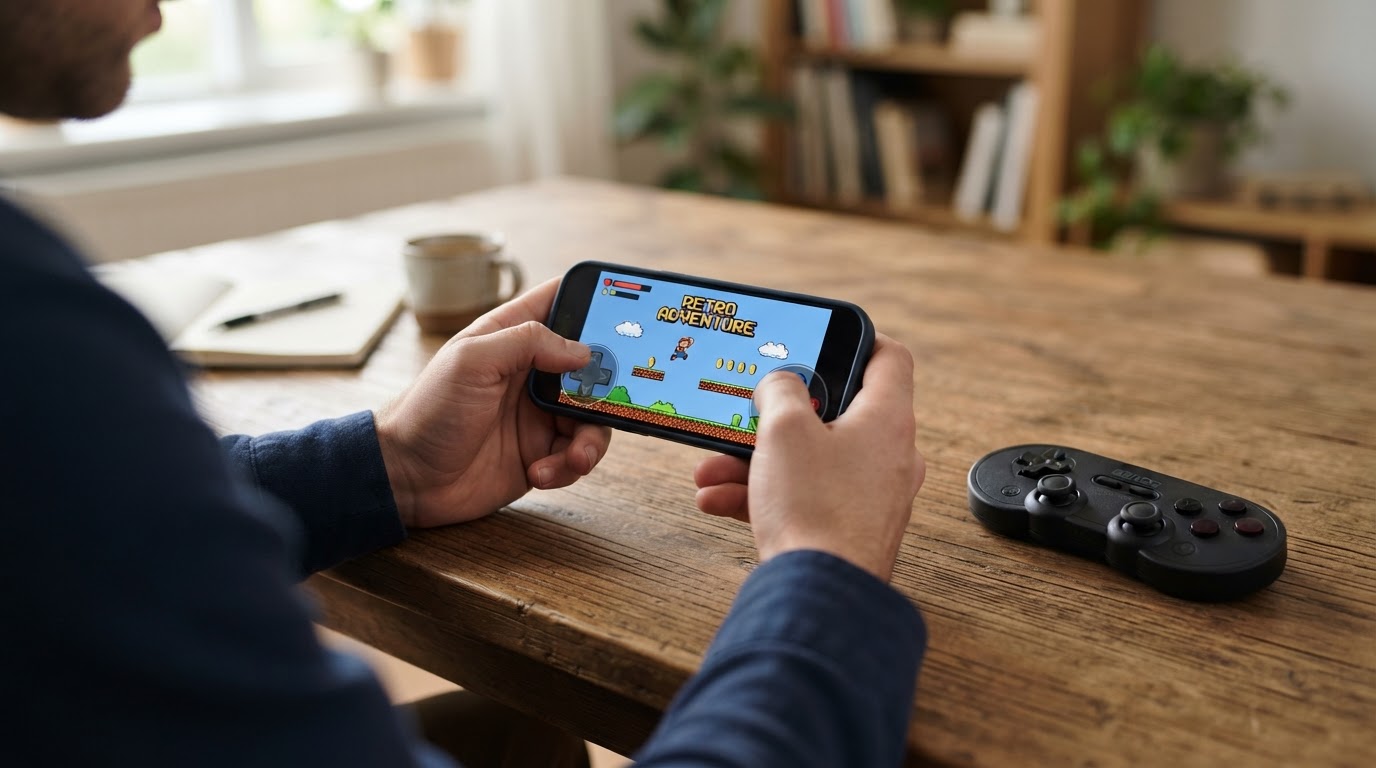
Touch controls. The app draws an on-screen controller over the game. The settings screen holds the skin options, which decide which layout is drawn and how it looks, and the exact choices depend on the console and the version. Compare the available skins rather than accepting the first one: a layout whose buttons sit under your thumbs makes long sessions uncomfortable, and a different skin often fixes that.
The trade-off is real. A physical controller gives you travel, feedback, and a stable grip, which matters most in Nintendo 64 and DS games where inputs are held and combined. The touch overlay costs nothing and works anywhere, and it is fine for slower games, but your thumbs cover part of the screen and fast, precise inputs are harder to repeat. If a game feels unresponsive, try the other input method before blaming emulation.
Limitations worth knowing before you commit
- Performance and battery: emulation is processor work. Long sessions use more battery and warm the device, which is normal rather than a fault.
- Compatibility varies by title: most popular games run well, but an individual title can show glitches, and a release that fixes one game can change another.
- Store installs are the supported path: a build that arrives from somewhere else has no update path through the App Store and no verified provenance.
- Region availability: some apps are listed only in particular countries, so confirm the listing in your own store before planning around it.
- Legal limits: the license of the emulator says nothing about the games. An open-source app can still be used to run files you have no right to keep.
Project facts
Field | Value |
|---|---|
Project | Delta, a game emulator for iPhone and iPad |
Platform | iOS and iPadOS |
Distribution | App Store |
License | To be confirmed from the repository's license file |
Written in | Apple-platform code, primarily Swift |
Version reviewed | Not pinned for this article; check the App Store listing for the current version |
Repository | The project publishes its source on GitHub; confirm the exact repository from the official listing |
Facts checked | No external fact check was completed for this article, so version-specific details are described functionally and should be confirmed against the release you install |
Guide updated | 2026-10-04 |
The block above normally links to the repository and its license file. Those links are deliberately left out until they can be checked against the project's own sources, because an unverified link is worse than no link.
Where this guide stops
This article covers the iPhone and iPad emulator only. It does not cover desktop or Android emulators, and it does not cover game-streaming services, which send video from a server instead of running the game on your device. Those are different tools with different setup steps and different rights questions.
The short version: install from the App Store listing, bring games you are entitled to use, add a controller when the games demand one, and check the project's own repository whenever you need the exact version or license.


