What CrossOver actually does on a Mac
CrossOver is a compatibility layer from CodeWeavers. It implements the Windows interfaces a program expects, so the program runs as a process on macOS rather than inside a separate operating system. The practical difference from a virtual machine is worth stating plainly: no Windows license, no reboot into another OS, and the program's files live in a container on your Mac.
That design has two consequences you will feel immediately. First, there is no full Windows environment to install, patch, and maintain, which is why setup is short. Second, anything that needs kernel-level access — anti-cheat systems, hardware drivers, deep system utilities — generally has nowhere to attach in this model. A compatibility layer translates; it does not become Windows.
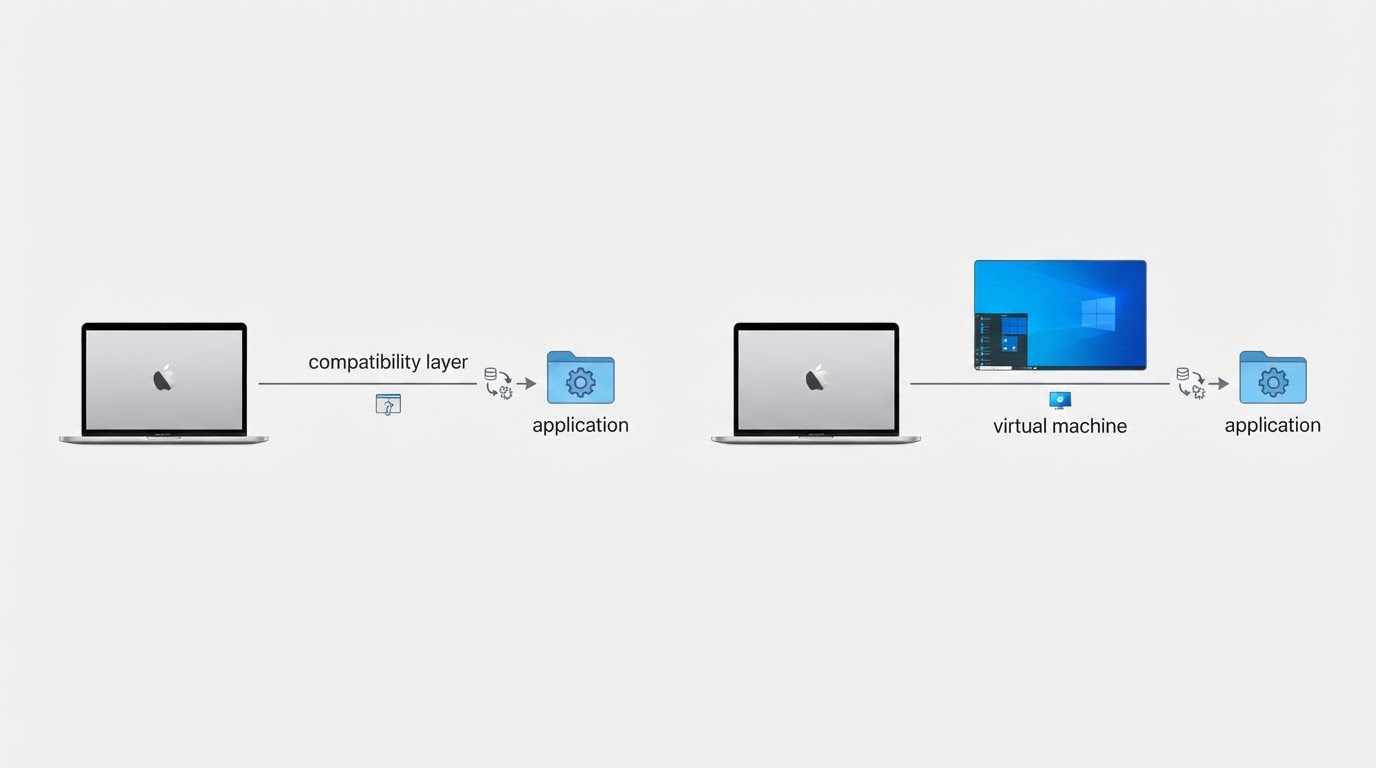
CrossOver is built on Wine, the open-source compatibility layer, and CodeWeavers is a long-standing contributor to that project. If that relationship matters for your purchase decision, confirm the current details in CodeWeavers' own documentation rather than relying on a summary like this one.
Four checks to run before you download
Requirements change between CrossOver releases and macOS versions, so the useful skill is verifying your own configuration rather than trusting a number copied from any article, including this one.
Check | Where to look | What counts as a pass |
|---|---|---|
Mac chip | Apple menu, then About This Mac | You know the exact chip family; support and results differ between Apple silicon and Intel Macs |
macOS version | System Settings, then General, then About | You know the version, the build, and whether it is a beta |
Free disk space | System Settings, then General, then Storage | You have room for the installer, the installed app, and a self-contained environment |
The target app | CodeWeavers' compatibility database, plus recent community reports | You found the exact app version and can see what was actually tested |
Two rows deserve emphasis. A macOS beta is not a supported configuration in the ordinary sense: even when the layer launches, failures are expected to be untested rather than supported, so keep a stable volume or a second Mac if the program is important. And a bottle is not shared storage — it carries its own Windows environment, so the same app can cost noticeably more disk than its macOS equivalent.
Expected result: you can state your chip, your macOS version and beta status, a rough disk budget, and whether the exact app version has a compatibility entry. If any of those is unknown, resolve it before you download anything.
Install CrossOver and create your first bottle
- Download from the official source. Get the build for your chip from CodeWeavers' own download page. Expect a file whose name includes the release version; record that version, because every later troubleshooting step depends on it.
- Install the app. Follow the instructions that come with the download — typically opening the disk image and moving CrossOver into Applications. Expect CrossOver to appear in Applications and to launch. If macOS shows a download-provenance warning, handle it with Apple's documented steps; that prompt is about where the file came from, not whether it will run.
- Start the trial or enter your license. Confirm that the license you have covers the version you installed. Expect a first-run state that offers to install a Windows application.
- Create a new bottle. Treat one bottle as one Windows environment. Choose the Windows version the target program expects — for current programs that is usually a modern Windows release, while older programs may behave better with an older setting. Expect the new bottle to appear in CrossOver's bottle list and to hold its own drive and registry inside your user folder.
- Name the bottle after the job. A name such as
office-2019orsteam-testtells you later which program and version the environment was built for.

The exact labels and window layout change between releases. The actions and the results you should see do not.
Install a Windows program into the bottle
There are two routes, and choosing between them is the main decision in this section.
If the program appears in CrossOver's list of known applications, start there. Those entries carry configuration that a generic install would miss, and they often install common dependencies for you.
If the program is not listed, use a Windows installer you already have — an .exe or .msi file — and install it into the bottle. Point CrossOver at the installer file and let it run inside the environment.
Either way, the result to check is the same: the program appears among the bottle's installed applications, its files land inside the bottle rather than in your Mac's Applications folder, and the first launch is slower than later ones because components are being initialized for the first time. If a program never appears after a successful-looking install, confirm which bottle received it.
Dependencies are where most installs fail. Many Windows programs assume Microsoft runtimes that are not part of the operating system: .NET Framework or the modern .NET desktop runtime, the Visual C++ redistributables, and occasionally an older DirectX component. When an installer closes with no error and no result, install the runtime the program's own documentation asks for into the same bottle and run the installer again. Keep the app and the runtimes it needs in one bottle, and do not mix two programs that expect different Windows versions in the same environment.
Judge compatibility from evidence, not from hope
The official compatibility database is the starting point, but the rating is less useful than the tested configuration behind it. Read the entry for your exact app version, then look at what the tester actually did: install only, or launch, or the specific feature you care about. For games and creative tools, "launches" and "finishes the task you need" are very different claims.
Community reports are the second source, and they are only as useful as their detail. A credible report names the exact app version, the CrossOver version, the Mac's chip, the macOS version and whether it was a beta, and what was tested. A report that omits those details is a lead to investigate, not proof. Because a program can break after a macOS update or a CrossOver update, prefer recent reports over heavily upvoted old ones.
The trial is the cheapest verification you have: install the program in a bottle and perform your actual task — open the file, export the document, connect the device — before paying for a license. A successful launch is not the same as a successful workflow.
This guide does not list programs as working or broken. That claim needs a version-specific basis that could not be verified for this edition, and a bare list without a stated basis is the kind of assertion this site exists to avoid.
Triage the failures you are most likely to see
The installer exits immediately or never opens. The usual cause is a missing runtime or the wrong Windows version setting. Confirm whether the installer is 32-bit or 64-bit, install the runtime the program requires into the same bottle, then retry.
The install completes but the app does not appear. Check the bottle's own installed-applications view, not the Mac's Applications folder. Installing into the wrong bottle is a common mistake once you have more than one.
The app launches and then crashes or shows a blank window. Note the exact point of failure, then check the compatibility entry for documented workarounds such as a graphics or Windows-version setting. If the bottle was used for earlier experiments, create a clean one to rule out corrupted state before blaming the program.
A device or driver is required. Printers, USB dongles, headsets, and GPU-specific features are where a compatibility layer is weakest, because they sit below the level a translation layer can reach. Confirm support before you invest time.
Anti-cheat or DRM refuses to start. These systems typically require kernel-level access that this model cannot provide. A virtual machine is the realistic alternative, not another bottle.
Each step should produce a specific observation — the version, the exact error, the point of failure. That is what makes the next search useful and turns a vague failure into a diagnosable one.
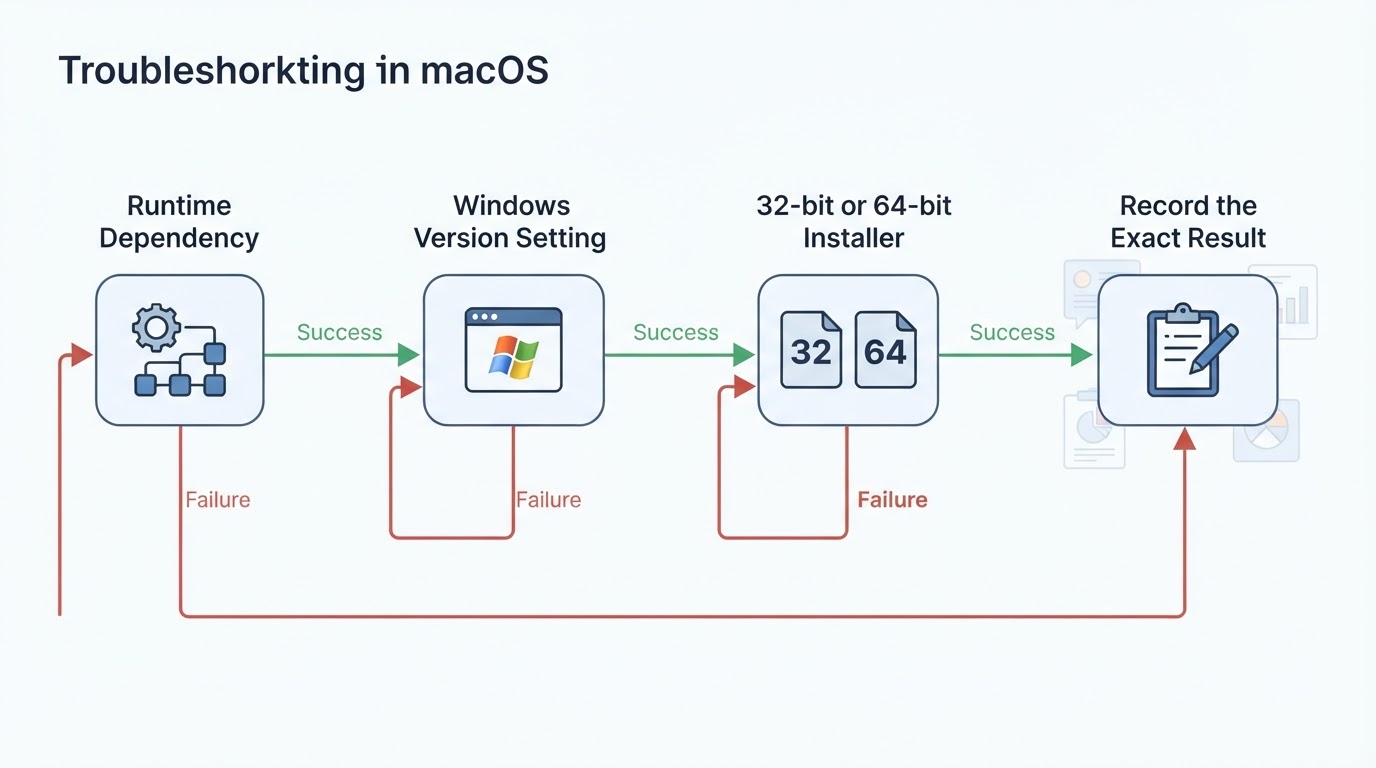
Where the compatibility-layer approach stops
A compatibility layer is not a smaller Windows. It is a different design with a clear boundary, and crossing that boundary is expensive in exactly the cases people care about most.
Kernel-level components are out: anti-cheat drivers, virtual device drivers, and system utilities that expect to control the machine. Heavy 3D workloads may run but are usually the weakest case for performance, and results vary enough that a specific test is the only honest answer. Programs whose licensing is tied to hardware identifiers can also behave unpredictably, because the environment they see is not a physical PC.
When your workload lands in that territory, a virtual machine is the right comparison: it runs a complete Windows installation on your Mac, so more software works, at the cost of a Windows license and a larger share of disk and memory. On Intel-based Macs, Apple's Boot Camp could install Windows alongside macOS; Apple silicon Macs cannot boot Windows natively, so check Apple's current documentation if a dual-boot setup is the requirement.
The decision rule is simple. If the program needs kernel access or hardware control, use a virtual machine. If it is an ordinary user-space program whose runtime dependencies you can satisfy, the compatibility layer is lighter, faster to set up, and the better first attempt.
How this guide was checked
OpenSwiftApp is a source-based publication: its editorial standard is to name the version that was checked and the date it was checked. This guide could not be pinned to a specific CrossOver release, because the release-specific system requirements and any app compatibility results were not verifiable from primary sources when it was written. Rather than quote numbers that may already be stale, it teaches the checks and says so directly. Guide updated: 2026-10-08.
Project facts
Field | Value |
|---|---|
License | Commercial and proprietary. CodeWeavers sells CrossOver licenses and offers a trial; check the official store page for current terms and pricing. |
Platform | macOS (the CrossOver Mac edition; this guide does not cover other platform editions). |
Written in | Not disclosed. CrossOver ships as a proprietary application built on the open-source Wine compatibility layer. |
Version reviewed | Not pinned. Follow the version number shown in your own installation and match it against the official compatibility information. |
Repository | None for CrossOver itself, because it is not open source. Wine, the compatibility layer it builds on, is developed in the open. |
Guide updated | 2026-10-08 |
Quick recap
- Confirm your chip, your macOS version and beta status, and your disk budget before downloading anything.
- Install from CodeWeavers' official page and record the version number you installed.
- Create one bottle per app, and install that app's runtime dependencies into the same bottle.
- Verify the exact app version against the official database and recent reports, then test your real task during the trial before paying.


