What a one-click sleep blocker actually changes
A Mac does not have one sleep, it has several, and the difference decides whether a menu-bar toggle can help you at all. The display can go dark while the machine keeps working. The system can drop into idle sleep with the screen off and the work paused. Closing the lid takes a path of its own. Caffeine exists for the middle case: it is a small utility that sits in the menu bar, and clicking its icon flips a promise on or off — keep this Mac from falling asleep on its own until you say otherwise.
That promise is narrower than it sounds, and knowing its edges is what separates a finished overnight job from a redone one. A toggle like this changes how the system treats idle time. It does not turn the Mac into a server, it does not defeat a lid close by itself, and it does not run on a schedule. It is a manual switch with a visible state, which is exactly why it is easy to reason about: you turn it on when a long job starts, and you turn it off when that job ends.
When to turn it on
The case for a manual switch is strongest when the work is long, fragile, and running on the machine in front of you.
- A build or test run. Compiling a large project, running a test suite, or a CI-style script can take tens of minutes; a machine that sleeps halfway through turns a green run into an interrupted one.
- A media export. Video transcodes with ffmpeg, batch image renders, audio bounces, and long exports all hold state in memory, and sleep is not always a graceful pause.
- A large transfer. Multi-gigabyte uploads, Git LFS pushes, rsync jobs to a NAS, and cloud syncs that do not resume cleanly if the network stack drops mid-send.
- A long download or dataset pull. Model weights, virtual machine images, and large archives are slow enough that the tail of the download often lands after the display has gone dark.
- A remote session. Screen sharing or an SSH session from another machine is only useful while the host is awake.
- A training run or simulation. Any local process you want to keep progressing while you step away for coffee, dinner, or the night.
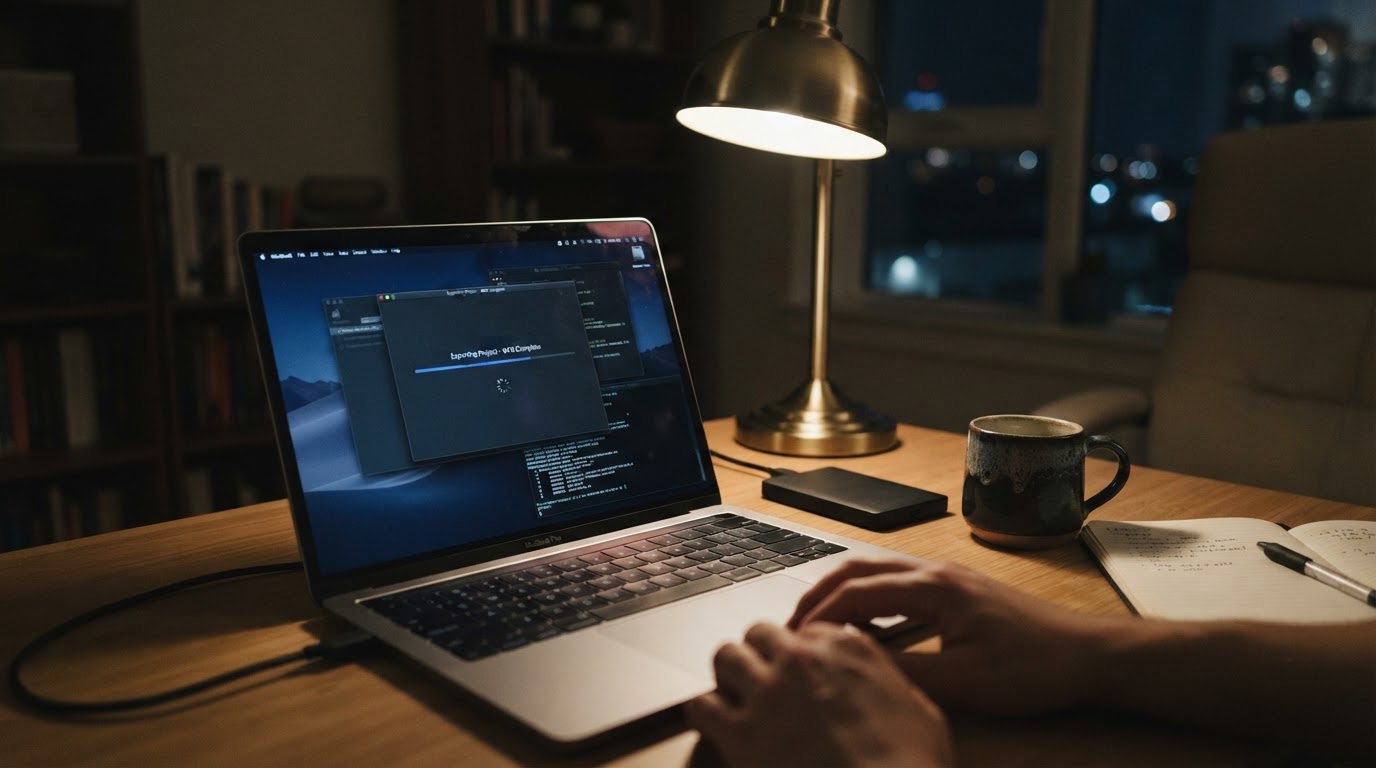
The other half of the list matters just as much. A one-click toggle is a poor fit when the job is short, because ordinary sleep timers are already long enough not to interfere. It is a poor fit when the work is automated and unattended, because a manual switch is the wrong kind of control for something that should repeat without you. And it is the wrong tool when the real problem is a lid that will be closed, which is a separate mechanism with its own rules.
How to confirm sleep is actually blocked
Trusting the icon alone is the most common mistake. The icon tells you what the app intends; the system tells you what it is actually doing. macOS exposes the assertions that currently keep the machine awake:
pmset -g assertions
The output lists named assertions such as PreventUserIdleSystemSleep and PreventUserIdleDisplaySleep alongside the process that requested them. Run the command once before you turn the toggle on, and again afterwards. If the toggle is working, a system-sleep assertion appears in the list, and on many builds a display-sleep assertion appears with it. If nothing in the output changes when the toggle is on, do not trust the icon — no assertion is being held, and the machine can still sleep in the middle of your job. The exact labels and grouping vary between macOS versions, so look for the idle-sleep and system-sleep lines rather than memorising one fixed line of output.
A second command tells you what the system considers idle in the first place:
pmset -g
That prints the active power settings, including the idle sleep timer and the display sleep timer for the current power source. It is worth reading once so you know what the toggle is overriding, and worth re-reading when you switch between battery and power adapter, because the timers can differ between the two.
A short routine covers the whole job:
- Before starting: connect power for anything that will run for hours, then start the long job.
- Turn the toggle on, and immediately run
pmset -g assertionsto confirm the assertion is present. - While the job runs, treat a dimmed display as expected and a sleeping machine as a failure to investigate.
- When the job ends, turn the toggle off and run
pmset -g assertionsagain to confirm the assertion is released.
Installing it: the details that change between releases
There are two practical install paths, and both deserve a minute of checking before you run anything.
The first is the project's own release build. The project publishes builds through its GitHub releases; pick the current release for your macOS version and install it as you would any app. Builds like these are often not signed with a paid Apple developer certificate, so the first launch may be refused with a message that the app cannot be opened or is damaged. When that happens, open System Settings, go to Privacy & Security, and use Open Anyway on the blocked app. If you prefer the command line, the equivalent is to clear the quarantine attribute from the installed bundle:
xattr -dr com.apple.quarantine "/Applications/Caffeine.app"
Substitute the real bundle path if the app installed under a different name, and only do this for a build you actually trust — removing the quarantine flag skips a protection macOS applies to downloaded software.
The second path is Homebrew. If a cask carries the app, Homebrew will tell you far more than a download page will:
brew search caffeinefinds the exact cask token, which matters because a shared name is common for utilities with several maintained forks.brew info --cask <token>prints the version, the minimum macOS, whether the cask is deprecated, and whether it declares a conflict with another cask that installs the same app. A same-name conflict is exactly the situation where an install fails or an update silently replaces the wrong bundle.brew install --cask <token>performs the install once the checks make sense.
Because release facts move, this guide deliberately does not pin a version, a licence, or a repository address. Treat these five fields as a checklist and record the date you checked them, because the next release can change any of them:
Field | Why it matters |
|---|---|
Licence | Determines whether the app is open source and what obligations come with it |
Platform | The minimum macOS version the current release supports |
Written in | Useful when you want to understand what you are running and how it is built |
Version reviewed | Pin the build you actually tested; "latest" is not reproducible |
Repository | The authoritative source for releases, issues, and the licence file |
If any field cannot be confirmed from the project's own release page and licence file, wait for a release you can verify rather than installing a build you cannot explain.
Turning it off cleanly
A manual switch comes with a manual responsibility, and the failure mode is forgetting the switch rather than flipping it. Left on, the toggle does exactly what it promises: a laptop that never sleeps. That means a battery draining in a bag, a chassis running warm on a desk, fans audible at night, and a machine that cannot use its own power-saving schedule.
The cleanup is one click plus one check. Turn the toggle off when the job finishes, then run pmset -g assertions one more time and confirm the assertion is gone. A simple rule keeps this from drifting: the switch is on for the life of one job, not for a working session and not "just in case".
Where the toggle ends and macOS settings begin
The most useful way to think about Caffeine is as one of four tools that all touch sleep, each with a different contract.
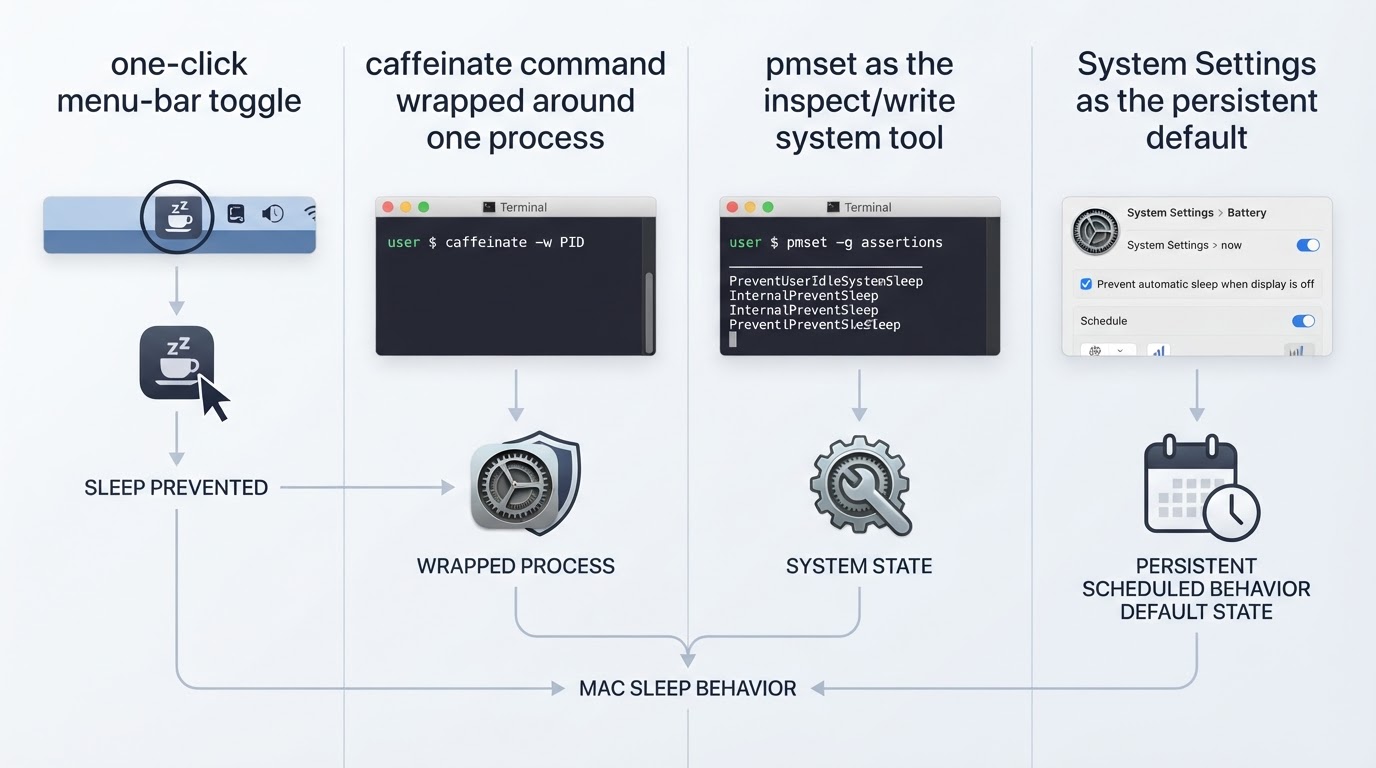
- The one-click toggle: temporary, manual, visible, and deliberately without a schedule. Best for a single long job you are watching.
caffeinate, built into macOS: the command-line version of the same idea, but scoped to a process. Runningcaffeinate -iin front of a command keeps the system awake only while that command runs, which is a tighter contract than leaving a toggle on and hoping you remember it. The flags split by target —-dfor display sleep,-ifor idle system sleep,-sfor system sleep on power adapter,-tfor a timeout — and-sis ineffective on battery.pmset: the tool that reads and writes power settings. Use it to inspect what the system believes; treat writes as a system-wide configuration change, because that is what they are, and expect to need administrator rights.- System Settings: where the persistent idle and display timers live. Change these when you want a new default, not when you want one job to finish.
Two interactions are worth testing on your own machine rather than trusting a general rule.
Display sleep is not system sleep. A Mac can keep working with a dark screen, so a toggle that asserts only system sleep may let the display dim while the job continues normally. If the display still turns off after the toggle is on, check the assertion list to see which kind of assertion the app is actually holding, and check the display-off timer separately.
A lid close is its own branch. A menu-bar toggle is not a reliable way to keep a closed MacBook awake; with no external display, closing the lid normally sleeps the machine regardless of app-level assertions. Working with the lid shut means clamshell mode — power connected, an external display attached, and usually an external keyboard or mouse — and even then the exact behaviour depends on the power source and the model. If an overnight job must survive a closed lid, test that exact arrangement for five minutes before committing an hour of work to it.
Should you use it?
Use the toggle when the job is long, local, and worth watching; when you want a visible on/off state rather than a hidden script; and when you would rather not change system-wide sleep settings for a one-off task.
Reach for something else when the job is short, when the awake window needs to repeat on a schedule, when the work is a single command that can carry its own caffeinate wrapper, or when the lid will be closed. And if the goal is to reach a sleeping Mac from elsewhere on the network, sleep settings and wake-on-network are the relevant controls, not a toggle that only works while someone is sitting in front of it.
A one-click sleep blocker earns its place by being small and honest: it keeps the machine awake while you tell it to, shows its state, and gets out of the way. Used with the verification step and a clear off switch, that is usually all a long job needs.


