Boot Camp installs Windows only on Intel Macs
Most searches for bootcamp mac resolve to one Apple tool: Boot Camp Assistant, the built-in dual-boot utility that installs Windows on a separate partition of an Intel Mac's internal disk. It has one hard prerequisite, and everything else in this guide follows from it. Boot Camp requires an Intel processor. Apple documents that Boot Camp does not support Apple silicon Macs, so M1, M2, M3, M4 and later machines have no supported path to a Windows boot partition — not through Boot Camp Assistant, and not through a workaround that keeps official driver support.
Check the machine before you plan anything else:
- Open the Apple menu and choose About This Mac.
- Read the Chip or Processor row.
- If it says Apple M-series, stop here; this guide does not apply. If it names an Intel Core or Intel Xeon processor, keep going.
The chip family is not the whole story. Windows support is documented per Mac model and per Windows version, and the list changes between model years. Before downloading anything, open Apple's Boot Camp support page for your exact Mac and for the Windows version you intend to install, and treat that page as the authority over any tutorial, including this one.
Then assemble the practical minimum:
- Boot Camp Assistant, which ships in Applications → Utilities on Intel Macs. If it is missing, the Mac is either Apple silicon or running a macOS release where the assistant is no longer present.
- At least 64 GB of free space for a 64-bit Windows install, and considerably more in practice. Windows 11 applies a similar floor of its own, and a year of updates plus two or three large applications will consume tens of gigabytes beyond it.
- A Windows ISO from Microsoft. Use the official image. Repacked or modified ISO builds are a leading cause of missing drivers, broken activation, and installers that stall.
- A USB flash drive of 16 GB or more if your Mac asks for one. Everything already on it will be erased. Some Macs and macOS releases can install straight from the ISO without a USB disk, and Boot Camp Assistant only offers the tasks your model supports.
- A Windows license, or the acceptance that Windows will run unactivated with a watermark and limited personalisation.
- A complete, verified backup. Partitioning rewrites the partition map of the internal disk, and that is the step where things go wrong.
What you give up by dual-booting
Boot Camp is not virtualisation, and that difference decides whether it is the right tool for you.
The disk stays split. Whatever size you assign during setup is gone from macOS until you remove Windows — a 150 GB Windows partition is 150 GB that macOS will never use again while the dual-boot exists. Plan the split around the applications you know you will install, not around the free space you happen to have today.
You switch by rebooting. There is no shared clipboard, no side-by-side windows, and no way to keep working in macOS while a Windows application runs. Every move between the two systems costs a full restart, so Boot Camp suits sessions — a work block in a Windows-only application, a game, a lab environment — rather than constant switching.
The two systems are largely isolated. macOS can read the Windows volume but cannot write to it without third-party software, and Windows cannot read the macOS volume at all by default. Moving files between the two means exFAT-formatted external storage or a cloud service.
Drivers come from Apple, not Microsoft. The Windows Support Software that Boot Camp Assistant downloads is tied to your machine and to the macOS version that produced it. A later macOS upgrade does not refresh it, and some hardware quirks persist until you download the package again from the newer system.
What Boot Camp does give you is native speed and real GPU access. If you need both systems at once, or you want macOS to stay usable while you work in Windows, a virtual machine is the better fit and costs no partition. Dual-boot when you genuinely need Windows at full performance on that hardware.
Before you partition: backup, space, and installer
Back up and verify the backup
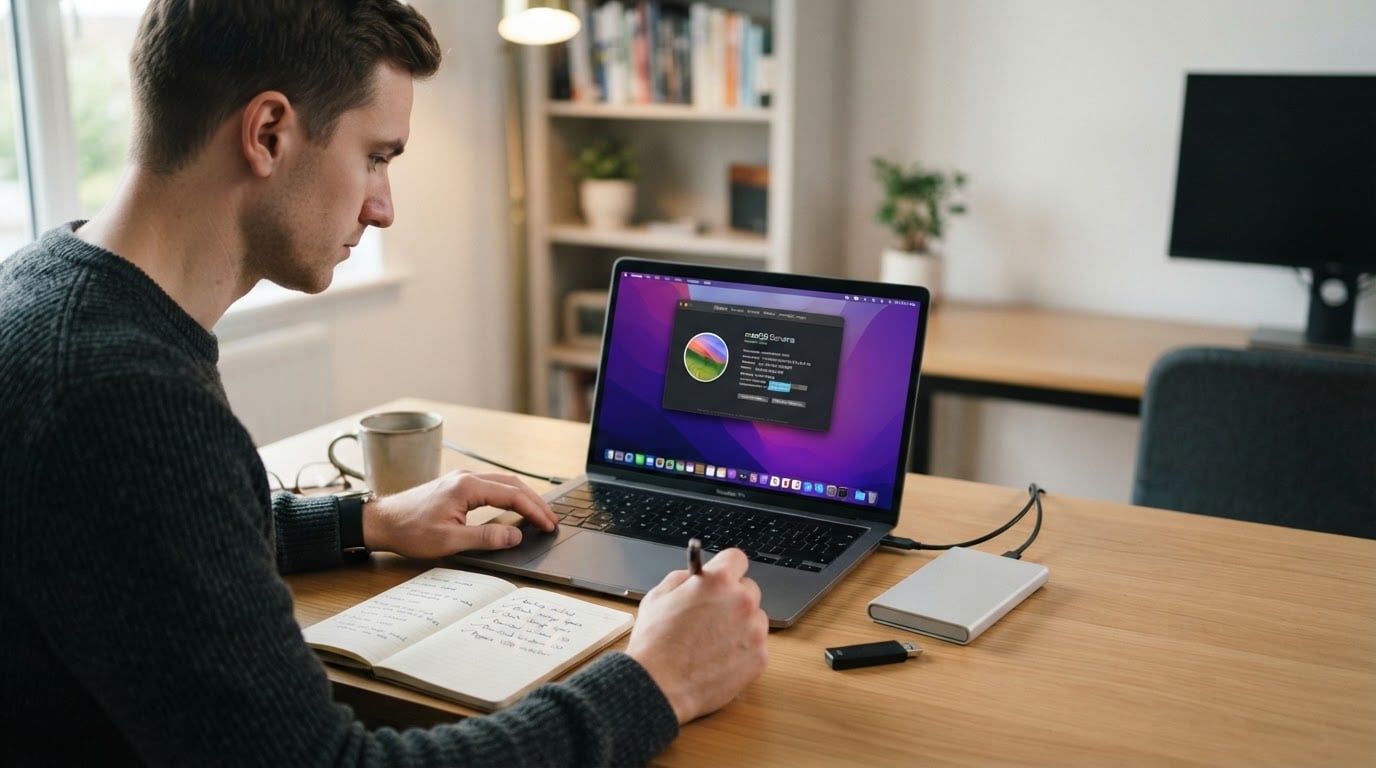
Run a complete Time Machine backup, and do not skip verification: open the backup and confirm that you can read a file or two from it. An untested backup is a hope, not a backup. Copy the irreplaceable items — documents, photo libraries, licence keys, project folders — to a second drive as well, because the risky step is a partition-map edit, and those can fail halfway.
Confirm free space and disk health
Open the Apple menu, then System Settings → General → Storage, and look at the free-space figure for the internal volume. Remember that local Time Machine snapshots can hold space that the Finder does not show as available; if the number looks smaller than expected, let a backup complete and check again. Then open Disk Utility, select the internal disk, and run First Aid before you partition anything. A disk that already reports errors is very likely to fail the Boot Camp resize step.
Get the Windows image and the installer media
Download the ISO from Microsoft, preferably on the Mac itself so it is already in the right place; if you download it elsewhere, copy it over before you start. Plug in the USB flash drive if your model needs one. Then let Boot Camp Assistant handle the rest: it will ask for the ISO, offer to create the Windows install disk, and download the Windows Support Software — the driver package for your Mac.
Step by step: partition and install Windows
- Open Boot Camp Assistant. Find it in Applications → Utilities, or launch it with Spotlight. On many Macs it is the only place to start a supported Windows install.
- Read the introduction and continue. The task list on the next screen depends on your model and macOS version; expect options for creating a Windows install disk and installing Windows. Leave the tasks the assistant offers selected.
- Select the Windows ISO. If the assistant asks for a USB drive as well, point it at the drive you plugged in. Expected result: it prepares the installer and downloads the Windows Support Software, which takes a while and needs a working internet connection.
- Choose the partition size. Drag the divider or type a size; the assistant shows how the disk will be split. Give Windows more than the 64 GB floor — Windows updates, a browser, and one or two large applications will consume the rest faster than most people expect. Expected result: the Mac restarts into the Windows installer.
- Install Windows on the BOOTCAMP partition. In Windows Setup, choose the language and keyboard, select Install now, then choose Custom: Install Windows only (advanced). Select the partition named BOOTCAMP and format it. Do not delete, format, or resize any other partition on the list; the others are the macOS side of the disk.
- Let Setup finish. Windows copies files and reboots several times. Expected result: the Windows out-of-box experience appears and asks for region, keyboard layout, and an account.
- Install the Apple drivers. With the Windows Support Software drive still attached, open it in Windows. The installer usually starts on its own; if it does not, open the WindowsSupport or BootCamp folder on the drive and run setup.exe as an administrator. Expected result: Wi-Fi, audio, display brightness, the trackpad, and the Boot Camp Control Panel appear, and the Mac restarts once more.
Result check: after step 7, open Device Manager in Windows and look for devices marked with a warning triangle. An empty list means the driver package installed cleanly; anything flagged there is a missing-driver problem, and the fix is in the troubleshooting section below.
Switch between macOS and Windows
Choose a system once, at startup
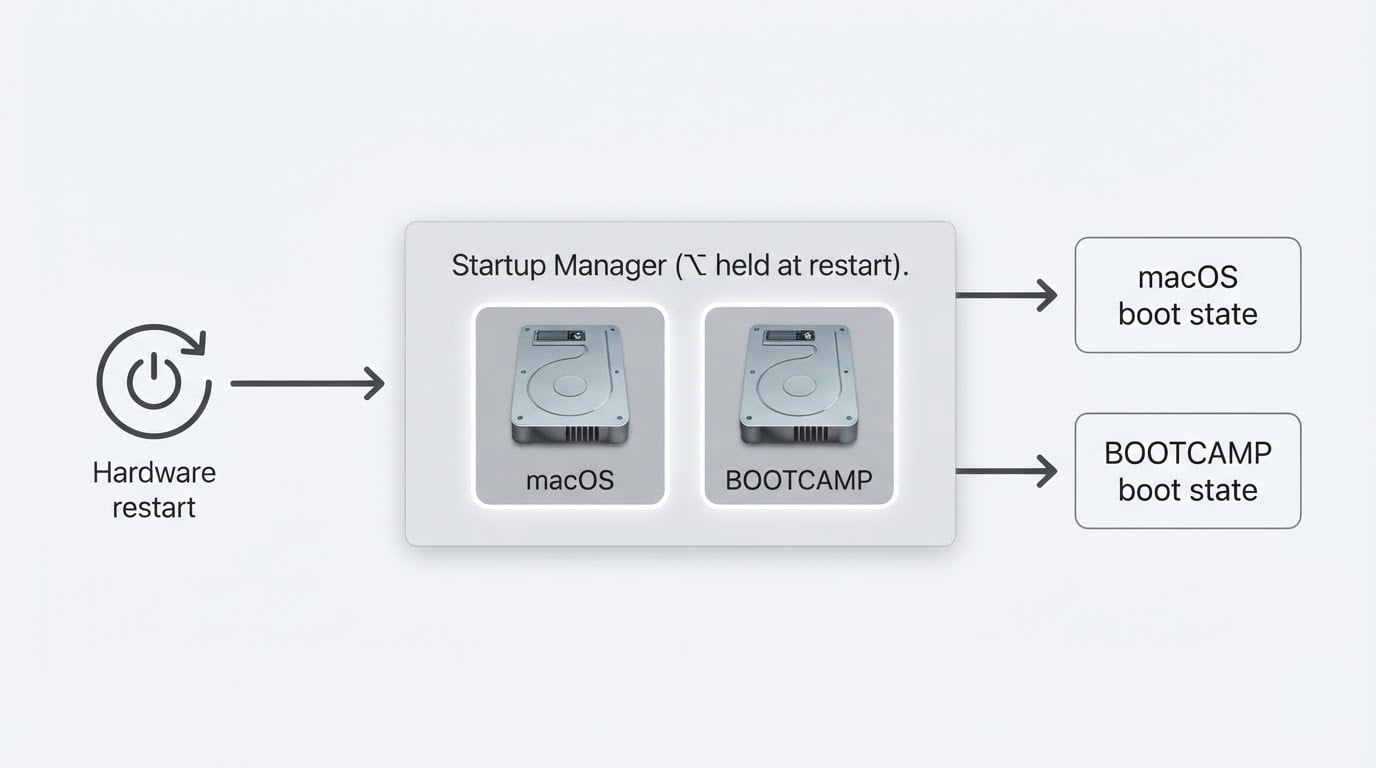
Restart the Mac and hold the Option (⌥) key until the startup manager appears. It shows at least Macintosh HD and BOOTCAMP. Use the arrow keys or the pointer to highlight a volume, then press Return. One caveat matters here: a Bluetooth keyboard or mouse often does not work in the startup manager, because the software that makes it work lives inside the operating systems. Use the built-in keyboard and trackpad, or wired peripherals.
Set the default system from macOS
Open System Settings → General → Startup Disk (System Preferences → Startup Disk on older releases), choose the volume you want, and restart. The Mac then boots into that system every time until the setting is changed again.
Set the default system from Windows
In Windows, open the Boot Camp Control Panel from the notification area or from Control Panel and use the Startup Disk tab to select the default system. From that point the Mac boots into Windows automatically, and the same control panel is how you hand the default back to macOS before removing anything.
Remove Windows and give the space back
The clean route is the same tool that created the partition.
- Back up anything on the Windows side that you still need. Removing Windows deletes that volume, and there is no recycle bin for a partition.
- Deactivate or sign out of software licensed to this machine while Windows still runs, so the licence can be moved later.
- Open Boot Camp Assistant in macOS and choose Remove Windows (the exact wording differs between macOS releases).
- Confirm, and let the assistant delete the Windows volume and merge the space back into the macOS container. The Mac restarts when it finishes.
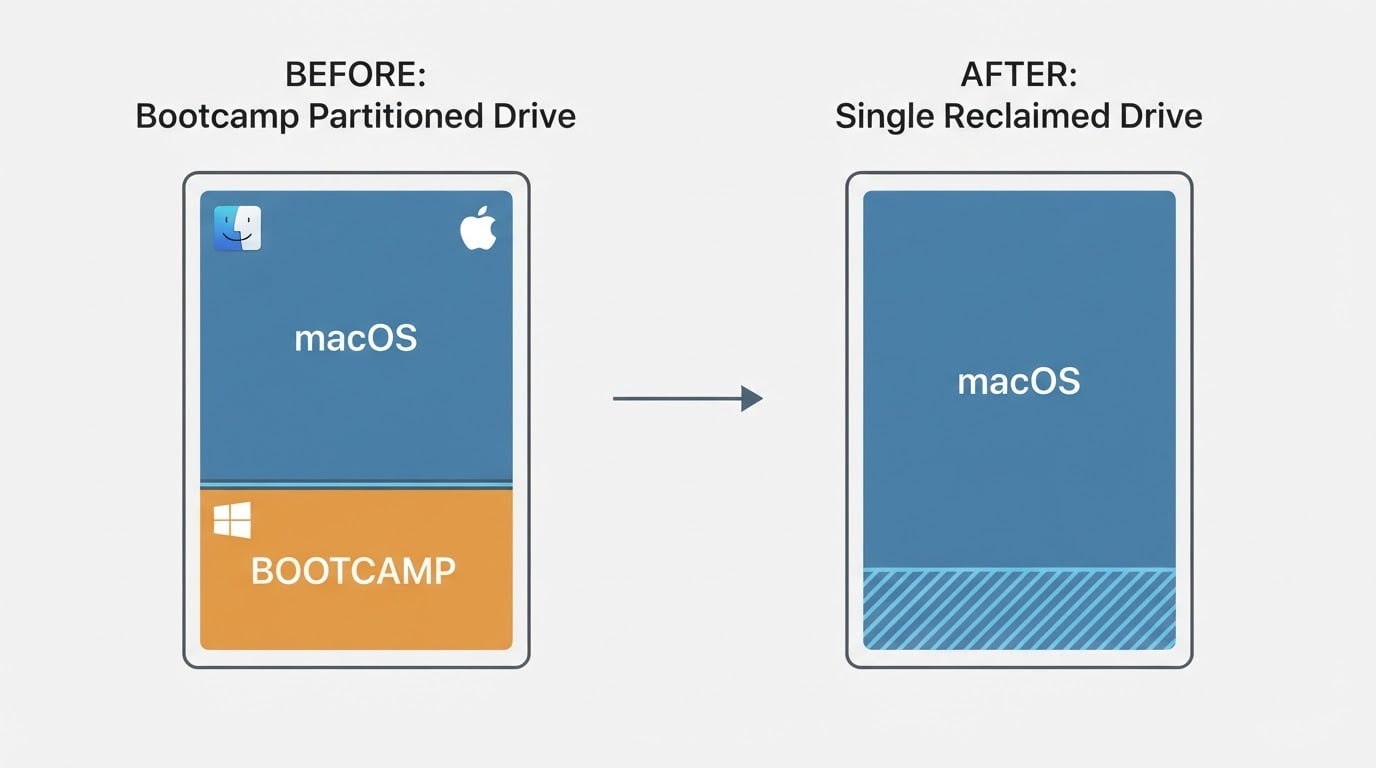
Afterwards, check System Settings → General → Storage and confirm that one volume now holds the merged free space. If Boot Camp Assistant cannot finish the removal, erase the BOOTCAMP volume in Disk Utility first and run the removal again. Never delete or resize the macOS container itself, and avoid third-party partition editors on the internal disk; the honest fallback when the space cannot be reabsorbed is to back up macOS and reinstall it, which costs an evening rather than the contents of both systems.
Troubleshooting the failures that actually happen
Partitioning fails or Boot Camp Assistant quits
When the assistant reports that it could not create the partition, or that there is not enough space, the figure that matters is free space on the macOS volume — and local snapshots can silently reduce it. Let a Time Machine backup finish, restart the Mac, and try again with a smaller Windows partition. Run First Aid on the internal disk once more. If the Mac uses a Fusion Drive or the internal disk already carries a non-standard partition layout, the resize is simply less likely to succeed; that is a limitation of the tool rather than a mistake in your setup.
Windows starts without Wi-Fi, sound, or brightness control
This means the Windows Support Software did not install. Reconnect the drive holding it, open the WindowsSupport or BootCamp folder, and run setup.exe as an administrator, then restart Windows. If the drive is gone, return to macOS and download the package again: Boot Camp Assistant's menu includes a Download Windows Support Software option that can save it to an external drive. After the installer finishes, Device Manager should show no flagged devices, and the Boot Camp Control Panel should appear in the notification area.
Windows is missing from the startup manager
First distinguish a missing entry from a deleted system. Hold Option at startup and check whether BOOTCAMP appears at all. If it does not, open Disk Utility in macOS and confirm whether the Windows volume still exists; if the volume is gone, the entry is gone with it. If the volume is intact but the entry is not, a documented Apple procedure helps: reset NVRAM by holding Option-Command-P-R at startup until the Mac restarts, then set your default startup disk again. If Windows still refuses to boot after an update or a failed installation, use the Windows installation media and its repair tools, and leave the macOS partitions untouched.
When Windows 11 is the goal
Apple documents a limited set of Intel Macs that can install Windows 11 through Boot Camp; other models are not supported for it. If the Windows 11 installer refuses your Mac, the supported fallback is Windows 10. Patch tools that bypass the check produce an installation Apple never validated and will not support with drivers, so check the model list before you start rather than after the installer stops.
Quick recap
- Confirm the Mac is Intel and that its exact model is on Apple's supported list for the Windows version you want.
- Back up, verify the backup, check free space, and download the official Windows ISO from Microsoft.
- Run Boot Camp Assistant: partition the disk, install Windows on the BOOTCAMP partition, then install the Windows Support Software for drivers.
- Switch systems with Option at startup or the Startup Disk setting, and remove Windows later through Boot Camp Assistant to recover the space.


