What a Loopback Driver Actually Does
macOS gives each application one output choice: the current system output device. A recording tool, meanwhile, can only read from input devices. Nothing in the system connects one application's output to another application's input, and that gap is what a loopback driver fills.
A loopback driver installs as a virtual audio device with two faces. Applications treat it as an output they can write to. Recording applications treat it as an input they can read from. The audio never leaves the digital domain, because the driver copies the stream instead of capturing speakers through a microphone. The recording therefore carries no room noise, no microphone coloring, and no volume changes made between the speakers and the ears.
BlackHole is one such driver for macOS, and it is the one most people land on when they search for the term. It is open source and installs as a system audio component, which shapes several later decisions: the installation needs administrator rights, the device appears to every application and every user account, and removal means removing a system component rather than deleting an application.
One limitation matters earlier than the rest. A loopback device carries a single stream, not one channel per application. Every application that writes to the same output device is mixed together before the loopback sees anything. Plan around that fact; the sections below treat it as the boundary that separates a simple setup from one that needs a different tool.
Before You Install: Pick the Path You Need
Two questions decide how much work the setup takes.
The first is whether the sound has to reach your ears while it is being captured. If only the recording matters, a single virtual output device is enough: point the system output at it and let the recorder read it. If you also want to hear the audio from the speakers or headphones, you will build a multi-output device, which the next sections cover.
The second question is how much audio is being carried. The project publishes the driver in more than one build, and the builds differ in how many channels the virtual device exposes. Check the current release page for the variants offered today, then choose the one that matches the stream you intend to carry. A wrong choice damages nothing, but it forces a reinstall once the channel count does not fit.
Keep the configuration as small as the task allows. A multi-output device adds a second clock domain to the signal path, and every clock is a place where rates can fall out of step.
Install the Driver and Confirm It Loaded
Two install routes exist, and both end with the same result: an audio component in the system plug-ins folder.
The official route starts at the project's own download page. Download the build you chose, run the installer, and enter the administrator password when it is requested. Because the installer writes into a system location, macOS may also ask you to allow the component, depending on the version you run. That prompt appears under Privacy & Security in System Settings.
The package-manager route is shorter when Homebrew is already on the Mac. Cask names do not always match the name on the project page, so confirm the token first:
brew search blackhole
brew info --cask <token>
brew install --cask <token>
Read the brew info output before installing. It prints the version, the minimum macOS release, and the source the cask points at. An entry that fetches from a mirror or an unrelated repository deserves a second look; the cleanest entry points at the project's own releases.
Both routes end with the same check. Restart the Mac. The system audio server scans the plug-in folder when it starts, so a restart is the reliable way to load a newly installed audio driver. Restarting the server process is the faster alternative — sudo killall coreaudiod restarts it, and macOS brings it back on its own — and it is the same step to reuse during troubleshooting.
After the restart, open Audio MIDI Setup from Applications → Utilities and confirm that the driver appears in the device list. Then open System Settings → Sound and check that the same device appears in the output list. If it does not appear, the plug-in did not load, and the fix belongs on the install side rather than in the routing settings.
Build the Multi-Output Device So You Still Hear Everything
A virtual device with no monitor path is silent to your ears: the recorder hears everything and you hear nothing. A multi-output device fixes that by sending one system output to two destinations at once.
Open Audio MIDI Setup and click the plus button at the bottom of the left sidebar. Choose Create Multi-Output Device. In the right pane, tick the "Use" checkbox next to the devices that should receive audio: the normal output, such as the built-in speakers or headphones, and the virtual loopback device. Leave the other entries unchecked.
Two controls in that pane decide whether the combination stays stable. The Master Device dropdown sets which member provides the clock, and the Drift Correction checkbox lets a member on a different clock keep pace. Start with the hardware device as the master and drift correction enabled on the virtual device, then change this only if you hear crackles or slow drift.
The split is the important part: the same signal reaches your speakers and the recording application at the same time.
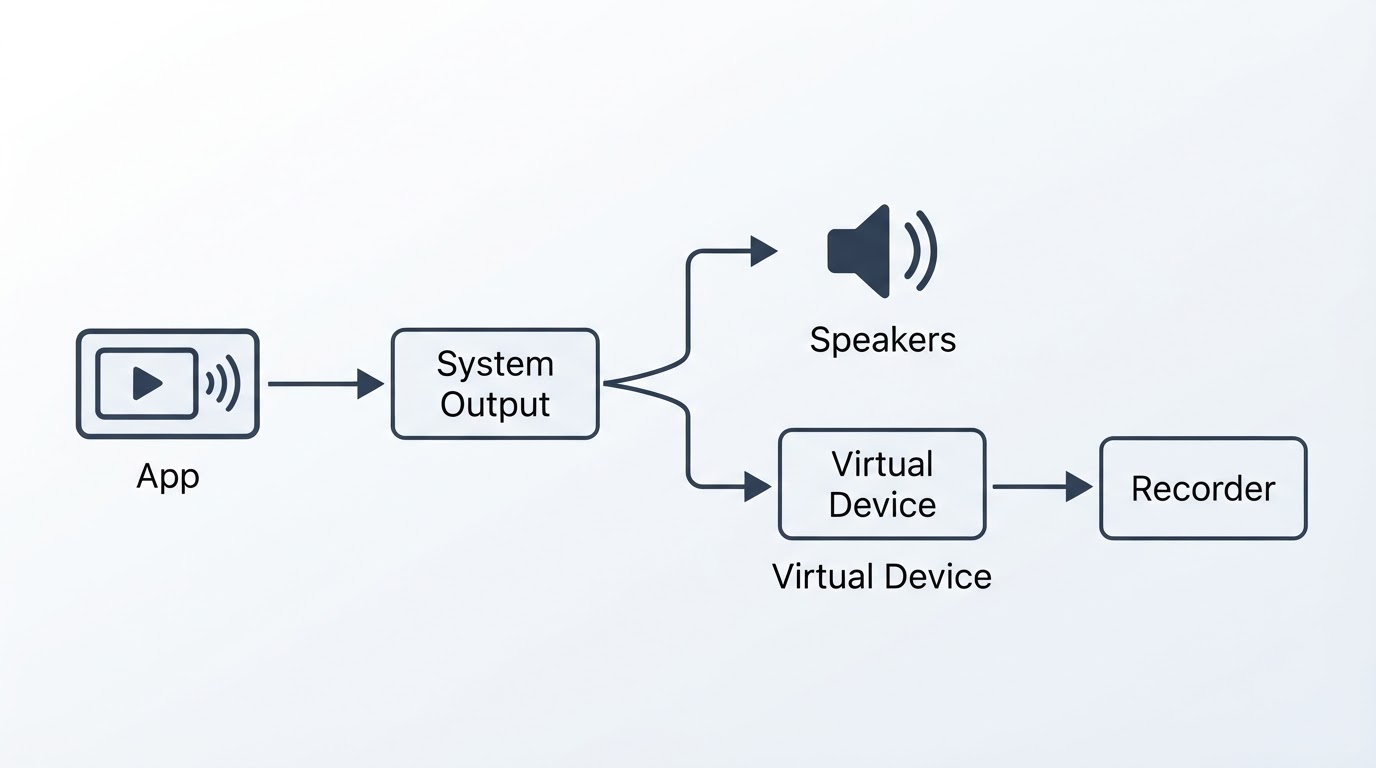
Now select the multi-output device as the system output in System Settings → Sound. Play something familiar and confirm that it comes out of the speakers. If it does, the monitoring half of the setup is done.
Route One Application Into a Recorder or Streaming Tool
The common case is a browser tab, a media player, or a game feeding a screen recorder or a streaming tool. In the recording application, add an audio input source and select the virtual device instead of the microphone.
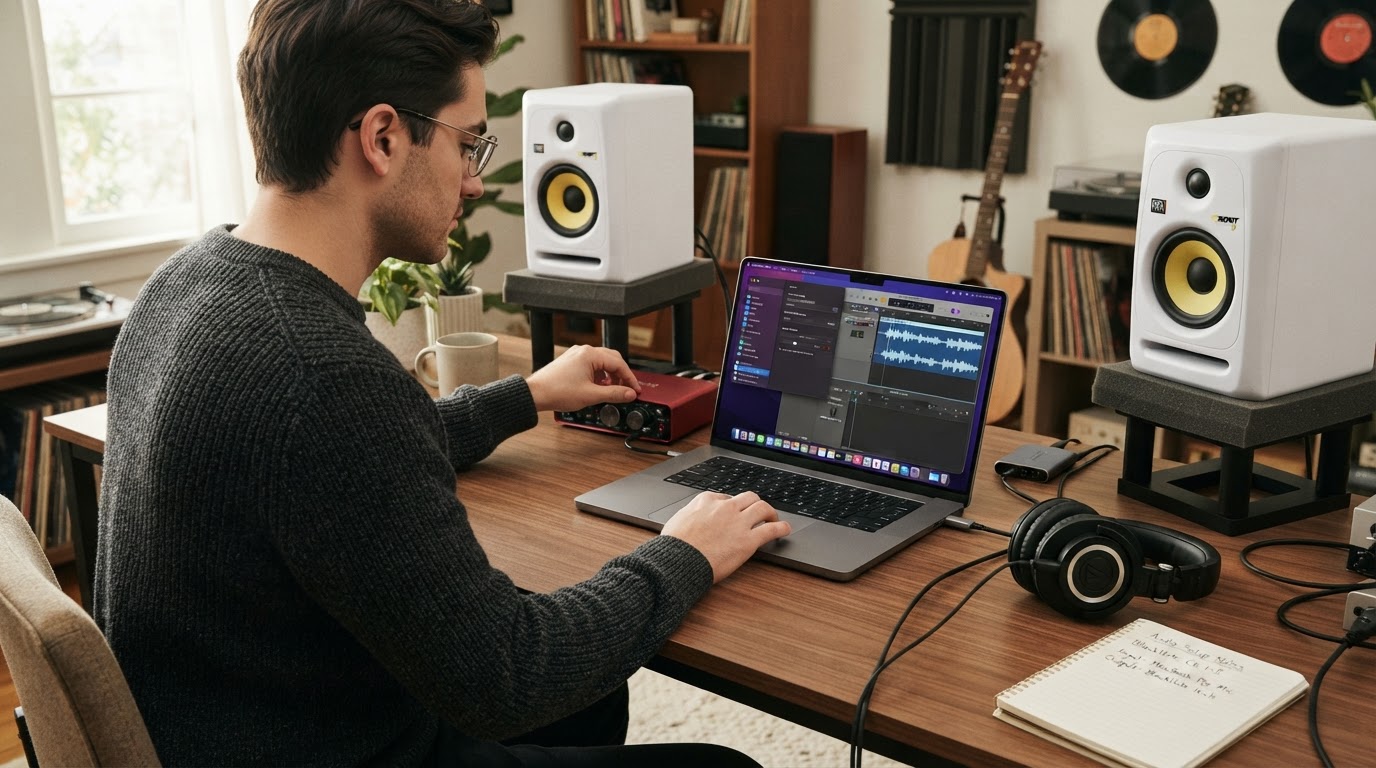
Then grant the permission that macOS attaches to that device. A loopback device looks like an ordinary audio input to the system, so the recorder needs microphone access: open System Settings → Privacy & Security → Microphone and enable the application. This is the most common reason a correctly built routing chain records silence, and some applications report no error — just a flat line.
The next decision is scope. If the whole system can go into the recording, set the multi-output device as the system output and stop there. If one application should be captured on its own, give that application a device that belongs to it. Many desktop players and editors offer an output picker in their own preferences, and browsers usually follow the system default unless they expose their own chooser. Point that application at a multi-output device that contains the speakers plus the virtual device, and leave the rest of the system on the speakers. The recorder then hears only what that application writes, while you hear it too.
Watch for doubling. A streamer commonly hears the source twice: once from the speakers in the room and once from the recording tool's own monitor output. Mute monitoring in the recorder, or leave the virtual device out of the monitoring path, and the doubling disappears. The rule of thumb: your ears should receive exactly one copy of the sound, and the recorder should receive exactly one copy as well.
Troubleshooting: Silence, Doubling, and Wrong Pitch
Most failures fall into four buckets: the device never loaded, the recorder listens to the wrong input, a permission is missing, or the sample rate does not match across the chain.
Symptom | Likely cause | First check |
|---|---|---|
The device is absent from Audio MIDI Setup | The plug-in did not load | Restart the Mac and confirm that the installer finished |
The recording is a flat line | Microphone permission is missing | System Settings → Privacy & Security → Microphone |
Still silent after the permission is granted | The recorder is listening to the wrong input | Select the virtual device as the capture source |
The sound is heard twice | Monitoring is enabled in two places | Mute monitoring in the recorder |
Pitch or speed is wrong | Sample rates differ across the chain | Set every device to one rate in Audio MIDI Setup |
Crackles and dropouts | Buffer too small, or two clocks in a multi-output device | Raise the buffer in the recorder and check drift correction |
Sample rate is the cause people misdiagnose most often. Buffer size changes delay and stability; it does not change pitch. If a recording plays back too fast or too slow, the number that matters is the rate: audio produced at 44.1 kHz and read by a session running at 48 kHz plays back sharp and short, and the reverse mismatch plays flat and long.
The fix is to make the whole chain agree on one rate. Select each device in Audio MIDI Setup, open its Format popup, and set the rate; then check the recorder's own project or session rate and the source application's output rate. Video and streaming work usually runs at 48 kHz, music sources usually arrive at 44.1 kHz, and either choice is fine as long as every stage uses the same number, including the multi-output device.
A mismatch inside a multi-output device is different, because drift correction can mask it by resampling one member. Treat that as a working compromise rather than a repair: resampling can color the audio slightly, so match the rates first and leave drift correction for clocks that genuinely cannot be aligned.
Buffer settings live in the recording application, not in the system. A buffer that is too small produces crackles and dropouts under load, while a buffer that is too large adds delay between the moment a sound happens and the moment it reaches the monitor. Change it one step at a time and stop at the smallest value that stays stable.
Uninstall the Driver and Clean Up
Remove the routing first, so that nothing keeps pointing at a device that is about to disappear. Open Audio MIDI Setup, select the multi-output device, and remove it with the minus button under the sidebar. Then set the system output back to the built-in device in System Settings → Sound, and reselect a real input in any recorder that was using the virtual device.
When Homebrew installed the driver, remove it with the same token used for the installation:
brew uninstall --cask <token>A manual installation is removed differently. The installer placed an audio plug-in bundle inside the system audio plug-ins folder at /Library/Audio/Plug-Ins/HAL. Deleting the bundle that belongs to the driver removes it, and the operation asks for an administrator password because the folder belongs to the system. When in doubt, check the project's current uninstall instructions and remove exactly the bundle named there.
Finish by restarting the Mac, or restart the audio server, and then verify the result: the device should be gone from both Audio MIDI Setup and the Sound output list. If it still appears, the plug-in file is still on disk, so return to the plug-in folder and look for a second copy left by an earlier installation.
The Limits Worth Understanding
A loopback driver is a pipe, not a mixer. It cannot separate two applications that share an output device, because the mix happens before the driver receives anything. If each application needs its own track, give each one its own output device or use a routing tool built for that job. No setting inside a single loopback changes this.
The same property explains why the setup ends at one stereo mix. A recording made this way contains everything the captured stream carried: game audio, voice chat, and browser sound arrive together. Putting each source on a separate track is a different task with a different tool chain, and multitrack recording and audio post-production sit outside what this arrangement should be asked to do.
Two smaller trade-offs are worth knowing. A virtual driver is system-wide, so it appears to every application and every user account on the Mac; that is convenient for routing and useful to remember when auditing what the machine does. And a hardware audio interface remains the better answer for microphones and instruments, where a real input stage and low-latency monitoring matter more than a digital copy of a stream.
Should You Use It?
Use a loopback driver if you want to capture desktop audio or move one application's sound into another, you are willing to manage one extra device in Audio MIDI Setup, and a single mixed stream is enough. The whole setup is short: install the driver, restart, create a multi-output device if the sound has to stay audible while it is recorded, grant the recorder microphone access, and match the sample rates.
Skip it if you need per-application isolation or separate tracks, or if the only thing you want to record is a microphone; a loopback adds a device and a failure point without improving that job. Skip it as well if you want a graphical routing matrix with per-application rules, because that is a different class of tool.
The deciding test is cheap and takes about ten minutes. Install the driver, build the multi-output device, record thirty seconds of audio you know well, and check three things: the sound is heard once, the recording is not a flat line, and the pitch is correct. If all three hold, the setup survives real work. If one fails, the troubleshooting table above narrows the cause before anything is reinstalled.


