Why a Third-Party Monitor Looks Soft on a Mac
A monitor and a Mac do not simply agree on a resolution; they negotiate one. The panel advertises a list of modes, macOS picks a "looks like" value from that list, and the interface is drawn for the value it picked. When the list contains a mode the system classifies as HiDPI, the desktop is rendered at twice the point resolution and lands on the panel's real pixels. When the list does not, the interface is rendered at one times the point resolution and stretched to fill the screen. The panel is doing what it was told. The softness comes from the instruction.
That distinction is why the first fix most people try — dragging the resolution slider in System Settings — often changes nothing. The slider reorders the modes the display already offered. It cannot invent a HiDPI variant that is missing from the negotiation. Third-party panels are the usual victims, because the scaled Retina modes macOS expects are often absent from what a generic display reports, and a dock, adapter, or hub between the Mac and the panel can shorten the list further.
Four facts are worth writing down before any setting is touched, because every later decision refers back to them.
Record | Where to read it | Why it matters |
|---|---|---|
Native resolution | The panel's own menu or its printed label | A 4K panel and a 1440p panel need different "looks like" targets |
Current "looks like" value | System Settings → Displays with the right display selected | Tells you whether a scaled mode is already active |
The cable path | Both connectors, end to end | Some modes and monitor controls depend on the path, not only the panel |
macOS version | About This Mac | Mode handling and display permissions change between releases |
What a HiDPI Mode Actually Changes
A HiDPI mode draws the interface at twice the point size before it reaches the panel. That single sentence explains both the benefit and the cost. Text, icons, and window chrome are rendered with four times the pixels, so edges stay clean instead of being smeared across a lower-resolution render. The desktop, however, now needs a large internal canvas: a "looks like 2560×1440" mode on a 4K panel is rendered internally at 5120×2880 and then scaled down to the panel's 3840×2160. The GPU pays for the extra pixels on every frame.
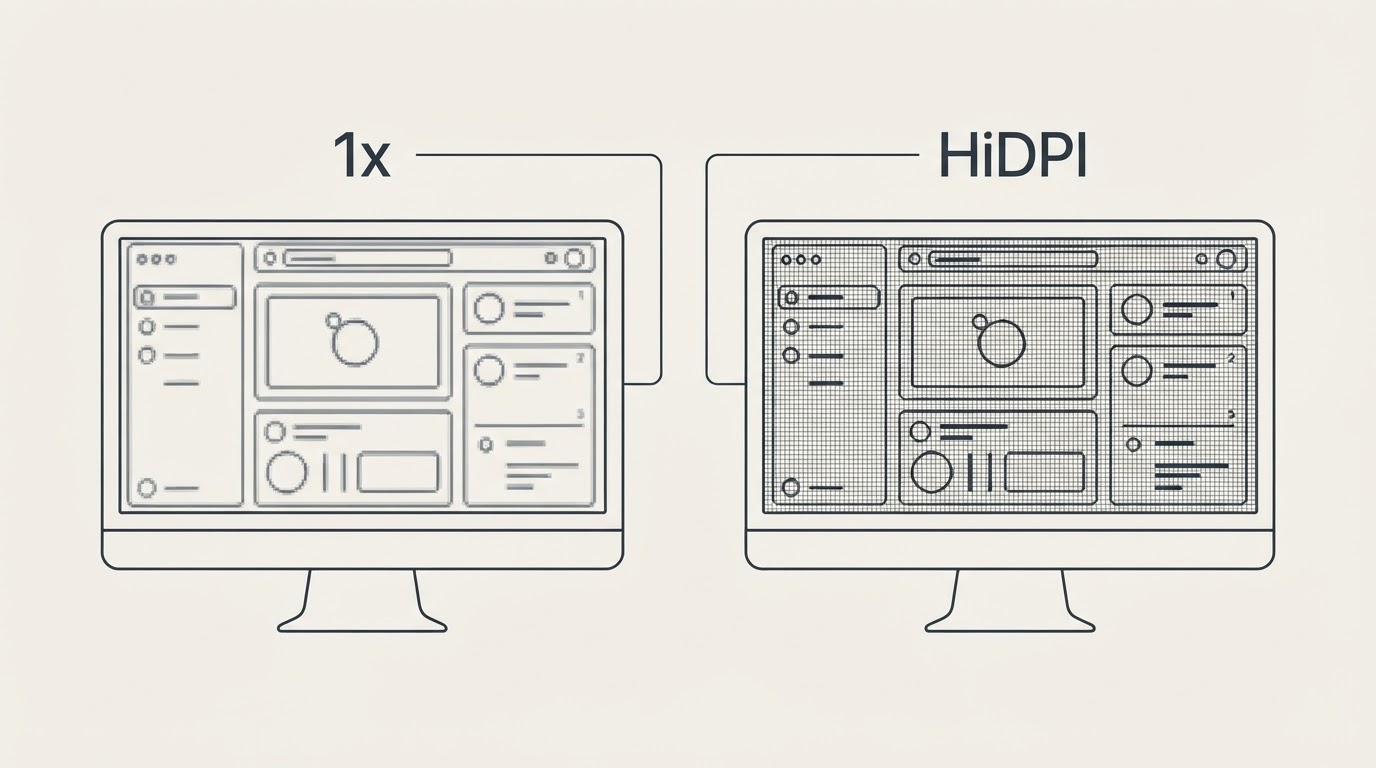
The choice is therefore a three-way trade between text size, desktop space, and rendering cost, and the useful move is to decide which of the three you can give up rather than chasing a single best setting.
"Looks like" on a 4K panel | What the system renders | What you notice |
|---|---|---|
1920×1080, true 2× | 3840×2160 | The largest and crispest text; the least room for windows |
2560×1440, scaled | 5120×2880 | More working space; heavier GPU work; text marginally softer than a true 2× match |
About 3000×1700, scaled | Above 6K | Near-native room on a 27-inch 4K panel; the heaviest option and the one most likely to expose a weak cable path |
Those rows describe the shape of the choice, not a menu to copy. The exact list is generated per display and per macOS release, and the names of the modes change with the tool you use. On a 27-inch 4K panel, most people settle either on a true 2× mode for comfort or on a scaled mode just below the panel's native resolution for space; on a 32-inch panel the native-resolution value becomes more usable, and on a laptop-sized external screen the same trade shifts again.
Before You Change a Mode: the Recovery Route
Most of the caution around resolution tools comes from one failure: applying a mode that the panel or the cable path cannot carry, then watching the screen stay dark. The failure is recoverable, and the order of the attempts matters more than the tool that caused it.
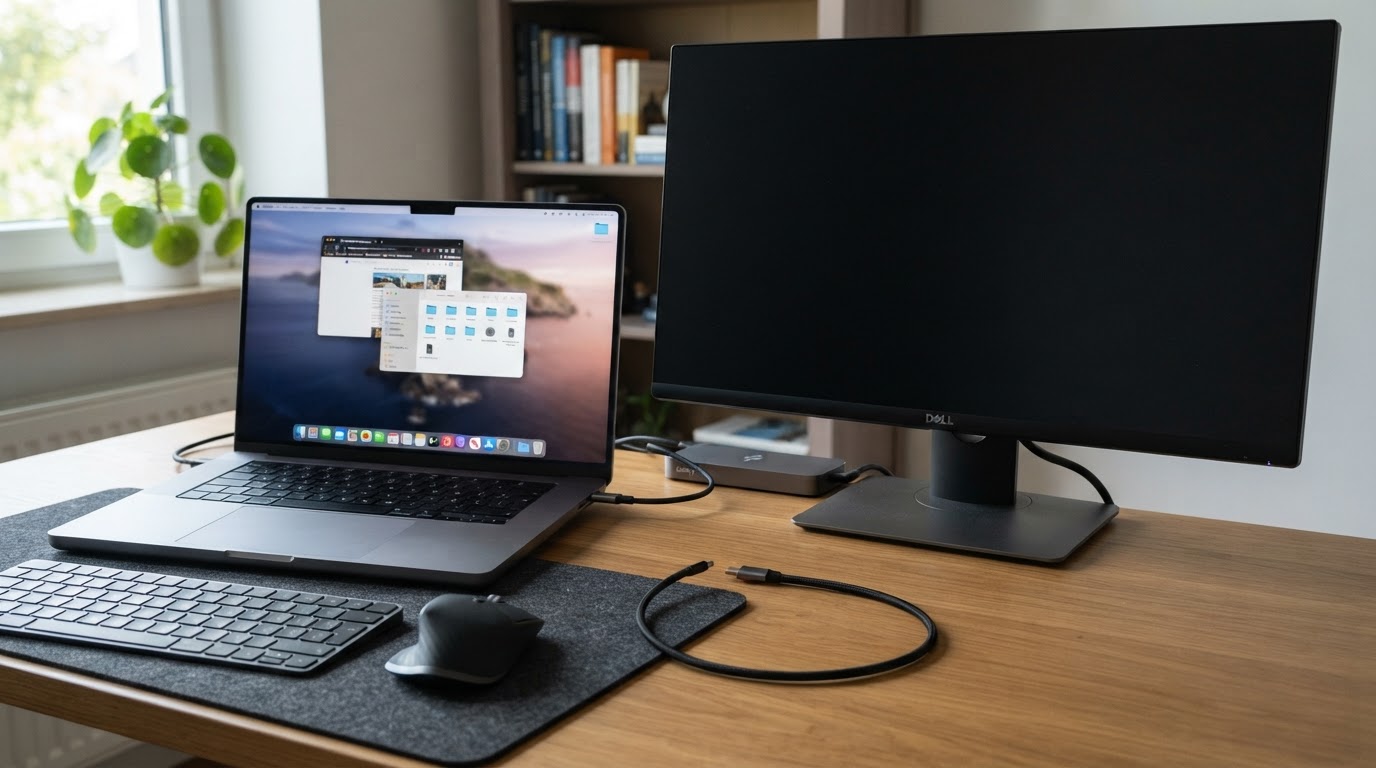
- Wait out the timer. A mode change usually carries a confirmation period; if it is not confirmed, the previous mode returns on its own. Do not press keys through the countdown.
- Reconnect the display. Unplug the video cable for a few seconds and plug it back in, or switch the monitor to a different input and back. The Mac re-reads the display's advertised modes and usually falls back to a safe one.
- Restart, and use a safe start if the screen stays dark. A safe start loads a generic display configuration, which is enough to see the desktop and undo the change. If the Mac has its own screen, that screen is the fallback; on a headless Mac mini or a Mac running with the lid closed, the fallback has to be planned before the experiment, not after it.
- Remove the override. If the bad mode comes back at login, the utility is reapplying a saved configuration. Disconnect the external display, open the tool with the built-in display alone, and clear the override for that panel before reconnecting it.
Prevention is cheaper than recovery. Make display changes while a second display is active. Never change the mode of the only screen you have while you are connected over screen sharing. Write down the last working "looks like" value before experimenting, so the undo target is a note instead of a guess.
Turning On HiDPI Scaling, Step by Step
With the diagnostics on the table and a fallback in view, the sequence itself is short.
- Install the utility by the method you have verified, which the installation section below covers.
- Open its menu bar item and select the external display from the list. A tool that manages displays usually lists each connected screen separately, including virtual ones.
- Find the scaled-resolution list for that display. Menu wording is version-dependent, so look for the list of "looks like" values rather than a specific label, and treat any mode marked as HiDPI or high resolution as the candidate.
- Apply the value you chose from the trade table and confirm the change. The screen normally blanks for a moment and returns at the new size; if it does not return, follow the recovery steps above.
- Verify that the change is real. Text should stay crisp at normal viewing distance and in a small window rather than turning fuzzy when you look closely; System Settings → Displays should report the same "looks like" value the tool shows.
- Check that it survives the ordinary events: a sleep and wake cycle, a cable unplug and replug, a restart, and a login with the display attached. A mode that resets after any of those is not finished; the configuration needs to be applied persistently, and a permission prompt may be the reason it is not.
The completion standard is not that the slider moved. It is that the chosen value is still in place after a normal day, with the panel's own menu reporting the resolution the Mac thinks it is using.
Brightness from the Menu Bar and the DDC/CI Question
Apple's own displays take brightness instructions from macOS directly, which is why the keyboard brightness keys work on them. A third-party monitor keeps brightness in its own firmware, and the channel that reaches it is DDC/CI, a control protocol carried alongside the video signal. A menu bar tool that offers a brightness slider is speaking that protocol; whether the monitor hears it depends on both ends of the cable.
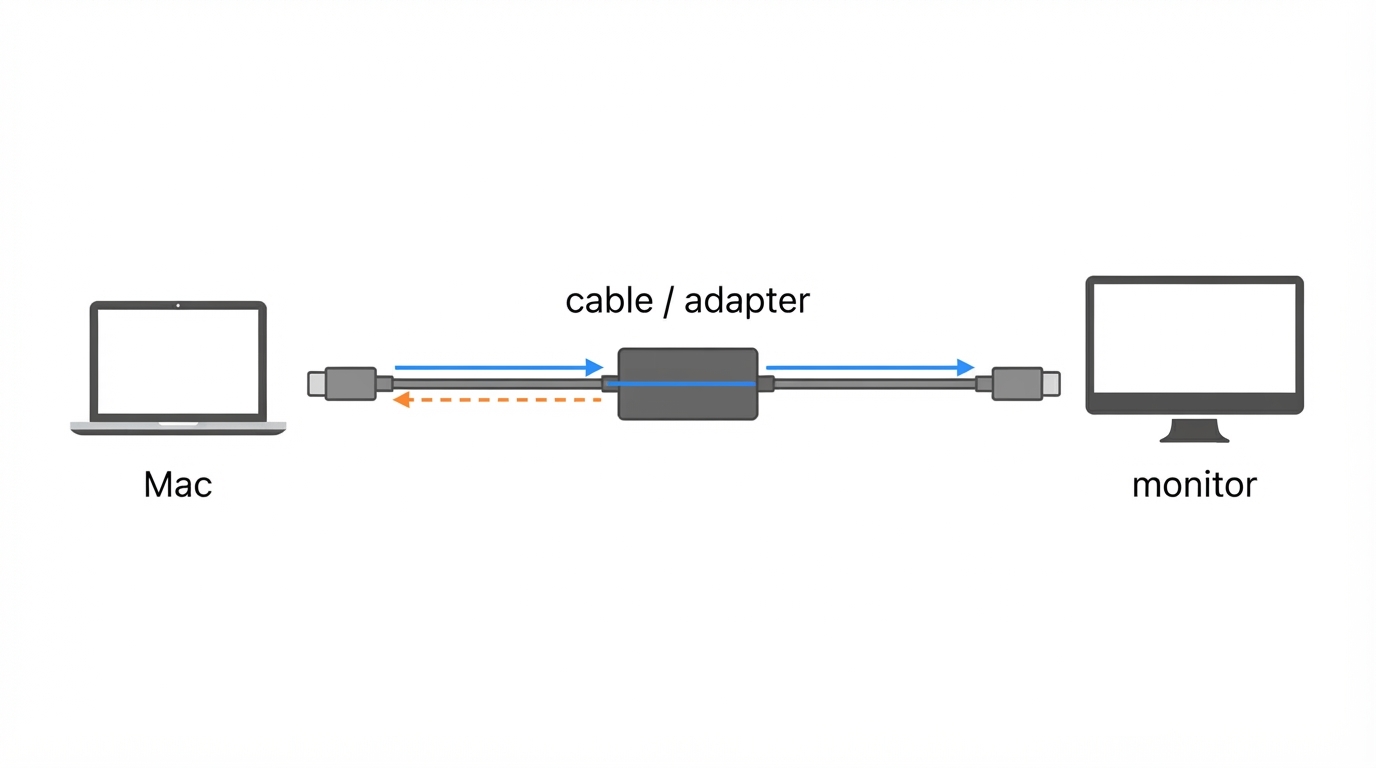
When DDC/CI is missing, the failure is quiet. Some tools fall back to a software dim, which layers a dark overlay over the picture instead of reducing the backlight. The result looks like brightness control until you open a dark application at night and see that black has turned grey. The test that separates the two takes one second: watch the panel itself while the slider moves. The backlight should change; the image should not simply get a filter over it.
The practical checks run from the monitor outward.
- Monitor: open the panel's own settings and confirm that DDC/CI is enabled. Some models ship with it off, and some expose it under a different name.
- Cable path: connect the display directly to the Mac for one test. Docks, adapters, and long cable chains are the most common place for the control channel to disappear even while the picture works.
- Ports: try a different port on the Mac and, if the monitor has more than one input, a different input. A path that works for video does not automatically carry control.
- Reconnect: some panels do not answer control requests until the connection is re-established. Unplug and replug after enabling the setting in the monitor's menu.
If brightness control stays absent after those checks, the monitor does not implement the feature, and no utility can add it. The right response is to use the panel's own controls and treat the software fallback as a filter, not as backlight control.
Virtual Displays: Uses and What They Consume
A virtual display is a screen the Mac renders without a panel attached. The system treats it as a real display for windows, Spaces, and screenshots; the pixels are produced by the GPU and stored in memory instead of being sent to a monitor. Utilities that manage displays can create one at a size and scaling you choose, then arrange it in System Settings like any other screen.
Typical uses cluster around situations where no physical panel is available or convenient. A headless Mac mini or a MacBook in clamshell mode needs a desktop to arrange windows on while it is accessed remotely. A remote or streaming session benefits from a second virtual screen that is never shown locally. Resolutions can be tested without changing the mode of the only real display you have, and a fixed layout can be kept for screen sharing even when the physical arrangement changes.
Creation is usually a menu command with two decisions: the size of the virtual screen and its scaling, which follows the same HiDPI logic as a real display. After creation, the display appears in the arrangement pane, where its relative position decides which direction windows move across it.
The cost is real, and it scales with the pixels you request. Every virtual display adds rendering work to the GPU, occupies memory for its framebuffer, and can reduce battery runtime on a laptop. A single mid-resolution virtual screen is unremarkable on an Apple Silicon Mac; several large ones compound quickly, and a virtual display in the wrong place in the arrangement can also make the pointer hard to find. Treat a virtual display as a temporary object with a job: create it, park windows on it, and delete it when the job is done. A virtual screen that has to exist permanently is a sign that the real display setup needs the attention instead.
Free Build and Pro License: Verify the Split Yourself
The utility ships as a free build with a paid tier, and the boundary between the two is exactly the kind of detail that changes between releases. It should be read from the seller's own pages and the build you actually installed, not from a directory listing, an affiliate review, or a table copied from another version.
Three places settle it. The purchase screen inside the app states the price for your region at the moment of purchase and lists what the paid tier adds; prices move with currency and region, so a figure from someone else's article is a reference point at best. The project's own release page for the version you installed states what the free build does in that release. The licence file in the project's repository governs what you may do with the build beyond running it.
Record the version and the date next to the split you find. When a behaviour changes after an update, that note is what separates a new restriction from a setting you forgot.
Installing It, and the Project Facts to Check
Two installation routes are worth considering, and both can be verified before you run anything.
If Homebrew is already on the Mac, the cask is the shortest path. The command shape is brew install --cask <token>, where the token is the cask entry for the app; cask names do not always match the name on the project's page, so confirm the token first.
brew search betterdisplay
brew info --cask <token>
brew install --cask <token>
brew info --cask prints the version, the minimum macOS, whether the cask is deprecated, and whether it conflicts with another cask that installs the same app. Confirm that the cask's stated source points at the project you intend to run before installing. The manual alternative is the project's own release page, which avoids a third-party mirror but asks you to read the same facts yourself.
If macOS blocks the first launch, treat the block as a question about provenance rather than an obstacle. The quarantine flag that produces the warning can be removed with xattr -dr com.apple.quarantine on the installed app, but doing so is a decision to trust the file; make it only after the source of the download is confirmed.
This guide deliberately does not freeze the five project facts into values that age badly. Fill them from the artefacts named in the third column, for the build you installed, and write the date next to them.
Field | What it decides | Where the authoritative value lives |
|---|---|---|
License | Whether the app is open source and what redistribution allows | The licence file at the root of the project's repository, for your release |
Platform | The minimum macOS the build supports | The release notes or README for the version you installed |
Written in | How easy the app is to audit or build yourself | The repository's language statistics and build instructions |
Version reviewed | Reproducibility when a behaviour changes | The release tag and the app's own about window |
Repository | Provenance: the project you installed versus a same-named product | The project's own release page and the cask metadata that pointed to it |
The Limits Are Worth Understanding
- Not every panel can be helped. A monitor that never advertises a HiDPI mode, or one whose control channel is closed, is not a configuration problem. The utility changes what macOS offers; it cannot change what the panel implements.
- Scaling costs performance. Scaled modes render more pixels than the panel shows, and that work is paid on every frame. On a fanless laptop with an external display and a heavy workload, the cost can show up in battery life and temperatures.
- Overrides can outlive their welcome. A resolution that works today can produce a black screen after a macOS update changes how modes are negotiated. Keep the recovery steps in mind and re-check the chosen mode after a major upgrade.
- The free and paid split is not a specification. Feature lines and prices change, and no article can keep them current. Verify on the seller's own page for your build.
- Screen brightness is not a display quality fix. If the panel is dim, soft at its native resolution, or uneven across its surface, software cannot correct hardware; this guide stays out of monitor and cable recommendations for that reason.
- Keep a record. One note with the chosen "looks like" value, the version installed, and the date of the change answers most future questions and prevents the slow accumulation of overrides nobody remembers setting.
Should You Use It?
Reach for the utility when a third-party panel is clearly under-served by macOS: the HiDPI modes you want either do not appear or appear at the wrong sizes, the brightness keys do nothing for the monitor, and you want both problems handled from the menu bar. The free build is the natural test of that claim, and one sleep-wake cycle with the display attached answers most of the remaining doubt.
Stay with the system settings when the panel already offers the scaled modes you need, when brightness works through the monitor's own interface, or when you do not want another login item holding part of the display configuration. A display utility is a narrow tool with a narrow job: it tells macOS about modes and controls the panel already supports. When that is the gap, it closes it cleanly; when the gap is physical, the honest answer is a different, larger purchase — and this guide is not the place for that.


