What Applite does, and whose job it takes over
Homebrew has two catalogues. Formulae are command-line packages: compilers, servers, small utilities that live in a terminal. Casks are full macOS applications: the .app bundles you would otherwise download from a vendor's website. Both are installed by the same tool, and both are normally driven by the brew command.
Applite puts the cask half of that catalogue into a window. You get a searchable list of applications, a button to install one, a view of what is behind on updates, and an uninstall action that removes the app. Under the surface it is not a parallel package manager: it drives Homebrew and its cask definitions, which is why the applications it installs are the same ones brew install --cask produces.
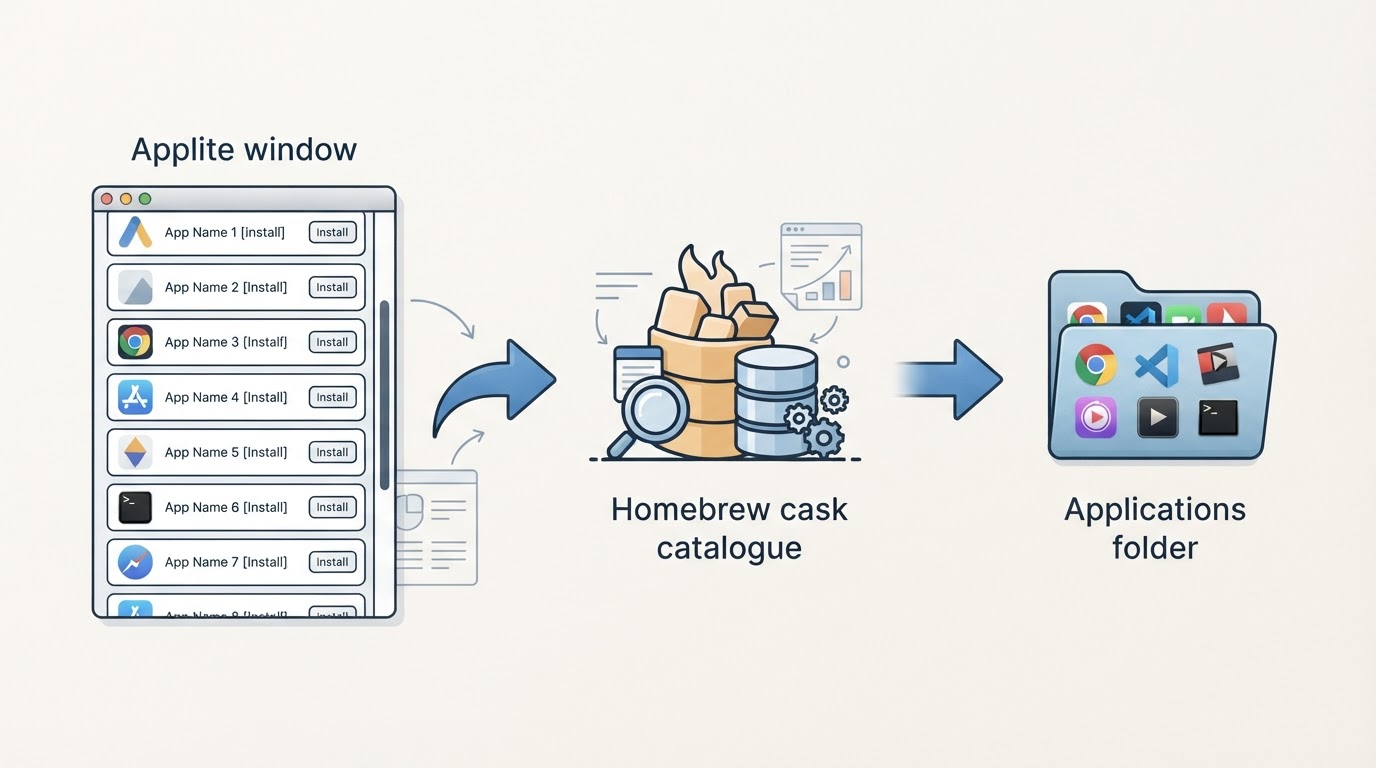
The point of the app is the part of the job it removes. If you install GUI applications a few times a year, you do not want to remember cask tokens, update commands, or the difference between an app that needs a formula and one that needs a cask. Applite turns that into browsing. If you already maintain a Brewfile, script installs across machines, or manage formulae and background services, the command line is not the obstacle, and a GUI adds little beyond a second place to look.
So the honest summary is narrow: Applite is a front end for casks. It is not a replacement for brew, and it does not manage the command-line tools that brew also installs.
Three ways to install it
There are three practical installation routes, and they differ in how much you have to trust the build you receive.
1. Through Homebrew itself. The cask token is applite, so a machine with Homebrew already installed can add the app with:
brew install --cask applite
This is the route that keeps everything in one update story: the cask definition records where the app came from, and brew upgrade --cask applite remains available if you later prefer the command line. If you are installing Applite precisely because you do not want a command line, this route defeats the purpose on a fresh machine, although once the app is running, its own self-contained setup can take over.
2. From the project's release page. Applite publishes release builds on GitHub. Download the build for your Mac from the project's Releases page, open the disk image or archive, and move the app to the Applications folder. Builds distributed this way are signed ad hoc rather than notarized through an Apple developer account, and macOS reacts to that by blocking the first launch with a message that the developer cannot be verified. The usual fix is to remove the quarantine attribute from the app bundle:
xattr -dr com.apple.quarantine /Applications/Applite.app
The same effect is reachable without a command: after the block, open System Settings, go to Privacy & Security, and use the Open Anyway control for the blocked app. Both actions tell macOS you have decided to trust this specific bundle, so apply them only to a build you downloaded from the project's own release page. Never run a quarantine-clearing command against an app whose origin you cannot name.
3. From source. The repository includes a Makefile with the targets you would expect from a Swift project: make app builds the application bundle, make test runs the test suite, and make dist produces a distributable build. Building it yourself requires Xcode and the Swift toolchain, which is a larger commitment than the two routes above. Treat the Makefile as the authority for build steps and re-read it at the release tag you check out: build targets change between versions, and stale instructions are the most common source of confusing build failures.
Whichever route you take, check the release notes for the tag before installing. The notes carry the minimum macOS version, the changes in that build, and any known issues, and they are the only part of the distribution that can tell you whether the build matches the machine you are about to put it on.
First launch: what the app sets up
Applite is built to work on a Mac that has never had Homebrew. Instead of requiring Command Line Tools and a terminal-based first install, it sets up and manages its own Homebrew instance. That is why the first launch does more work than opening a window: the app prepares a package manager, then a catalogue for it to read.
Two things follow from that design.
First, expect an administrator prompt during setup. Installing a package manager and placing applications where macOS keeps them requires elevated permissions, so the app will ask for your password at the point where it starts writing to protected locations. The prompt is the standard macOS authorization dialog, not an Applite-specific account. Read what it asks for and answer it at the moment it appears, rather than pasting a password into any other window.
Second, expect the app to own its Homebrew rather than borrow yours. The directory it uses is documented for the release you install, and the exact location is not worth assuming from a guide written for an older version. If you already run Homebrew in the terminal, treat the two installations as separate inventories: an application installed through one of them is not automatically visible as installed in the other, and reinstalling the same app through both paths is how you end up with duplicates and confusing update behaviour. Pick one owner per application and stay with it.
The cask and formula distinction matters here too. Applite browses casks, which are complete applications. Formulae, which are command-line tools, libraries, and services, remain outside its catalogue even though they come from the same package manager. A reader looking for a compiler or a background service will not find an install button for it in Applite, and that is by design rather than a gap in the current release.
Browse, install, update, uninstall
The four actions that make up the app's working loop correspond to four Homebrew operations, and knowing the mapping is what lets you predict what the app will do.
Browsing presents the cask catalogue as a searchable list. You find an application by name, read its description, and see what version the catalogue currently carries. This is the equivalent of searching the cask index, with the difference that the result is a window you can act in rather than a token you have to copy.
Installing downloads the application and places it in the Applications folder. Behind the action is the same operation as brew install --cask, which means the installed app is recorded in the cask database and can be updated or removed later without leftover bookkeeping.
Updating compares the versions you have installed against the versions the catalogue now carries and offers to bring them forward. This is the equivalent of brew upgrade --cask, collected in one place. Applications that ship their own updater may appear in both systems, so let one of them own the update or you will spend time reconciling two versions of the same decision.
Uninstalling removes the application and its cask record. The caveat is the one that applies to every package manager: an uninstall stanza can only remove what the recipe author described. Preferences, caches, and support files that the recipe does not mention survive, and they have to be cleaned up by hand.
Exact labels and layout change between releases, so this section describes the operations and their results rather than pixels. Check the version you install if you need the exact wording of a control.
Project facts
- License: open source, with the terms in the project's LICENSE file. Check that file at the version you install before redistributing or bundling the app; this article does not restate the license identifier.
- Platform: macOS. The minimum supported version is stated in the release notes for each build.
- Written in: Swift, with a SwiftUI interface.
- Version reviewed: not pinned in this article. No build number is asserted; read the release notes for the tag you install.
- Repository: the Applite project on GitHub, milanvarady/Applite.
License summary
For an application you install on your own Mac, the license is mostly a maintenance question: whether the project can keep shipping, and whether the terms allow the way you use it. For anyone installing it inside a company, the same file becomes a compliance question, because the license governs redistribution, modification, and bundling, including whether you can ship the app inside an internal image.
The practical check is short. Open the LICENSE file in the repository, read what it permits, and confirm it still matches what you assumed if you last checked a different major version. Each cask also carries license metadata in the catalogue, but the file is the authority. Homebrew itself, the formulae, and the casks are all licensed separately, so installing one does not place the others under the same terms.
The limits are worth understanding
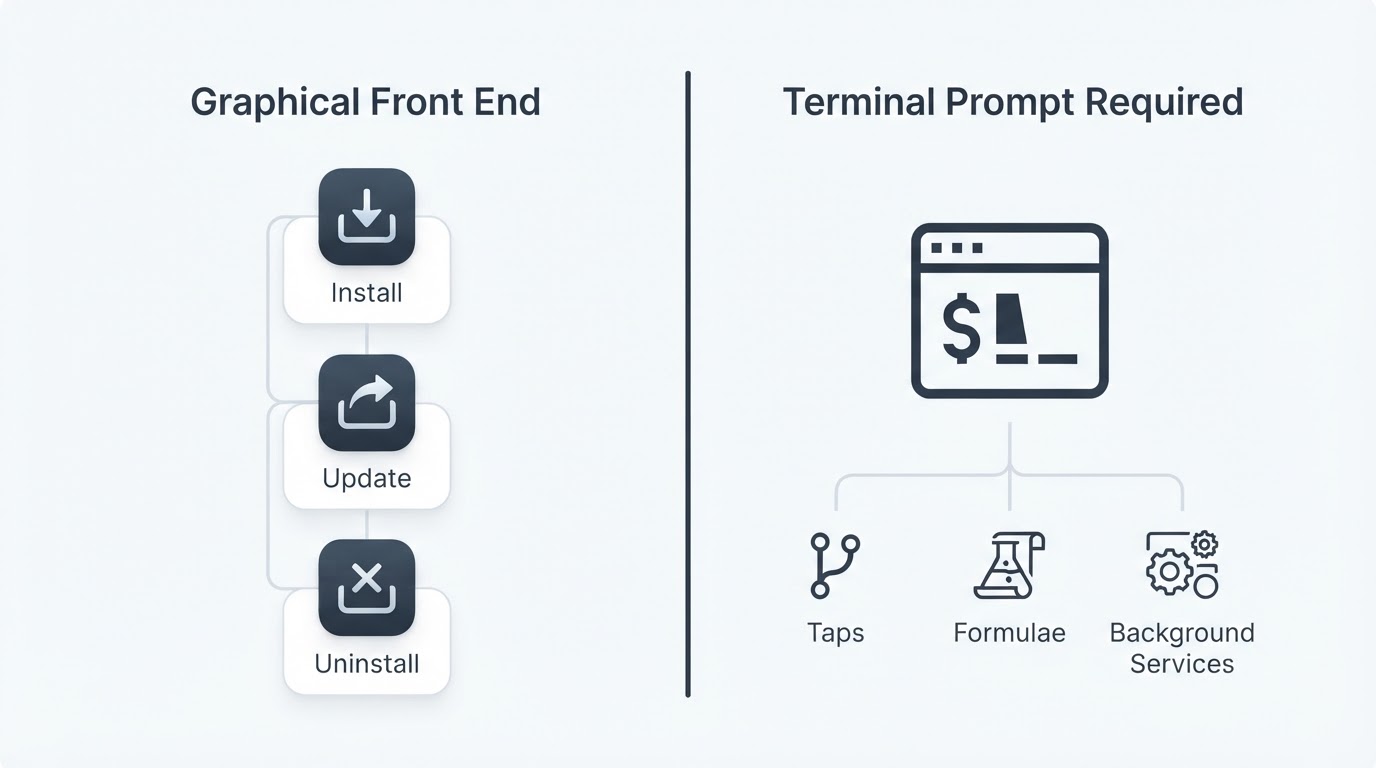
A graphical front end inherits the limits of the tool underneath it, and it adds a few of its own.
Some operations stay in the terminal. Adding third-party taps, installing or managing formulae, running services in the background, cleaning old versions, and diagnosing a broken setup are all parts of Homebrew that Applite does not put a face on. If those are a regular part of your work, the app is a convenience for one narrow slice of that work and not a replacement for the command line.
Some applications cannot appear in the catalogue at all. If a developer does not publish through Homebrew, no cask exists to browse, and no front end can install it. The answer in that case is the vendor's own installer, a tap maintained by the community, or a manual installation, not a setting inside Applite.
The package manager itself is a trust decision. Installing a cask is not the same as installing from the App Store: recipes can run install and uninstall scripts, and they can place files outside the application bundle. Applite makes that process more comfortable to look at, not more sandboxed. The useful habit is to check what a cask installs before running it, and to prefer applications whose recipe you can inspect.
Updates carried by the app are only as current as the catalogue it reads. If it has been a while between launches, let it refresh before you trust the version list, and treat an in-app update the same way you would treat the equivalent command.
Should you use it?
Use it if the applications you install are mostly GUI apps, you like seeing the catalogue before you commit, and keeping updates in one window matches how you already work. The install is short, the app is open source, and the uninstall path is clean enough that trying it is a low-risk decision.
Skip it if your work depends on formulae, taps, background services, or scripted installs, or if you already manage machines with a Brewfile and a terminal-first process. In that world the GUI is a second surface to maintain, and every action it performs is one you would rather express as a command.
The middle case, a Mac where you install a handful of applications a year and mostly want them updated without thinking about it, is where the app fits best. Pair it with one rule: know which manager owns each application, and let that manager handle both its installation and its updates.


