Why the order matters more than the step
A frozen app on Apple TV rarely means the app itself is broken. Most of the time a single process has stopped responding, or it failed to finish loading something during its last launch. Both problems sit above the rest of the system, so the cheapest fix is also the one that changes the least: close the process, open it again, and escalate only if the same failure repeats.
That order is deliberate. Force-quitting costs nothing and deletes nothing. Restarting the Apple TV closes every app and rebuilds the system state, which is heavier but still loses no data. Deleting and reinstalling an app costs the most, because you have to sign in and set it up again. Working from the lightest step upward means you stop as soon as the problem goes away instead of resetting things that were never involved.
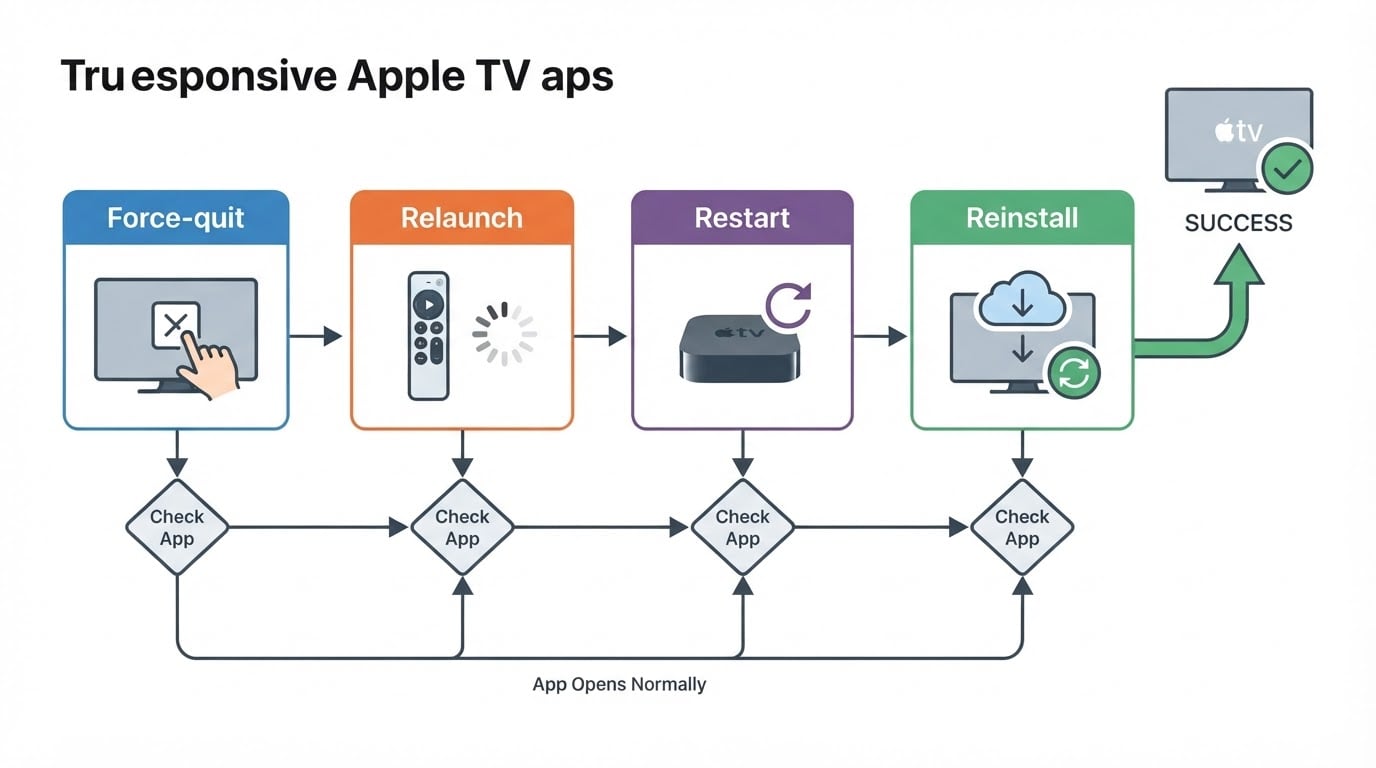
One boundary before you start: this guide stays at the app layer. It deliberately leaves Wi-Fi, router, HDMI and signal problems, and failing hardware to a separate procedure. The final section shows how to recognize those cases so you do not keep escalating in the wrong direction.
Step 1: force-quit the app that stopped responding
Force-quitting closes the running instance of an app so the next launch starts from a clean state. It does not delete the app, sign you out, or change settings. The destination is the same on every current Apple TV: the app switcher, where open apps appear as a row of previews, and a swipe closes the one you select.

What changes between remote generations is the surface you swipe and, on the oldest remotes, whether an app switcher exists at all.
Siri Remote, 2nd generation or later
This is the aluminum remote with a circular clickpad inside a ring, including the USB-C version.
- Double-press the TV button, the one marked with a TV icon beside the clickpad. The app switcher slides in from the top.
- Swipe up on the clickpad to close the highlighted app.
- Press the Back button to return to the Home screen.
Expected result: the app preview disappears from the switcher, and the app is no longer running. Holding the TV button instead opens Control Center, so keep the two presses quick rather than one long press.
Siri Remote, 1st generation
This is the black remote with the glass touch surface above the buttons.
- Double-press the TV button in the same way. The app switcher appears.
- Swipe up on the glass touch surface to close the highlighted app.
- Press the Back button to leave the switcher.
Expected result: identical to the newer remote, minus the click. If you are not sure which remote you have, look at the surface: glass with no physical click means first generation; a clickpad that moves under your thumb means second generation or later.
Older Apple Remote
On Apple TV (3rd generation) and earlier, the interface has no app switcher and no per-app quit. Skip straight to Step 3 and restart the device; there is nothing to close at the app layer on that generation.
If the double-press does not behave as described
tvOS has relabeled and remapped controls across releases. If a double-press opens something unexpected, press the Back button until you reach the Home screen and try again, making sure the presses are quick and not a hold. If the switcher still refuses to appear, use the restart in Step 3 and treat the force-quit as unavailable on your version.
Step 2: relaunch once and read what happens
Open the app again and give it a full minute. What you see next decides whether you continue at all.
- It opens and responds. Press Play on something. If the app plays normally, you are finished; leave the other steps alone.
- It freezes on the same screen as before. The process hung a second time. Move to Step 3.
- It opens but never finishes loading. The process is alive, so the local app is not the primary suspect. Check one other app before you continue; if that one also stalls while loading, treat it as a connection-path problem rather than an app problem.
- It quits to the tvOS Home screen by itself. A clean relaunch that crashes points to the local copy or its saved data. Restart first, then go to Step 4.
- The whole interface is slow or ignores input. This is no longer one app misbehaving. Go to Step 3 immediately.
Expected result of this step is not a fix; it is a classification. You either stop because the app works, or you leave with the evidence that separates an app-level failure from a device-level or connection-level one.
Step 3: restart the Apple TV
A restart closes every app, clears temporary state, and brings the device back to the Home screen. It does not erase data, sign-ins, or preferences.
- Open Settings.
- Open System, then choose Restart.
- Confirm and wait. The Home screen returns in about a minute.
On older Apple TV software the path is Settings, then General, then Restart. If the screen is frozen and you cannot reach Settings at all, unplug the power cable from the wall or from the back of the Apple TV, wait about ten seconds, and plug it back in. The Apple TV box has no power button, so the cable is the only way to force a restart.
Restart when: the force-quit did not hold, more than one app misbehaves, the Home screen itself lags, or the app crashed on relaunch.
Then test in the right order. Open the app that failed first, before any other app. If it works, stop; the restart cleared the state. If it freezes again while every other app streams normally, the local copy or its saved configuration is the likely cause, and Step 4 is the remaining app-level move. If every app misbehaves again shortly after the restart, or the Home screen never returns, the fault is above the app layer; stop and read the next section instead of repeating this step.
Step 4: reinstall the app
Reinstalling is the strongest app-level reset available. Deleting an app removes its local settings and cached files; installing it again gives you a clean copy, at the cost of signing in and reconfiguring your preferences.
To delete the app:
- From the Home screen, move to the app icon.
- Press and hold the touch surface (1st generation Siri Remote) or the center of the clickpad (2nd generation or later) until a menu appears, then choose Delete App.
- On some tvOS versions the icon enters jiggle mode instead. Select the app and press the Play/Pause button to delete it, then press the Back button to leave the mode.
To install it again, open the App Store, search for the app by name, and choose Get.
Expected result: the app launches as if it were new and asks you to sign in. A first launch may take longer than usual while it rebuilds its cache.
Stop after one clean reinstall if the failure returns. A fresh copy that freezes at the same moment, in the same place, is evidence that the problem is not your local app copy. Reinstalling again will not change that result; check whether the service itself is having trouble, using its own status page or reports from other users, and leave the app alone until that clears.
Which symptom points to which step
What you see | Next move | Expected result |
|---|---|---|
One app freezes while others still open | Force-quit, then relaunch (Steps 1-2) | The app reaches its own home screen and plays normally |
The same app freezes at the same screen after two launches | Restart the Apple TV (Step 3) | The app opens from a clean system state |
The Home screen and every app feel slow or ignore input | Restart immediately (Step 3) | Input responds and apps open at normal speed |
The app quits to the Home screen by itself | Restart, then reinstall (Steps 3-4) | A fresh copy launches and stays open |
One app cannot load content while others stream fine | Restart, then reinstall (Steps 3-4) | Content loads, or the fault is confirmed as server-side |
Every app stalls while loading | Check the connection path, not the app | Menus stay responsive; only loading fails |
When the fault is not app-level
Stop working on the app when the symptoms belong somewhere else. The following patterns are outside this procedure on purpose:
- Menus respond but nothing loads in any app. That is a connection path problem: Wi-Fi band, router, DNS, your provider, or the content service itself.
- No picture, no signal, or the TV does not detect the Apple TV. That is a cable, port, or TV input problem.
- The Apple TV restarts on its own, runs hot, or never reaches the Home screen. That is a system or hardware problem.
- Only one service fails while everything else plays. That can still be that provider's outage rather than your app; confirm it before you delete anything else.
More force-quits and reinstalls will not fix any of those, and each one costs you setup time for nothing. Hand the case to the matching procedure instead.
Quick recap
- Force-quit the app from the app switcher; the remote generation only changes the surface you swipe.
- Relaunch once. Same freeze means restart; no loading means check the connection path.
- Restart from Settings, System, Restart, or unplug the power cable for ten seconds when the screen is frozen.
- Reinstall only after a restart fails, and stop if the fresh copy fails at the exact same moment.


