What Changes When You Switch by Window
Press Command+Tab on macOS and you cycle through running applications: one icon per application, one name at a time. Open three documents in the same editor and the system switcher still offers a single entry for that editor.
A window switcher changes the unit of switching from the application to the window. Every open window becomes its own entry, including several windows from the same application, and each entry carries a thumbnail instead of a generic icon. AltTab for Mac is one project built around that model, and it is the reference tool in this guide.
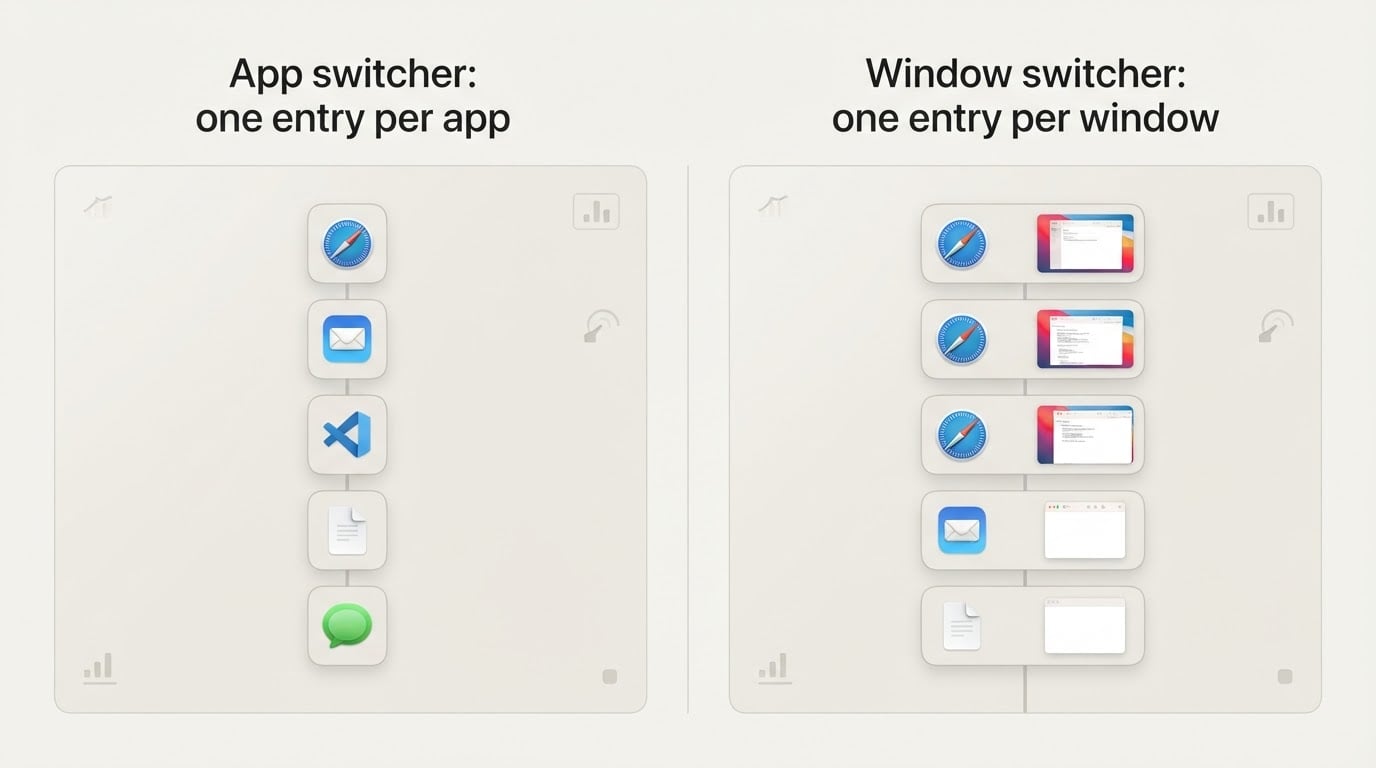
The difference is easiest to feel where the system switcher is slowest. Two browser windows hold the same account under different tabs. A chat window and the main window of one application are both open. The window you want sits on another Space while the active Space belongs to something else. Window-level switching removes the second step — bring the application forward, then hunt for the window — because the window is the target from the beginning.
The trade-off is architectural. Application icons are free, because the system already has them. Thumbnails must be captured, and macOS does not hand out the pixels of other applications' windows without an explicit permission.
Installing AltTab for Mac
Three distribution routes are realistic, and they differ in how much verification work they leave with you. All three end at the same question: which build is now running on your Mac?
Homebrew cask. The package-manager route is the easiest to verify, because the cask metadata names the source it downloads. Search before you install, and continue only if the result matches the project you intend to run:
brew search --cask alt-tab
brew install --cask alt-tab
If the search returns more than one candidate, stop and compare the pages behind them. Then open the application, find its about window, and record the version string before changing any setting; it is the first fact you will need when a behavior problem appears.
Release archive. The project's releases page distributes a build as a downloadable archive. Download the latest release, and if the project publishes a checksum, compute the hash of your file and compare it before opening anything. Unzip, drag the application into /Applications, and try a normal launch.
Gatekeeper may refuse the first launch if the build is not notarised, and the widespread advice is to strip the quarantine attribute:
xattr -dr com.apple.quarantine /Applications/AltTab.appDo that only after the checksum or the signature verifies. The quarantine flag exists so an unnotarised binary cannot run silently, and removing it is a deliberate reduction of that protection. If the release notes state that the build is notarised, the command is unnecessary; if the download offers neither hash nor signature, prefer the cask or a source build.
Source build. Cloning the repository and building in Xcode gives you the most control and the least convenience. Check out a release tag rather than the default branch, read the build instructions for the Xcode and macOS versions the project expects, and expect to sign the result with your own development identity. A source build is also the only route that tells you exactly which commit you are running.
Installation is not the hard part. The permission that follows is where most of the risk and most of the surprise live.
Granting Screen Recording Permission
macOS does not let a third-party application read the pixels of another application's window without the Screen Recording permission. A switcher without it can still change focus, but it cannot draw a live thumbnail, and most implementations of this class fall back to application icons or a plain text list.
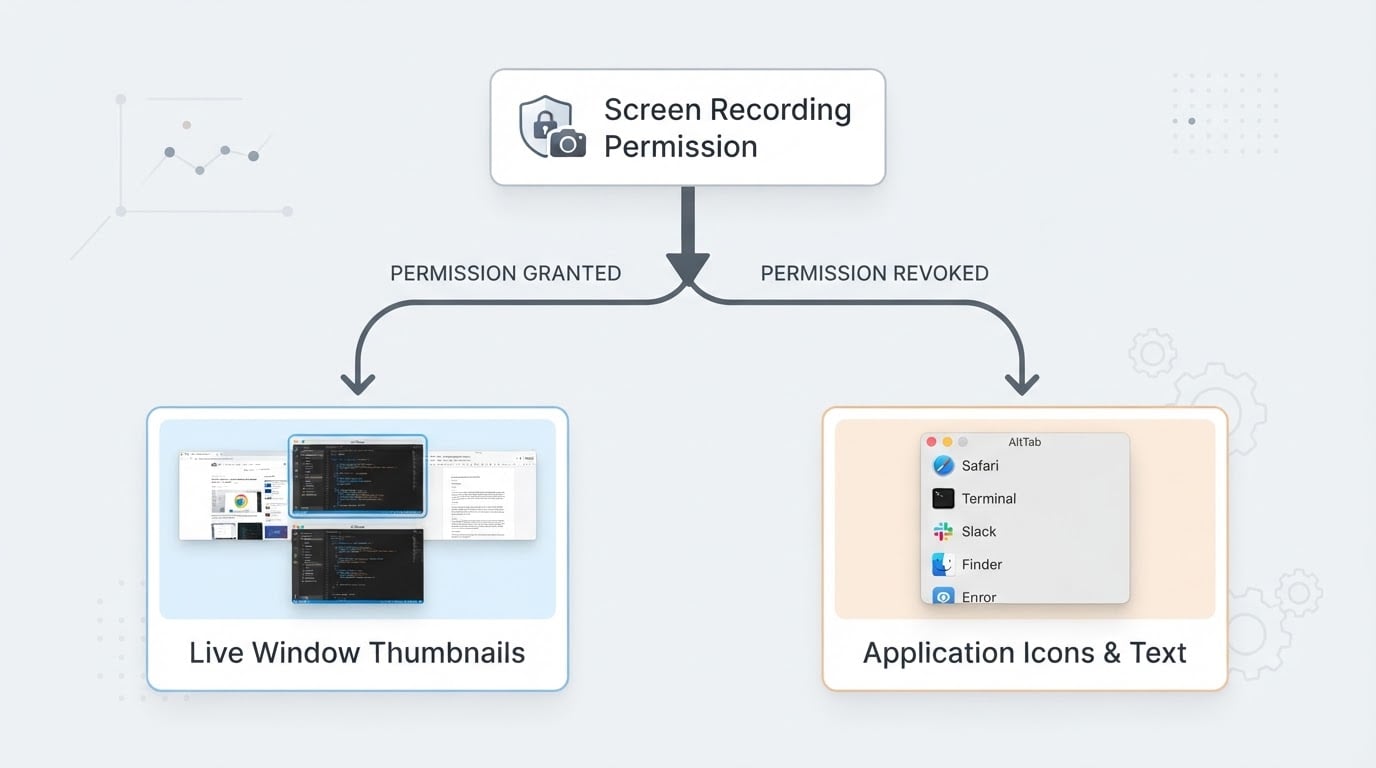
The usual sequence is short. Launch the application and open its first-run prompt or preferences. When macOS shows the permission dialog, follow it into System Settings and open Privacy & Security, then Screen Recording. Enable the toggle for the switcher and relaunch the application, because most builds capture the permission only at startup. If no dialog appears, add the application manually with the plus button in the same panel.
What the grant actually allows deserves a straight sentence. While the permission is enabled, the application can capture the contents of any window on your display, including windows you would never show in a thumbnail: a password manager, a banking session, a private message thread. It is the same permission that screenshot tools and screen recorders request, and reviewing the apps that hold it once or twice a year is a reasonable habit.
Two details are worth checking on your own Mac, because macOS changes this area between releases. The first is whether the system shows a recording indicator in the menu bar while the application runs, which tells you when captures are possible rather than when they happen. The second is whether the permission survives a major system upgrade; if previews disappear after an update, re-check the toggle before reinstalling anything.
Revoking the permission is also the cleanest test of whether you want the tool. The switcher keeps working at the icon level and the thumbnails stop. If you miss them, the permission was earning its place; if you do not, you have an answer without uninstalling.
Walking Through the Switching Behavior
The minutes that decide whether a switcher fits your habits are spent against the windows you already have open. The table below is a completion standard rather than a feature list, and every row is observable in under a minute.
Check | What a window-based switcher shows | If the result differs |
|---|---|---|
Several windows of one application | One entry per window, not one entry per application | Confirm you are using the switcher's trigger, not the system Command+Tab |
Windows on another Space | Entries for windows on other desktops, or a preference that includes them | Turn on the Spaces option; some builds list only the active Space |
A fullscreen window in the background | A fullscreen Space appears as an entry, and focus moves without leaving you on a blank screen | Test with two fullscreen applications and note how your macOS version animates the switch |
Minimized windows | Included with a marker, or excluded by a setting you control | Set the preference explicitly so the behavior is predictable rather than accidental |
Two displays | Entries labeled by screen, or a preference limiting entries to one display | Decide deliberately whether the switcher should cross displays |
Repeated trigger presses | The highlight walks through entries and cycles at the end of the list | Check the keyboard repeat or navigation setting the application documents |
The default trigger is usually the Windows-style Option+Tab combination, sometimes with additional configurable shortcut sets. Confirm what your build maps before you rewire muscle memory, and scan the shortcut list for conflicts: two applications claiming one combination produce behavior that looks like a bug in both of them.
The completion standard is simple. When you can reach the correct window of the correct application in two keystrokes, without touching the Dock, Mission Control, or the application's window menu, the switcher is doing its job.
Preferences Worth Changing First
The defaults are chosen for a first impression, not for a desktop with thirty windows. Five areas are worth a pass.
Trigger and shortcut sets. Many builds support more than one shortcut, which lets you keep Option+Tab for recent windows and dedicate a second combination to the current application's windows. Write down what you assign; undocumented muscle memory is harder to debug than a documented shortcut.
Thumbnail size and grid. Larger thumbnails make similar windows readable but hide the shape of the list. Test density at the size you actually work at, not at full screen.
Ordering. Most-recently-used ordering matches the Windows habit and rewards quick double-taps. Application-grouped ordering is easier to scan when you know the application but not the window.
Appearance. Two similar documents look alike at small sizes. Higher contrast and a clear highlight reduce the time you spend reading an entry you already selected.
Exclusions. Utility windows, updaters, and background helpers add noise without ever being a destination. Hiding them is usually the single change that makes a list feel short.
Exact setting names differ between versions, which is why these checks describe outcomes rather than menu paths.
Where the Free Version Ends and a Paid One Begins
Window-switcher downloads that share a name do not always come from the same publisher, and search results mix free projects with commercial products. The free-versus-paid boundary is therefore something to verify for each download rather than assume from the name.
The check takes three steps and works for any tool in this category.
First, identify the publisher. An open-source project page names the repository it publishes from. A commercial page names a company, and often a price. If those do not match, you are looking at two different products, and the comparison on the commercial page describes its own build.
Second, read the primary artifacts for the version you installed: the repository's README for what the project claims to include, the license file for what you may do with it, and the release notes for the tag you downloaded. Release notes are the better capability record, because they say what changed and when.
Third, list what a paid page advertises and mark each item against those artifacts. Note the differences as differences. A feature a README omits is a documentation gap, not proof of removal, and a feature on a pricing page is a product claim, not proof that the open-source build lacks it. When the two sources conflict, record both statements and the date you checked them, and let the build you installed decide the rest.
License Summary
The license governs what you may do beyond running the application on your own Mac: bundling it into a machine image you manage, shipping it inside another product, publishing a modified fork, or using it commercially. For a single user installing a window switcher, the practical questions are narrower — whether redistribution is allowed, and what attribution is required if you share the build.
Read the license from the artifact rather than from a summary. The repository root holds a license file for the current branch, and the release archive often includes the same file for the version you downloaded. Both are more reliable than a download page or a directory listing, which may describe a different build or a different project with a similar name.
Record three things: the identifier exactly as printed, the version or tag the file belongs to, and the date you checked it. If a download page and the repository appear to disagree, the license shipped with the tag you installed is the artifact that applies to your copy, and the disagreement itself is worth noting for the next reader.
Project Facts
The table is a record sheet, filled from the artifacts you install rather than from the page that sold you the download. A fact copied from a listing page tells you what a marketer claimed on a given day. A fact recorded from the build in your Applications folder tells you what is running.
Field | Why it matters | Where to confirm it |
|---|---|---|
Repository | Names the project you installed, and separates it from same-named products | The project page or cask metadata that pointed to your download |
Written in | Determines how easy it is to audit or build yourself; it does not affect daily use | The repository's language statistics and build instructions |
Platform and minimum macOS | Decides whether the build runs on an older Mac, and whether an upgrade will strand it | The release notes for your tag, or the README requirements |
License | Governs redistribution, bundling, and forks | The license file at the repository root and in the release archive |
Version reviewed | The most useful fact when a behavior changes or a bug is reported | The application's own about window, after installation |
Verification date | Separates a current check from a memory | Write today's date next to the version string |
Two rules keep the sheet honest. Confirm each value from the artifact named in the third column rather than from a search result, and re-check the platform requirement before every major macOS upgrade, because that is the field that most often invalidates an otherwise working setup.
The Limits Are Worth Understanding
A window switcher replaces an interface that is limited but nearly free of obligations. The comparison below is not a scorecard; it is the list of costs you accept when you install one.
Criterion | System Command+Tab | Window-based switcher |
|---|---|---|
Unit of switching | One entry per application | One entry per window |
Preview | Application icon and name | Live thumbnail, once the permission is granted |
Permission required | None beyond the system defaults | Screen Recording |
Maintenance | Handled by macOS updates | Depends on the project keeping pace with macOS |
Failure mode | Rarely fails, rarely improves | Degrades quietly after an OS update |
Extra capabilities | None | Ordering, scaling, appearance, shortcut configuration |
Five limitations are worth naming before the verdict.
The permission is the real price. Thumbnails cannot be drawn from metadata, so any tool in this category holds a capability that can read the contents of every window on your display. That is a broad grant for a convenience feature, and it deserves the scrutiny you would give a screen recorder.
The dependency on a third-party project is the second cost. macOS changes the interfaces that window enumeration and display control rely on, and a switcher that worked before an upgrade can stop showing windows until a new release ships. Keeping the application's update mechanism enabled, or checking release notes after each major update, is the difference between a tool and a liability.
Shortcut conflicts are the third. Assistive tools, launchers, and remote-desktop clients all like to claim Option+Tab and similar combinations. When two programs hold the same shortcut, both appear broken, and the failure follows focus rather than the application, which makes it hard to diagnose.
The fourth limitation is scope. A window switcher moves focus. Automatic tiling, layout management, and snapping belong to a different class of tool, and a switcher is not a substitute for one. If the goal is window arrangement rather than window selection, this is the wrong category to install, however well the switcher performs.
The fifth is resource use. Capturing thumbnails takes memory and, on some Macs, measurable energy. Open Activity Monitor once with the switcher idle and once while cycling through twenty windows, and decide from the numbers rather than from the idea of the feature.
Should You Use It?
Use a window switcher when the list of open windows is long enough that application-level switching costs you a second step every time. That describes people who keep several documents of one application open, who work across two displays, or who arrived on macOS with a Windows habit of reaching for Option+Tab without looking at the screen.
Skip it when the system switcher is enough. If you generally run one window per application, Command+Tab already does the job, and the Screen Recording permission buys very little. Skip it as well if your Mac is managed by an employer that restricts Screen Recording access, or if you will not check the permission after major system updates.
The decision takes about ten minutes. Install through the route whose source you can verify, grant the permission, run the checks in the switching table, and then revoke the permission for a day. If the missing thumbnails annoy you, the tool has earned its place. If they do not, you have removed a broad permission from your Mac and lost nothing that mattered.
That is the useful way to read this category: not as a replacement for Command+Tab, but as an addition that has to earn a permission. The behavior above is described as checks to run rather than a version to trust, because checks survive upgrades and version numbers do not.


