What a Charge Ceiling Actually Changes
A laptop that lives on a desk spends most of its battery life in the one state that ages a lithium-ion cell fastest: fully charged, warm, and plugged in. The chemistry does not stop when the charger is connected. Time held at a high state of charge, combined with the heat a working Mac produces, is the part of battery aging that a charging habit can influence.
A charge ceiling is the simplest available lever. Instead of letting the battery sit at the top of its range all day, the tool holds it at a level you choose; AlDente on a Mac is a menu-bar tool built around exactly that idea. On a MacBook that is unplugged twice a week, the difference is small. On one that leaves the house once a month, the ceiling is the whole argument for installing the app.
What a ceiling does not do is equally important. It cannot undo wear that already exists, and it does not change the cell you own. It does not make the Mac cooler, and it does not remove the need to read what the tool asks for during setup. Treat it as one lever among several, not as a maintenance program.
Before You Set the Limit
Three checks come before any download.
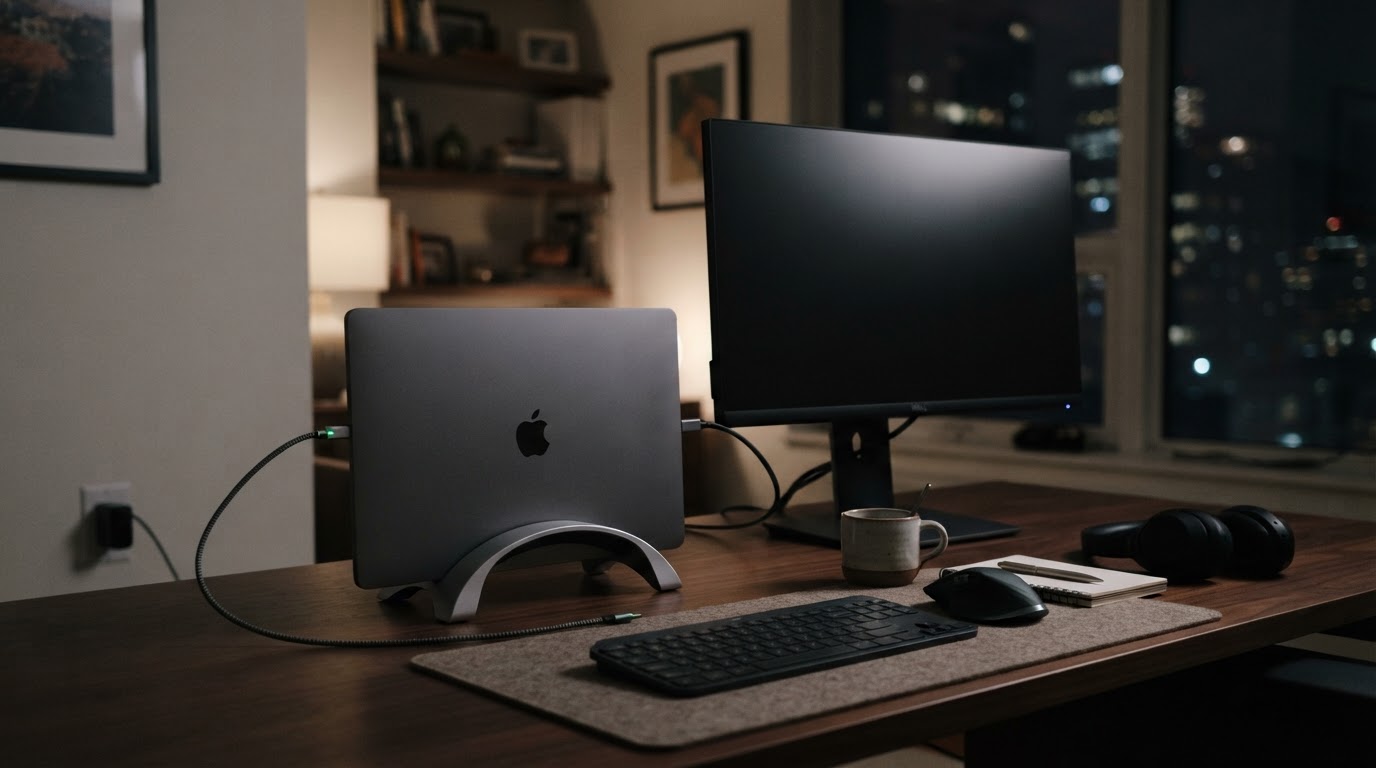
First, decide whether a ceiling matches how you use the Mac. A limit earns its place only when the laptop stays plugged in long enough for the top of the range to become its resting state.
Plugged-in pattern | A workable starting ceiling | What you give up |
|---|---|---|
Docked almost every day, unplugged a few times a month | 80% | Part of a runtime you rarely use |
Docked most days, carried occasionally | 80–90% | Little; the tool mainly trims time spent at full |
Travelling most weeks | Keep the ceiling high, or set none | The aging benefit you were chasing |
Those figures are conventions, not measurements. The right number is the lowest level that never leaves you short before you can reach a charger.
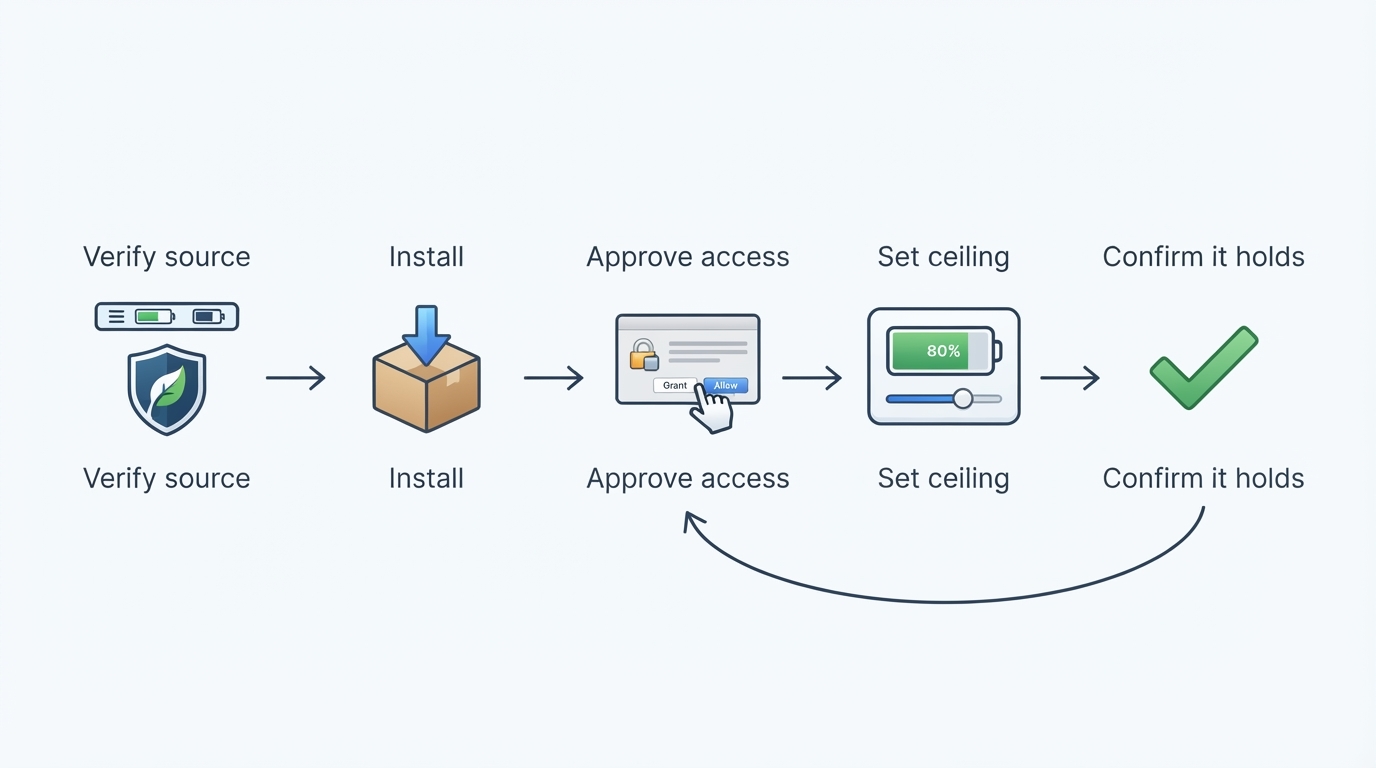
Second, install from a source you can identify: an official project page, a release archive from the project's own repository, or a package manager whose metadata names the source it downloads. Record the version string before you change a setting.
Third, know your macOS version and keep it visible. Battery-control tools sit close to system interfaces, and Apple changes those between releases.
Setting the Ceiling, Step by Step
Check the download before you open it. If you install through Homebrew, search first and confirm what returns:
brew search --cask aldenteIf the search returns nothing, use the project's own download page instead of a third-party listing. If it returns a cask, confirm that the source named in its metadata is the project you intend to run. Two products with a similar name in the same category is a normal search result, not an unlikely one.
Give the tool the access it needs. Charging control is not something macOS hands to ordinary applications. A menu-bar limiter therefore either asks for elevated authorization during setup or installs a privileged helper, and the wording of that prompt has changed between releases. The important check is not the wording but the scope: confirm that what the prompt describes matches the job of limiting charge.
Open the menu-bar control and set the ceiling. The menu shows the current charge, the limit control, and the switch that turns limiting on. Choose the level you settled on above and apply it. Item labels are version-dependent, so record what your build shows rather than trusting a screenshot from another release.
Confirm the ceiling holds. This is the completion standard, and it takes a charge cycle or two: bring the Mac above your ceiling while plugged in, then watch. A working setup stops somewhere at or just below the limit and reports that it is holding rather than charging. If the charge climbs past the ceiling, the helper or the permission is not active.
What Happens When the Mac Sleeps or the Lid Closes
A charge ceiling is not a hardware change. Nothing inside the battery is different; an application is asking the system to stop charging. The question for every plugged-in Mac is therefore what happens when the application is not in a position to ask.
While the Mac is awake, the tool can act through its helper. With the lid closed and the Mac asleep, behavior differs between models and macOS versions, and it can change with an update. Some setups hold the ceiling through sleep; others let the charge move by a few points before the limit is reasserted on wake.
Fully shut down, no application is running at all. Whatever the built-in charging behavior of the hardware does continues, and the ceiling you set has no effect until the Mac starts again.
The practical answer is a two-night test rather than trust in a feature list. Finish a day above your ceiling, leave the Mac plugged in with the lid closed overnight, and read the charge level in the morning from the system battery pane. Repeat once with the Mac shut down. If the level holds in the first case and moves in the second, the tool is doing its job and you have learned the difference on your own hardware.
AlDente and Optimized Battery Charging
macOS ships its own mechanism for the same problem. Optimized Battery Charging learns a daily pattern: when it expects a long session on the charger, it holds the battery below full, typically around 80 percent, and finishes charging before your usual unplug time. It is adaptive, invisible, and it keeps the top of the range out of the battery's day.
A fixed ceiling and the system feature aim at the same window of charge, and that overlap is the source of most confusion in this category. The system feature moves its target according to a schedule it infers; a limiter holds a number you chose. When both are enabled, the machine can look inconsistent: charging resumed at an odd hour, a level that sits above the ceiling, or a limit that appears to be ignored.
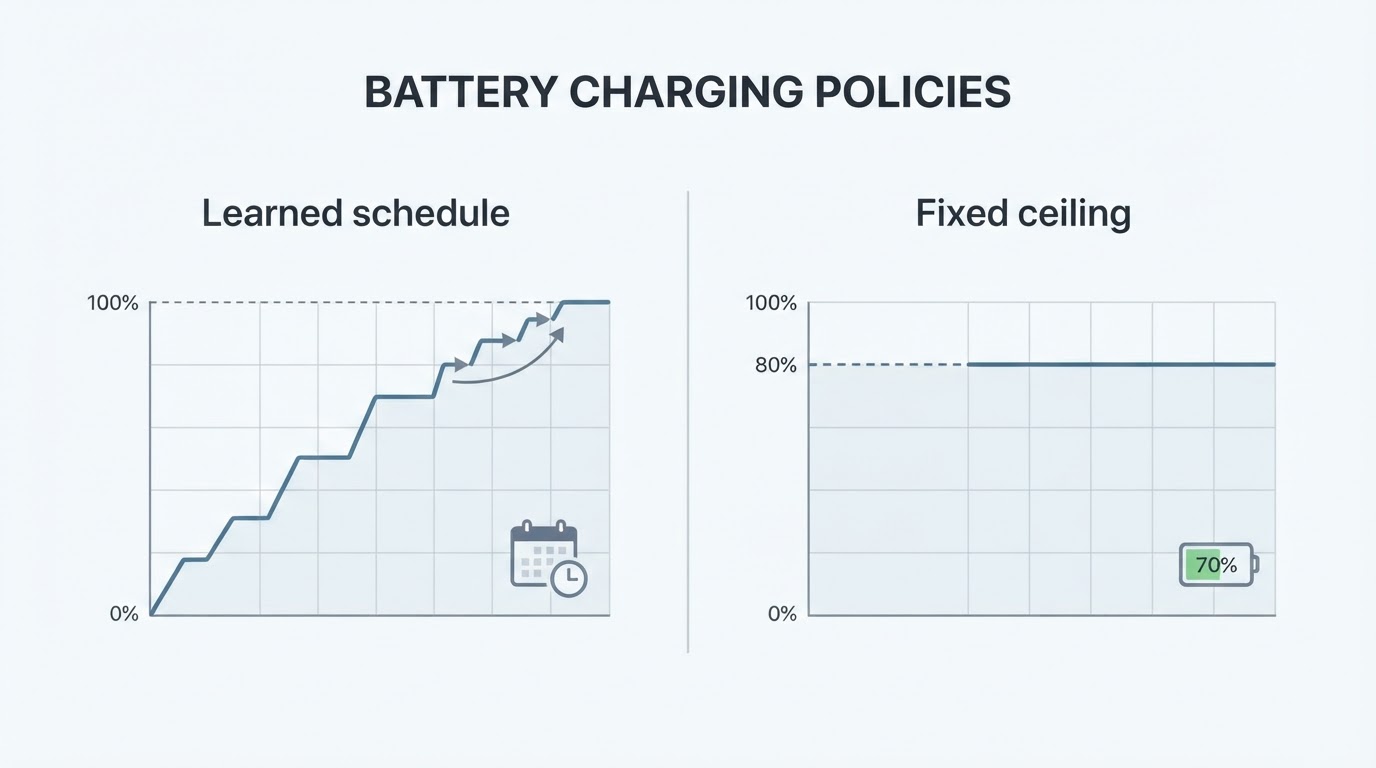
Two rules keep it simple. Decide which mechanism owns the policy. If you set an explicit ceiling, treat the system feature as redundant and check its setting rather than guessing at the cause; if you prefer the built-in behavior, keep the ceiling high or switch limiting off. Then, when a result looks wrong, read the current battery pane and the menu-bar control before changing either.
The Limits Are Worth Understanding
Battery health claims are easy to overstate, and this is where the honest version matters.
The mechanism is real but modest. Lithium-ion cells age faster when they are held at a high state of charge, especially when warm, and a charge ceiling reduces that time. What no page can give you is your own number: how much longer a battery will last, in cycles or months, depends on the cell, the workload, and the temperatures the Mac runs at.
The published claims are vendor claims. Official material for a charging tool exists to explain the feature, and community threads argue about whether the benefit shows up in a health percentage at all. Both statements can be true at once: the mechanism is plausible, and the measured effect for one device is not knowable in advance.
Three limitations are worth naming before any verdict.
The interface is not public. Charging control depends on system paths that Apple can change, and a macOS update can break a limiter without breaking anything else. Checking the project's release notes after a major upgrade is not optional maintenance; it is the price of the feature.
The permission is a real one. A tool that can hold charging at a chosen level has system-level reach, and that deserves the same scrutiny as any other privileged helper, including a periodic look at what still holds it.
The tool is not thermal management. If the Mac runs warm because of its workload, a charge ceiling does not change the temperatures at which the battery sits. Heat and time at full charge are separate stresses, and only one of them is on this menu.
Free Version and Paid Version
The project offers a free build and a paid one, and the boundary between them is exactly the kind of detail that changes between releases. Do not take the boundary from a download page or a directory listing. Verify it against the artefacts of the version you actually installed.
The check takes three steps. Identify the publisher: an open-source project page names the repository it publishes from, while a commercial page names a company and often a price, and if those do not match you are looking at two different products. Read the primary artifacts for your build: the README for what the project claims, the license file for what you may do with the copy, and the release notes for the tag you downloaded. Then list what the paid page advertises and mark each item against those artifacts, recording differences as differences and the date you checked them.
The habit is worth keeping after installation. A limit that behaves differently after an update is easier to diagnose when you know which build you had before.
Project Facts
The table is a record sheet, not a summary of a listing page. Fill it from the artefacts on your own Mac, so that what you write down describes what is actually running.
Field | Why it matters | Where to confirm it |
|---|---|---|
Repository | Separates the project you installed from same-named products | The project page or cask metadata that pointed to your download |
Written in | Tells you how easy it is to audit or build yourself | The repository's language statistics and build instructions |
Platform and minimum macOS | Decides whether the build runs on an older Mac and survives an upgrade | The README requirements or the release notes for your tag |
License | Governs redistribution, bundling, and forks | The license file at the repository root and in the release archive |
Version reviewed | The first fact you will need when a behavior changes | The application's own about window, after installation |
Verification date | Separates a current check from a memory | Write today's date next to the version string |
Two rules keep the sheet honest. Take each value from the artefact named in the third column, not from a search result. Re-check the platform requirement before each major macOS upgrade, because that is the field that most often invalidates an otherwise working setup.
Should You Use It?
Use a charge ceiling when the Mac spends most of its plugged-in life at or near full and you rarely depend on the last part of the runtime. The setup earns its place fastest on a docked laptop: docked every day, carried a few times a month, and left on the charger overnight.
Skip it when you are unplugged often enough that a ceiling regularly leaves you short, when you do not want another menu-bar tool holding system access, or when you would rather let Optimized Battery Charging do the work invisibly. There is no wrong answer in the second case; the built-in feature covers part of the same problem with no installation.
The test that settles it takes two weeks. Set a ceiling, note the charge level when the Mac wakes and when you unplug, and keep the note. If the ceiling never inconvenienced you, keep it. If it did, raise it or remove the tool and let the system feature take over. The setting is reversible, which is the strongest argument for trying it before reading another opinion about it.


